The Principle of Least Privilege means every user gets only the access they need to do their job, and nothing more. It sounds simple, but most Salesforce orgs drift away from it over time. Old profiles collect extra permissions, and nobody removes them.
In this post, you will learn least privilege and zero trust in plain words, find risky permissions with SOQL, and follow a real clean-up plan. Security is named as one of the biggest admin skill gaps in 2026, so this is worth learning well. This builds on profiles and permission sets, permission set groups and muting and user access policies.
What is the Principle of Least Privilege?
The Principle of Least Privilege is a security rule. Each user, integration and admin gets the smallest set of permissions that still lets them work. If someone changes jobs, their access changes too. If they leave, their access ends.
Think of hotel key cards. A guest’s card opens only their room and the gym. A cleaner’s card opens the rooms on one floor. Only the manager’s card opens every door. Nobody gets the manager card just because it is convenient.
Why the Principle of Least Privilege Matters
Most data leaks do not need clever hacking. Instead, they use accounts that have too much access. Here is why the Principle of Least Privilege matters at Bright Path Tutors.
- First, ten users have Modify All Data, but only two are admins.
- Also, an old integration user can export every report.
- Next, sales reps can see payment details they never use.
- A trainer who moved to marketing still has trainer access.
- Finally, auditors ask the company to prove who can change what.
So least privilege reduces both the chance and the damage of a breach.
What is Zero Trust?
Zero trust is a related idea. It means “never trust, always verify”. Even a logged-in user must prove who they are and only reach what they need. In Salesforce, zero trust uses MFA, session security, login IP ranges, login flows and constant monitoring.
Under the shared responsibility model, Salesforce secures the platform. You secure your users, permissions and data. So least privilege and zero trust are your part of the job.
How the Principle of Least Privilege Works in Salesforce
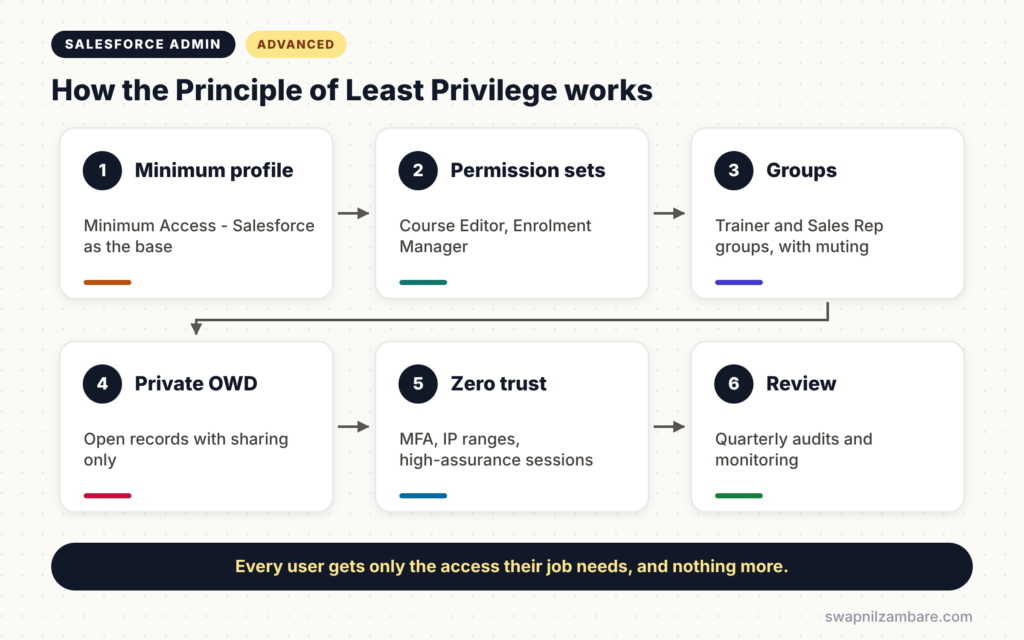
The Principle of Least Privilege works through layers in Salesforce. First, give every user a minimum access profile. Next, add access through permission sets and permission set groups. Then use muting to remove anything a group should not have. After that, keep org-wide defaults private and open records with sharing. Finally, review assignments and monitor activity on a schedule.
Minimum Access Profile
Salesforce provides a profile with very little access, called Minimum Access – Salesforce. Use it, or a copy of it, as the base for most users.
Permission Sets and Groups
Permission sets add access for each job. Then permission set groups bundle them for a role, such as “Sales Rep”. So adding or removing a job takes one assignment.
Risky System Permissions
Some permissions give huge power. For example, the main ones are Modify All Data, View All Data, Customize Application, Manage Users, Author Apex, Export Reports and API Enabled. Keep each one to the smallest possible list of people.
Monitoring
Event Monitoring and login history show what users actually do. If a user never uses a permission, you can usually remove it.
Profile-Heavy Access vs Least Privilege Access
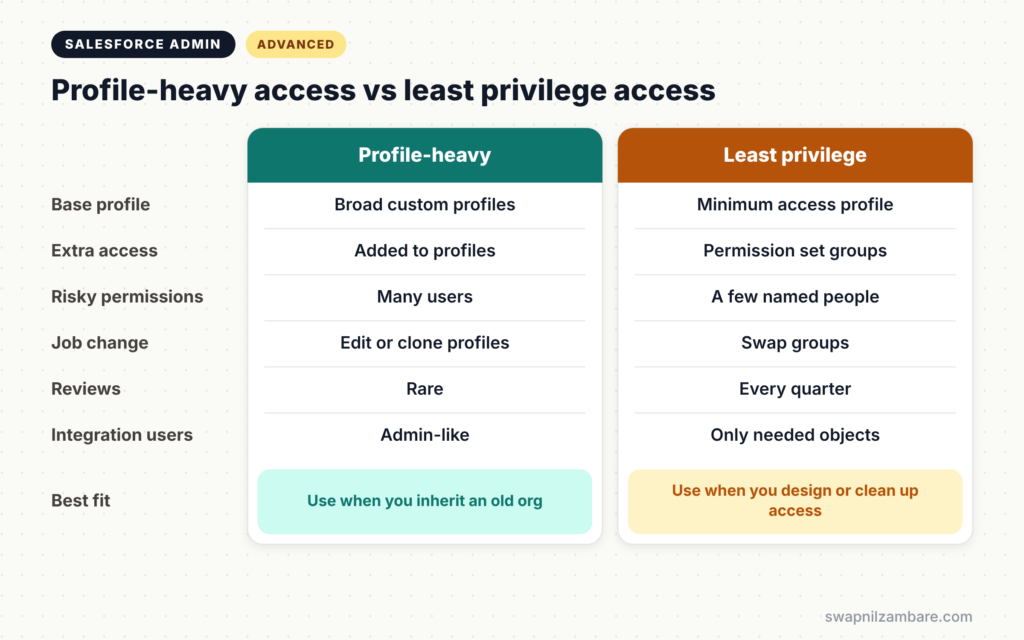
The table below compares a typical old setup with a least privilege setup.
| Area | Profile-heavy setup | Least privilege setup |
|---|---|---|
| Base profile | Many custom profiles with broad access | Minimum access profile |
| Extra access | Added to profiles | Permission sets and groups |
| Risky permissions | Spread across many users | Only a few named people |
| Job change | Clone or edit profiles | Swap permission set groups |
| Reviews | Rare | Every quarter |
| Integration users | Admin-like access | Only the objects they use |
When to use which is clear. New orgs should start with least privilege. Older orgs should move there step by step.
A Real Principle of Least Privilege Clean-Up
Let’s apply the Principle of Least Privilege at Bright Path Tutors. The company has 120 users and five old custom profiles.
Step 1: Find Users with Risky Permissions
Run this query in the Developer Console to list everyone with Modify All Data.
SELECT Assignee.Name, Assignee.Profile.Name, PermissionSet.Label, PermissionSet.IsOwnedByProfile
FROM PermissionSetAssignment
WHERE PermissionSet.PermissionsModifyAllData = true
AND Assignee.IsActive = true
This query checks profiles and permission sets together, because every profile has a hidden permission set. IsOwnedByProfile tells you whether the access comes from a profile.
Step 2: Repeat for Other Risky Permissions
Change the filter to check other permissions. The table below shows the field names to use.
| Permission | Field in the query |
|---|---|
| View All Data | PermissionSet.PermissionsViewAllData |
| Customize Application | PermissionSet.PermissionsCustomizeApplication |
| Manage Users | PermissionSet.PermissionsManageUsers |
| Export Reports | PermissionSet.PermissionsExportReport |
| API Enabled | PermissionSet.PermissionsApiEnabled |
Step 3: Agree on Who Needs What
- Share the results with each team manager.
- Next, ask them to confirm which users truly need each permission.
- Then record the decisions in your admin log.
Step 4: Build Permission Set Groups
- Create permission sets for each job task, such as “Course Editor” and “Enrolment Manager”.
- Next, bundle them into groups, such as “Trainer” and “Sales Rep”.
- Then move users to the minimum access profile and assign the right groups.
Step 5: Lock Down Integration Users
Give each integration its own user with the Salesforce Integration user licence where possible. Then grant only the objects and fields it needs, and turn off interactive login.
Step 6: Add Zero Trust Controls
- Make sure MFA is on for every user, as covered in org security, MFA and login.
- Next, add login IP ranges for admin profiles.
- Then require high-assurance sessions for sensitive actions, such as managing users.
Keeping the Principle of Least Privilege Over Time
The Principle of Least Privilege is not a one-time project. Access grows again unless you review it. So schedule a quarterly review of risky permissions, and freeze or deactivate leavers on their last day. Free tools such as Org Check, from Salesforce Labs, can show permission reports quickly.
Common Mistakes with the Principle of Least Privilege
- Giving Modify All Data to fix a quick access problem.
- Using one shared admin login for several people.
- Letting integration users run with full admin access.
- Cleaning up once and never reviewing again.
- Removing access without telling managers, which breaks daily work.
Best Practices for the Principle of Least Privilege
- Start every user on a minimum access profile.
- Grant access through permission set groups that match real jobs.
- Keep risky permissions to a short, named list.
- Review access every quarter with team managers.
- Combine least privilege with MFA, session security and monitoring.
Practice Task
Run the Modify All Data query in your Developer Edition org. Then change it to check View All Data and Export Reports. Hint: change only the permission field in the WHERE clause.
Most Asked Interview Questions on the Principle of Least Privilege
Security questions appear in almost every senior admin interview. Here are the ones asked most.
Basic Questions on the Principle of Least Privilege
Q1. What is the principle of least privilege?
It means every user gets only the access needed for their job, and nothing more.
Q2. What is zero trust?
It means never trusting a login by default. Users must verify who they are, and access is checked continuously.
Q3. Name some risky system permissions.
Modify All Data, View All Data, Customize Application, Manage Users, Author Apex, Export Reports and API Enabled.
Q4. What is the shared responsibility model?
Salesforce secures the platform, while each customer secures their own users, permissions and data.
Practical Questions on the Principle of Least Privilege
Q5. How do you find everyone with Modify All Data?
Query PermissionSetAssignment where PermissionSet.PermissionsModifyAllData is true. This covers both profiles and permission sets.
Q6. How would you move an old org to least privilege?
First, audit risky permissions. Next, build permission sets and groups for real jobs. Then move users to a minimum access profile in phases.
Q7. How do you secure an integration user?
Use a dedicated user, give only needed objects and fields, use the integration licence where possible and block interactive login.
Q8. How do you keep access tidy over time?
Run quarterly access reviews with managers and remove access as soon as people change jobs or leave.
Official Resources
Quick Recap
- The Principle of Least Privilege gives each user only the access they need.
- Zero trust means always verifying users and sessions.
- Use a minimum access profile plus permission set groups.
- Find risky permissions with a PermissionSetAssignment query.
- Review access every quarter and lock down integration users.
What’s Next?
With access in good shape, we return to automation. Next, read our guide to Screen Flows from List Views.


