Salesforce Permission Set Groups bundle several permission sets into one package that matches a job role, such as Sales Rep or Support Agent. Instead of assigning five permission sets to every new rep, you assign one group. In our profiles and permission sets guide, you learned that profiles give the base access and permission sets add more. Permission set groups are the tidy way to manage those extras as your org grows.
In this post, you will learn how groups combine permissions, how a muting permission set removes a few of them, and why Salesforce now suggests a “minimum profile plus permission sets” model. Then you will build a Sales Rep group and a Sales Intern group for Bright Path Tutors. You will also check the assignments with SOQL. Our user management guide is a helpful refresher on assigning access to users.
What are Salesforce Permission Set Groups?
A permission set group is a container for permission sets. When you assign the group to a user, the user gets every permission from every set inside it. If two sets give different levels, the user gets the widest one.
A muting permission set is a special set that lives inside one group. It removes chosen permissions from that group only. The original permission sets stay the same for everyone else.
Here is a simple analogy. Think of a school kit for a new student. The kit holds a notebook set, a pen set and an art set, and the office hands over one kit instead of three bags. A muting set is like taking the scissors out of the art set for the youngest class. The kit is the group, and the sets inside are your permission sets.
Why Salesforce Permission Set Groups Matter
Large orgs end up with dozens of permission sets. Assigning the right mix to each new person is slow and easy to get wrong. Also, when a role needs one extra permission, admins must update many users by hand.
Here are some real situations at Bright Path Tutors.
- Every new sales rep needs the same four permission sets on day one.
- Interns should get the rep’s access, but without exporting reports or deleting deals.
- A new Campaign permission must reach all reps at once.
- Auditors ask, “Who can export data, and why?”
So groups make access match real job roles, and changes reach everyone in that role at once.
How Salesforce Permission Set Groups Work
The setup follows a clear path. First, you build small permission sets that each do one job, like Course Viewer or Export Reports. Next, you create a group and add the sets that match a role. Then Salesforce calculates the combined permissions of the group, which can take a moment. After that, you can add a muting permission set to remove a few permissions. Finally, you assign the group to users, and they get the final combined access.
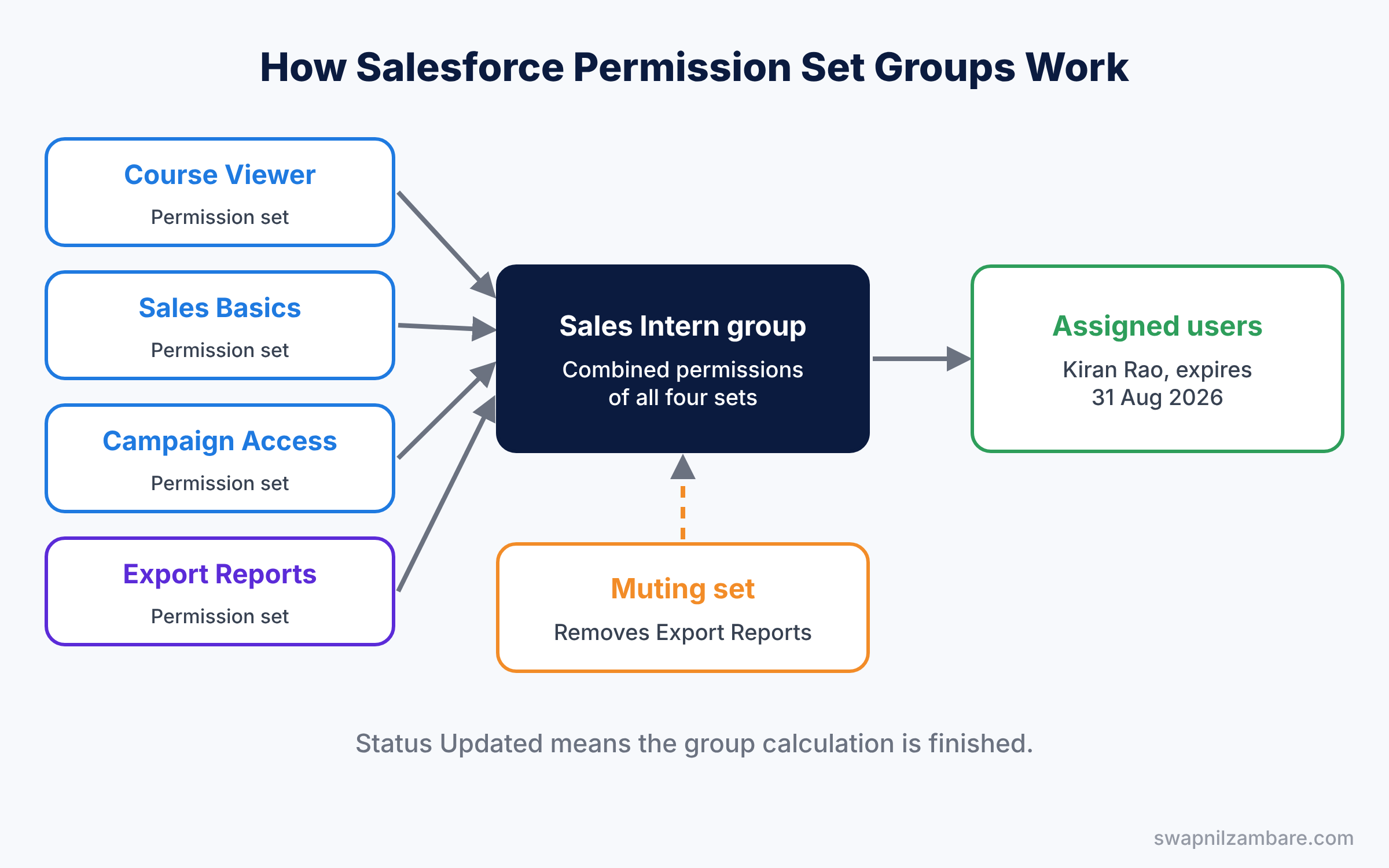
The group shows a Status field during this process. Updated means the calculation is done, while Outdated or Updating means Salesforce is still working on a change.
Key Parts of Salesforce Permission Set Groups
Small task-based permission sets
First, good groups start with small permission sets. Each set should cover one task, such as “Manage Campaigns” or “Export Reports”. Small sets are easy to reuse in many groups.
The permission set group
Next, the group has a label, an API name and a description. You add permission sets from the “Permission Sets in Group” page. The group then shows a combined summary of all object, field and system permissions.
Muting inside permission set groups
Then a muting permission set removes permissions inside one group. Each group can have only one muting set. Muting only affects that group, so if another assignment gives the same permission, the user still has it.
Assignments and expiration dates
You assign a group to users from the group’s Manage Assignments button. You can also set an expiration date, which is useful for temporary access, such as a contractor for one month.
Minimum profile model
Finally, Salesforce recommends giving users a profile with very little access, like Minimum Access – Salesforce, and adding everything else with permission sets and groups. Profiles then only handle a few settings, such as the default app and login hours.
The table below shows the permission sets and groups we will build.
| Permission set | What it gives | Sales Rep group | Sales Intern group |
|---|---|---|---|
| Course Viewer | Read on Course | Yes | Yes |
| Sales Basics | Create and edit Leads and Opportunities | Yes | Yes |
| Campaign Access | Read on Campaigns | Yes | Yes |
| Export Reports | Export Reports system permission | Yes | Muted |
Permission Set Groups vs Profiles
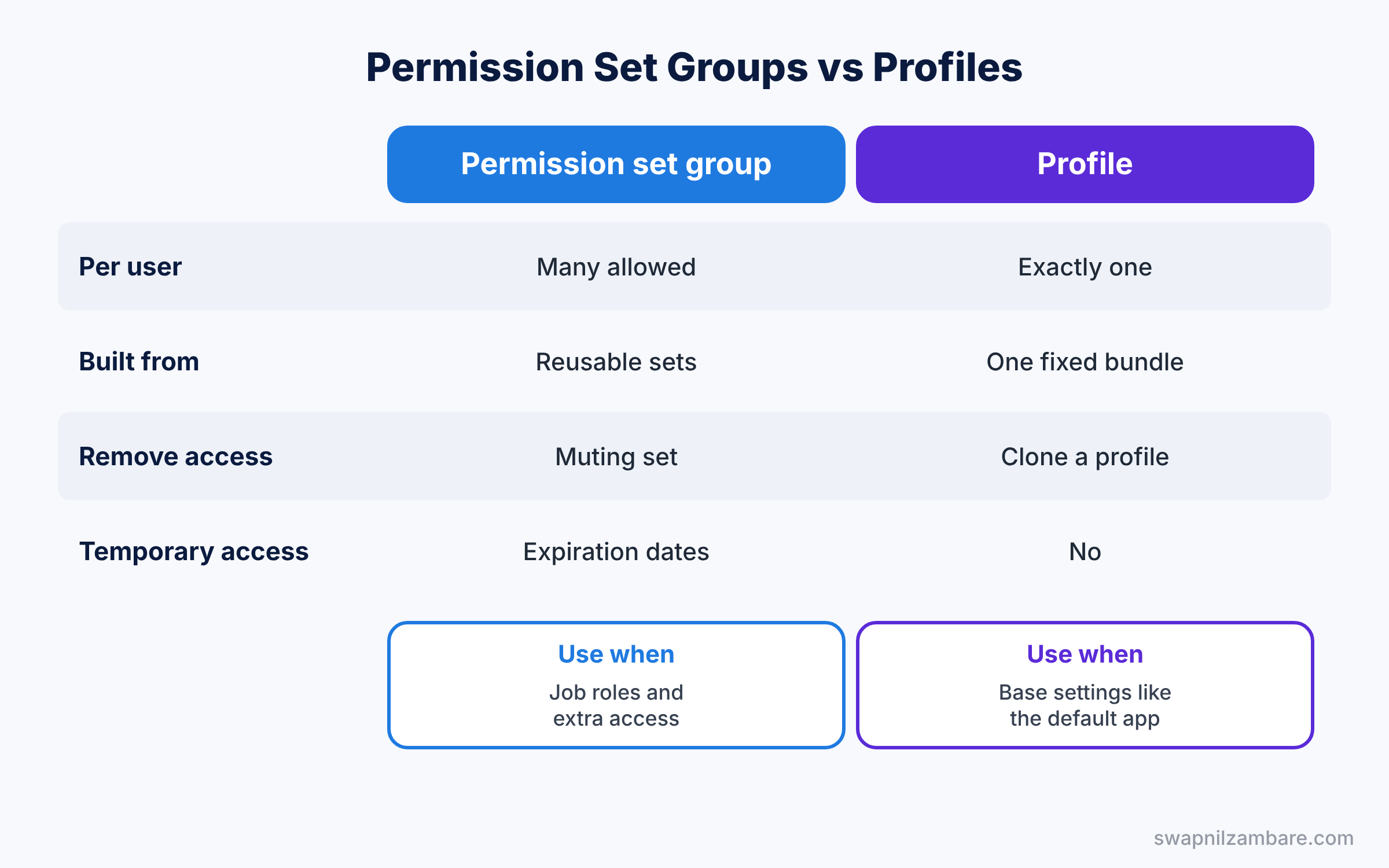
Profiles and groups both give access, so beginners often ask which one to use. The table below compares them.
| Feature | Permission set group | Profile |
|---|---|---|
| Per user | Many groups allowed | Exactly one |
| Built from | Reusable permission sets | One fixed bundle |
| Remove access for one role | Yes, with muting | Clone and edit a profile |
| Temporary access | Yes, expiration dates | No |
| Best for | Job roles and extra access | Base settings like default app |
In short, keep profiles small and stable. Use Salesforce Permission Set Groups to give each job role exactly what it needs.
Hands-on Example: Salesforce Permission Set Groups for Sales
Let’s build two groups in your Developer Edition org.
Step 1: Create small permission sets
- Go to Setup, type “Permission Sets” in Quick Find, and click New.
- Create the four sets from the table above. For example, “Export Reports” only turns on the Export Reports system permission.
- In Course Viewer, open Object Settings, then Courses, and tick Read.
Step 2: Create the Sales Rep group
- In Quick Find, type “Permission Set Groups” and click New Permission Set Group.
- Enter the values from the table below and save.
- Click Permission Sets in Group, then Add Permission Sets, and add all four sets.
| Field | Value |
|---|---|
| Label | Sales Rep |
| API Name | Sales_Rep |
| Description | Standard access for all sales reps |
Step 3: Create the Sales Intern group with muting
- Create a second group called “Sales Intern” and add the same four sets.
- Open Muting Permission Set in Group and click New. Name it “Sales Intern Muting”.
- In the muting set, open System Permissions, click Edit, and tick Export Reports to mute it. Save.
Step 4: Assign the groups
- Open the Sales Rep group and click Manage Assignments, then Add Assignment. Choose Rahul Verma and Neha Joshi.
- Assign Sales Intern to a test user, and set an expiration date at the end of the internship.
Step 5: Check assignments with SOQL
Developers can list who has which group with this SOQL query.
SELECT Assignee.Name, PermissionSetGroup.MasterLabel, ExpirationDate
FROM PermissionSetAssignment
WHERE PermissionSetGroupId != null
ORDER BY PermissionSetGroup.MasterLabel
This second query shows which permission sets sit inside each group.
SELECT PermissionSetGroup.MasterLabel, PermissionSet.Label
FROM PermissionSetGroupComponent
ORDER BY PermissionSetGroup.MasterLabel
The result of the first query might look like this.
Assignee.Name   PermissionSetGroup.MasterLabel  ExpirationDate
Neha Joshi      Sales Rep                       null
Rahul Verma     Sales Rep                       null
Kiran Rao       Sales Intern                    2026-08-31
The second query helps you confirm that both groups hold the same four sets. So the only difference between them is the muting set.
Common Mistakes with Salesforce Permission Set Groups
- Building huge permission sets. Big sets cannot be reused, so groups lose their value.
- Expecting muting to remove all access. Muting only works inside its own group.
- Assigning before the status is Updated. Wait for the calculation to finish, then assign.
- Keeping big profiles too. Access then comes from two places and is hard to audit.
- No descriptions. Six months later, nobody remembers why a set exists.
Best Practices for Salesforce Permission Set Groups
- Name groups after job roles. “Sales Rep” is clearer than “PSG 01”.
- Name sets after tasks. “Export Reports” says exactly what it gives.
- Use expiration dates for temporary work. Access then ends on time without a reminder.
- Review access every quarter. Our org security guide lists more checks for a safe org.
- Test with a real user. Log in as the user and try the actions they need.
Practice Task
Create a “Support Agent” group with Course Viewer and a new “Case Management” permission set. Then add a muting set that removes Delete on Cases.
Hint: object permissions are muted from Object Settings in the muting set, just like system permissions.
Salesforce Permission Set Groups FAQ
Can a permission set be in more than one group?
Yes. Small sets are meant to be reused in many groups.
Does muting change the original permission set?
No. Muting only changes the result of its own group, and the set stays the same everywhere else.
Can I assign a group and a single set to the same user?
Yes. The user then gets the combined access from both.
Official Resources
- Mute Permissions in Permission Set Groups (Trailhead)
- Mute a Permission in a Permission Set Group (Salesforce Help)
- Permission Sets (Salesforce Help)
Quick Recap
- Salesforce Permission Set Groups bundle permission sets for a job role.
- Users get the widest access from all sets in the group.
- A muting permission set removes chosen permissions from one group.
- Expiration dates give temporary access that ends on time.
- Keep profiles small and give most access through groups.
What’s Next?
Your access model is now clean and role-based. Next, learn how to let a trusted team lead manage users without making them a full admin. Read Salesforce Delegated Administration Explained.


