Salesforce User Management is the daily work of adding people to your org, fixing their login problems and removing access when they leave. In our profiles and permission sets guide, you created your first user and gave them access. This post goes further and covers the full life of a user, from the first day to the last.
In this post, you will learn how licences work, how to create users one by one or in bulk, and how to reset passwords and fix locked accounts. You will also learn the difference between freezing and deactivating a user, and how to use Login As to see exactly what a user sees. These are the tasks admins do almost every day, so they come up in every admin interview.
What is Salesforce User Management?
Salesforce User Management covers every task related to user records. A user record holds a person’s name, username, email, licence, profile and role. Without an active user record, nobody can log in to Salesforce.
Here is a simple analogy. Think of the access card system in an office building. Security issues a card on joining day, resets it when it stops working, blocks it for a day if it is lost, and cancels it on the last working day. Salesforce user management works the same way, and the admin is the security desk.
Why User Management Matters
User management sounds like simple admin work, but small mistakes can cause big problems. A former employee with an active login can still see customer data. On the other hand, a new joiner without the right access cannot start work.
Here are some real situations an admin handles.
- A new trainer joins Bright Path Tutors on Monday and needs access by 9 AM.
- A sales rep forgets their password and gets locked out after five wrong tries.
- An employee resigns, but their deals must stay assigned until handover.
- A user says a button is missing, and you need to see their screen to understand why.
So good user management keeps data safe and keeps people working. It also saves licence costs, because unused licences can go to new joiners.
How Salesforce User Management Works
Every user goes through the same lifecycle. First, you create the user with a licence, a profile and usually a role. Then the user gets an email to set their password and logs in. During their time at the company, you reset passwords, fix locked accounts and change access. Finally, when they leave, you freeze and then deactivate them.
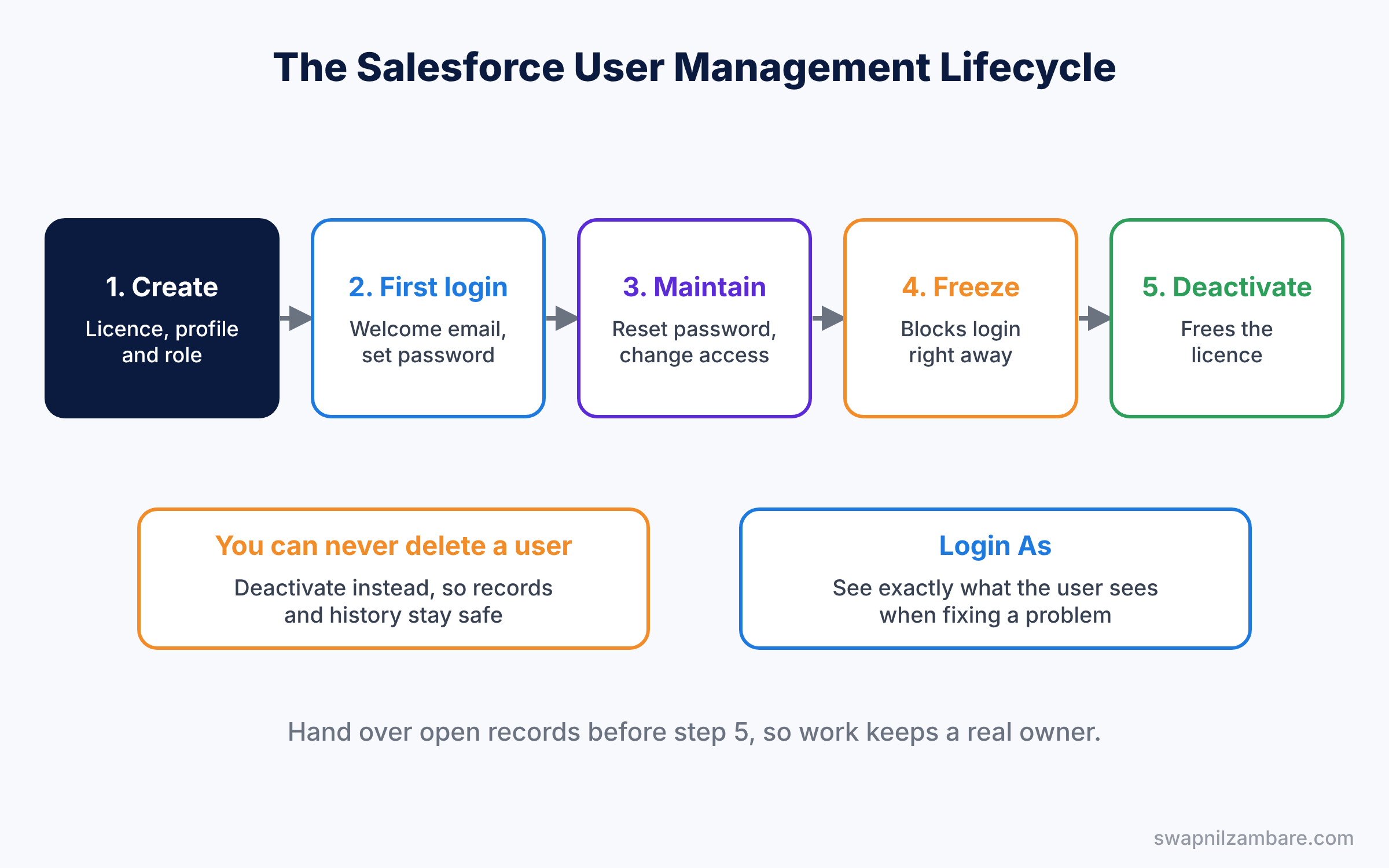
Remember one important rule. You can never delete a user in Salesforce. Users own records, created data and history, so Salesforce keeps the user record forever and you deactivate it instead.
Key Parts of Salesforce User Management
User licences and feature licences
A user licence decides the basic features a person can use. For example, a Salesforce licence gives full CRM access, while a Salesforce Platform licence gives access to custom apps but not to standard sales and service features. Feature licences add extra features, such as Marketing User or Knowledge User, on top.
The table below lists the licence types beginners meet most.
| Licence type | What it gives | Example user |
|---|---|---|
| Salesforce | Full CRM: sales, service, custom apps | Sales rep, support agent |
| Salesforce Platform | Custom apps, accounts and contacts, no opportunities or cases | Trainer using only Course apps |
| Feature licence | One extra feature on top of a user licence | Marketing User for campaigns |
| Permission set licence | Extra rights granted through permission sets | Users of a specific add-on |
Required user fields
Every user needs a few fields. These include First Name, Last Name, Alias, Email, Username, Nickname, User License and Profile. The username must look like an email address and must be unique across all Salesforce orgs in the world.
Password Resets in Salesforce User Management
When a user forgets their password, an admin can click Reset Password on the user record. Salesforce then emails a reset link. If a user is locked out after too many wrong passwords, an Unlock button appears on their user record.
Freezing users
Freezing stops a user from logging in straight away, but keeps their licence and records unchanged. It is useful when you need to block access quickly, for example when an account looks hacked, while you plan the full handover.
Deactivating users
Deactivating a user frees their licence and stops them from logging in for good. Their records stay in Salesforce. However, you may need to transfer their open records to another user first, and some setups, like a default case owner, block deactivation until you change them.
Login As
Login As lets an admin log in as another user to see their screen and test their access. You first turn on “Administrators Can Log in as Any User” in Login Access Policies. Then a Login link appears next to each user in the Users list.
Freeze vs Deactivate in Salesforce User Management
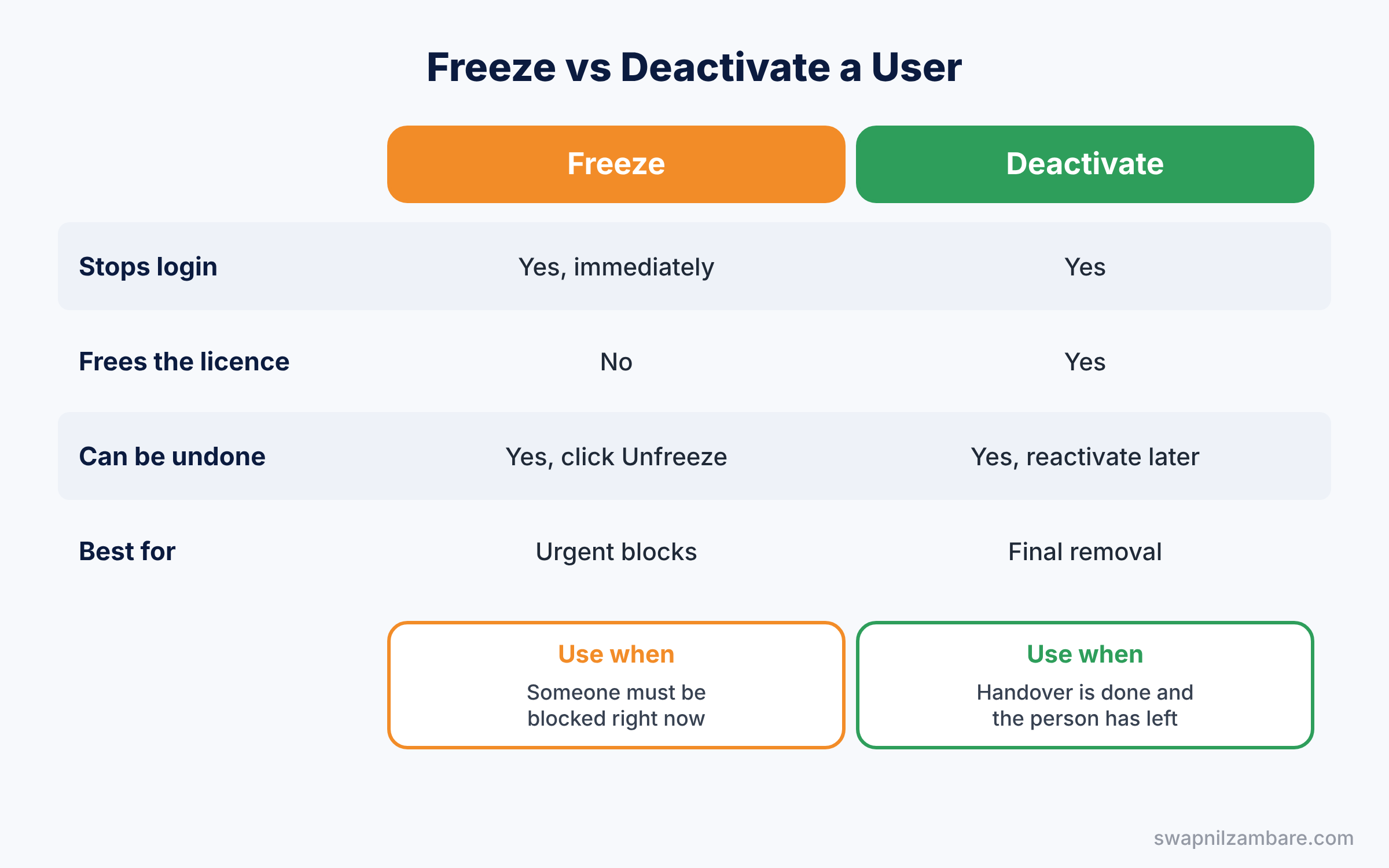
These two actions both stop logins, but they work differently. The table below compares them.
| Feature | Freeze | Deactivate |
|---|---|---|
| Stops login | Yes, immediately | Yes |
| Frees the licence | No | Yes |
| Can be undone | Yes, click Unfreeze | Yes, reactivate later |
| Blocked by other setups | Rarely | Sometimes, for example a default case owner |
| Best for | Urgent blocks and last working day | Final removal after handover |
So the safe pattern is simple. Freeze first, hand over records and settings, then deactivate.
Hands-on Example: Manage a Trainer’s Account
Let’s manage the account of a new trainer, Rahul Verma, at Bright Path Tutors. Use your Developer Edition org.
Step 1: Create the user
- Go to Setup, type “Users” in Quick Find and open Users. Click New User.
- Fill in the values from the table below.
- Tick Generate new password and notify user immediately, then click Save.
| Field | Value |
|---|---|
| First Name and Last Name | Rahul Verma |
| Your own email, for testing | |
| Username | rahul.verma@brightpathtutors.dev |
| User License | Salesforce Platform |
| Profile | Standard Platform User |
| Role | Support Agent |
Step 2: Turn on Login As
- In Quick Find, type “Login Access Policies” and open it.
- Tick Administrators Can Log in as Any User and click Save.
- Go back to Users and click Login next to Rahul Verma. You now see Salesforce exactly as Rahul does.
- Click your name at the top to log out and return to your own account.
Step 3: Reset a password and freeze the user
- Open Rahul’s user record and click Reset Password. Salesforce emails a reset link.
- Now imagine Rahul’s laptop was stolen. Click Freeze on his user record.
- When the issue is solved, click Unfreeze.
Step 4: Check users with SOQL
Admins and developers often check users with SOQL in the Developer Console. This query lists active users with their profile, role and last login.
SELECT Name, Username, Profile.Name, UserRole.Name, LastLoginDate
FROM User
WHERE IsActive = true
ORDER BY LastLoginDate DESC
Frozen status lives on a separate object called UserLogin. This query finds every frozen user.
SELECT UserId, IsFrozen
FROM UserLogin
WHERE IsFrozen = true
Users with a blank LastLoginDate have never logged in. Those are good candidates to review, because they may be wasting licences.
Common Mistakes with Salesforce User Management
- Trying to delete users. Salesforce does not allow it. Deactivate users instead.
- Deactivating before handover. Open records stay with the inactive user. Transfer them first, or freeze until the handover is done.
- Sharing one login between people. Every person needs their own user, or audit history becomes useless.
- Giving the wrong licence. A Platform licence cannot use Opportunities or Cases, so check what the person needs.
- Forgetting to turn on Login As. Without the policy, the Login link does not appear.
Best Practices for Salesforce User Management
- Use a naming pattern for usernames. A pattern like firstname.lastname@company.com makes users easy to find.
- Build a joiner and leaver checklist. It makes sure every step, like record transfer, happens every time.
- Freeze on the last working day. It blocks access at once while you finish the handover.
- Review inactive and never-used users monthly. Freed licences save real money.
- Assign access with permission sets. Keep profiles simple, as we covered in our org security guide.
Practice Task
Use Add Multiple Users on the Users page to create two more trainers at once. Then deactivate one of them.
Hint: Add Multiple Users lets you pick a licence type and fill several rows on one screen.
Salesforce User Management FAQ
Can I change a user’s username later?
Yes. Edit the user record and change the username. The new username must still be unique across all Salesforce orgs.
Why can I not deactivate a user?
Some features depend on that user, such as a default lead or case owner, or a running user on a dashboard. Salesforce shows which setting blocks it, so you change that setting first.
Does Salesforce User Management include password policies?
Partly. Admins reset passwords for single users, while org-wide password rules live in Password Policies. We covered those rules in the org security post.
Official Resources
- Manage Users (Salesforce Help)
- User Management (Trailhead)
- Freeze or Unfreeze User Accounts (Salesforce Help)
Quick Recap
- Salesforce User Management covers creating, maintaining and removing users.
- Every user needs a licence, a profile and a unique, email-style username.
- You cannot delete users. Freeze them first, then deactivate them.
- Login As lets admins see exactly what a user sees.
- Use SOQL on User and UserLogin to find inactive or frozen users.
What’s Next?
Users often work as teams. Next, learn how to group them for shared work and access. Read Queues and Public Groups in Salesforce Explained.


