Queues and Public Groups help you organise users into teams, so work and access can be shared without naming every person one by one. In our user management guide, you learned how to create and manage individual users. Now you will learn how to group them, which makes routing work and sharing records much easier.
In this post, you will learn what a queue is, what a public group is, and why they are different tools even though both hold a list of members. Then you will build a Course Enquiries queue and a Finance Team public group for Bright Path Tutors. You will use both of these again when we cover lead assignment and case management later in this series.
What are Queues and Public Groups?
A queue is a holding area for records that a team can pick up. A record owned by a queue does not belong to any single person yet. Instead, every member of the queue can see it and take ownership.
A public group is a named set of users, roles and other groups. It does not own records. Instead, you use it to share things, such as records through sharing rules, report folders, list views and email templates.
Here is a simple analogy. A queue is like the token counter at a bank. Customers wait in one line, and the next free cashier calls the next token. A public group is like a WhatsApp group for a team. It does not hold work, but it makes it easy to send the same thing to everyone at once.
Why Queues and Public Groups Matter
Without groups, admins must share records and folders with users one at a time. That works for five people, but it breaks with fifty. When someone joins or leaves, you would update many places instead of one.
Here are some real situations where each tool helps.
- New course enquiries arrive from the website, and any free counsellor should pick them up. A queue fits.
- Support cases come in overnight, and the morning team needs to share them fairly. A queue fits.
- The finance team needs read access to all Accounts owned by sales. A public group in a sharing rule fits.
- Only managers should see the Sales Reports folder. A public group on the folder fits.
So queues route work, while public groups share access. Keep that one line in mind, and the rest is easy.
How Queues and Public Groups Work
When a record arrives, an assignment rule or a user can set its owner to a queue. Salesforce then creates a list view for that queue, so members see the waiting records. When a member clicks Accept or changes the owner to themselves, the record leaves the queue.
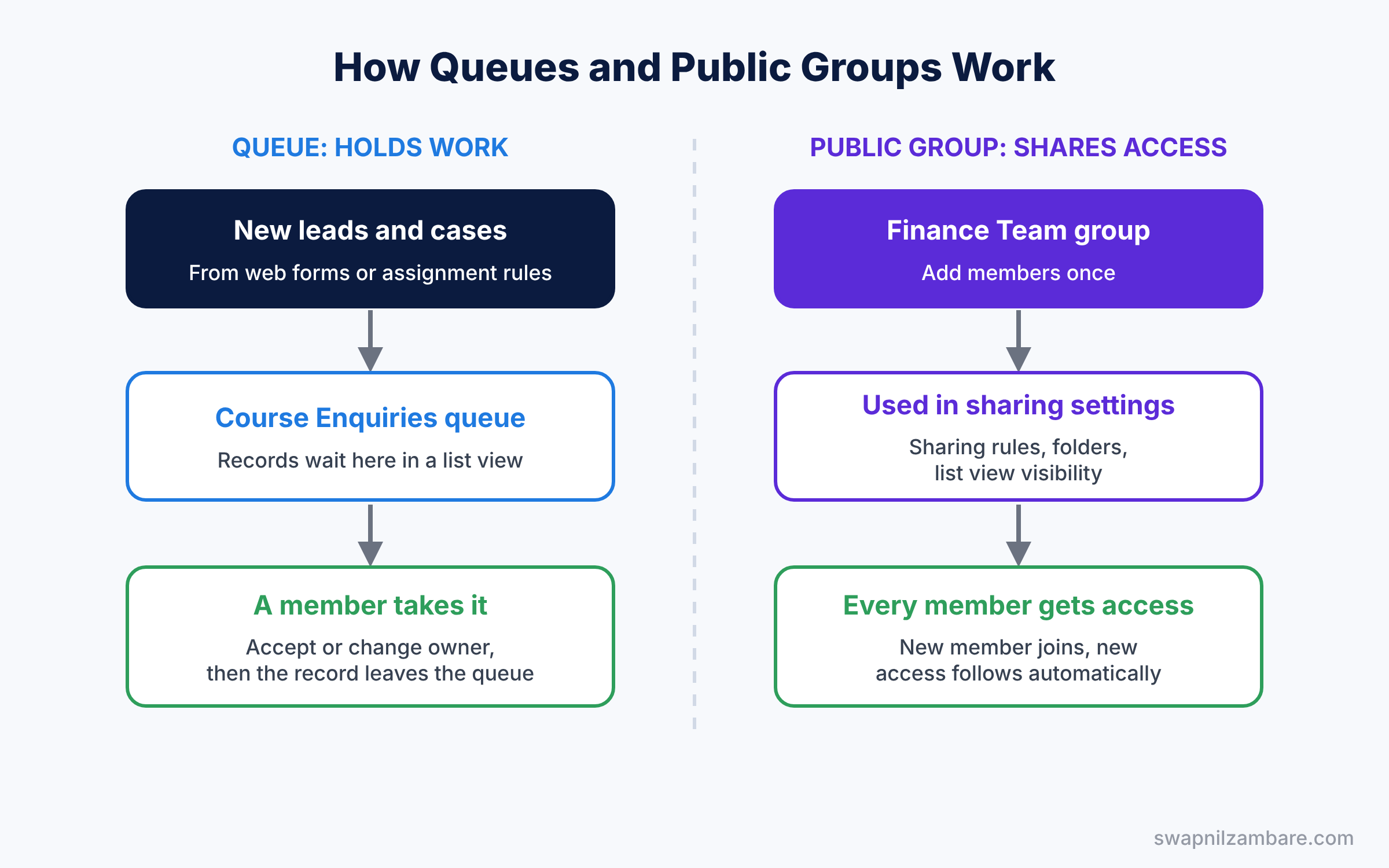
Public groups work differently. You add members once, then you pick the group in a sharing rule, a folder or a list view. Whenever you add a person to the group, they get every share that uses it. So you update one group instead of many settings.
Key Parts of Queues and Public Groups
Queue members
A queue can contain users, public groups, roles, and roles with their subordinates. So you can add the whole Support Agent role at once, instead of adding each agent.
Supported objects
A queue lists the objects it can own, such as Leads, Cases, Orders and many custom objects. For example, your Course Enquiries queue could own both Leads and Course records.
Queue email
Each queue can have an email address. When you tick Send Email to Members, Salesforce emails members when a record lands in the queue. So nobody needs to keep refreshing the list view. This is especially helpful for small teams, because nobody is assigned to watch the queue full time.
Public group members
A public group can contain users, roles, roles with subordinates, and other public groups. It also has a setting called Grant Access Using Hierarchies. When it is on, managers above the members also get the shared access.
Where public groups are used
The table below shows where you can use public groups and queues.
| Feature | Public group | Queue |
|---|---|---|
| Sharing rules | Yes | No |
| Report and dashboard folders | Yes | No |
| List view visibility | Yes | No |
| Record ownership | No | Yes |
| Approval process approvers | No | Yes |
Queues vs Public Groups: Key Differences
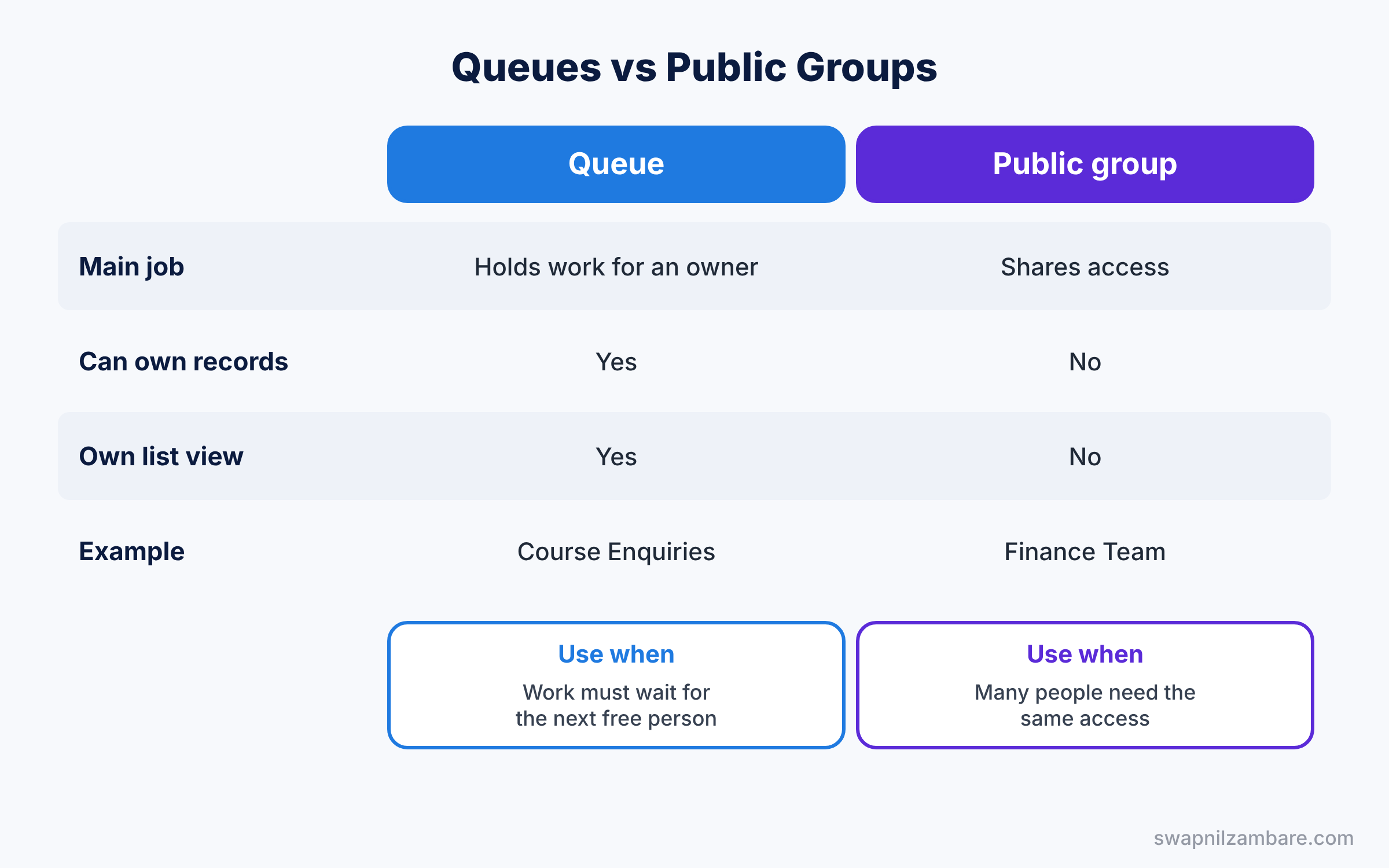
Both tools hold members, so beginners often mix them up. The table below compares them side by side.
| Feature | Queue | Public group |
|---|---|---|
| Main job | Holds work waiting for an owner | Shares access with many people |
| Can own records | Yes | No |
| Gets its own list view | Yes | No |
| Email to members | Yes, optional | No |
| Typical example | Course Enquiries, Support Tier 1 | Finance Team, Sales Managers |
In short, use a queue when work needs an owner. Use a public group when people need access to something.
Hands-on Example: Queues and Public Groups at Bright Path Tutors
Let’s build a queue for new enquiries and a public group for the finance team. Use your Developer Edition org.
Step 1: Create the Course Enquiries queue
- Go to Setup, type “Queues” in Quick Find, and click New.
- Fill in the values from the table below.
- Under Supported Objects, move Lead and Course to Selected Objects.
- Under Queue Members, add the role Support Agent and the user Rahul Verma. Click Save.
| Field | Value |
|---|---|
| Label | Course Enquiries |
| Queue Name | Course_Enquiries |
| Queue Email | Your own email, for testing |
| Send Email to Members | Ticked |
Step 2: Send a lead to the queue
- Open any Lead and click Change Owner.
- Pick Queues in the owner type list, then select Course Enquiries. Click Change Owner.
- Open the Leads tab and choose the list view called Course Enquiries. Your lead is waiting there.
Step 3: Create the Finance Team public group
- In Quick Find, type “Public Groups” and click New.
- Enter “Finance Team” as the Label and keep Grant Access Using Hierarchies ticked.
- Add yourself and one other user as members, then click Save.
Now use this group in an owner-based sharing rule, as we did in our sharing rules guide. Every finance member gets the shared records automatically.
Step 4: Check queues and groups with SOQL
Queues and public groups both live in the Group object. The Type field tells them apart. This query lists your queues.
SELECT Id, Name, DeveloperName
FROM Group
WHERE Type = 'Queue'
This query shows the members of the Finance Team group.
SELECT Group.Name, UserOrGroupId
FROM GroupMember
WHERE Group.DeveloperName = 'Finance_Team'
UserOrGroupId starts with 005 for users and 00G for groups. So you can quickly tell whether a member is a person or another group.
Common Mistakes with Queues and Public Groups
- Forgetting supported objects. A queue cannot own a record type you did not add to Supported Objects.
- Using a public group to own records. Groups cannot own records. Use a queue instead.
- Leaving records in the queue forever. Track queue size with a report, so nothing waits too long.
- Adding every user one by one. Add roles or other groups, so membership updates itself.
- Forgetting list view access. Members see the queue list view only if it is shared with them.
Best Practices for Queues and Public Groups
- Name groups by team or purpose. Names like “Finance Team” or “Tier 1 Support” explain themselves.
- Use roles inside groups. New joiners then get access automatically when you set their role.
- Turn on queue emails for urgent work. Members learn about new records without checking all day.
- Report on queue age. A simple report on records owned by a queue shows where work is stuck.
- Review membership every quarter. People move teams, so groups slowly drift out of date.
Practice Task
Create a second queue called “Advanced Course Requests” for the Course object only. Then build a report that shows all Course records owned by any queue.
Hint: in the report, filter on Owner Name or Owner Type, depending on what your report type shows.
Queues and Public Groups FAQ
Can a queue be used in an approval process?
Yes. An approval step can assign the approval to a queue, so any member can approve, as we saw in our approval processes guide.
Can one user be in many Queues and Public Groups?
Yes. A user can belong to as many queues and groups as needed. However, too many memberships can make sharing harder to understand, so keep it tidy.
Do public groups slow down Salesforce?
Not for normal use. Very large or deeply nested groups can make sharing calculations slower, so avoid groups inside groups inside groups.
Official Resources
Quick Recap
- Queues and Public Groups both hold members, but they do different jobs.
- A queue owns records until a member takes them.
- A public group shares records, folders and list views with many people.
- Add roles and groups as members, so membership stays up to date.
- Both live in the Group object, with Type = ‘Queue’ for queues.
What’s Next?
You now know how to organise people. Next, let’s organise data with stronger links between objects. Read Master-Detail vs Lookup: Junction Objects and Roll-Up Summary Fields.


