Salesforce Sharing Rules, roles and Organization-Wide Defaults decide which records each user can see. In our post on Profiles and Permission Sets in Salesforce, you learned how to control what a user can do with a type of record, like Accounts. But that post left one question open. Can a sales rep in Mumbai see the Accounts owned by a rep in Delhi?
This post answers that question. You will learn the four layers of record access, build a small role hierarchy, and create a real sharing rule in your practice org. Also, these ideas come up in almost every admin interview, so take your time with each section.
What are Salesforce Sharing Rules?
In short, Salesforce uses two kinds of security. Object-level security says “Can this user open Accounts at all?” Record-level security says “Which Account records can this user open?” Sharing rules belong to the second kind.
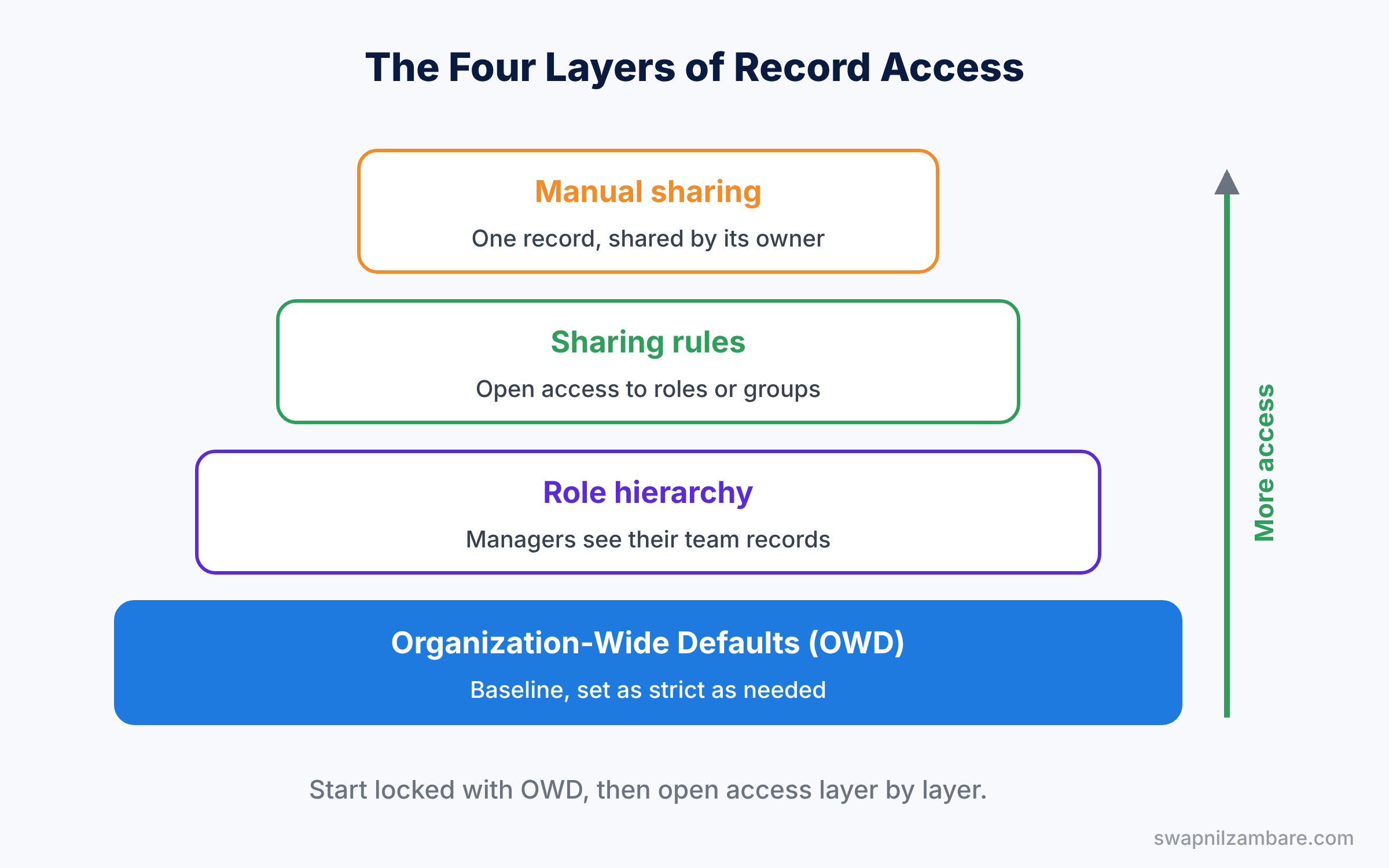
So record access in Salesforce has four main layers. First come Organization-Wide Defaults, often called OWD. Then comes the role hierarchy. After that come Salesforce Sharing Rules, and finally manual sharing. Each layer can only open up more access, never take it away.
Here is a simple way to picture it. Think of a large office building. OWD is the rule for every door, for example “all cabins are locked”. The role hierarchy gives managers keys to their team’s cabins. Sharing rules hand out keys to whole groups, like “the finance team can enter all billing cabins”. Manual sharing is one person lending a key to a colleague.
Why Record-Level Sharing Matters
In most companies, however, not everyone should see everything. Sales reps compete for deals, HR records are private, and support agents need only some customer details. Without record-level security, all of this data would be open to everyone with object access.
Here are some real situations.
- Each sales rep should see only their own Opportunities, but their manager should see the whole team’s deals.
- The support team needs read-only access to all Accounts in the Education industry.
- A rep goes on leave and wants a colleague to handle one key Account for two weeks.
- Leadership wants every user to see all Products, because product data is not secret.
As a result, each case needs a different layer. So let’s look at how the layers work together.
How Record Access Works in Salesforce
Salesforce follows one simple principle: start locked, then open up. First, you set the OWD to the most restrictive level any user needs. Then you use the other layers to give access back to the people who need it.
Also remember that the record owner always has full access to their own record. And some profile or permission set settings, like “View All” on an object or the “View All Data” system permission, skip sharing entirely. So be careful who gets those.
Where Salesforce Sharing Rules Fit in Record Access
Organization-Wide Defaults (OWD)
First of all, OWD sets the baseline access for records you do not own. You set it once per object in Setup, under Sharing Settings. The table below shows the common options.
| OWD setting | What other users can do | Typical use |
|---|---|---|
| Private | Nothing, only the owner and those above can see it | Opportunities, sensitive data |
| Public Read Only | See the record but not edit it | Accounts in a small team |
| Public Read/Write | See and edit the record | Shared reference data |
| Controlled by Parent | Follow the access of the parent record | Contacts and detail objects |
Also, Leads and Cases offer Public Read/Write/Transfer, which lets users change the record owner as well.
Role hierarchy
A role shows where a user sits in the company structure, such as CEO, Sales Manager or Sales Rep. Admins usually design this structure, which is one reason the Salesforce admin role needs good business sense. By default, then, users higher in the hierarchy can see and edit records owned by users below them. So a manager automatically sees their team’s records.
Do not confuse roles with profiles. A profile says what you can do. A role says whose records you can see, based on your position.
Salesforce Sharing Rules
Next, sharing rules give access to groups of users automatically. There are two types. Owner-based rules share records owned by a certain role or group. Criteria-based rules share records that match field values, such as Industry equals Education.
For example, you can share with a public group, a role, or a role and all roles below it. Also, you choose either Read Only or Read/Write access.
Manual sharing
Finally, manual sharing lets a record owner, or someone above them, share one record with another user or group. It is handy for one-off cases. However, it does not scale, so do not use it as your main strategy.
A Real Role Hierarchy Example
For example, here is a small hierarchy for a tutoring company called Bright Path Tutors. The CEO is at the top, with a Sales Manager and a Support Manager below. Each manager has team members under them.
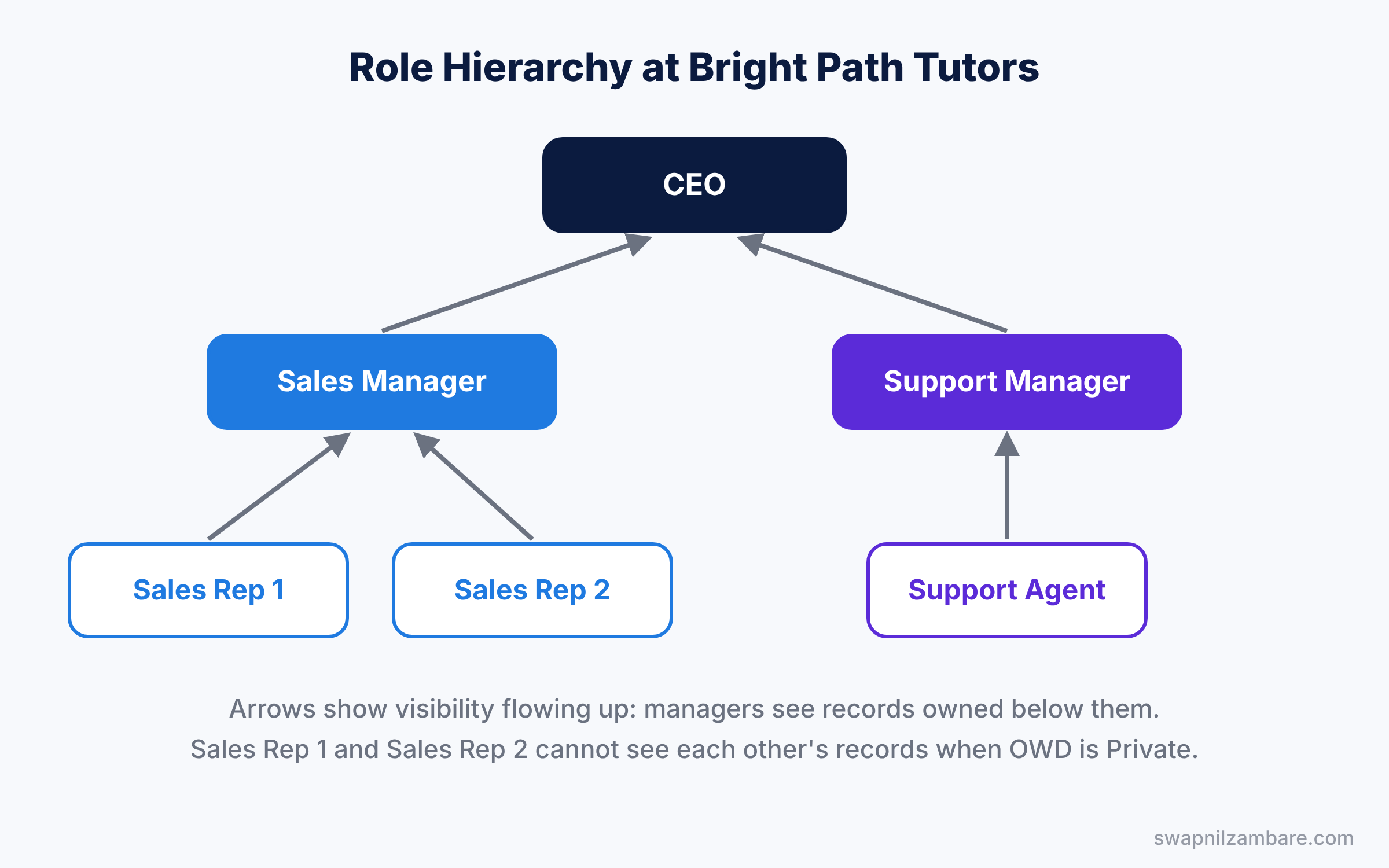
In this setup, the Sales Manager sees every Opportunity owned by both sales reps. However, the two sales reps cannot see each other’s deals if the OWD is Private. And the support team sees no sales records at all, until we add a sharing rule.
Salesforce Sharing Rules vs Role Hierarchy
Both tools open up access. However, they solve different problems. The table below compares them.
| Feature | Role hierarchy | Sharing rules |
|---|---|---|
| Who gets access | Users above the owner | Any role, group or subordinates |
| Based on | Reporting structure | Record owner or field values |
| Setup effort | Set up once for the company | One rule per sharing need |
| Works sideways across teams | No, only upward | Yes |
| Access level | Same as the owner, by default | Read Only or Read/Write |
In short, use the role hierarchy for manager visibility. Use sharing rules when teams at the same level, or in different branches, need each other’s records.
Hands-on Example: Create Salesforce Sharing Rules
Now let’s give the support team read-only access to every Account in the Education industry. We will build the roles, set the OWD and add one criteria-based sharing rule.
Step 1: Create the roles
- In Setup, type “Roles” in Quick Find and open Roles. If asked, pick a sample view and click Set Up Roles.
- Click Add Role under your company name. Enter “CEO” and click Save.
- Add “Sales Manager” and “Support Manager”, each reporting to CEO.
- Add “Sales Rep” under Sales Manager and “Support Agent” under Support Manager.
Step 2: Set the OWD for Accounts
- In Quick Find, type “Sharing Settings” and open it. Click Edit.
- Set Account and Contract to Private. Keep Grant Access Using Hierarchies ticked.
- Click Save. Salesforce recalculates sharing in the background, which can take a few minutes.
Step 3: Create the sharing rule
- On Sharing Settings, scroll to Account Sharing Rules and click New.
- Fill in the values from the table below and click Save.
| Field | Value |
|---|---|
| Label | Education Accounts for Support |
| Rule Type | Based on criteria |
| Criteria | Industry equals Education |
| Share with | Roles and Subordinates: Support Manager |
| Default Account access | Read Only |
| Opportunity access | Private |
As a result, every Support Manager and Support Agent can now view Education Accounts. However, they still cannot edit them, and they cannot see any Opportunities. Test this by assigning the Support Agent role to a test user and logging in as that user.
Common Mistakes with Salesforce Sharing Rules
- Setting OWD to Public Read/Write “to be safe”. It is the opposite of safe. Start with Private and open access with rules.
- Mixing up roles and profiles. If a user cannot open the Accounts tab, it is a profile issue. If they cannot see one record, it is a sharing issue.
- Expecting sharing rules to hide records. Sharing rules only open access. To lock things down, change the OWD.
- Building the org chart exactly as HR draws it. The role hierarchy should reflect who needs to see whose data, which is often simpler.
- Forgetting the “View All Data” permission. A user with it ignores every sharing setting, so check it first when someone sees too much.
Best Practices for Salesforce Sharing Rules
- Design OWD first. Decide the baseline for every object before building roles and rules, because changing OWD later recalculates sharing for all records.
- Prefer public groups in sharing rules. Groups are easier to update than editing many rules.
- Keep the role hierarchy flat. Fewer levels means faster sharing calculations and easier troubleshooting.
- Use criteria-based rules for clear business needs. They document the reason, such as “Education Accounts for Support”.
- Use the Sharing Hierarchy button to debug. It shows exactly who can see a record and why.
Practice Task
Create a public group called “Finance Team” and add yourself. Then build an owner-based sharing rule that shares Accounts owned by the Sales Rep role with the Finance Team, as Read Only.
Hint: create public groups in Setup under Public Groups.
Official Resources
- Trailhead: Data Security module
- Salesforce Help: Organization-Wide Sharing Defaults
- Salesforce Help: Sharing Rules
Quick Recap
- Record access has four layers: OWD, role hierarchy, sharing rules and manual sharing.
- OWD sets the baseline, so make it as strict as your most restricted user needs.
- The role hierarchy lets managers see records owned by people below them.
- Salesforce Sharing Rules open access to roles or groups, based on owner or field values.
- Every layer opens access. None of them can take access away.
- Profiles control what you can do, while sharing controls which records you can see.
What’s Next?
You now know how to protect data. Next, we look at where that data lives. Read Standard vs Custom Objects in Salesforce to learn when to use built-in objects and when to build your own.


