Profiles and Permission Sets decide what each person can see and do inside Salesforce. Once you have your own practice org from our Salesforce Developer Edition setup guide, the next job of an admin is to add users and give them the right access. Too little access and people cannot work. Too much access and anyone can delete important data.
In this post, you will learn what a user record is, how profiles work, and why permission sets are now the preferred way to grant extra access. Then you will create a real user and give them access step by step. If you are still deciding between careers, our Salesforce Admin vs Developer guide explains why this topic sits at the heart of the admin role.
What are Profiles and Permission Sets?
Every person who logs in to Salesforce needs a user record. The user record holds their name, email, username and licence. However, the user record alone does not say what that person can do. That is the job of profiles and permission sets.
A profile is the base set of permissions for a user. Every user must have exactly one profile. A permission set is an extra bundle of permissions that you add on top. A user can have many permission sets, or none at all.
Here is a simple way to picture it. A profile is like the basic ID card every office worker gets on day one. It opens the main door and the floor they work on. A permission set is like an extra key you hand to a few people, for example the key to the server room.
Why Profiles and Permission Sets Matter
Access control is not just a technical setting. It protects your company data and keeps people productive. So admins spend a lot of time on it, especially when a team grows.
Here are a few real situations.
- A new sales rep joins and needs to create Accounts and Opportunities, but must not delete them.
- Only two managers should export reports, because exports can leak customer lists.
- A support agent needs to see Cases but should not see the Salary field on the Employee object.
- An intern needs read-only access for one month.
Each of these needs a different mix of permissions. Profiles and permission sets let you build that mix without writing any code.
How User Access Works in Salesforce
Salesforce builds a user’s final access by adding layers together. First it starts with the profile. Then it adds every permission set and permission set group assigned to that user. The diagram below shows these layers.
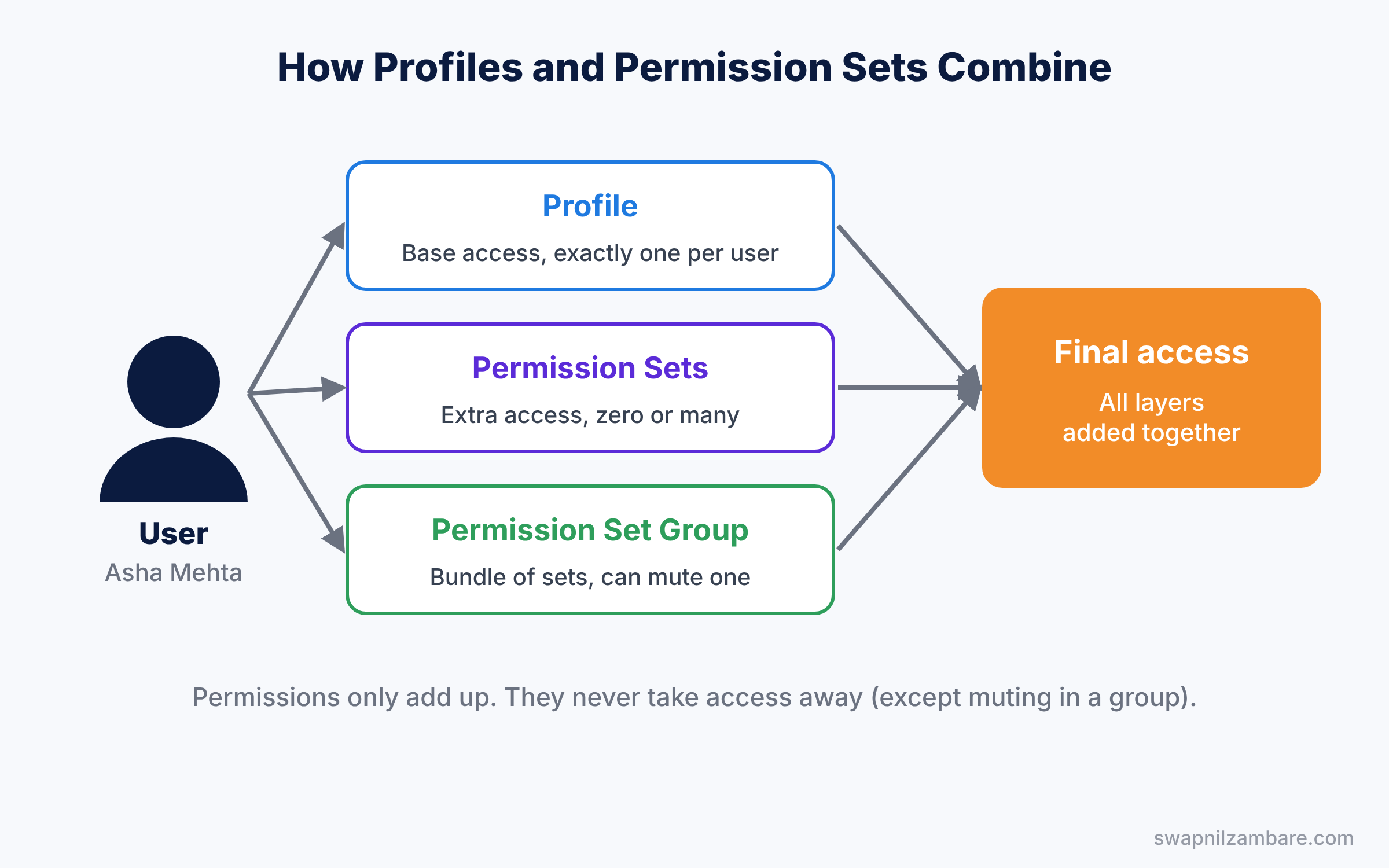
One rule is important here. Permissions only add up, they never take away. So if the profile says “no Delete on Accounts” but a permission set says “Delete on Accounts”, the user can delete Accounts. The only exception is a muting permission set inside a permission set group, which we cover below.
Also, profiles and permission sets control what a user can do with a type of record. They do not decide which individual records a user can see. That second question belongs to roles and sharing rules, which we cover in the next post.
What Profiles and Permission Sets Control
Both tools control many of the same settings. The table below lists the main ones with a short example.
| Setting | What it controls | Example |
|---|---|---|
| Object permissions | Read, Create, Edit, Delete, View All, Modify All | Sales reps can Create Opportunities |
| Field-level security | Which fields a user can see or edit | Hide the Salary field from support agents |
| App and tab settings | Which apps and tabs appear | Show the Service app only to agents |
| System permissions | Special powers across the org | Export Reports, Manage Users |
| Apex and Visualforce access | Which custom code pages users can run | Allow a custom invoice page |
Settings that live only on profiles
Some settings still belong only to the profile. For example, the profile sets the default page layout for each object, login hours and allowed IP ranges. So even in a modern org, you still need a profile for these basics.
Permission set groups
A permission set group bundles several permission sets into one. For example, a “Sales Manager” group could contain “Export Reports”, “Edit Forecasts” and “Approve Discounts”. Then you assign one group instead of three separate sets.
A group can also include a muting permission set. Muting removes a permission from that group only. For example, you can reuse a group but mute “Delete Accounts” for interns.
Standard profiles
Every org comes with standard profiles, such as System Administrator, Standard User and Read Only. You cannot change many settings on a standard profile. So admins usually clone a standard profile and edit the copy.
Profiles and Permission Sets: Key Differences
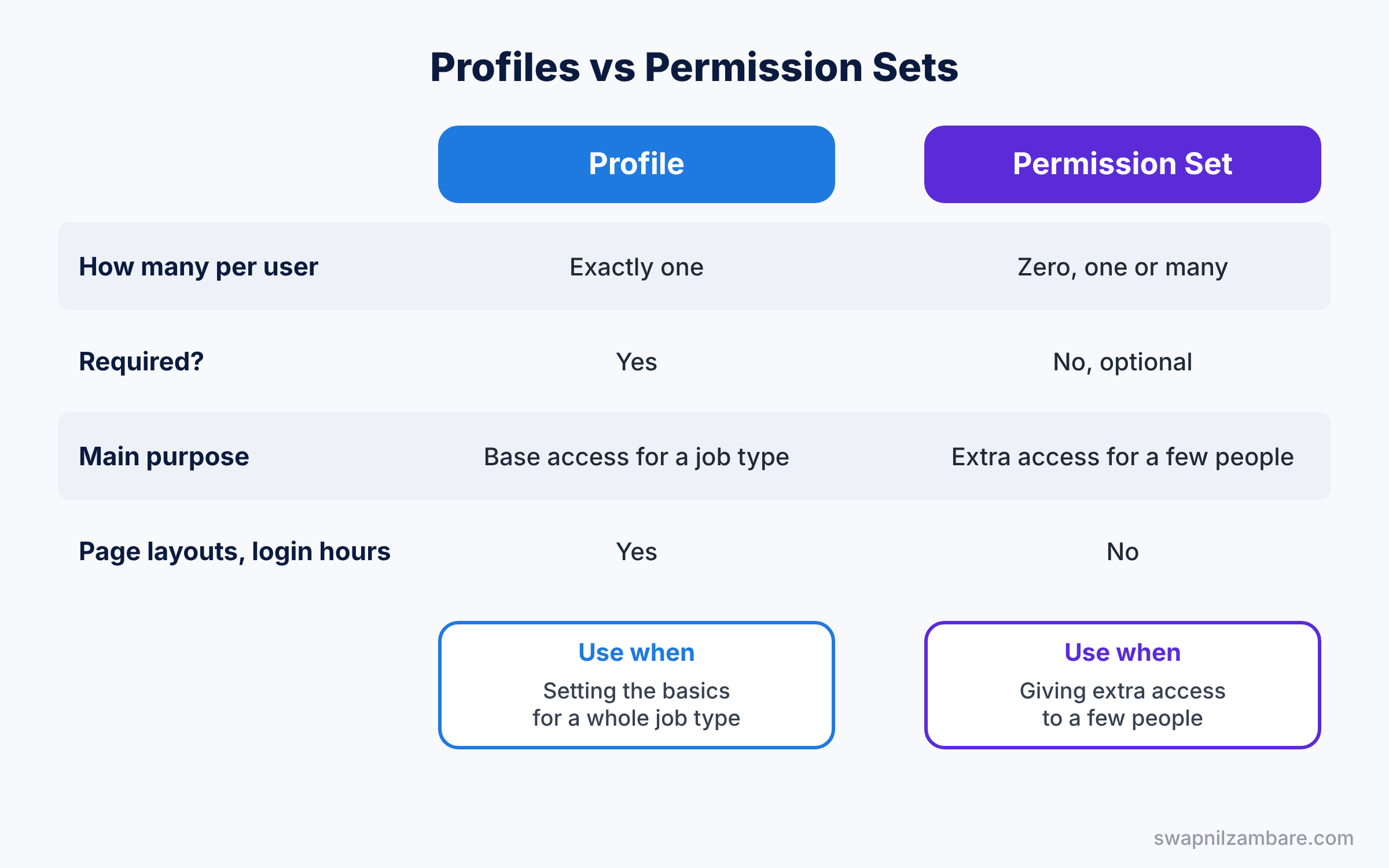
Beginners often ask which one to use. The table below compares them side by side.
| Feature | Profile | Permission Set |
|---|---|---|
| How many per user | Exactly one | Zero, one or many |
| Required? | Yes, every user needs one | No, it is optional |
| Main purpose | Base access for a job type | Extra access for a few people |
| Page layout assignment | Yes | No |
| Login hours and IP ranges | Yes | No |
| Can be grouped | No | Yes, with permission set groups |
So when should you use which? Salesforce recommends keeping profiles small and simple, with only the basics. Then you give most access through permission sets and permission set groups. This idea is called least privilege, which means each person gets only the access they need and nothing more.
Hands-on Example: Profiles and Permission Sets in Action
Let’s add a new sales rep called Asha Mehta. She needs normal sales access, plus the right to delete Accounts. Use your Developer Edition org for these steps.
Step 1: Clone a profile
- Go to Setup, type “Profiles” in Quick Find and open Profiles.
- Click Clone next to Standard User.
- Enter “Sales Rep” as the Profile Name and click Save.
Now you have your own profile that you can change freely. For this example, leave its settings as they are.
Step 2: Create the user
- In Quick Find, type “Users” and open Users. Click New User.
- Fill the fields as shown in the table below.
- Click Save. Salesforce emails Asha a link to set her password.
| Field | Value |
|---|---|
| First Name | Asha |
| Last Name | Mehta |
| Your own email, for testing | |
| Username | asha.mehta@practiceorg.com |
| User License | Salesforce |
| Profile | Sales Rep |
If you see an error about licences, your org has run out of Salesforce licences. In that case, pick the Salesforce Platform licence and a matching profile instead.
Step 3: Create a permission set
- In Quick Find, type “Permission Sets” and click New.
- Enter “Delete Accounts” as the Label. Leave the licence as None and click Save.
- Click Object Settings, then Accounts, then Edit.
- Tick Read, Edit and Delete under Object Permissions. Click Save.
Step 4: Assign the permission set
- On the permission set page, click Manage Assignments, then Add Assignment.
- Tick Asha Mehta and click Next, then Assign.
Done. Asha now has everything from the Sales Rep profile plus the right to delete Accounts. Nobody else with the Sales Rep profile gets that extra power.
Common Mistakes with Profiles and Permission Sets
- Creating a new profile for every small change. Soon you have 40 profiles nobody understands. Use permission sets for extra access instead.
- Giving everyone System Administrator. It feels quick, but it lets anyone change or delete anything. Give admin access to very few people.
- Forgetting field-level security. A field can be on the page layout and still be hidden by field-level security. Check both places when a user cannot see a field.
- Trying to delete a user. Salesforce does not let you delete users. You deactivate them instead, or freeze them for a short time.
- Thinking permission sets can remove access. They only add access. Use a muting permission set inside a group if you need to take something away.
Best Practices for Profiles and Permission Sets
- Follow least privilege. Start with minimum access and add only what each person needs, because it is easier to add than to clean up later.
- Name permission sets by what they allow. A name like “Export Reports” is clear, while “Sales Set 2” tells you nothing.
- Use permission set groups for job roles. One group per job makes onboarding a new person a single click.
- Add a description to every permission set. Future admins will thank you when they audit access.
- Review access every few months. People change jobs, so old permissions pile up if nobody checks.
Practice Task
Create a permission set called “Export Reports” with the system permission of the same name. Then assign it to yourself and remove it again.
Hint: system permissions are under the System Permissions link on the permission set page.
Official Resources
Quick Recap
- Every user needs a user record, a licence and exactly one profile.
- Profiles and Permission Sets control what users can do with objects, fields, apps and system features.
- Permissions only add up. Muting permission sets are the one way to take access away inside a group.
- Keep profiles small and give extra access with permission sets and groups.
- You deactivate or freeze users, you never delete them.
What’s Next?
Profiles and permission sets decide what a user can do. Next, we answer a different question: which records can they see? Read Salesforce Sharing Rules, Roles and OWD Explained to learn the record-level side of security.


