Salesforce Developer Edition is a free Salesforce org that you can use to learn, practise and build without paying anything. If you read our guide on what Salesforce is and how it works, this is the natural next step. Reading is good, but you only really learn Salesforce by clicking around in a real org.
In this post, you will create your own org step by step. Then we will look at the main screens, compare the Developer Edition with other org types, and cover the mistakes beginners make on day one. By the end, you will have a working practice org for every admin lesson that follows in this series.
What is Salesforce Developer Edition?
An org is your own private copy of Salesforce. It has its own users, data, settings and apps. So the Salesforce Developer Edition is simply a free org that Salesforce gives to anyone who wants to learn or build.
Think of it like a practice kitchen in a cooking school. It has the same stove and tools as a real restaurant. However, no customer is waiting for food, so you can try things, burn a dish and start again without any stress.
The Developer Edition includes most of the features you see in paid editions. For example, you get Sales Cloud and Service Cloud objects, Flow Builder, reports, dashboards and the Apex code editor. The main difference is size. You get only a few user licences and a small amount of data storage.
Why a Salesforce Developer Edition Org Matters
Many beginners watch videos for weeks and never build anything. Then, in an interview, they freeze when asked to create a simple field. A free org fixes this problem because you practise every idea the same day you learn it.
Here are real situations where your own org helps you.
- You want to follow the lessons in this blog, such as the Salesforce data model guide, and build the same objects yourself.
- Maybe you want to test a Flow before you suggest it at work, without touching company data.
- You are preparing for the Admin certification and need hands-on practice.
- Later, you may want a small portfolio project to show in interviews.
Also, a Developer Edition org does not have a trial end date. Trial orgs of paid editions stop after a few weeks, but this one stays with you. Just log in now and then, because Salesforce can lock orgs that stay unused for a very long time.
How to Set Up Your Salesforce Developer Edition
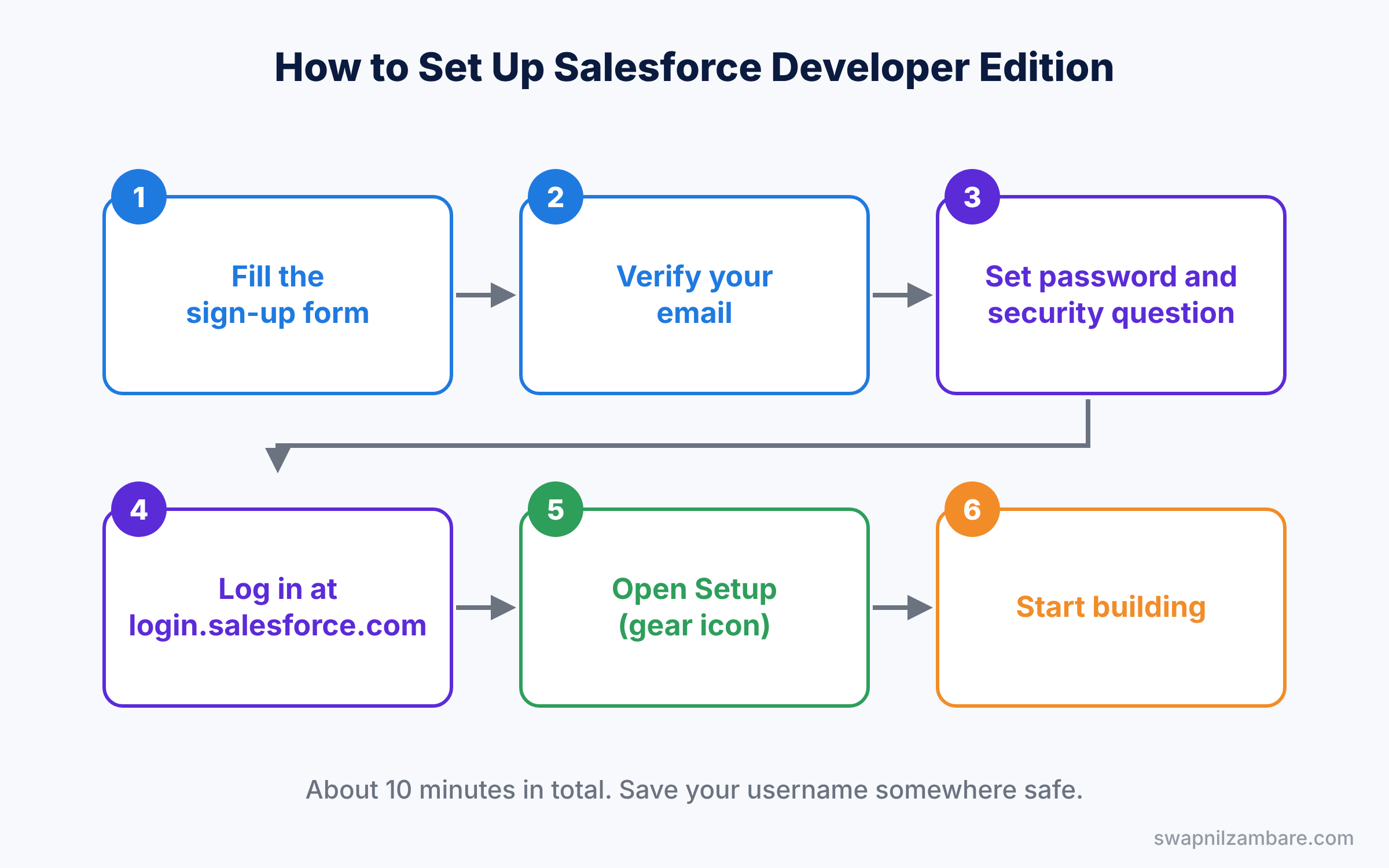
The whole setup takes about ten minutes. First you fill a short form, then you verify your email, and finally you log in. The diagram below shows the full flow.
Step 1: Fill the sign-up form
Open the official Developer Edition sign-up page. You will see a short form. The table below explains what to enter in each field.
| Field | What to enter | Tip |
|---|---|---|
| First Name and Last Name | Your real name | Shown on records you create |
| An email you can open right now | The activation link goes here | |
| Role and Company | Any honest value, such as Student | Not used for access |
| Country and Postal Code | Your location | Sets the default time zone |
| Username | An email-style name, like ravi.dev@learnsf.com | Must be unique across all orgs |
Step 2: Pick a good username
The username trips up many people. It must look like an email address, but it does not need to be a real inbox. However, it must be unique across every Salesforce org in the world. So “john@gmail.com” will almost always fail.
A simple pattern works well. Use your name, a word like “dev” and a made-up domain, for example “priya.dev2026@practiceorg.com”. Then write it down somewhere safe, because you will need it every time you log in.
Step 3: Verify your email and set a password
Next, accept the agreement and click Sign Me Up. Within a few minutes, Salesforce sends an email with the subject “Welcome to Salesforce”. Click Verify Account in that email.
After that, Salesforce asks you to set a password and pick a security question. Once you save, your org opens in Lightning Experience. That is it, your org is ready.
Step 4: Log in later
For every future visit, go to login.salesforce.com. Enter the username you created, not your personal email. Then enter your password. Salesforce may send a verification code to your email the first time you use a new browser.
A Quick Tour of Your Salesforce Developer Edition Org
When the org opens, you land on the Home page. At first it can look busy, so let’s look at the four places you will use the most.
The App Launcher
The App Launcher is the grid of nine dots at the top left. It lists every app and object in your org. For example, type “Accounts” in its search box and press Enter to open the Accounts list.
The Setup menu
Setup is where an admin does almost all the work. Click the gear icon at the top right, then click Setup. Here you create users, change security settings and build automation.
The Quick Find box on the left side of Setup is your best friend. For example, type “Users” and Salesforce shows the Users page link right away. In short, you never need to remember the full menu path.
Object Manager
Object Manager is a tab inside Setup. It lists every standard and custom object, like Account, Contact and Opportunity. You open an object here to add fields, page layouts and validation rules.
Navigation bar and tabs
The bar under the header shows tabs for the current app, such as Home, Accounts and Contacts. Each tab opens a list of records. Later in this series, you will add your own tabs for custom objects.
Developer Edition vs Other Salesforce Orgs
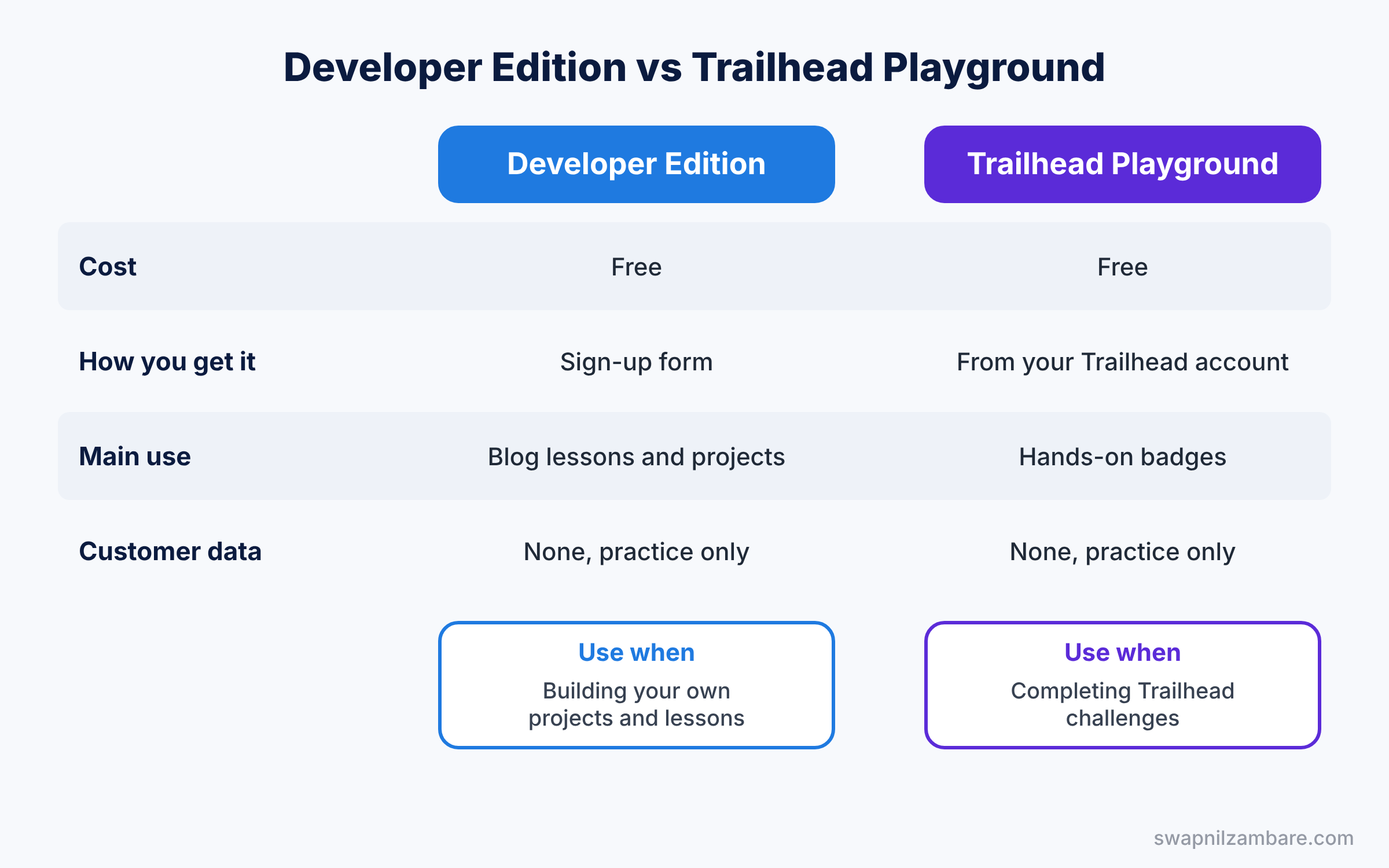
Salesforce has a few types of orgs, and beginners often mix them up. The table below compares the four you will hear about most.
| Feature | Developer Edition | Trailhead Playground | Sandbox | Production |
|---|---|---|---|---|
| Cost | Free | Free | Comes with paid licences | Paid |
| How you get it | Sign-up form | Created from your Trailhead account | Copied from production | Bought by a company |
| Main use | Learning and building | Completing Trailhead badges | Testing changes safely | Real business work |
| Real customer data | No | No | Sometimes, as a copy | Yes |
| Who uses it | Learners and developers | Learners | Admins and developers at work | Every business user |
So which one should you use? Use a Trailhead Playground for hands-on badges on Trailhead, the free learning platform. Use a Developer Edition org for this blog series and your own projects, because it stays with you and does not get mixed with badge tasks.
Hands-on Example: First Steps in Salesforce Developer Edition
Let’s prove the org works by creating a record and finding a setting. Follow these steps exactly.
- Click the App Launcher (nine dots) and type “Sales”. Open the Sales app.
- Click the Accounts tab, then click New.
- Enter “Green Valley School” as the Account Name and “Education” as the Industry. Click Save.
- Next, click the gear icon and open Setup.
- In Quick Find, type “Company Information” and open it. Check that your time zone and currency look right.
- Finally, in Quick Find, type “Users” and open Users. You will see your own user, with the profile “System Administrator”.
That last step matters. As the System Administrator, you can change anything in this org. So you can follow every admin lesson without asking anyone for access.
Common Salesforce Developer Edition Mistakes
- Using a personal email as the username. It usually fails because it is already taken. Use a made-up, unique email-style username instead.
- Forgetting the username. People remember their email but not the username. Save it in a password manager on the day you sign up.
- Logging in at the wrong address. Production and Developer Edition orgs use login.salesforce.com, while sandboxes use test.salesforce.com.
- Practising in the company org. Never test new ideas in your work production org. Use your own free org instead.
- Ignoring the activation email. The link expires after some time, so verify your account soon after you sign up.
Best Practices for Your Developer Edition Org
- Keep one main learning org. It is easier to build on earlier lessons when everything lives in one place.
- Use clear names for test data. Names like “Test Account 1” make it easy to spot and delete practice records later.
- Log in at least once a month. This keeps the org active and your skills fresh.
- Write down what you build. A simple notes file of your changes turns into a portfolio for interviews.
- Turn on two-factor login early. Salesforce requires multi-factor authentication, so set up the Salesforce Authenticator app once and save time later.
Practice Task
Create a second Account called “Blue River Hospital” with the Industry “Healthcare”. Then find the Setup page called “Login History” and check your own recent logins.
Hint: both tasks use only the App Launcher and the Quick Find box.
Official Resources
- Salesforce Developer Edition sign-up page
- Trailhead: Lightning Experience basics
- Trailhead: Salesforce Platform Basics
Quick Recap
- Salesforce Developer Edition is a free org for learning and building.
- An org is your own private copy of Salesforce with its own data and settings.
- Your username must look like an email and be unique across all orgs.
- Setup, Quick Find and Object Manager are where admins spend most of their time.
- Use a Developer Edition org for projects and a Trailhead Playground for badges.
- Never practise new ideas in a real company org.
What’s Next?
Now that you have your own org, it is time to add people to it. Next up: Profiles and Permission Sets in Salesforce, where you will create users and control what each one can do.


