Salesforce Flow Builder is the tool that lets you automate business tasks without writing a single line of code. In our Admin vs Developer guide, we mentioned Flow Builder as the main Admin automation tool. Now let’s go deep into how it actually works.
If you already understand the Salesforce Data Model, this post will feel natural. Flow Builder simply acts on the objects, fields, and records you already know about. So, let’s build that understanding step by step.
What is Salesforce Flow Builder?
Salesforce Flow Builder is a visual, drag-and-drop tool used to automate business processes. Instead of writing code, you connect boxes on a screen, and each box represents one step in your automation. For example, you can build a flow that sends an email, updates a field, or creates a new record, all without typing a single line of Apex.
Think of it like a flowchart you might draw on paper, except this flowchart actually runs and performs real actions inside Salesforce.
Why Use Salesforce Flow Builder Instead of Code?
Flow Builder exists because most business automation does not need custom code. Here is why so many Admins and even Developers reach for it first.
- It is faster to build than writing and testing Apex code.
- Non-technical team members can understand and maintain it.
- It handles most common business rules well, such as sending notifications or updating records.
- Salesforce keeps improving it with every release, adding more power over time.
However, very complex logic with many changing conditions may still need Apex code, which we covered briefly in the Admin vs Developer guide.
The Building Blocks of a Flow
Every flow is built from a few core pieces. Let’s go through each one with a simple explanation.
Trigger (Start Condition)
The trigger decides when the flow should run. For example, a flow can start “when a record is created,” “when a record is updated,” or “on a schedule, like every night at midnight.”
Elements (The Actions)
Elements are the individual steps inside the flow. Common elements include:
| Element | What It Does |
|---|---|
| Get Records | Looks up existing data, like finding a Contact by email |
| Create Records | Creates a brand new record, like a new Case |
| Update Records | Changes a field on an existing record |
| Decision | Checks a condition and branches the flow, like an if-else check |
| Send Email | Sends an automated email to someone |
Variables (Temporary Storage)
A variable is a small container that holds a value while the flow runs. For example, a variable might temporarily hold a customer’s email address so it can be used later in the same flow.
Types of Flows in Salesforce
Salesforce offers a few different flow types, each suited to a different situation.
| Flow Type | When It Runs | Example Use |
|---|---|---|
| Screen Flow | When a user clicks a button | A guided form for entering new customer details |
| Record-Triggered Flow | Automatically, on record changes | Send an alert when a deal is marked “Closed Won” |
| Scheduled Flow | At a set time or interval | Send a weekly summary report every Monday |
A Real Example: Building a Salesforce Flow Builder Automation
Let’s walk through a real business need, step by step, so you can see exactly how this works in practice.
Business need: “Whenever a new Case is created with high priority, automatically notify the support manager by email.”
- Create a new Record-Triggered Flow on the Case object.
- Set the trigger condition to “when a record is created.”
- Add a Decision element that checks if the Priority field equals “High.”
- If true, add a Send Email element addressed to the support manager.
- Activate the flow, and test it by creating a sample high-priority Case.
This entire automation can be built in about 15 minutes, with zero code. As a result, the support team never misses an urgent case again.
From Basic to Advanced Flow Building
Once you are comfortable with simple flows, you can grow your skills in stages.
- Basic: Single-step flows, like sending one email on record creation.
- Intermediate: Flows with Decision branches and multiple actions.
- Advanced: Flows that call Apex code for complex logic, or flows that loop through many records at once.
In short, Flow Builder scales with your skill level, so you never outgrow it completely, even as a Developer.
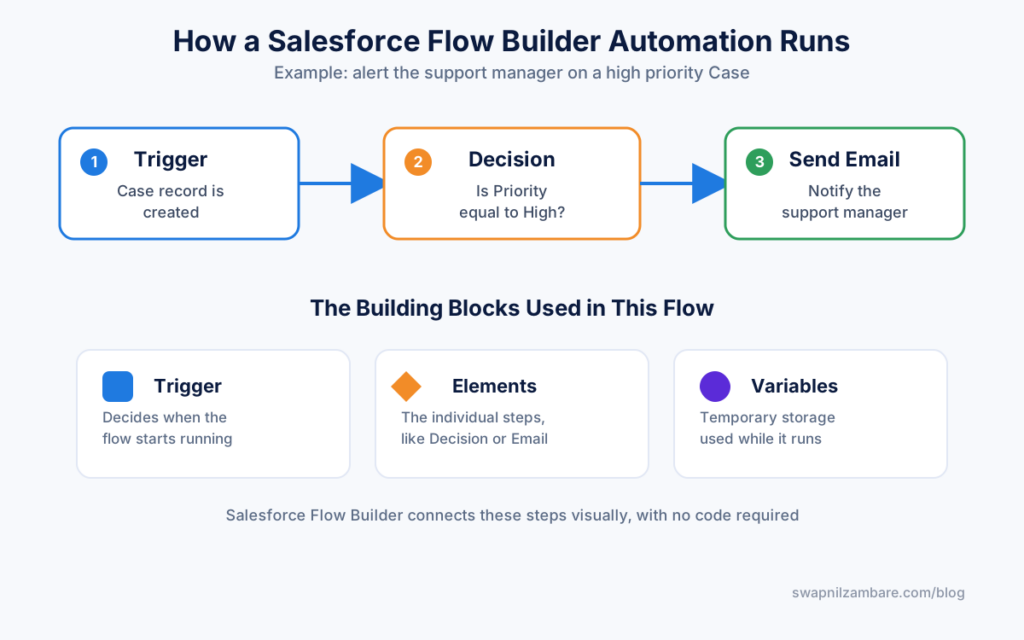
A Salesforce Flow Builder automation showing the trigger, decision, and action steps used in the high priority Case example.
Official Resources
- Trailhead: Free hands-on Flow Builder modules
- Official Salesforce documentation
- Free Developer org signup
- Official Salesforce help center
Quick Recap
- Salesforce Flow Builder automates tasks visually, without writing code.
- Every flow uses a trigger, elements, and sometimes variables.
- Three main flow types exist: Screen, Record-Triggered, and Scheduled.
- A real automation, like a high-priority Case alert, can be built in minutes.
- Flow Builder grows with you, from basic single-step flows to advanced logic.
What’s Next?
Next up: Salesforce Developer Edition: How to Set Up Your Free Org, where you will create your own free practice org for every lesson in this series.


