Standard vs Custom Objects is one of the first design choices every Salesforce admin makes. In our Salesforce data model guide, you learned that objects are like tables that store your data. Now we go one step further and ask a practical question. Should you use an object Salesforce already gives you, or build your own?
In this post, you will learn what standard and custom objects are, how to spot them by their API names, and how to decide between them. Then you will build a real custom object in your Developer Edition org. Get this choice right, and your org stays clean for years.
What are Standard vs Custom Objects?
A standard object is an object that Salesforce creates for you in every org. Account, Contact, Lead, Opportunity and Case are common examples. They come with ready-made fields, page layouts and features.
A custom object is an object that you create for your own business needs. For example, a school might create a Course object, and a car dealer might create a Vehicle object. Salesforce adds “__c” to the end of every custom object’s API name, like Course__c.
Here is a simple analogy. Standard objects are like the folders that come with a new office cabinet: Customers, Contacts and Deals. Custom objects are the extra folders you label yourself, because your business has something unique to track.
Why the Standard vs Custom Objects Choice Matters
Picking the wrong object causes pain later. If you build a custom “Customer” object when Account already exists, you lose many built-in features. Reports, integrations and apps from AppExchange all expect customers to live in Account.
On the other hand, forcing unrelated data into a standard object is just as bad. Storing training courses as Opportunities, for example, mixes sales numbers with class schedules. So the goal is simple: use standard objects when they fit, and custom objects when they do not.
How to Spot Standard vs Custom Objects by API Name
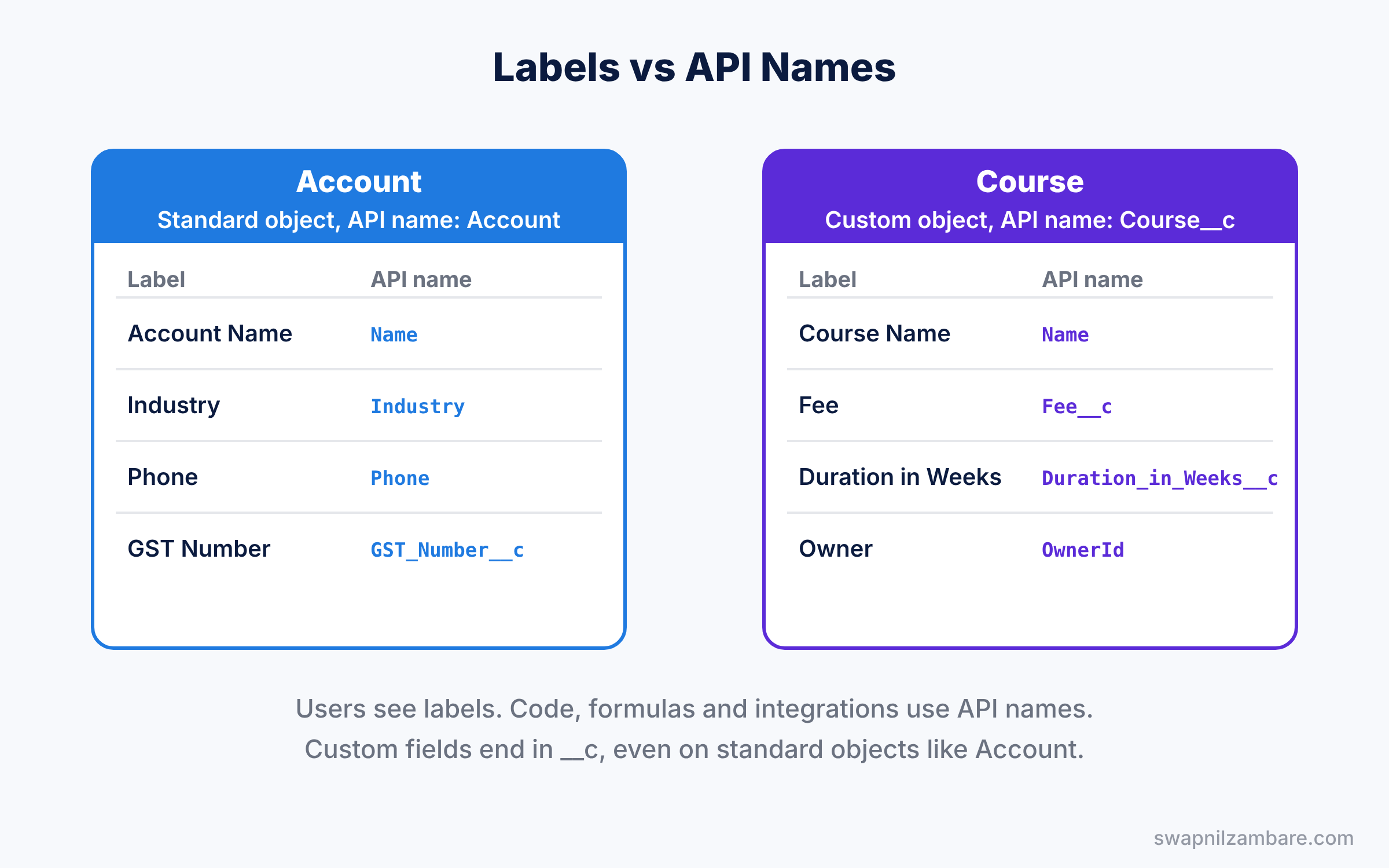
Every object and field has two names. The label is the friendly name users see, like “Course”. The API name is the name that code, formulas and integrations use, like “Course__c”. Also, an API name never has spaces.
The suffix at the end of an API name tells you what kind of item it is. Below is a table of the ones you will meet most often.
| Suffix | Meaning | Example |
|---|---|---|
| No suffix | Standard object or standard field | Account, Industry |
| __c | Custom object or custom field | Course__c, Fee__c |
| __r | Custom relationship, used in queries | Teacher__r.Name |
| __mdt | Custom metadata type | Discount_Setting__mdt |
| __e | Platform event | Order_Update__e |
Also notice that you can add custom fields to standard objects. For example, a field called “GST Number” on Account gets the API name GST_Number__c. So a standard object can still hold your own custom data.
Types of Objects in Salesforce
Standard objects
These are built for common business processes. Lead, Account, Contact and Opportunity support the sales cycle. Case supports customer service, and Campaign supports marketing.
Many standard objects include special features. For example, Leads can be converted into Accounts, Contacts and Opportunities with one click. Opportunities have stages, probabilities and forecasting. You would need a lot of custom work to rebuild these.
Custom objects
These store data that is unique to your business. Common examples include Property for real estate, Student for education, and Project for consulting firms.
When you create a custom object, Salesforce gives it standard system fields automatically. These include Name, Owner, Created By and Last Modified By. Then you add your own custom fields on top.
Rename a standard object instead of rebuilding it
Sometimes a standard object fits, but your team uses a different word. For example, a school may call its customers “Parents” instead of Accounts. In that case, you do not need a new object. Go to Setup, type “Rename Tabs and Labels” in Quick Find, and change the label of Account to Parent.
The API name stays Account, so reports, apps and integrations keep working. Only the words users see on screen change. This is a quick win that many beginners miss.
Other object types
As you grow, you will also meet external objects, which show data stored outside Salesforce, and big objects for very large data volumes. These are advanced topics. For now, focus on standard and custom objects.
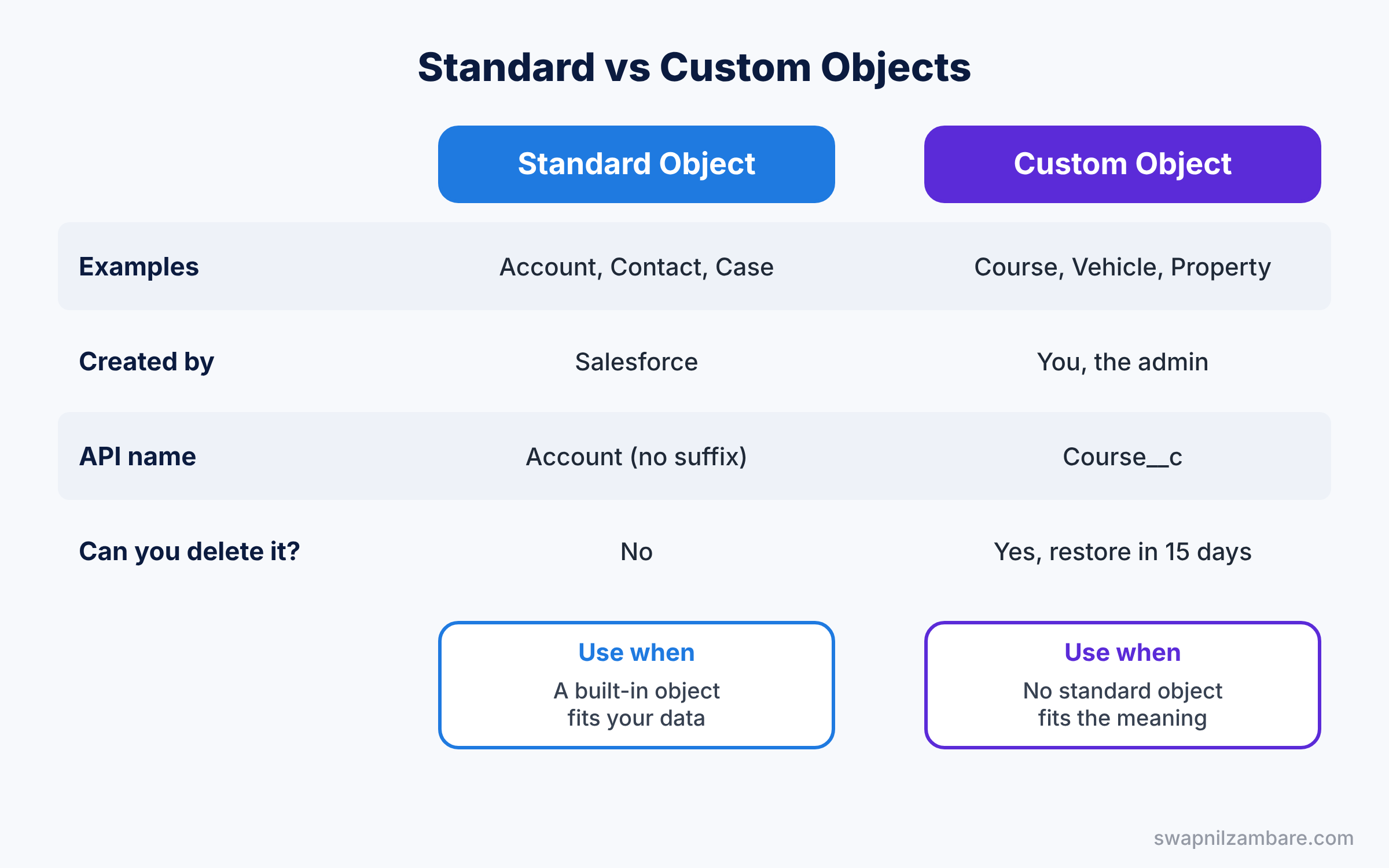
Standard vs Custom Objects: Side-by-Side Comparison
The table below sums up the main differences.
| Feature | Standard object | Custom object |
|---|---|---|
| Who creates it | Salesforce | You, the admin |
| API name | No suffix, like Account | Ends in __c, like Course__c |
| Can you delete it? | No | Yes, and restore within 15 days |
| Built-in features | Many, like lead conversion | Only the basics you add |
| Rename the label | Yes, with Rename Tabs and Labels | Yes, any time |
| Best for | Common processes like sales and service | Data unique to your business |
When should you use which? First, check if a standard object already fits the business concept. If it does, use it and add custom fields. If no standard object matches the real meaning of the data, create a custom object.
Standard vs Custom Objects in Practice: Build a Course Object
Bright Path Tutors wants to track the courses it sells. No standard object fits, so let’s create a custom object called Course.
Step 1: Create the object
- Go to Setup and click the Object Manager tab.
- Click Create, then Custom Object.
- Fill the fields as shown in the table below.
- Tick Launch New Custom Tab Wizard after saving this custom object, then click Save.
| Field | Value |
|---|---|
| Label | Course |
| Plural Label | Courses |
| Object Name | Course (API name becomes Course__c) |
| Record Name | Course Name, Data Type Text |
| Allow Reports | Ticked |
| Track Field History | Ticked |
Step 2: Create the tab
The tab wizard opens next. Pick any Tab Style, such as Books, and click Next. Keep the default profile settings, click Next, then Save. Now a Courses tab appears in the App Launcher.
Step 3: Add two custom fields
- In Object Manager, open Course, then Fields and Relationships, and click New.
- Pick Currency, click Next, enter “Fee” as the Field Label and click Next, Next, Save and New.
- Pick Number, enter “Duration in Weeks” as the Field Label, and click Next, Next, Save.
Now create two Course records from the Courses tab, such as “Spoken English” with a fee of 4999 and “Basic Maths” with a fee of 2999.
Step 4: See how developers read your object
You do not need to write code as an admin. However, it helps to see how developers use your API names. Here is a SOQL query, the language used to read Salesforce data.
SELECT Name, Fee__c, Duration_in_Weeks__c
FROM Course__c
ORDER BY Fee__c DESC
Notice the “__c” on the object and both custom fields, while Name is a standard field with no suffix. You can run this in the Developer Console under the Query Editor tab. The result looks like this.
Name             Fee__c    Duration_in_Weeks__c
Spoken English   4999      8
Basic Maths      2999      6
Compare it with a query on a standard object. Here, every field is standard, so there is no suffix at all.
SELECT Name, Industry, Phone
FROM Account
WHERE Industry = 'Education'
We will learn SOQL properly later in this series. For now, just remember that API names are what code sees.
Common Mistakes with Standard vs Custom Objects
- Rebuilding a standard object. Creating a custom “Client” object when Account fits loses built-in features. Rename Account’s label instead if your team prefers a different word.
- Changing API names after go-live. Code, formulas and integrations use API names, so a change can break them.
- Using vague labels. “Data” or “Info” says nothing. Use clear nouns like Course, Invoice or Vehicle.
- Skipping the plural label. Wrong plurals look odd on tabs and list views, so set them carefully.
- Forgetting to give users access. A new custom object is hidden until profiles or permission sets grant access to it.
Best Practices for Standard vs Custom Objects
- Check standard objects first. They save build time and work better with reports and apps.
- Plan the data model before clicking Create. Sketch the objects and their relationships on paper first.
- Write a description for every custom object. It tells future admins why the object exists.
- Grant access with permission sets. This follows the least privilege idea from our profiles and permission sets guide.
- Turn on field history only where needed. Each object has a limit on tracked fields, so pick the important ones.
Practice Task
Create a custom object called Teacher with a Phone field and an Email field. Then add a lookup field on Course that points to Teacher.
Hint: a lookup is a field type under Fields and Relationships, and it creates a Teacher__c field on Course.
Official Resources
- Trailhead: Data Modeling module
- Salesforce Help: Create a Custom Object
- Salesforce Object Reference: Standard Objects
Quick Recap
- Standard objects come with every org, like Account, Contact and Opportunity.
- Custom objects are objects you build, and their API names end in __c.
- The Standard vs Custom Objects choice depends on whether a built-in object truly fits the data.
- Labels are for users, while API names are for code, formulas and integrations.
- You can add custom fields to standard objects too.
- New custom objects need access through profiles or permission sets.
What’s Next?
Your Course object has its first fields. Next, learn every field type in detail, plus how to calculate values automatically. Read Salesforce Formula Fields and Field Types Explained.


