Salesforce Formula Fields let you calculate a value automatically, such as a price with tax or the end date of a course. But before you write formulas, you need to know the field types that hold your data. In our Standard vs Custom Objects guide, you built a Course object with a Fee and a Duration field. Now we will add the right fields and teach Salesforce to do the maths for you.
This post covers the most common field types, how to pick the right one, and how formula fields work. Then you will write five real formulas, step by step. If you have built automation with Salesforce Flow Builder, you will see that formulas are an even simpler tool for many small calculations.
What are Field Types in Salesforce?
A field is one piece of information on a record, like a phone number or a price. The field type tells Salesforce what kind of data the field can hold. So a Date field accepts only dates, and a Currency field accepts only money values.
Think of an online form. A date box shows a calendar, a phone box expects numbers, and a dropdown offers fixed choices. Field types work the same way. They keep data clean because users cannot type the wrong kind of value.
Field Types to Know Before Salesforce Formula Fields
Salesforce offers more than 20 field types. You do not need all of them on day one. The table below lists the ones you will use most often.
| Field type | What it stores | Example |
|---|---|---|
| Text | Short text up to 255 characters | Course code: ENG-101 |
| Text Area (Long) | Long text across many lines | Course description |
| Number | Whole or decimal numbers | Duration in Weeks: 8 |
| Currency | Money values in the org currency | Fee: 4,999 |
| Percent | Percentage values | Discount: 10% |
| Date and Date/Time | A day, or a day with a time | Start Date: 1 June |
| Checkbox | True or false | Is Online: ticked |
| Picklist | One choice from a fixed list | Level: Beginner |
| Lookup Relationship | A link to another record | Teacher on a Course |
| Formula | A value calculated from other fields | Fee with GST |
Picklists vs text fields
Use a picklist when the answer must come from a fixed list. For example, Level should be Beginner, Intermediate or Advanced. With a text field, users would type “beginer”, “Begin” and “BEGINNER”, and your reports would break.
Number vs Currency vs Percent
All three store numbers, but each one formats differently. Currency adds the currency symbol, and Percent adds the % sign. So pick the type that matches how people read the value.
Lookup vs Master-Detail
Both link two objects. A lookup is a loose link, so the child record can exist on its own. A master-detail is a tight link, so deleting the parent also deletes the children. Our data model guide covers relationships in more detail.
What are Salesforce Formula Fields?
Salesforce Formula Fields are read-only fields that calculate their value from other fields, using an expression you write. You write the expression once. Then Salesforce shows the answer on every record, and users cannot edit it.
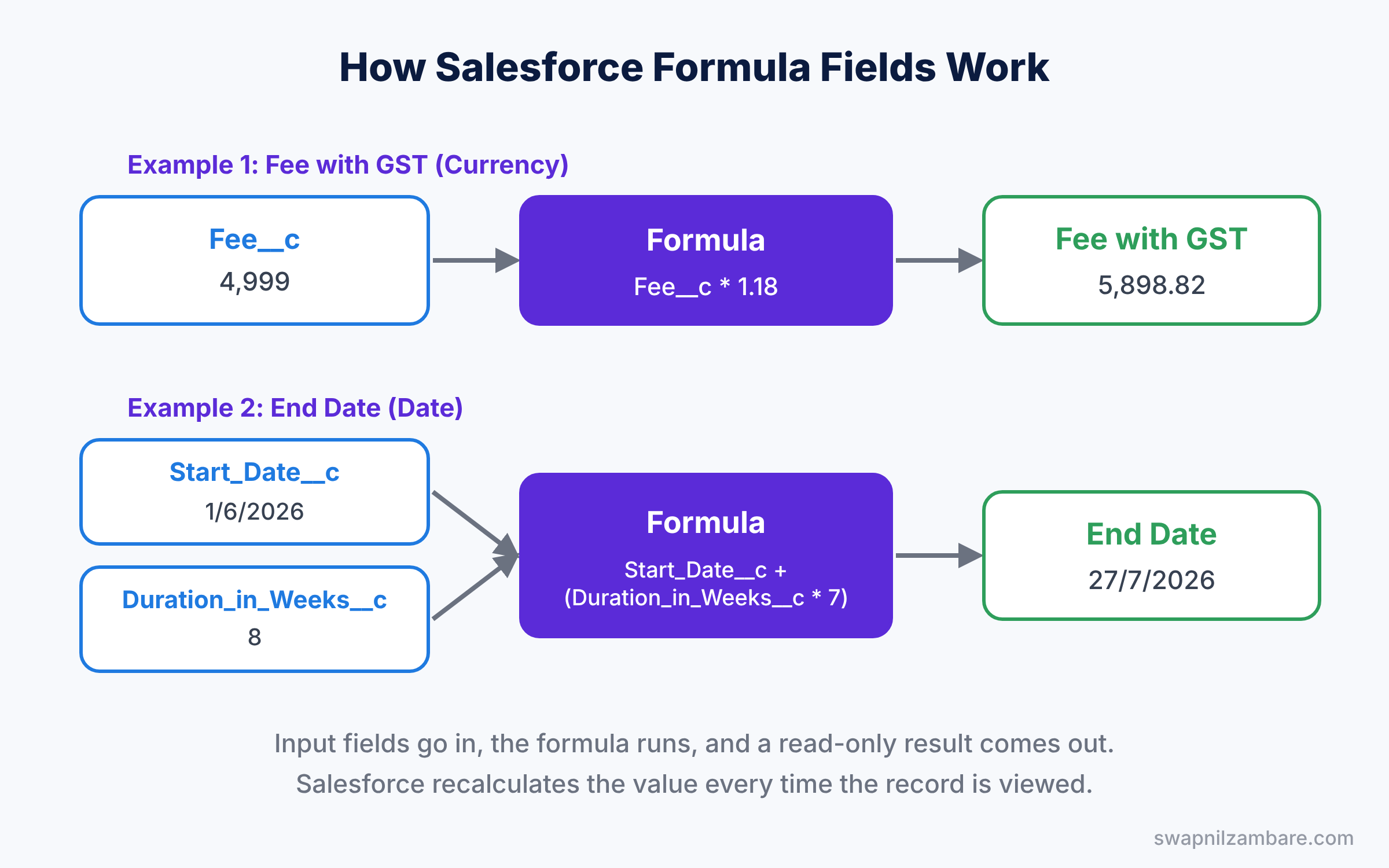
A formula field works like a cell in Excel that contains “=B2*1.18”. Whenever B2 changes, the cell updates by itself. Similarly, when a Course fee changes, the “Fee with GST” field updates the next time anyone views the record.
How Salesforce Formula Fields Work
A formula takes input fields, runs an expression and returns a result of a fixed type. The diagram below shows this flow for a Course record.
Here are the key rules to remember.
- Return type. Every formula returns one type: Checkbox, Currency, Date, Date/Time, Number, Percent, Text or Time.
- Calculated on view. Salesforce calculates the value when you open or report on the record, so it is always current.
- Cross-object references. A formula on Course can read fields from its parent, such as Teacher__r.Email__c.
- Size limit. A formula can contain up to 3,900 characters, which is plenty for most needs.
Hands-on Example: Five Real Salesforce Formula Fields
Before you start, take a minute to learn the formula editor. It has two tabs. The Simple Formula tab offers a few basic operators, while the Advanced Formula tab gives you every function and an Insert Field button. Always use the Advanced Formula tab, because Insert Field picks the correct API names for you and avoids typing errors.
Also, look at the Functions list on the right side of the editor. Click any function, like IF or TODAY, and Salesforce shows a short description with an example. So you never need to remember every function by heart.
Let’s add formulas to the Course object from the last post. First, add three normal fields so the formulas have data to use.
| Field label | Field type | Values |
|---|---|---|
| Level | Picklist | Beginner, Intermediate, Advanced |
| Start Date | Date | Any date |
| Is Online | Checkbox | Ticked or not |
To create a formula field, go to Setup, then Object Manager, then Course, then Fields and Relationships. Click New, pick Formula, enter the label, pick the return type and click Next. Then type the formula in the Advanced Formula tab, click Check Syntax and save.
Formula 1: Fee with GST (Currency)
This formula adds 18% GST to the course fee.
Fee__c * 1.18If the Fee is 4,999, the field shows 5,898.82. The “* 1.18” part multiplies the fee by 118%.
Formula 2: Course length label (Text)
This formula labels a course as Long or Short, based on its duration.
IF(
    Duration_in_Weeks__c > 8,
    "Long Course",
    "Short Course"
)
IF takes three parts: a test, the value when true, and the value when false. So an 8-week course shows “Short Course”, while a 12-week course shows “Long Course”.
Formula 3: End date (Date)
This formula finds the last day of the course.
Start_Date__c + (Duration_in_Weeks__c * 7)Adding a number to a date moves it forward by that many days. So a course starting on 1 June with 8 weeks ends on 27 July.
Formula 4: Beginner discount (Currency)
This formula gives a 10% discount on Beginner courses only.
IF(
    ISPICKVAL(Level__c, "Beginner"),
    Fee__c * 0.90,
    Fee__c
)
Picklists need the ISPICKVAL function in an IF test. You cannot write Level__c = “Beginner”, because Salesforce will show a syntax error.
Formula 5: Missing start date warning (Checkbox)
This formula is true when someone forgets to fill the Start Date.
ISBLANK(Start_Date__c)You can use this checkbox in a list view called “Courses with no start date”. Then your team can fix the gaps each week.
Here is what one Course record shows after you add all five fields.
Course Name:            Spoken English
Fee:                    4,999.00
Level:                  Beginner
Duration in Weeks:      8
Start Date:             1/6/2026
Fee with GST:           5,898.82
Course Length:          Short Course
End Date:               27/7/2026
Beginner Price:         4,499.10
Missing Start Date:     false
Salesforce Formula Fields vs Roll-Up Summary Fields
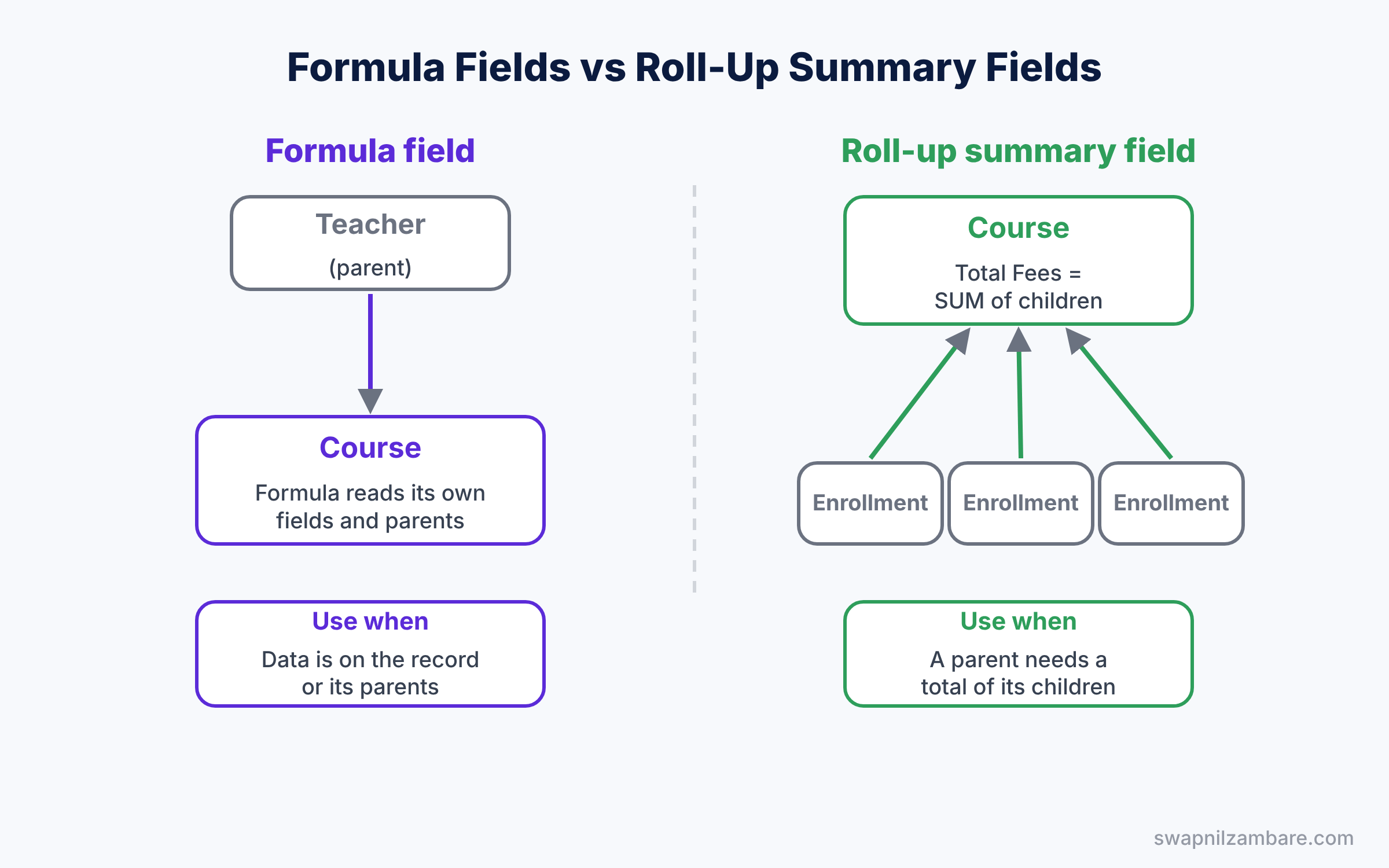
Formula fields and roll-up summary fields both calculate values. However, they work in different directions. The table below compares them.
| Feature | Formula field | Roll-up summary field |
|---|---|---|
| Reads data from | The same record or its parents | Child records below it |
| Example | Fee with GST on a Course | Total fees of all Enrollments |
| Works on | Any object | The master side of a master-detail link |
| Functions | IF, CASE, TODAY, TEXT and many more | COUNT, SUM, MIN, MAX |
| Editable by users | No | No |
In short, use a formula to calculate from fields on the record or above it. Use a roll-up summary when a parent needs a total from its children.
Common Mistakes with Salesforce Formula Fields
- Using Text for everything. Text fields allow messy values. Pick Picklist, Number, Date or Currency when the data has a clear shape.
- Comparing picklists with “=”. Use ISPICKVAL or CASE for picklist values, or the formula will not save.
- Expecting formulas to fire automation. A formula value changes when viewed, not when saved, so flows do not see it as an edit.
- Forgetting blank values. A blank field can make the result blank. Use the “Treat blank fields as zeroes” option or ISBLANK where it makes sense.
- Changing a field type with data in it. Some changes lose data, so test the change in a sandbox or practice org first.
Best Practices for Salesforce Formula Fields
- Choose the field type before you create the field. Changing it later can lose data and break reports.
- Add help text to every field. It shows a small info icon that explains the field to users.
- Keep formulas short and readable. Use line breaks and spaces, like the examples above, so others can follow them.
- Use Check Syntax often. It catches typos in field names before you save.
- Test with real-looking records. Try blank values, zero and very large numbers, because that is where formulas usually fail.
Practice Task
Create a Text formula called “Course Badge” that shows “Online” when Is Online is ticked and “Classroom” when it is not.
Hint: a checkbox already returns true or false, so you can write IF(Is_Online__c, “Online”, “Classroom”).
Official Resources
- Trailhead: Formulas and Validations module
- Salesforce Help: Custom Field Types
- Salesforce Help: Formula Operators and Functions
Quick Recap
- The field type decides what kind of data a field can hold.
- Use picklists for fixed choices and Currency, Number or Percent for numeric values.
- Salesforce Formula Fields calculate read-only values from other fields.
- Every formula has one return type, like Currency, Text, Date or Checkbox.
- Use ISPICKVAL for picklists and ISBLANK to handle missing values.
- Roll-up summary fields total child records, while formulas read the record and its parents.
What’s Next?
Formulas calculate values. Next, you will use the same formula skills to stop bad data before it is saved. Coming soon: Salesforce Validation Rules, with real examples for beginners.


