Salesforce Validation Rules stop bad data before it gets saved. In our post on formula fields and field types, you learned how to calculate values with formulas. Validation rules use the same formula skills, but with a different goal. Instead of showing a value, they block a save when something is wrong.
In this post, you will learn how validation rules work, which functions you will use most, and how to write clear error messages. Then you will build four real rules on the Course object from our standard vs custom objects guide. By the end, you will know how to keep your org’s data clean without writing any code.
What are Salesforce Validation Rules?
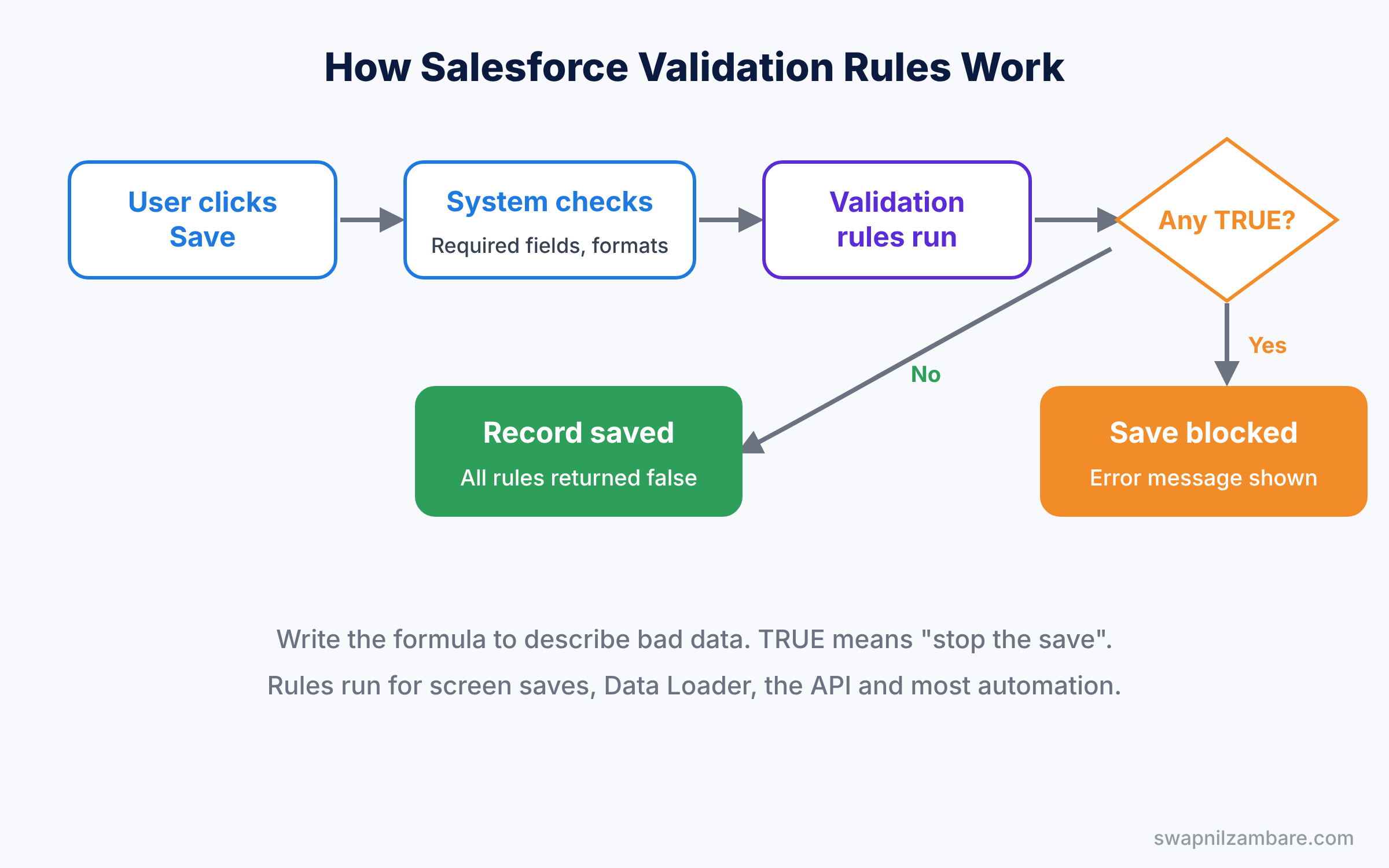
A validation rule is a formula that checks a record when a user tries to save it. If the formula returns true, Salesforce stops the save and shows an error message. If it returns false, the record saves normally.
Here is a simple way to picture it. Think of a security guard at an office gate. The guard checks every visitor against a short list of rules, such as “no entry without an ID card”. If a visitor breaks a rule, the guard stops them and explains why. Validation rules do the same job for your records.
So the key idea is this: you write the formula to describe the bad data, not the good data. True means “something is wrong, stop the save”.
Why Salesforce Validation Rules Matter
Bad data spreads fast. One wrong date or a negative price can break reports, confuse users and send wrong emails to customers. Fixing thousands of messy records later takes far more time than stopping them at the start.
Here are some real situations where validation rules help.
- A course fee must never be zero or negative.
- A new course cannot start on a date in the past.
- Advanced courses must run for at least eight weeks.
- A phone number must have exactly ten digits.
- A discount above 20% needs a reason in the Notes field.
Also, Salesforce Validation Rules run no matter how data comes in. They check records saved from the screen, from Data Loader, from the API and from many automations. So one rule protects every entry point at once.
How Salesforce Validation Rules Work
Every time someone saves a record, Salesforce runs a series of checks in a fixed order. First come system checks, such as required fields and field formats. Then Salesforce runs your validation rules. Only if every rule returns false does the record get saved.
Each validation rule has four main parts. The table below explains them.
| Part | What it does | Example |
|---|---|---|
| Rule Name | A unique name for admins | Fee_Must_Be_Positive |
| Active | Turns the rule on or off | Ticked |
| Error Condition Formula | Returns true when data is wrong | Fee__c <= 0 |
| Error Message and Location | What users see and where | “Fee must be more than zero”, next to Fee |
The error location matters for users. You can show the message at the top of the page or right next to one field. A message next to the field is easier to understand, so use it whenever the rule checks a single field.
Functions You Will Use in Validation Rules
Validation rules use the same formula editor you met in the last post. However, a few functions appear again and again. Let’s look at each one.
ISBLANK
ISBLANK checks if a field is empty. For example, ISBLANK(Start_Date__c) returns true when nobody filled the start date. It works on text, number and date fields.
ISPICKVAL
ISPICKVAL checks the value of a picklist. You cannot compare a picklist with an equals sign, so you write ISPICKVAL(Level__c, “Advanced”) instead.
AND, OR and NOT
These join several tests together. AND needs every test to be true, while OR needs only one. NOT flips a result, so NOT(true) becomes false.
ISNEW and ISCHANGED
ISNEW returns true only when the record is being created. ISCHANGED returns true when a field’s value changed during this save. So you can write rules that apply only to new records, or only when a certain field is edited.
REGEX
REGEX checks if text matches a pattern. For example, REGEX(Phone, “[0-9]{10}”) is true only when the phone has exactly ten digits. Patterns look strange at first, so copy tested ones and change them slowly.
Salesforce Validation Rules vs Required Fields
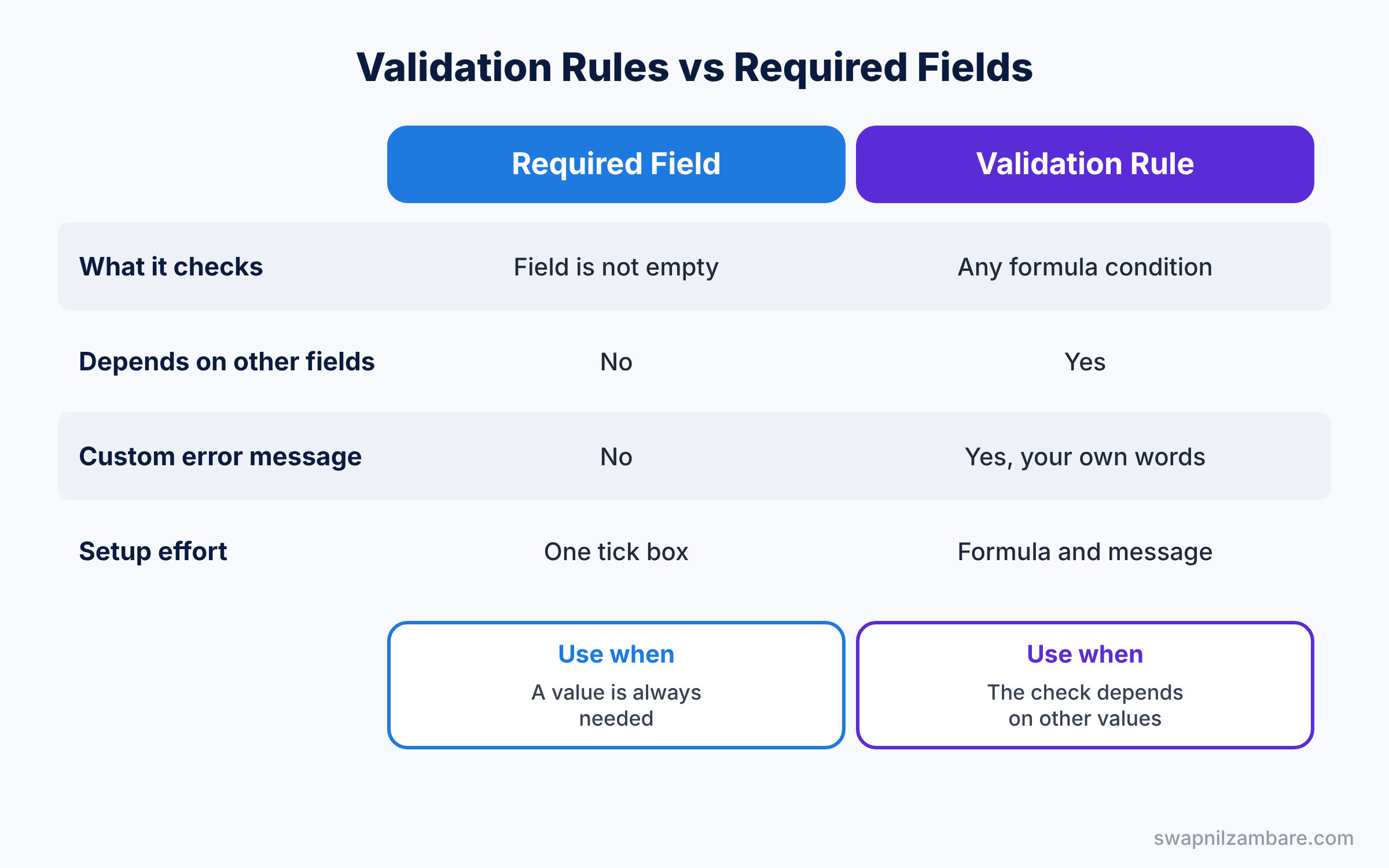
Beginners often ask why they need rules when fields can be marked as required. Both stop empty values, but they work very differently. The table below compares them.
| Feature | Required field | Validation rule |
|---|---|---|
| What it checks | Only that a field is not empty | Any condition you can write as a formula |
| Can depend on other fields | No | Yes, like “required only if Level is Advanced” |
| Custom error message | No, standard message | Yes, your own words |
| Works on API and Data Loader | Yes, if set on the field | Yes |
| Setup effort | One tick box | A formula and a message |
In short, use a required field when a value is always needed. Use a validation rule when the check depends on other values or needs a clear, custom message.
Hands-on Example: Four Validation Rules for Courses
Let’s protect the Course object at Bright Path Tutors. Open your Developer Edition org and follow these steps for each rule.
- Go to Setup, then Object Manager, then Course.
- Click Validation Rules, then New.
- Enter the Rule Name, tick Active and paste the formula.
- Click Check Syntax. Then enter the error message, pick the error location and click Save.
Rule 1: Fee must be more than zero
This rule blocks any course with a zero or negative fee.
Fee__c <= 0Use the error message “Fee must be more than zero.” and show it next to the Fee field. Now try saving a course with a fee of 0. Salesforce stops the save and shows your message.
Rule 2: New courses cannot start in the past
This rule checks the start date, but only when someone creates a new course.
AND(
    ISNEW(),
    Start_Date__c < TODAY()
)
ISNEW() makes sure old courses can still be edited later. Without it, every past course would fail validation the moment anyone edited it.
Rule 3: Advanced courses need at least eight weeks
This rule combines a picklist check with a number check.
AND(
    ISPICKVAL(Level__c, "Advanced"),
    Duration_in_Weeks__c < 8
)
Use the message “Advanced courses must run for at least 8 weeks.” Then test it with an Advanced course of six weeks.
Rule 4: Online courses need a start date
This rule makes Start Date required, but only for online courses.
AND(
    Is_Online__c,
    ISBLANK(Start_Date__c)
)
A checkbox already returns true or false. So you can use Is_Online__c directly inside AND, without writing “= true”.
Here is what a user sees after breaking Rule 3.
Review the errors on this page.
Duration in Weeks: Advanced courses must run for at least 8 weeks.
Common Mistakes with Salesforce Validation Rules
- Writing the formula for good data. Remember that true means error. If your rule blocks every record, you probably flipped the logic.
- Forgetting old records. A new rule can block edits on thousands of existing records. Use ISNEW() or ISCHANGED() where it makes sense.
- Vague error messages. “Invalid data” helps nobody. Say exactly what is wrong and how to fix it.
- Blocking integrations and data loads. Rules also stop API and Data Loader saves. Plan a bypass for trusted users before a big import.
- Too many overlapping rules. Several rules on the same field confuse users. Combine them where you can.
Best Practices for Salesforce Validation Rules
- Use a clear naming pattern. Names like “Fee_Must_Be_Positive” tell other admins what the rule does without opening it.
- Add a description. Explain the business reason, so nobody deletes the rule by mistake later.
- Show errors next to the field. Users fix problems faster when the message sits beside the field.
- Test with real-looking records. Try blank values, zero, past dates and the exact boundary values, like 8 weeks.
- Plan a bypass with a custom permission. Add NOT($Permission.Bypass_Validation) to rules, then give that permission only to data-load users.
Practice Task
Write a validation rule that stops a course from being saved when the Fee is more than 50,000. Show the error next to the Fee field.
Hint: the whole formula is one short comparison, like Rule 1.
Salesforce Validation Rules FAQ
Do validation rules run when a flow updates a record?
Yes, in most cases. When a flow, Data Loader or the API saves a record, Salesforce runs your validation rules too. So a badly written rule can also break automation, which is why testing matters.
How many Salesforce Validation Rules can one object have?
Each object has a limit on active rules, and it depends on your edition. However, if you get close to that limit, your rules are probably too detailed. In that case, combine related checks into one rule with OR.
Can a validation rule check a related record?
Yes. For example, a rule on Course can read a field on its parent Teacher record through Teacher__r. This works for parent records, so you can check values one level up or more.
Official Resources
- Formulas and Validations module (Trailhead)
- Validation Rules (Salesforce Help)
- Formula Operators and Functions (Salesforce Help)
Quick Recap
- Salesforce Validation Rules block a save when their formula returns true.
- Write the formula to describe bad data, then add a clear error message.
- ISBLANK, ISPICKVAL, AND, OR, ISNEW, ISCHANGED and REGEX cover most needs.
- Rules run for screen saves, imports and the API, so they protect every entry point.
- Use required fields for simple cases and validation rules for conditional checks.
- Always test boundary values and think about existing records.
What’s Next?
Your data is now clean, so let’s make it look good on screen. Next up: Salesforce Page Layouts and Lightning Record Pages, where you will control what users see on every record.


