Master-Detail vs Lookup is the most important choice you make when you connect two objects in Salesforce. The relationship type decides who owns the child records, who can see them, what happens when a parent is deleted, and whether you can total the children with a roll-up summary field. In our Salesforce data model guide, you met relationships for the first time, and our formula fields guide briefly showed roll-up summaries. Now we go deeper.
In this post, you will learn exactly how lookup and master-detail relationships behave, how a junction object creates a many-to-many link, and how roll-up summary fields add up child records. Then you will build an Enrollment object that links Courses and Students at Bright Path Tutors. This design pattern appears in almost every real Salesforce project.
What is Master-Detail vs Lookup?
A lookup relationship is a loose link between two objects. The child record points to a parent, but it lives on its own. It has its own owner and its own sharing, and it can often exist without any parent at all.
A master-detail relationship is a tight link. The child, called the detail, cannot exist without its parent, called the master. The detail has no owner of its own. Instead, it follows the master’s owner and sharing, and it is deleted when the master is deleted.
Here is a simple analogy. A lookup is like a library book that mentions a related book. Each book stands alone on the shelf. A master-detail is like the pages of a notebook. Pages cannot exist without the notebook, and if you throw the notebook away, the pages go with it.
Why the Relationship Type Matters
Choosing the wrong relationship causes pain later. If you use a lookup where you need totals, you cannot create a roll-up summary field. If you use master-detail where children should have their own owners, sharing becomes too open or too closed.
Here are some real situations.
- Each Enrollment belongs to one Course and makes no sense without it. Master-detail fits.
- A Course has an optional Teacher, and teachers exist on their own. In that case, a lookup fits.
- A Course needs a “Total Fees Collected” field from all its enrollments. Master-detail with a roll-up summary fits.
- One student can take many courses, and one course has many students. A junction object fits.
So think about ownership, deletion and totals before you click Create. Changing a relationship later is possible, but it takes extra work.
How Master-Detail vs Lookup Behave
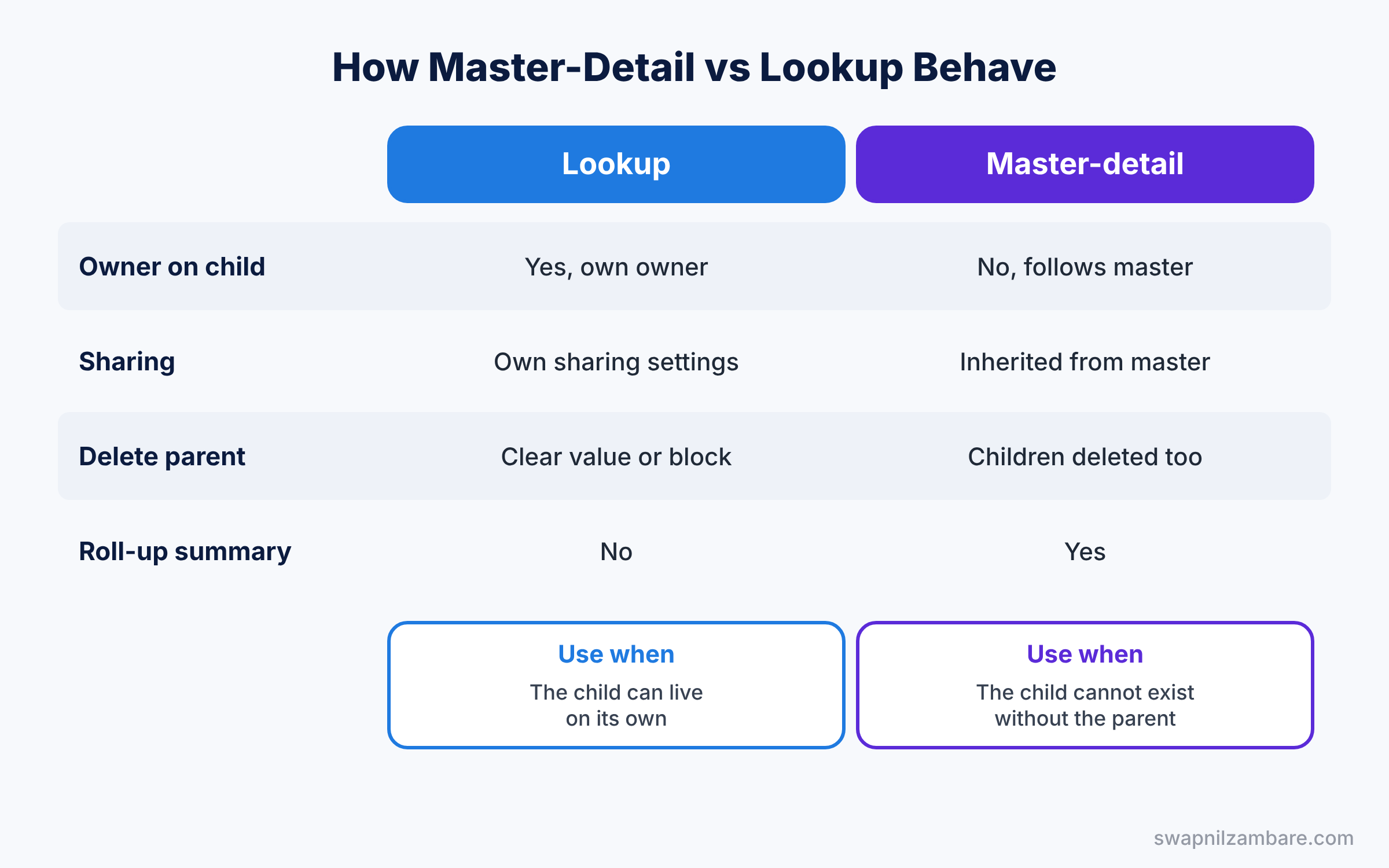
The diagram below shows the main behaviours side by side. Read it from top to bottom: owner, sharing, deletion and roll-ups.
Lookup Behaviour in Master-Detail vs Lookup
With a lookup, the child has its own Owner field and its own sharing. When someone deletes the parent, you choose what happens. You can clear the lookup value on the children, or block the deletion while children exist. You can also make the lookup field required, so every child must have a parent.
Master-detail relationship behaviour
With master-detail, the master field is always required. The detail has no Owner field, so it follows the master’s owner. Access follows the master too. When someone deletes the master, Salesforce deletes all its details, and undeleting the master brings them back.
Roll-up summary fields
A roll-up summary field lives on the master and calculates a value from its details. It can COUNT details, or find the SUM, MIN or MAX of a number, currency or date field. You can also add filter criteria, such as “only paid enrollments”.
Types of Relationships Beyond Master-Detail vs Lookup
The table below lists the relationship types a beginner should know.
| Relationship | What it is | Example |
|---|---|---|
| Lookup | Loose link, child lives on its own | Course to Teacher |
| Master-detail | Tight link, child depends on parent | Enrollment to Course |
| Many-to-many | Two master-details on a junction object | Students and Courses through Enrollment |
| Self relationship | A lookup to the same object | Course to Prerequisite Course |
| Hierarchical | A special lookup on User only | User to Manager |
Junction objects
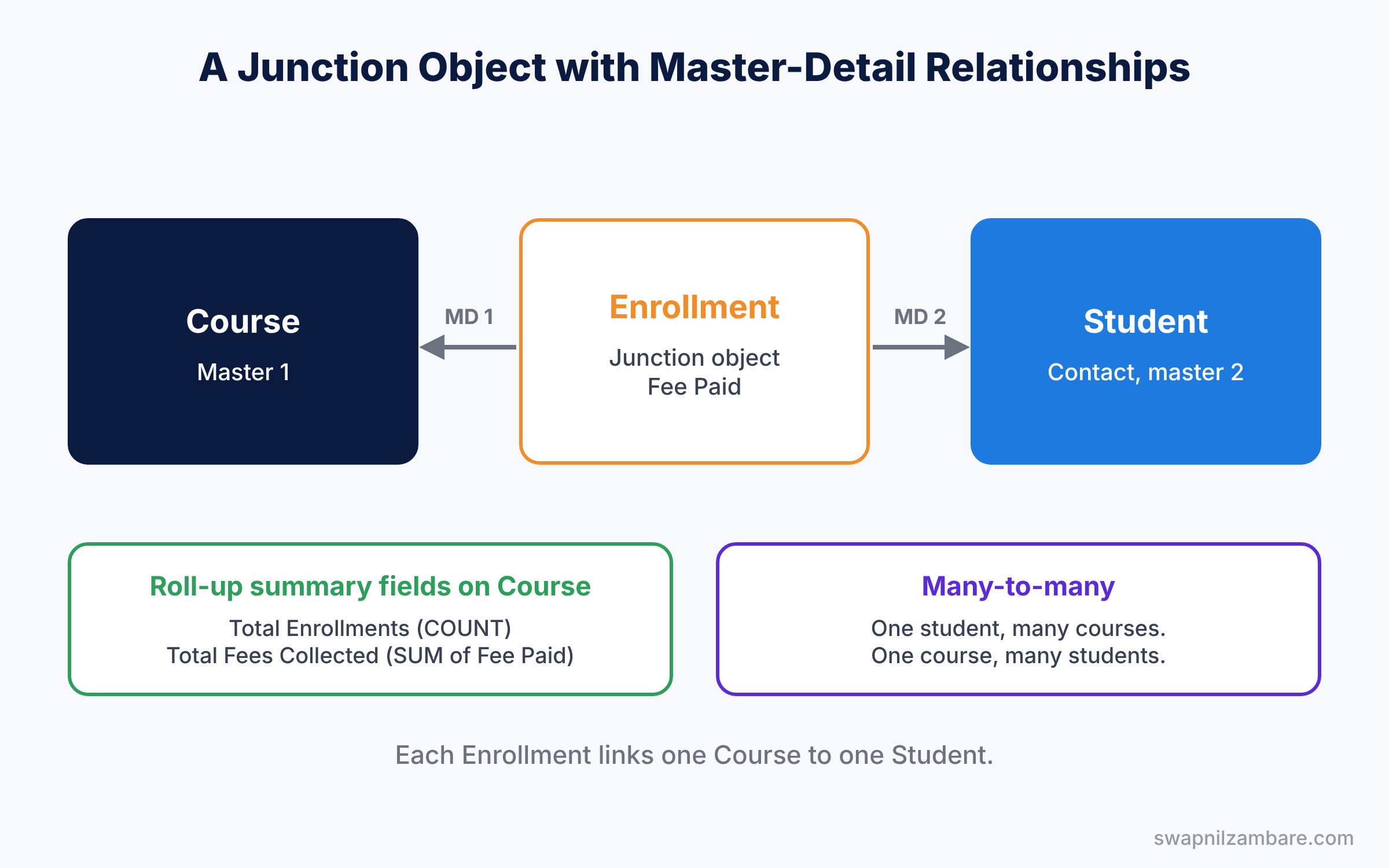
In short, a junction object is a custom object with two master-detail relationships. It sits between two objects to create a many-to-many link. The first master-detail you create becomes the primary relationship, which controls the junction record’s look and feel in some places. Also, a user needs access to both parent records to see a junction record.
Master-Detail vs Lookup: Side-by-Side
The table below sums up the key differences.
| Feature | Lookup | Master-detail |
|---|---|---|
| Parent required | Optional, unless you make it required | Always required |
| Owner field on child | Yes | No, follows the master |
| Sharing | Own sharing settings | Inherited from the master |
| Delete parent | Clear value or block deletion | Children are deleted too |
| Roll-up summary fields | No, on custom lookups | Yes |
| Limit per object | Many lookups allowed | Up to two master-details |
In short, choose master-detail when children truly belong to one parent and you need totals. Choose a lookup when the child has a life of its own.
Master-Detail vs Lookup in Practice: Build an Enrollment Object
Let’s let students enrol in courses at Bright Path Tutors. Students are Contacts, and courses are our custom Course object.
Step 1: Create the Enrollment object
- Go to Setup, then Object Manager, then Create, then Custom Object.
- Enter “Enrollment” as the Label and “Enrollments” as the Plural Label.
- Set Record Name to Auto Number with the format ENR-{0000}, starting at 1.
- Tick Allow Reports and click Save.
Step 2: Add two master-detail fields
Create the two fields in the table below on Enrollment, using Fields and Relationships, then New, then Master-Detail Relationship. Create the Course field first, so Course becomes the primary relationship.
| Field label | Related to | Child relationship name |
|---|---|---|
| Course | Course | Enrollments |
| Student | Contact | Enrollments |
Add one more field called Fee Paid, with the Currency type. Then create two Enrollment records for the “Spoken English” course.
Step 3: Add roll-up summary fields on Course
- Open Object Manager, then Course, then Fields and Relationships, and click New.
- Choose Roll-Up Summary and name it “Total Enrollments”.
- Pick Enrollments as the summarized object and COUNT as the roll-up type. Save.
- Repeat for “Total Fees Collected”, using SUM of Fee Paid.
Open the Spoken English course. It now shows 2 for Total Enrollments and the total of both fees.
Step 4: Query the relationship with SOQL
Also, developers use relationships in SOQL. This query goes from parent to children, listing each course with its enrollments.
SELECT Name, Total_Enrollments__c,
       (SELECT Name, Fee_Paid__c FROM Enrollments__r)
FROM Course__c
WHERE Total_Enrollments__c > 0
This query goes from child to parent, showing each enrollment with its course and student.
SELECT Name, Course__r.Name, Student__r.Name, Fee_Paid__c
FROM Enrollment__c
ORDER BY Course__r.Name
Notice the __r suffix. It means “follow this relationship”, while __c is the field that stores the parent’s ID.
Common Mistakes with Master-Detail vs Lookup
- Adding master-detail to an object that already has data. Every existing record needs a parent first. Create a lookup, fill it on every record, then convert it.
- Expecting roll-ups on a custom lookup. Roll-up summary fields need master-detail. Use a flow or an add-on tool for lookups.
- Making a standard object the detail. Standard objects like Account cannot be the detail side of a master-detail.
- Forgetting cascade delete. Deleting one Course deletes all its Enrollments. Make sure users understand this.
- Picking the wrong primary relationship. On a junction object, create the more important master-detail first.
Best Practices for Master-Detail vs Lookup
- Sketch the data model first. Draw objects and arrows on paper before you build anything.
- Use clear child relationship names. Names like Enrollments make SOQL easy to read.
- Add filters to roll-ups. A filtered roll-up, like “Paid enrollments only”, is often more useful than a plain count.
- Use lookups for optional links. Optional data, like a preferred teacher, should never block a save.
- Document deletion rules. Write down what happens when a parent is deleted, so support teams are not surprised.
Practice Task
Add a lookup field on Course called Prerequisite Course that points back to Course. Then set “Spoken English Plus” to require “Spoken English”.
Hint: this is a self relationship, so choose Lookup Relationship and pick Course as the related object.
Master-Detail vs Lookup FAQ
Can I convert a lookup into a master-detail?
Yes, if every existing child record has a value in the lookup field. Fill the blanks first, then edit the field and change its type.
How many roll-up summary fields can one object have?
Each object has a limit on roll-up summary fields, and it can change by edition and release. Check your org’s limits under Object Manager before you plan many of them.
Is Master-Detail vs Lookup the same as parent and child?
Both create parent and child records. The difference is how tightly they are linked, as the comparison table above shows.
Official Resources
- Object Relationships Overview (Salesforce Help)
- Roll-Up Summary Fields (Salesforce Help)
- Data Modeling (Trailhead)
Quick Recap
- Master-Detail vs Lookup decides ownership, sharing, deletion and totals.
- Lookups are loose; children keep their own owner and sharing.
- Master-detail children follow the master and are deleted with it.
- Roll-up summary fields need master-detail and live on the master.
- A junction object with two master-details creates a many-to-many link.
What’s Next?
Relationships connect objects. Next, let’s make the values inside fields cleaner and smarter. Read Salesforce Picklists: Global Value Sets and Dependent Picklists.


