Salesforce Picklists let users choose a value from a fixed list instead of typing it. That one design choice keeps your data clean, your reports accurate and your automation reliable. In our field types guide, you created a simple Level picklist. Now you will learn the advanced picklist features that real admins use every week.
In this post, you will learn how picklist values work behind the scenes, how global value sets share one list across many fields, and how dependent picklists change their options based on another field. Then you will build a Category and Sub Category pair for courses at Bright Path Tutors. You will also see how to use picklists safely in formulas and validation rules.
What are Salesforce Picklists?
A picklist is a field type that shows a dropdown list of allowed values. For example, a standard picklist allows one value. In contrast, a multi-select picklist allows several values at once, shown as checkboxes or a dual list.
Each value has two parts. The label is what users see, such as “Spoken English”. The API name is what code, formulas and integrations use, such as “Spoken_English”. So you can change a label later without breaking automation.
Here is a simple analogy. A picklist is like the menu at a restaurant. Customers choose from what is on the menu, rather than inventing dishes. As a result, the kitchen always knows exactly what to prepare.
Why Salesforce Picklists Matter
Free text causes messy data. One user types “Maths”, another types “Math”, and a third types “mathematics”. Reports then split one category into three rows. Picklists stop this at the source.
Here are some real situations.
- Every course must belong to one of five categories, such as Language or Technology.
- Several objects need the same list of Indian states, and it must stay in sync.
- When a user picks Technology, they should only see sub categories like Python and Excel.
- A validation rule must check that Advanced courses have the right duration.
So picklists are not just a convenience. They are the foundation of clean reports and dependable automation.
How Salesforce Picklists Work
When you create a picklist, you add values in a set order. You can mark one value as the default. You can also restrict the picklist, so only the defined values are accepted, even through the API or Data Loader.
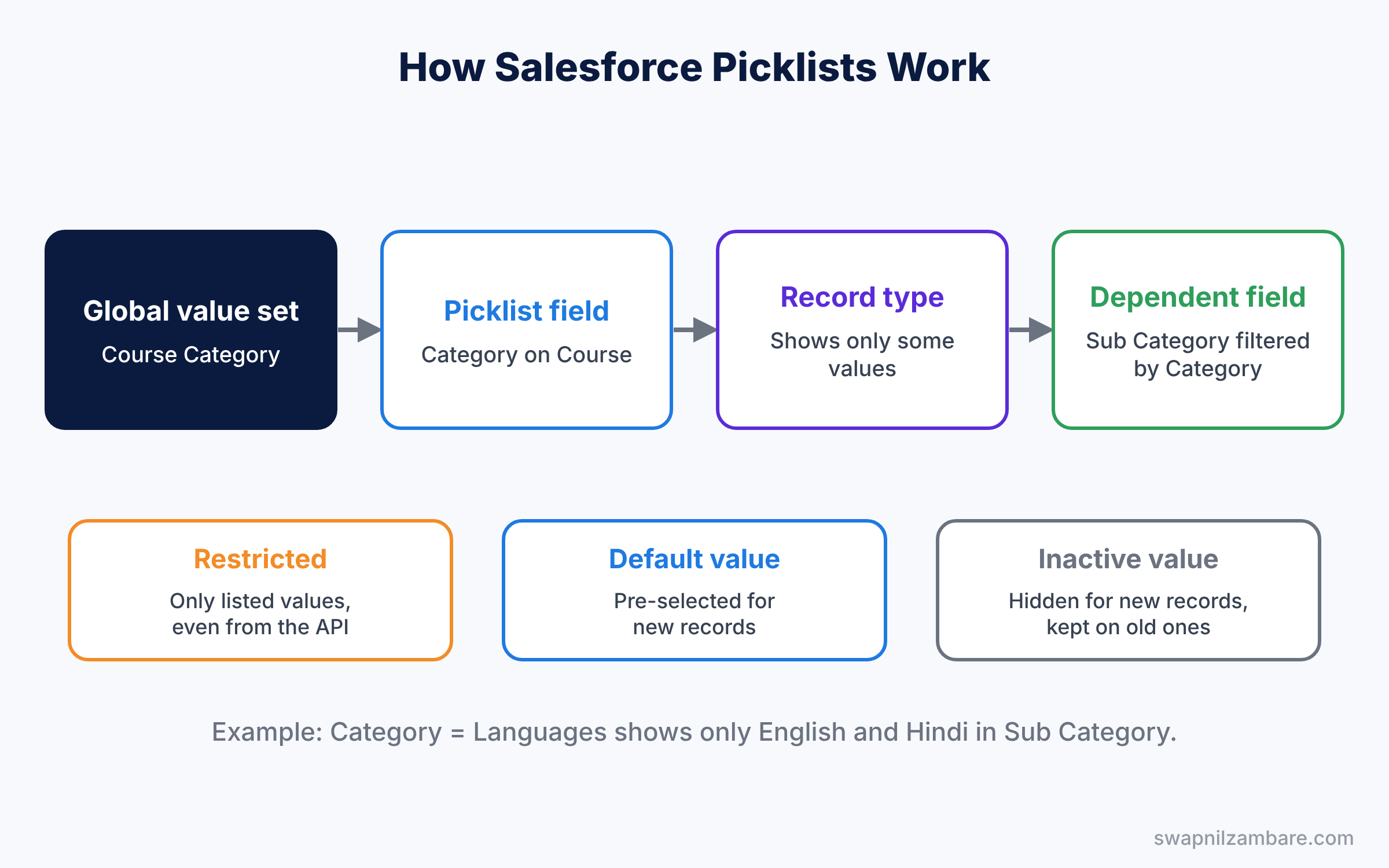
Record types then decide which values each kind of record shows, as we covered in our record types guide. Finally, field dependencies can filter the values based on another field.
Key Features of Salesforce Picklists
Restricted picklists
A restricted picklist rejects any value that is not in its list. This matters most for imports and integrations, which often send slightly different spellings. For example, an integration might send “Maths ” with a trailing space, and only a restricted picklist will catch it. Without restriction, Data Loader or an integration can insert unknown values. So restricted picklists protect data from every entry point.
Global value sets
A global value set is a shared list of values. Several picklist fields, even on different objects, can use the same global value set. When you add a value to the set, every field that uses it gets the new value. A good example is a list of Indian states. Accounts, Contacts and Leads can all share it, so you add a new value only once.
Dependent picklists
A dependent picklist shows only the values that match another field, called the controlling field. For example, Category controls Sub Category. The controlling field can be a picklist or a checkbox.
Inactive values and replacing values
When a value is no longer needed, you can deactivate it instead of deleting it. Old records keep the value, but users cannot pick it for new records. If you need to change the value on many records, use the Replace button on the picklist field. Also, inactive values still show on old records and in reports, so history stays accurate.
The table below sums up these features.
| Feature | What it does | Example |
|---|---|---|
| Restricted picklist | Blocks values not in the list | Integration cannot add “Mathz” |
| Global value set | Shares one list across fields | Indian States on Account and Contact |
| Dependent picklist | Filters values based on another field | Category controls Sub Category |
| Inactive value | Hides a value for new records | Retired course level |
| Replace | Changes a value on existing records | Rename “Basic” to “Beginner” |
Picklist vs Multi-Select Picklist
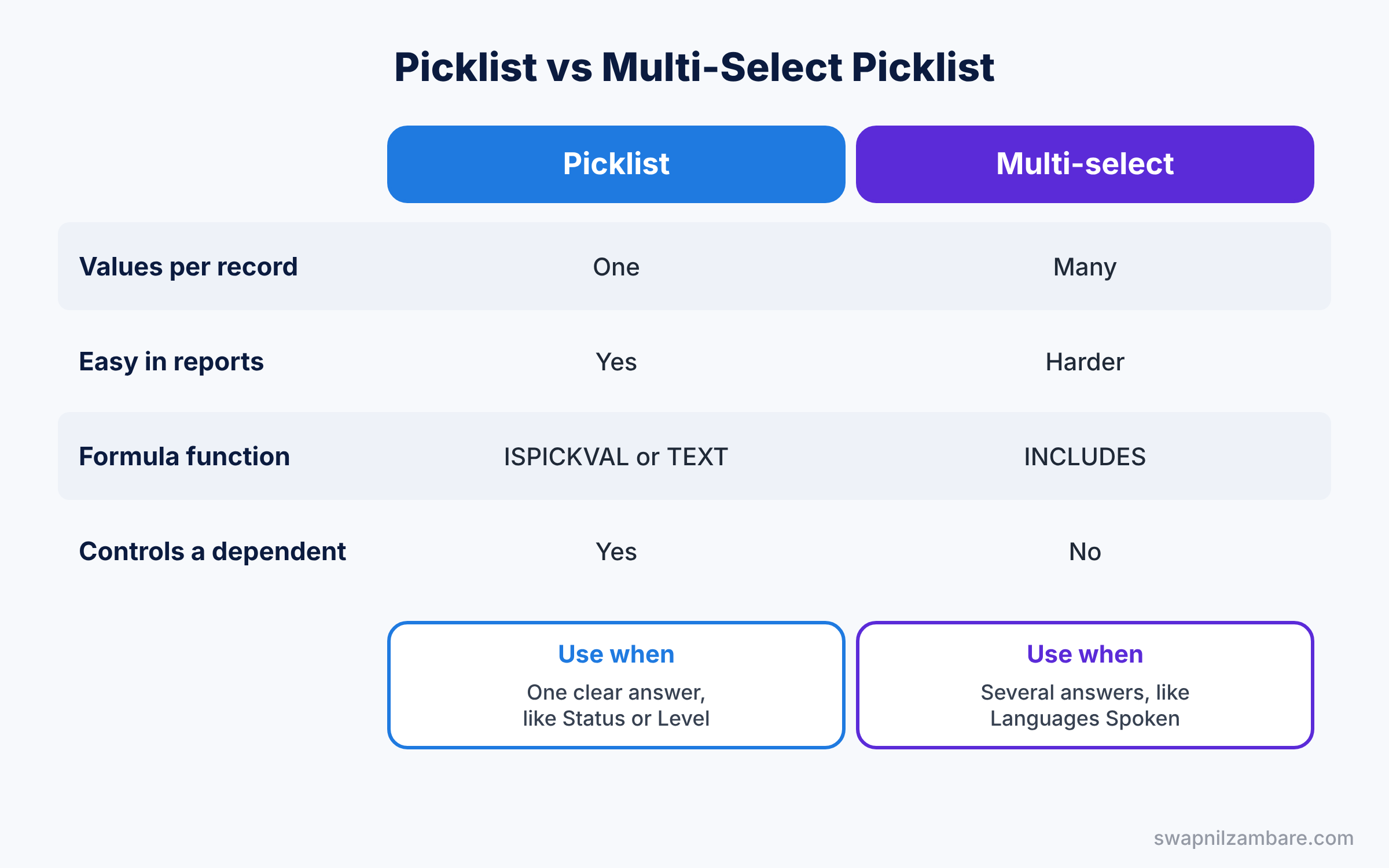
Both types offer fixed choices, but they behave very differently. The table below compares them.
| Feature | Picklist | Multi-select picklist |
|---|---|---|
| Values per record | One | Many |
| Easy in reports | Yes, group by value | Harder, values are combined |
| Formula function | ISPICKVAL or TEXT | INCLUDES |
| Can control a dependent picklist | Yes | No |
| Best for | Status, Level, Category | Tags like Languages Spoken |
In short, use a normal picklist whenever one value is enough. Use a multi-select picklist only when several values truly apply, because reporting becomes harder.
Hands-on Example: Category and Sub Category for Courses
Let’s add a shared Category list and a dependent Sub Category field to the Course object.
Step 1: Create a global value set
- Go to Setup, type “Picklist Value Sets” in Quick Find, and click New under Global Value Sets.
- Enter “Course Category” as the Label.
- Add the values Language, Maths and Technology, each on its own line.
- Tick “Sort values alphabetically” if you like, then click Save.
Step 2: Create the Category and Sub Category fields
Create the two fields in the table below on the Course object.
| Field label | Type | Values |
|---|---|---|
| Category | Picklist, use global value set | Course Category |
| Sub Category | Picklist | English, Hindi, Algebra, Geometry, Python, Excel |
Step 3: Make Sub Category depend on Category
- Open Object Manager, then Course, then Fields and Relationships.
- Click Field Dependencies, then New.
- Set Controlling Field to Category and Dependent Field to Sub Category. Click Continue.
- In the matrix, include English and Hindi under Language, Algebra and Geometry under Maths, and Python and Excel under Technology.
- Click Save. Now create a course and pick Technology. Only Python and Excel appear.
Step 4: Use picklists in formulas
Picklists need special functions in formulas and validation rules. This validation rule blocks a Technology course without a sub category.
AND(
    ISPICKVAL(Category__c, "Technology"),
    ISBLANK(TEXT(Sub_Category__c))
)
This formula field turns the picklist into text, so you can join it with other values.
TEXT(Category__c) & " - " & TEXT(Sub_Category__c)For a course in Technology and Python, the second formula returns “Technology – Python”. The ISPICKVAL and TEXT functions are the safe way to read picklists, as you learned in our validation rules guide.
Common Mistakes with Salesforce Picklists
- Deleting values that old records use. Deleting can blank or change old data. Deactivate the value instead.
- Leaving picklists unrestricted. Integrations then insert values nobody expects. Tick “Restrict picklist to the values defined in the value set”.
- Changing API names after go-live. Automation and integrations use API names. Change only the label.
- Overusing multi-select picklists. They make reports and filters harder. Use them only when you must.
- Forgetting record types. A new value may not appear on a record type until you add it there too.
Best Practices for Salesforce Picklists
- Use global value sets for shared lists. One list to maintain means no drift between fields.
- Keep values short and clear. Users scan dropdowns quickly, so “Beginner” beats “Beginner level course”. Short values also fit better on mobile screens and in report columns.
- Order values logically. Put the most common value first, or follow a natural order like Beginner, Intermediate, Advanced.
- Set a sensible default. A default saves clicks and reduces blanks.
- Review values once a quarter. Remove or deactivate values nobody uses.
Practice Task
Create a multi-select picklist called “Languages Taught” on Course with English, Hindi and Marathi. Then write a formula checkbox that is true when the course includes Hindi.
Hint: use INCLUDES(Languages_Taught__c, “Hindi”).
Salesforce Picklists FAQ
Can a dependent picklist depend on another dependent picklist?
Yes. A dependent picklist can also control another field, creating a chain. Keep chains short, though, because they confuse users.
Can I convert a text field into a picklist?
Yes, you can change the field type. However, existing values may need cleaning first, so export a backup with Data Loader before you change it.
Do Salesforce Picklists work with Data Loader?
Yes. Data Loader uses the API name of each value. If the picklist is restricted, rows with unknown values fail and appear in the error file.
Official Resources
- Global Value Sets (Salesforce Help)
- Define Dependent Picklists (Salesforce Help)
- Formulas and Validations (Trailhead)
Quick Recap
- Salesforce Picklists offer fixed choices that keep data clean.
- Each value has a label for users and an API name for code.
- Global value sets share one list across many fields.
- Dependent picklists filter values based on a controlling field.
- Use ISPICKVAL, TEXT and INCLUDES to read picklists in formulas.
What’s Next?
Clean values make great views of your data. Next, learn how users find and work with records quickly. Read Salesforce List Views, Kanban and Search Layouts Guide.


