Salesforce List Views are saved filters that show users exactly the records they need, right inside each object’s tab. Together with Kanban boards and search layouts, they decide how fast people find their work every morning. In our reports and dashboards guide, you learned to analyse data. List views are different, because they are built for doing work, not for analysis.
In this post, you will learn how to create and share list views, how to use inline editing and mass actions, how Kanban boards turn records into cards, and how search layouts control what users see in search results. Then you will set up all three for the Course object at Bright Path Tutors. Small changes here save every user minutes each day.
What are Salesforce List Views?
In simple terms, a list view is a saved set of filters and columns on an object tab. For example, “My Open Leads” or “Courses Starting This Month”. Users pick a list view from the dropdown at the top of the tab, and Salesforce shows matching records.
Similarly, a Kanban view shows the same records as cards in columns, grouped by a picklist like Status or Level. Search layouts decide which columns appear when users search for records.
Here is a simple analogy. A list view is like a saved filter in your email inbox, such as “Unread from my manager”. Kanban is like sticky notes on a whiteboard, moved from “To Do” to “Done”. Search layouts are like the preview line under each email in your search results.
Why List Views Matter
Users open object tabs dozens of times a day, so small delays add up. If the default view shows thousands of records, they waste time scrolling and filtering. Good list views put the right records in front of each team straight away.
Here are some real situations.
- Counsellors need a list of new enquiries waiting in the Course Enquiries queue.
- Managers want to see all online courses starting in the next 30 days.
- Trainers want to drag courses from Beginner to Intermediate on a board.
- Support agents search for a course and need to see the start date in the results.
Also, list views support inline editing and mass actions. So users can update many records without opening each one.
How Salesforce List Views Work
Each list view has three parts: filters, columns and sharing. Filters decide which records appear. Columns decide which fields show. Sharing decides who else can use the list view. Then users can switch the same list to a table, a Kanban board or a split view.
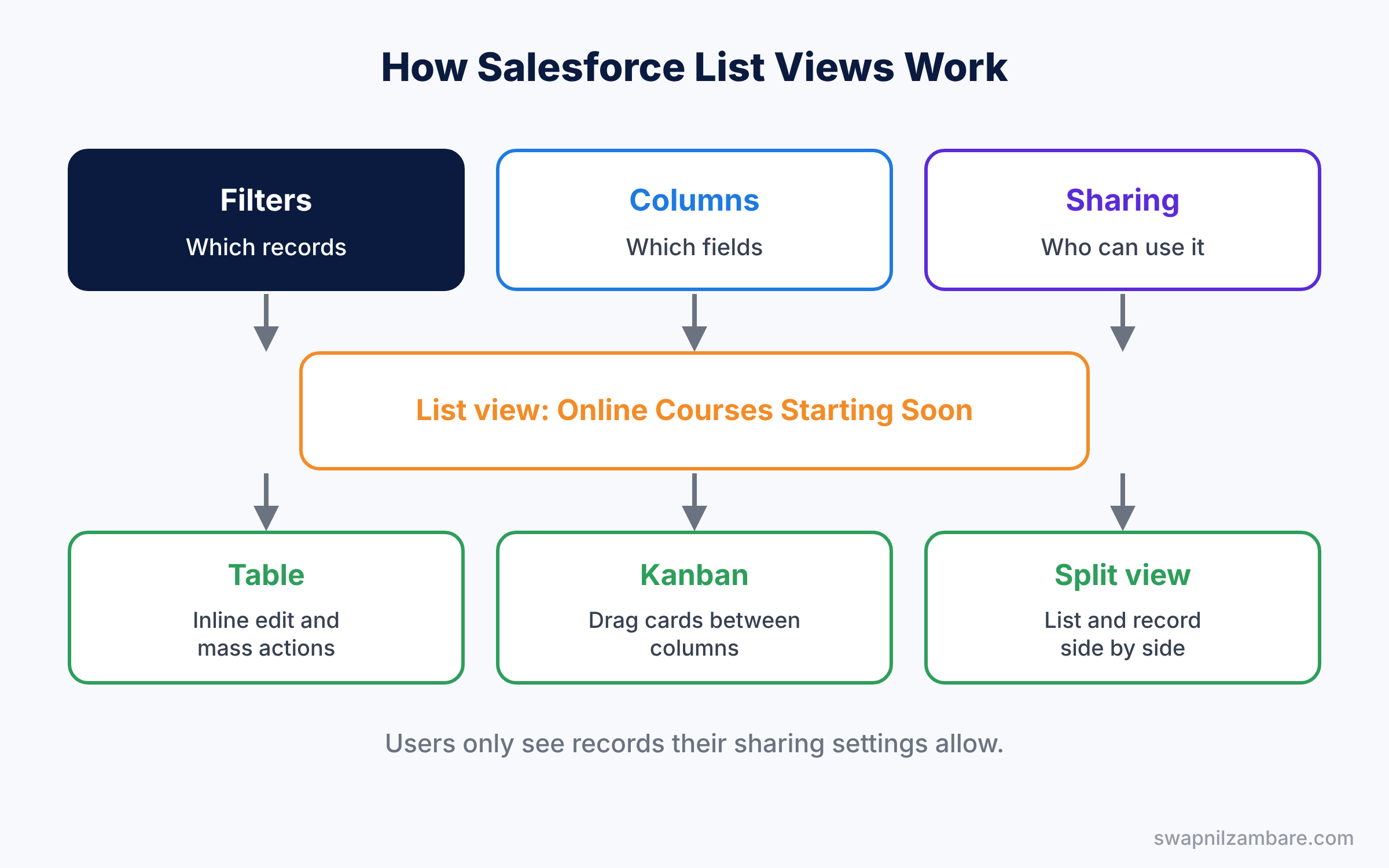
Remember that list views never show more than the user can access. Sharing rules from our sharing rules guide still apply. So two users can open the same list view and see different records.
Key Features of Salesforce List Views
Filters and filter logic
First, filters start with “All” or “My” records, then add field conditions, such as Is Online equals True. You can combine conditions with filter logic, like “1 AND (2 OR 3)”, just like in reports.
List view sharing
A new list view can be private, shared with all users, or shared with certain public groups and roles. So a “Finance Courses” view can be visible only to the Finance Team group.
Inline editing and mass actions
Also, inline editing lets users double-click a cell and change it directly in the list. Mass actions, such as Change Owner, let users select several records and update them together. Inline editing works when the list view filters on a single record type.
Charts on list views
The chart icon on a list view shows a quick chart of the records, such as courses by level. It is not a full report, but it gives a fast picture.
Kanban view
Kanban, on the other hand, groups records into columns by a picklist field, and can show a total, like the sum of fees, at the top of each column. Users drag cards between columns to update the field.
Search layouts
Finally, search layouts, set in Object Manager, decide the columns shown for each object in search results. So when users search “Spoken”, they can see Fee and Start Date without opening the record.
The table below sums up where to change each feature.
| Feature | Where to change it | Who usually changes it |
|---|---|---|
| List view filters and columns | On the object tab | Users and admins |
| List view sharing | On the object tab, Sharing Settings | Admins |
| Kanban grouping and summary | On the list view, Kanban settings | Users and admins |
| Search results columns | Object Manager, Search Layouts | Admins |
List Views vs Reports
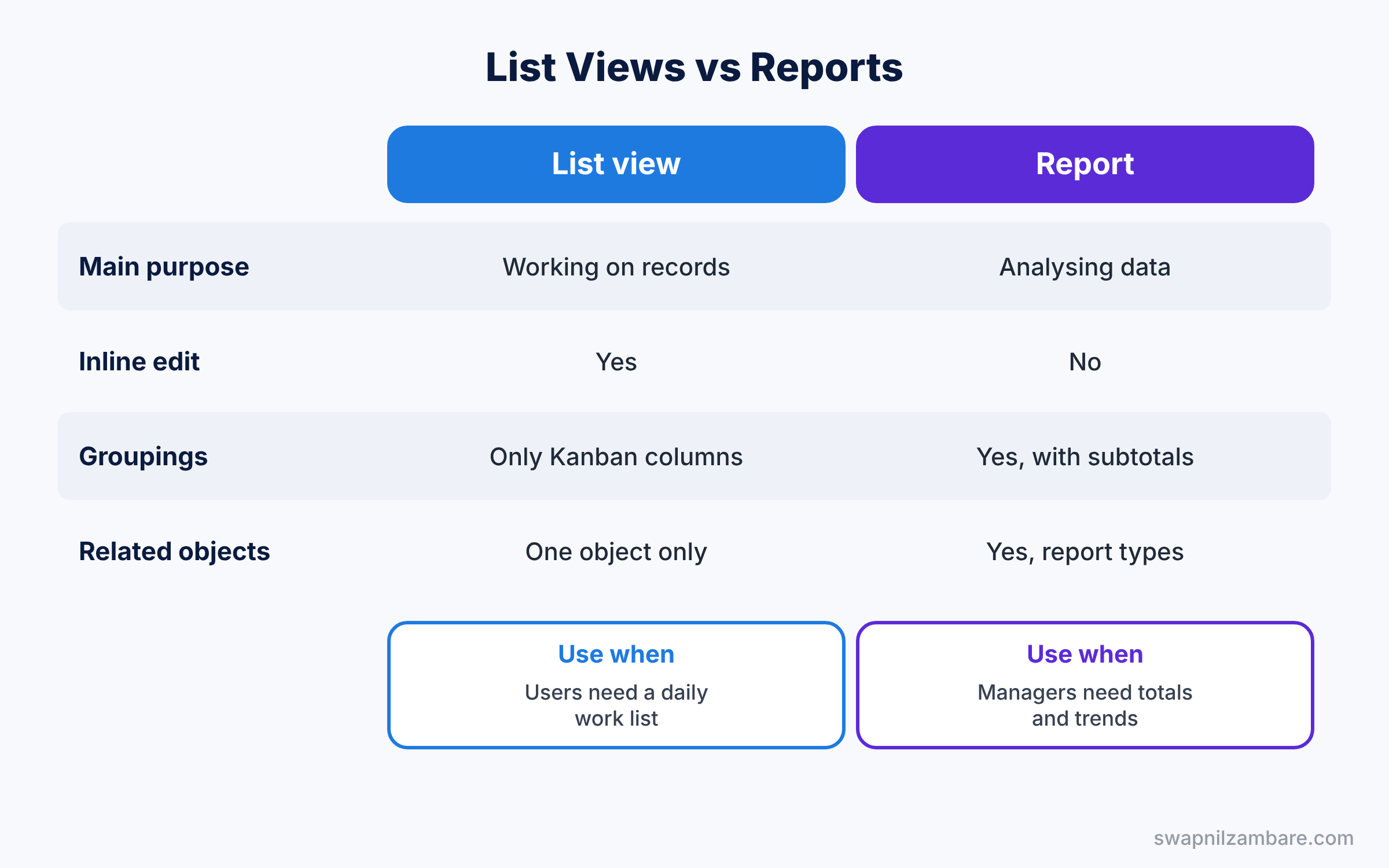
List views and reports both filter records, so beginners often ask which to use. The table below compares them.
| Feature | List view | Report |
|---|---|---|
| Main purpose | Working on records | Analysing data |
| Inline edit and mass actions | Yes | No |
| Groupings and subtotals | No, only Kanban columns | Yes |
| Related objects in one view | No, one object only | Yes, with report types |
| Charts | Simple list view chart | Full charts and dashboards |
In short, use list views for daily work queues. Use reports when you need totals, groupings or related objects.
Hands-on Example: Views for the Course Object
Let’s give the training team better views of their courses. Use your Developer Edition org.
Step 1: Create a list view
- Open the Courses tab and click the gear icon, then New.
- Name it “Upcoming Online Courses” and choose “All users can see this list view”. Click Save.
- In the Filters panel, keep “All courses” and add the filters from the table below. Click Save.
- Next, open the gear icon again, choose Select Fields to Display, and add Course Name, Start Date, Fee and Level.
| Filter field | Operator | Value |
|---|---|---|
| Is Online | equals | True |
| Start Date | equals | NEXT 30 DAYS |
Step 2: Switch to Kanban
- Then use the display icon next to the gear and pick Kanban.
- When asked, group by Level and summarize by Sum of Fee.
- Drag one card from Beginner to Intermediate. Salesforce updates the course’s Level straight away.
Step 3: Update the search layout
- Go to Setup, then Object Manager, then Course, then Search Layouts.
- Click the arrow next to Default Layout and choose Edit.
- Add Start Date, Fee and Level to Selected Fields, then click Save.
- Search for a course in the global search bar. The results now show those columns.
Step 4: The same filter in SOQL
List view filters work like a SOQL WHERE clause. Developers would write the same view like this.
SELECT Name, Start_Date__c, Fee__c, Level__c
FROM Course__c
WHERE Is_Online__c = true
AND Start_Date__c = NEXT_N_DAYS:30
ORDER BY Start_Date__c
NEXT_N_DAYS:30 is a date literal that means “from today to 30 days ahead”. Date literals like TODAY, THIS_MONTH and LAST_N_DAYS:7 work in list views, reports and SOQL alike.
Common Mistakes with Salesforce List Views
- Sharing every view with all users. The dropdown becomes long and confusing. Share views only with the teams who need them.
- Using “All” filters on large objects. Lists with thousands of records load slowly. Add filters that narrow the results.
- Expecting totals in a normal list view. Use Kanban summaries or a report instead.
- Forgetting the search layout. Users then open every record to check basic details.
- Mixing record types in editable views. Inline editing may not work, so filter to one record type.
Best Practices for Salesforce List Views
- Name views by audience and purpose. “Counsellors – New Enquiries” tells users who it is for.
- Pin a default view. Each user can pin their most used view, so the tab opens on it every time.
- Keep columns to five or six. More columns mean more scrolling.
- Use Kanban for stage-based work. Boards make progress easy to see at a glance.
- Review shared views each quarter. Delete views nobody uses anymore.
Practice Task
Create a list view called “Courses Without Start Date” that shows only courses where Start Date is blank. Share it with the Finance Team public group.
Hint: use the “equals” operator and leave the value empty to match blank fields.
Salesforce List Views FAQ
Can users create their own list views?
Yes, if their profile or permission set allows creating list views. Personal views are private unless an admin shares them.
How many records can a list view show?
List views load records in pages as you scroll. For very large data, add filters, because Salesforce shows only a limited number of rows at once.
Do Salesforce List Views work in the mobile app?
Yes. Users see recent list views in the mobile app, with the same filters and columns.
Official Resources
Quick Recap
- Salesforce List Views are saved filters and columns on an object tab.
- List views can be shared with all users, groups or roles.
- Kanban groups records into columns and lets users drag cards.
- Search layouts decide which fields show in search results.
- Use list views for daily work and reports for analysis.
What’s Next?
Users can now find records fast. Next, let’s help them act on records with one click, even on mobile. Read Salesforce Quick Actions, Global Actions and the Mobile App.


