Salesforce Reports and Dashboards turn your records into clear answers. A report is a list of records that match your filters, often grouped and totalled. A dashboard shows several reports as charts on one screen. Once your data is clean, thanks to validation rules, reports are where that clean data starts to pay off.
In this post, you will learn how report types, report formats, filters and groupings work. Then you will learn how dashboards and their running user decide what people see. Finally, you will build a real report and dashboard for the Course object at Bright Path Tutors. Managers love good dashboards, so this skill makes admins very visible.
What are Salesforce Reports and Dashboards?
A report is a question you ask your data, saved so you can run it again. For example, “Show me every course, grouped by level, with the total fees.” The answer is a list or a table of records.
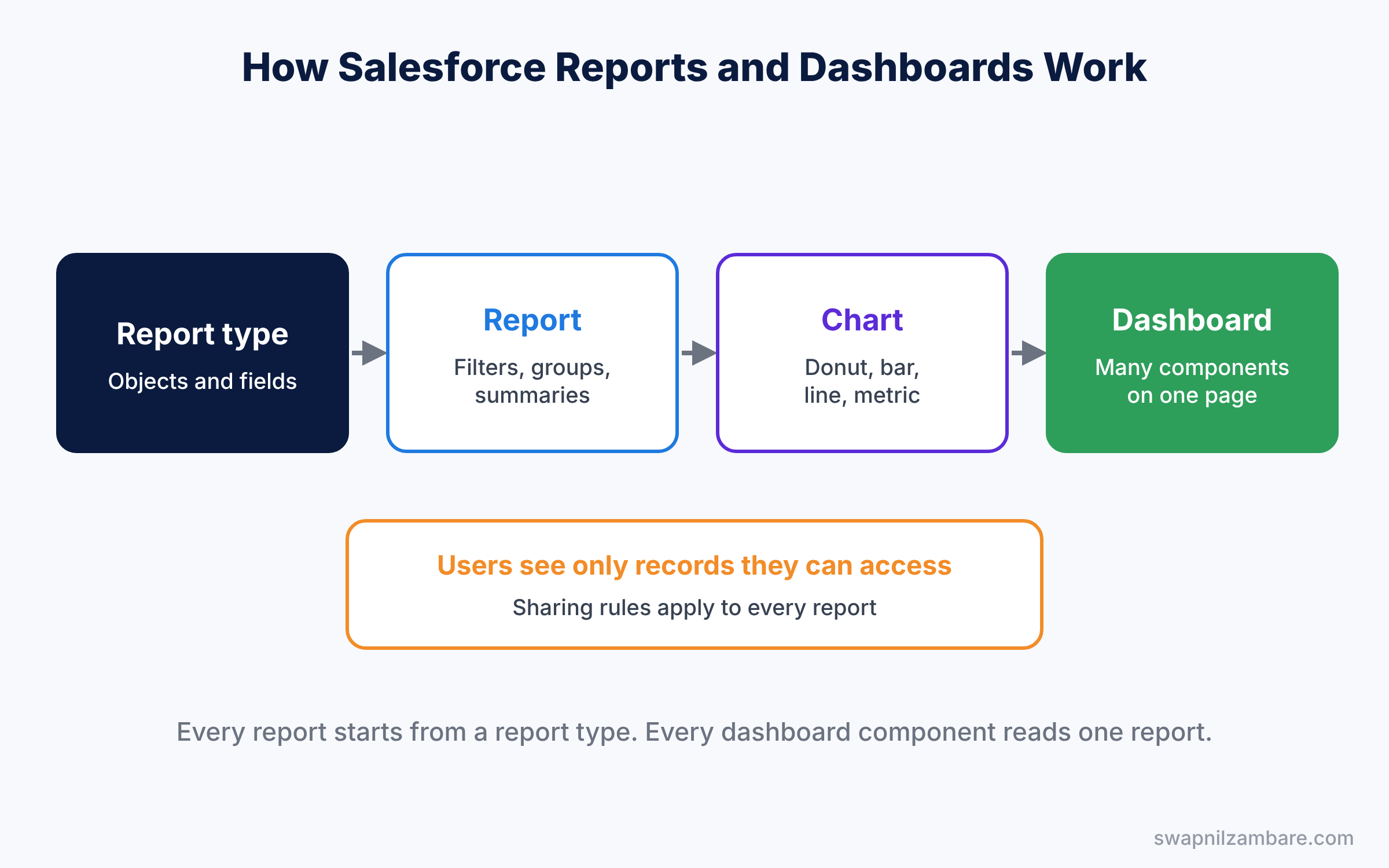
A dashboard is a set of charts and numbers, called components, on one page. Each component gets its data from one report. So a dashboard is like the front page of a newspaper, while reports are the full articles behind each headline.
Here is a simple analogy. A report is like a bank statement that lists every transaction. A dashboard is like the summary screen in your banking app, with total balance and a pie chart of spending.
Why Reports and Dashboards Matter
Leaders make decisions from numbers. If those numbers live in spreadsheets that someone updates by hand, they are always a little out of date. Salesforce reports read live data, so every number is current the moment you run it.
Here are some real situations.
- The CEO wants total course fees by level, every Monday.
- A sales manager wants to see which reps added the most courses this month.
- Support wants a count of open cases by priority.
- An admin wants a list of courses with no start date, to fix the gaps.
Also, reports respect security. Each user only sees records they have access to, based on the sharing rules from our sharing rules guide. So one report can safely serve many people.
How Salesforce Reports and Dashboards Work
Every report starts with a report type. The report type decides which object, related objects and fields the report can use. Then you add filters, groupings, columns and summaries. Finally, a dashboard component can show that report as a chart.
Report types
Salesforce creates a standard report type for most objects, including custom objects that have Allow Reports ticked. For example, your Course object already has a “Courses” report type. When you need related objects together, such as Courses with Enrollments, you build a custom report type in Setup.
Filters
Filters decide which records appear. The standard filters include “Show Me”, like My Courses or All Courses, and a date range. You can add field filters, like Level equals Advanced, and combine them with filter logic, like “1 AND (2 OR 3)”.
Groupings and summaries
Groupings collect records with the same value, such as all Beginner courses together. Summaries then add up numbers in each group, using Sum, Average, Min or Max. You can also add a summary formula for custom maths.
Types of Salesforce Reports
Salesforce offers four report formats. The table below explains each one.
| Format | What it looks like | Best for |
|---|---|---|
| Tabular | A simple list, like a spreadsheet | Contact lists, data exports |
| Summary | Rows grouped with subtotals | Totals by Level or by Owner |
| Matrix | Grouped by rows and columns | Fees by Level and by Month |
| Joined | Several report blocks side by side | Comparing Courses and Cases together |
Start with Summary reports. They cover most business questions and work well with charts.
Dashboard Components and the Running User
A dashboard can hold many components, such as bar charts, donut charts, gauges, metrics and tables. For example, a metric shows one big number, like total fees. Similarly, a gauge shows progress toward a target.
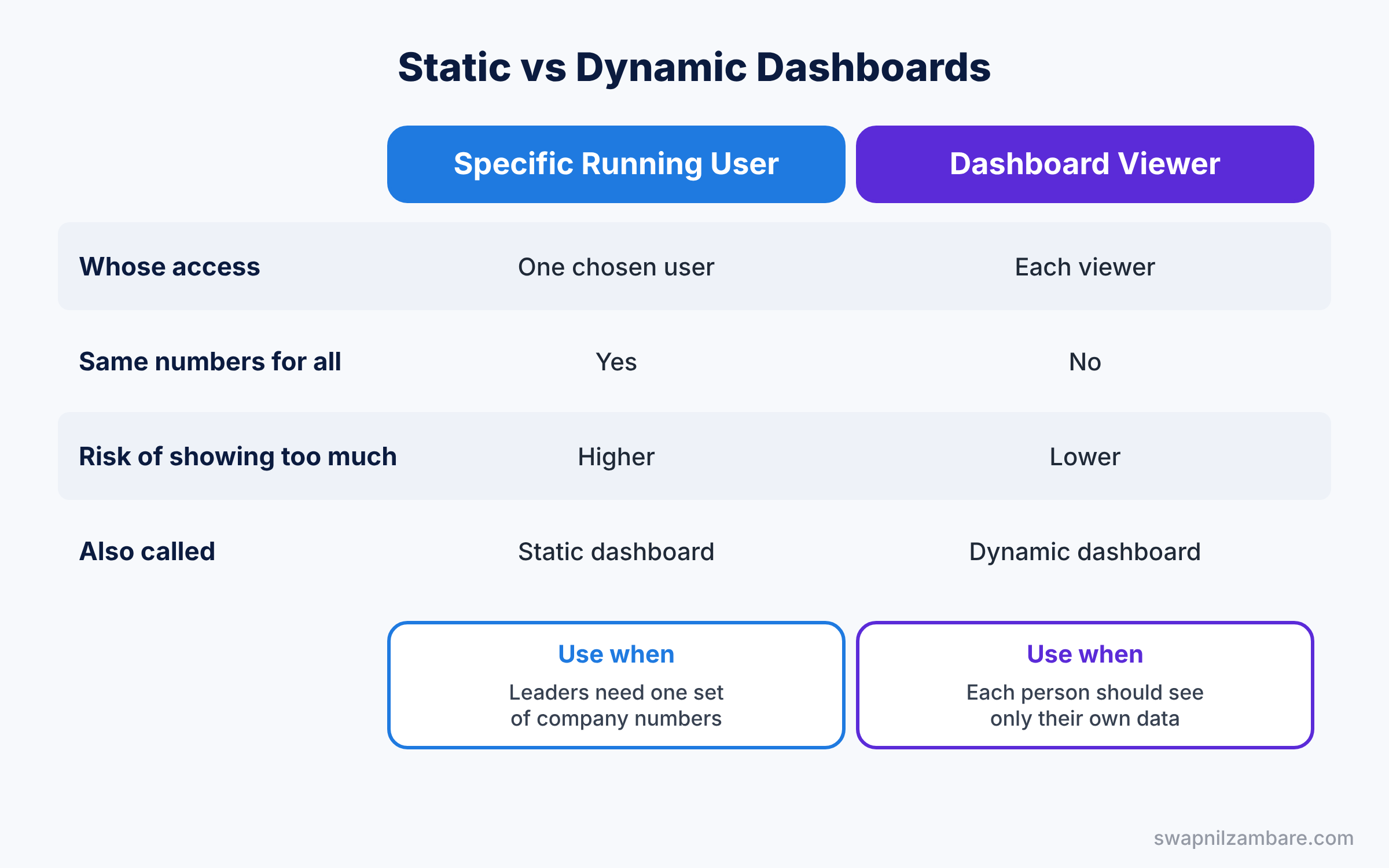
The running user decides whose access the dashboard uses. This choice is important, so the table below compares the two main options.
| Feature | Run as a specific person | Run as the dashboard viewer |
|---|---|---|
| Whose data access is used | One chosen user, often a manager | Each person who opens the dashboard |
| Same numbers for everyone | Yes | No, each viewer sees their own data |
| Risk of showing too much | Higher, viewers see that user’s data | Lower |
| Common use | Company-wide numbers for leaders | Team dashboards for sales reps |
| Also called | Static dashboard | Dynamic dashboard |
So use a specific running user when everyone should see the same totals. Use the dashboard viewer when each person should see only their own data.
Hands-on Example: Build Salesforce Reports and Dashboards for Courses
Let’s build a “Courses by Level” report and a “Course Overview” dashboard. Make sure you have at least five Course records with different levels and fees.
Step 1: Create a report folder
- Open the Reports tab and click New Folder.
- Name it “Bright Path Reports” and click Save.
Step 2: Build the report
- Click New Report, search for “Courses” and pick that report type. Click Start Report.
- In Filters, set Show Me to All Courses and Created Date to All Time.
- In Outline, under Group Rows, add Level.
- Add the columns Course Name, Fee and Duration in Weeks.
- Click the arrow next to the Fee column, choose Summarize, then tick Sum.
- Click Add Chart, pick a donut chart, then click Save and Run. Save it as “Courses by Level” in Bright Path Reports.
Step 3: Add a summary formula
A summary formula calculates a value from group totals. In Outline, click the arrow next to Columns and choose Add Summary Formula. Name it “Average Fee”, pick Currency and enter the formula below.
Course__c.Fee__c:SUM / RowCountIt divides the total fee by the number of records in each group. Tip: insert the field from the list on the left instead of typing it, so the name is always correct.
Step 4: Build the dashboard
- Open the Dashboards tab and click New Dashboard. Name it “Course Overview” and save it in Bright Path Reports.
- Click + Component, pick “Courses by Level”, choose the donut chart and click Add.
- Add a second component from the same report, choose Metric, and show Sum of Fee.
- Click Save, then Done.
Your dashboard now shows how courses split by level and the total value of all courses. Here is a sample of what the report table returns.
Level          Record Count   Sum of Fee   Average Fee
Beginner       3              10,497       3,499
Intermediate   1              5,999        5,999
Advanced       1              8,999        8,999
Total          5              25,495       5,099
Common Mistakes with Salesforce Reports and Dashboards
- Forgetting the date filter. New reports often default to a short date range, so records seem to be missing. Check Created Date first.
- Saving in a private folder. Reports in “Private Reports” are visible only to you. Use a shared folder for team reports.
- Using a powerful running user. A dashboard running as the CEO shows the CEO’s data to everyone who opens it.
- Too many components. A crowded dashboard hides the key message. Pick the six or eight numbers that matter most.
- Blaming the report for missing data. Users only see records they can access, so check sharing before editing the report.
Best Practices for Reports and Dashboards
- Name reports as questions or answers. “Courses by Level” is clearer than “Report 7”.
- Organise folders by team. Give each team a folder and set Viewer, Editor or Manager access on it.
- Put the key number top left. People read dashboards like a page, so start with the main metric.
- Add a short description to each report. It explains what the report shows and who uses it.
- Subscribe leaders by email. A weekly subscription sends the dashboard to inboxes without anyone asking.
Practice Task
Create a Matrix report that groups Courses by Level in rows and by Is Online in columns. Show the Sum of Fee in each cell.
Hint: switch to Matrix by adding a Group Columns field in Outline.
Salesforce Reports and Dashboards FAQ
Why do Reports and Dashboards show fewer records than I expect?
First, check the date filter and the Show Me filter. Then remember that each user sees only records they can access. So two people can run the same report and get different totals.
How often do Salesforce Reports and Dashboards refresh?
Reports read live data every time you run them. Dashboards, however, show data from their last refresh. So click Refresh, or schedule a refresh, before an important meeting.
Can I export a report to Excel?
Yes, if your profile has the Export Reports permission. Click the arrow next to Edit and choose Export. Also, consider a subscription instead, because it sends fresh data by email automatically.
Official Resources
- Reports and Dashboards for Lightning Experience (Trailhead)
- Analyze Your Data with Reports and Dashboards (Salesforce Help)
- Create a Custom Report Type (Salesforce Help)
Quick Recap
- Salesforce Reports and Dashboards show live data, filtered by each user’s access.
- Every report starts with a report type that decides its objects and fields.
- Tabular, Summary, Matrix and Joined are the four report formats.
- Dashboards show report data as charts, metrics, gauges and tables.
- The running user decides whose data access a dashboard uses.
- Shared folders with clear names keep reports easy to find.
What’s Next?
Reports are only as good as the data inside them. Next, learn how to load hundreds of records at once. Read Salesforce Data Loader and Data Import Wizard Guide.


