Salesforce Data Loader and the Data Import Wizard help you move many records in or out of Salesforce at once. Typing 500 courses by hand would take days. With the right tool and a clean CSV file, it takes a few minutes. Once you have built reports and dashboards, you will want plenty of good data to feed them.
In this post, you will learn when to use the Data Import Wizard, when to use Data Loader, and what insert, update and upsert really mean. Then you will prepare a CSV file and load courses into your org step by step. You will also learn the safety habits that experienced admins follow before every big data load.
What is Salesforce Data Loader?
Data Loader is a free desktop application from Salesforce. You install it on your computer, log in to your org, and use it to insert, update, delete or export large numbers of records using CSV files. It can handle up to five million records in one job.
The Data Import Wizard is the simpler, browser-based tool. You open it from Setup, upload a CSV file and follow a few screens. It handles up to 50,000 records at a time and works for common objects, like Accounts, Contacts, Leads and custom objects.
Here is a simple analogy. The Data Import Wizard is like a small car, easy to drive and fine for daily trips. Salesforce Data Loader is like a delivery truck. It takes more effort to drive, but it carries far more and goes places the car cannot.
Why Salesforce Data Loader Matters
Every Salesforce project moves data at some point. For example, a new company brings customers from an old system. A sales team buys a list of leads. A manager asks for a full export before a big clean-up. Admins handle all of these.
Here are some real situations.
- You need to load 300 courses from a spreadsheet the training team sent.
- Fees went up by 10%, so 2,000 course records need updating.
- You must delete 50,000 old test records from a sandbox.
- Finance wants an export of every course with its fee, every month.
Also, data loads are where mistakes hurt the most. One wrong column can overwrite thousands of good values. So learning the safe way matters as much as learning the clicks.
How Data Loading Works
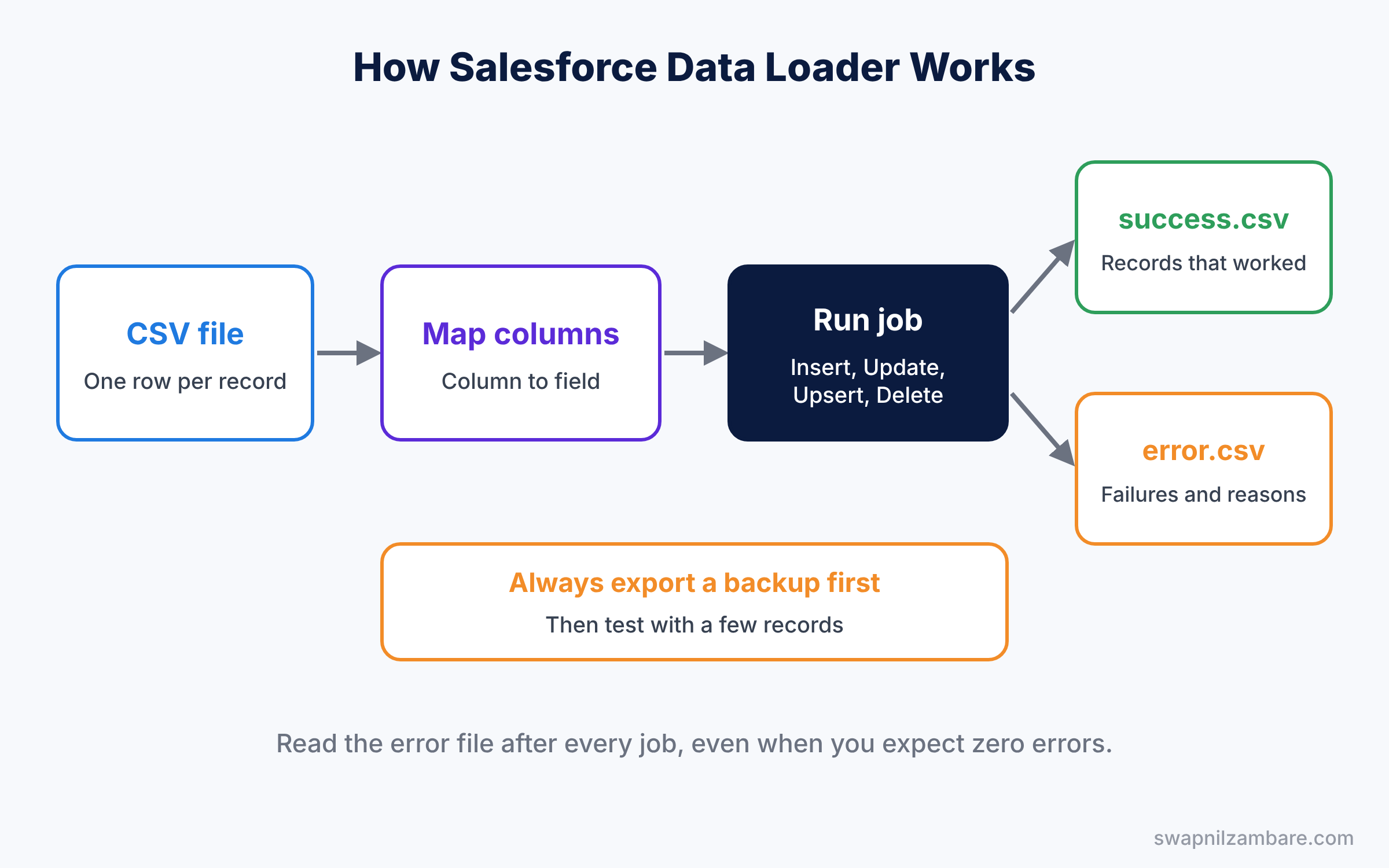
Every data load follows the same basic flow. First you prepare a CSV file, where each row is a record and each column is a field. Then you map each column to a Salesforce field. Finally, the tool runs the job and gives you files showing what worked and what failed.
Operations you can run
The table below explains the main operations.
| Operation | What it does | Example |
|---|---|---|
| Insert | Creates new records | Load 300 new courses |
| Update | Changes existing records, matched by Salesforce ID | Raise fees on 2,000 courses |
| Upsert | Updates a match or inserts if no match | Sync courses from another system |
| Delete | Moves records to the Recycle Bin | Remove old test courses |
| Export | Saves records to a CSV file | Monthly fee report for finance |
| Export All | Exports including deleted and archived records | Audit of everything ever created |
Salesforce IDs and External IDs
Every record has a unique Salesforce ID, like a0B5g00000XyZ12EAF. Update and Delete need this ID to know which record to change. So you usually export first, which gives you the IDs, then edit and load the file back.
An External ID is a custom field marked as a unique key from another system, like a course code “ENG-101”. Upsert can match on an External ID instead of the Salesforce ID. This is very handy when data comes from outside Salesforce.
Salesforce Data Loader vs Data Import Wizard
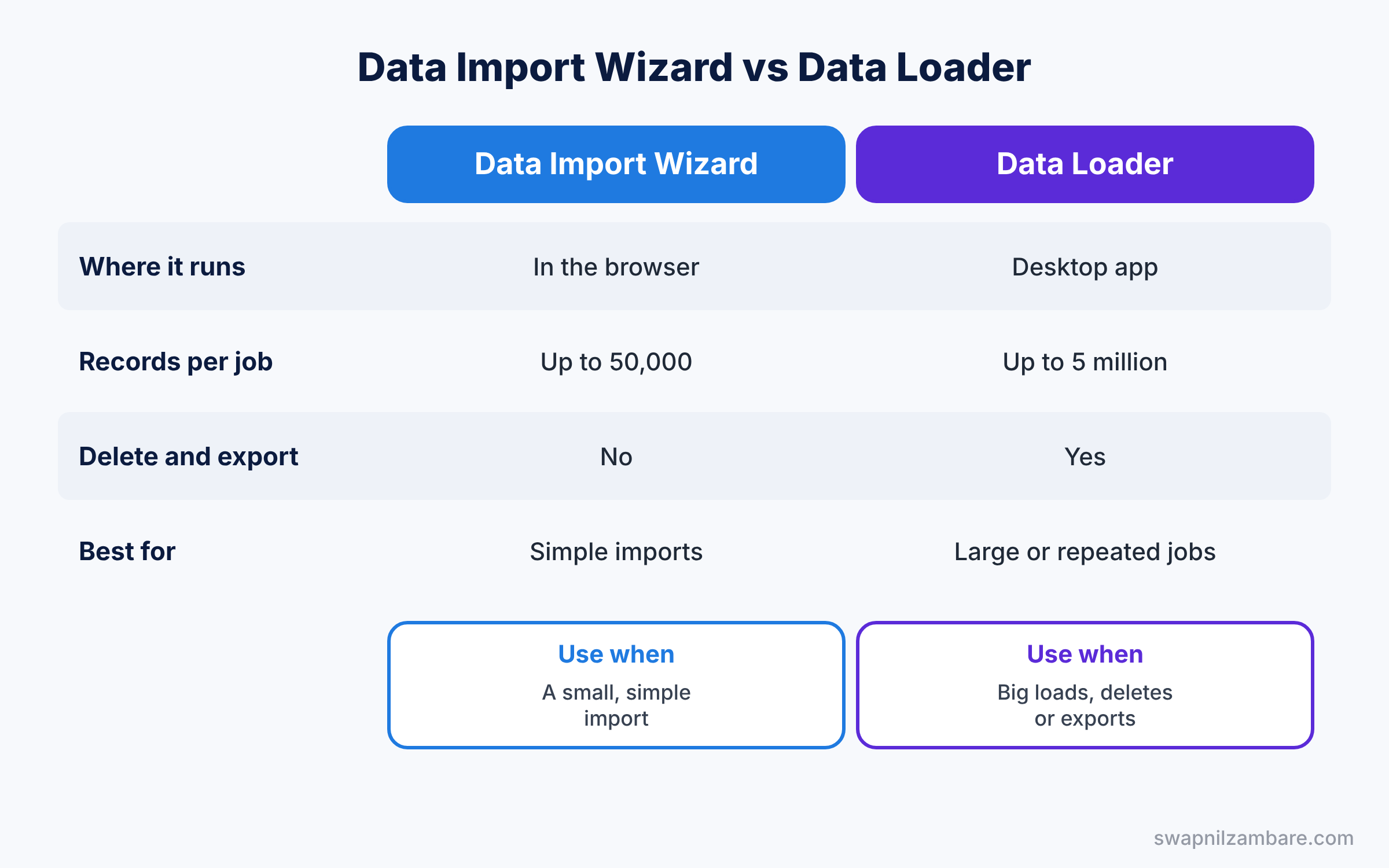
The table below compares the two tools side by side.
| Feature | Data Import Wizard | Data Loader |
|---|---|---|
| Where it runs | In the browser, from Setup | Desktop app you install |
| Records per job | Up to 50,000 | Up to 5 million |
| Objects supported | Common standard objects and custom objects | Almost all objects |
| Delete and export | No | Yes |
| Saved mappings and command line | No | Yes |
| Best for | Simple imports by admins and users | Large or repeated loads, exports and deletes |
So start with the Data Import Wizard for small, simple imports. Move to Salesforce Data Loader when you need more records, more objects, deletes or exports.
Hands-on Example: Load Courses from a CSV File
Let’s load new courses for Bright Path Tutors. First we add an External ID field, then import with the wizard, and finally update with Data Loader.
Step 1: Add an External ID field
- Go to Setup, then Object Manager, then Course, then Fields and Relationships. Click New.
- Pick Text, click Next, and use the values in the table below. Click Next, Next, Save.
| Setting | Value |
|---|---|
| Field Label | Course Code |
| Length | 20 |
| Unique | Ticked |
| External ID | Ticked |
Step 2: Prepare the CSV file
Create a file called courses.csv with the content below. Use a plain text editor or save it as CSV from Excel.
Name,Course_Code__c,Fee__c,Duration_in_Weeks__c,Level__c
Spoken English Plus,ENG-201,5999,10,Intermediate
Python for Kids,PY-101,3999,6,Beginner
Data Science Basics,DS-101,8999,12,Advanced
Public Speaking,PS-101,2999,4,Beginner
Each column header matches a field API name, which makes mapping automatic. Also, picklist values must match exactly, including capital letters.
Step 3: Import with the Data Import Wizard
- In Setup, type “Data Import Wizard” in Quick Find and click Launch Wizard.
- Click Custom objects, then Courses, then “Add new and update existing records”.
- Set Match Course by to Course Code.
- Drag courses.csv into the upload area and click Next.
- Check that every column is mapped, then click Next and Start Import.
Open the Courses tab when the job finishes. You will see four new courses.
Step 4: Update fees with Data Loader
Now let’s raise every fee by 10% with Data Loader. Install it from the Setup page called Data Loader, then log in with your org.
First, click Export, choose Course, and use this query.
SELECT Id, Name, Fee__c
FROM Course__c
WHERE Course_Code__c != null
Open the exported file, multiply each fee by 1.1, and save it. Then click Update, choose Course, select the file, map Id and Fee__c, and click Finish. Data Loader writes two result files.
success.csv   4 rows   (records updated)
error.csv     0 rows   (records that failed, with the reason)
Always open the error file, even when you expect zero errors. It shows the exact reason for each failure, such as a validation rule message.
Common Mistakes with Salesforce Data Loader
- Skipping the backup. Always export the records before an update or delete. If something goes wrong, you can load the old values back.
- Mapping the wrong column. One wrong mapping can overwrite thousands of values. Check every mapped field before you click Finish.
- Wrong picklist or date formats. Values must match exactly, and dates should follow the format your Data Loader settings expect.
- Forgetting validation rules and automation. Validation rules and flows run during loads. They may block records or send hundreds of emails.
- Loading straight into production. Test big loads in a sandbox first.
Best Practices for Salesforce Data Loader
- Export, edit, then load. This pattern keeps IDs correct and gives you a backup.
- Load a small test batch first. Try five records, check them, then run the rest.
- Use External IDs for outside data. Upsert on a stable key prevents duplicates.
- Turn off noisy automation during big loads. Coordinate with the team, then switch it back on right after.
- Keep your result files. Success and error files are your record of what changed and when.
Practice Task
Add a fifth course to courses.csv with the code ENG-201 but a new fee of 6499. Import it again with “Add new and update existing records”.
Hint: because Course Code is an External ID, the wizard updates the existing course instead of creating a duplicate.
Salesforce Data Loader FAQ
Do I need to install anything for Salesforce Data Loader?
Yes. Data Loader is a desktop app for Windows and macOS, and it needs Java to run. The Data Loader page in Setup explains the steps for your system.
What is the difference between Delete and Hard Delete?
Delete moves records to the Recycle Bin, so you can restore them for a short time. Hard Delete skips the Recycle Bin and removes records for good. So use Hard Delete only when you are completely sure, and only with a backup.
Can Salesforce Data Loader run automatically every night?
Yes. On Windows, you can run Data Loader from the command line and schedule it. However, for regular integrations, many teams prefer an integration tool or the API, because those are easier to monitor.
Official Resources
- Learn Data Management (Trailhead)
- Data Loader Guide (Salesforce Developers)
- Data Import Wizard (Salesforce Help)
Quick Recap
- The Data Import Wizard runs in the browser and handles up to 50,000 records.
- Salesforce Data Loader is a desktop app for up to five million records, plus exports and deletes.
- Insert creates, Update changes by ID, and Upsert matches on an ID or External ID.
- Always export a backup before you update or delete.
- Read the error file after every job, even a successful one.
What’s Next?
Your data is in. Next, learn how to route important changes to a manager before they take effect. Read Salesforce Approval Processes Step by Step.


