Salesforce Approval Processes send a record to the right person for a yes or no before a change takes effect. Think of a big discount, a travel request or a contract with unusual terms. Someone senior should review it first. In our Flow Builder guide, you automated work that runs on its own. Approvals are different, because a human makes the final call.
In this post, you will learn the parts of an approval process, who can approve, and what happens when a record is approved or rejected. Then you will build a real discount approval for Bright Path Tutors. By the end, you will be able to design approvals that managers actually enjoy using.
What are Salesforce Approval Processes?
An approval process is an automated set of steps for approving a record. It defines which records need approval, who approves them, and what Salesforce does after each decision. While a record waits for approval, Salesforce can lock it so nobody changes it.
Here is a simple analogy. Think of a leave request at work. You fill a form, your manager gets a notification, and they approve or reject it. If they approve, HR updates your leave balance. Salesforce approval processes follow exactly this pattern, but for any record you choose.
Why Salesforce Approval Processes Matter
Some decisions need a second pair of eyes. Without a formal process, people send emails, chase managers in chat and forget who agreed to what. An approval process records every step, with names and timestamps.
Here are some real situations.
- Course discounts above 20% need the Sales Manager’s approval.
- Expense claims over 10,000 rupees go to Finance.
- A new vendor needs approval from both Legal and Purchasing.
- Changes to a signed contract must be approved by the account owner’s manager.
Also, approvals create an audit trail. The Approval History list on each record shows who submitted, who approved and when. This helps a lot during audits and disputes.
How Salesforce Approval Processes Work
An approval process moves a record through a fixed path. First, a user submits the record. Salesforce checks the entry criteria and, if they match, runs the initial submission actions, such as locking the record. Then the record goes to the approver.
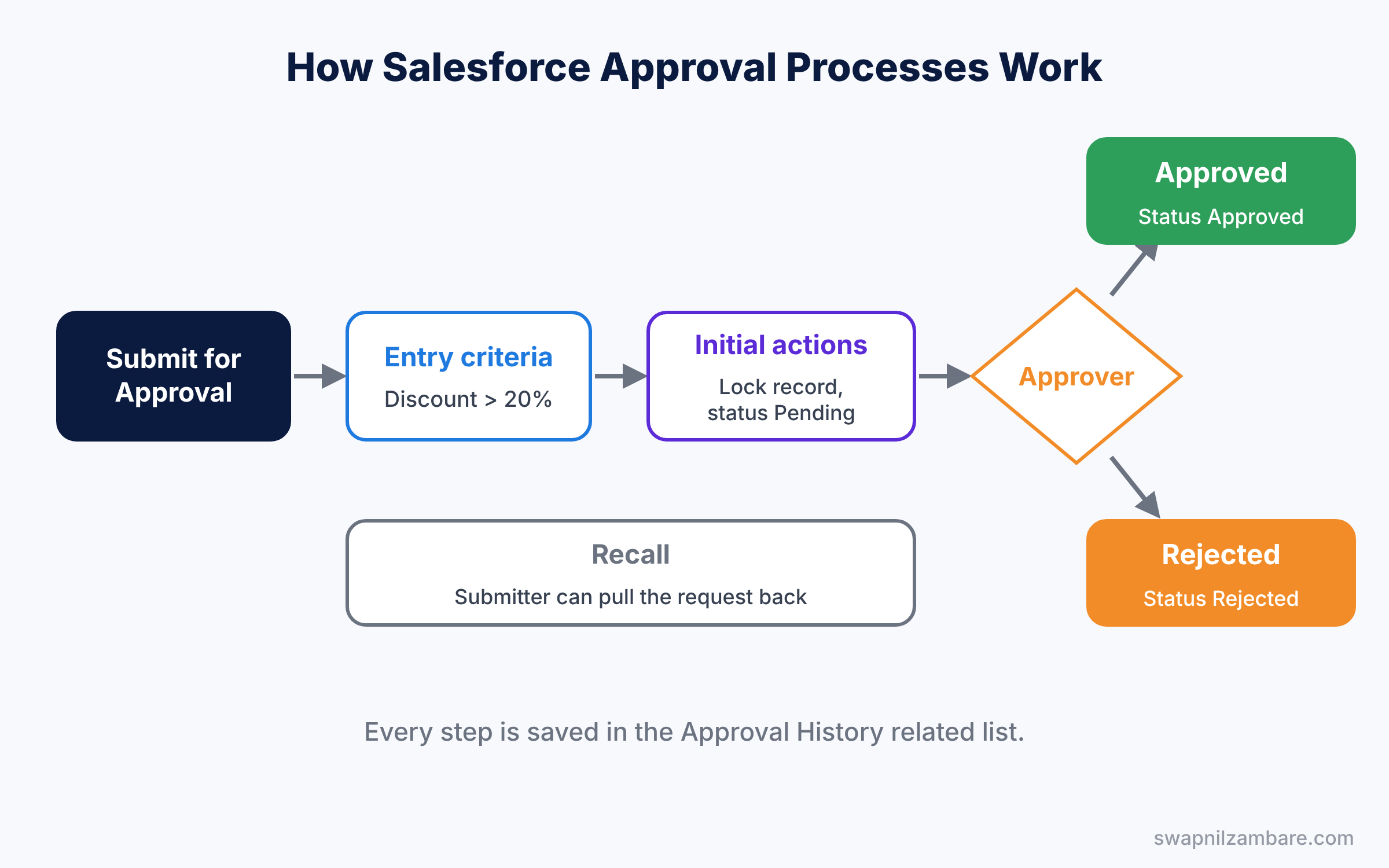
The approver gets an email and a notification in Salesforce. They can approve or reject, and add a comment. Then Salesforce runs the final approval actions or the final rejection actions. If the submitter changes their mind, they can recall the request, which runs the recall actions.
The Parts of Salesforce Approval Processes
Each approval process has several parts. The table below explains them.
| Part | What it does | Discount example |
|---|---|---|
| Entry criteria | Which records can enter the process | Discount Percent greater than 20 |
| Initial submitters | Who can submit | The Course owner |
| Approval steps | Who approves, in which order | Step 1: the submitter’s manager |
| Initial submission actions | What happens on submit | Lock the record, set status to Pending |
| Final approval actions | What happens on approval | Set status to Approved |
| Final rejection actions | What happens on rejection | Set status to Rejected, release the lock |
Choosing approvers
You can assign approvers in a few ways. The most common is the Manager field on the submitter’s user record. You can also pick a specific user, a queue, or a user lookup field on the record itself.
Multiple steps
Bigger approvals often need more than one step. For example, discounts above 20% go to the Sales Manager, and discounts above 40% then go to the CEO as well. Each step can have its own criteria.
Actions
Actions are the things Salesforce does automatically at each stage. The common ones are field updates, email alerts, record locks and outbound messages. Field updates are the most useful, because reports can then filter on the approval status.
Salesforce Approval Processes vs Automatic Flows
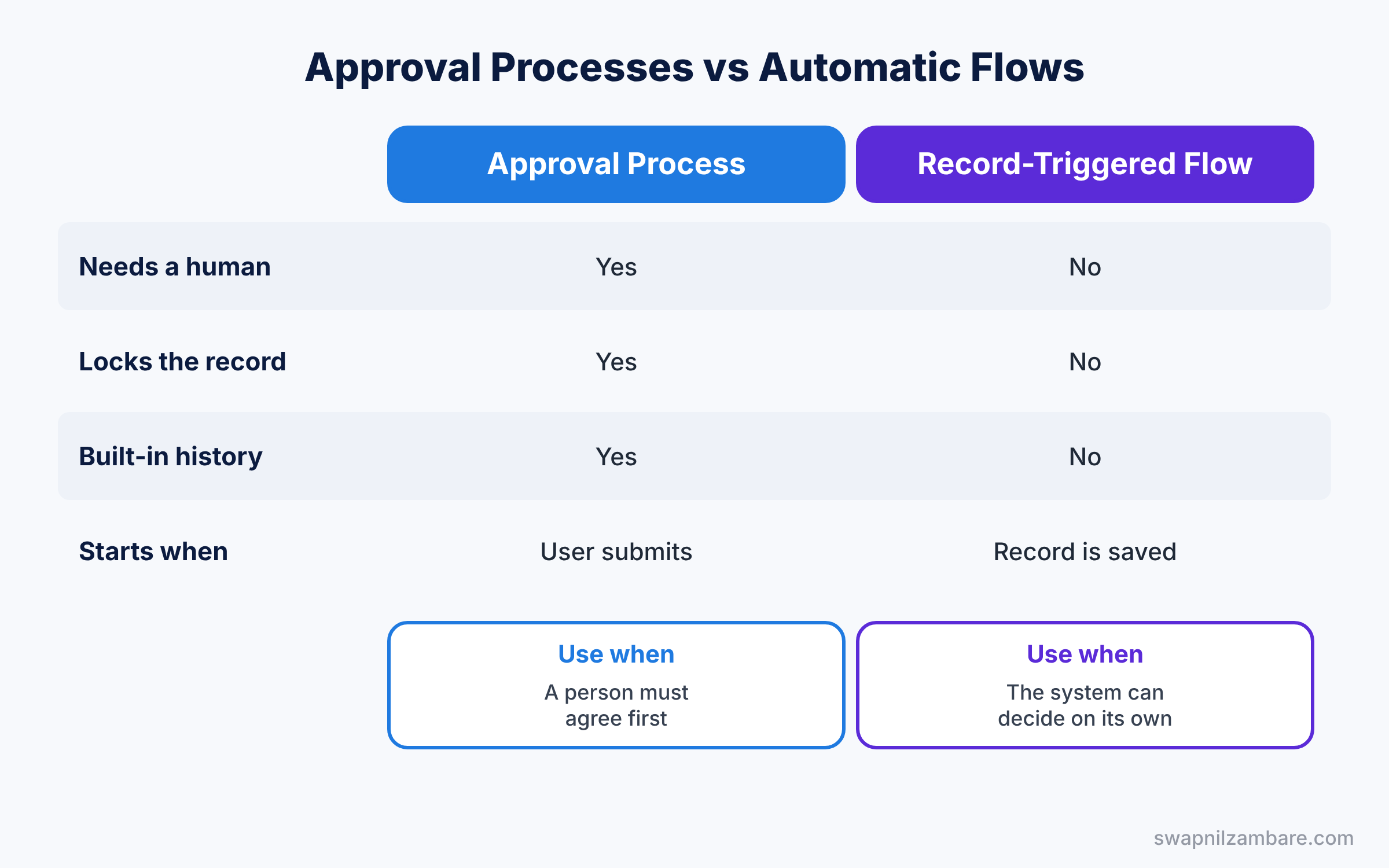
Both tools automate business rules, but one waits for a person and the other does not. The table below compares them.
| Feature | Approval process | Record-triggered flow |
|---|---|---|
| Needs a human decision | Yes | No |
| Locks the record while waiting | Yes | No |
| Built-in approval history | Yes | No, you would build your own |
| Starts when | A user clicks Submit for Approval | A record is created or updated |
| Best for | Discounts, expenses, contract changes | Updating fields, sending alerts, creating records |
So use an approval process when a person must agree first. Use a flow when the system can decide on its own. Salesforce has also started adding approval features to Flow, but classic approval processes remain widely used and appear on the admin exam.
Hands-on Example: Course Discount Approval
Let’s make sure any course discount above 20% needs the Sales Manager’s approval. First we add two fields, then we build the process.
Step 1: Add the fields
On the Course object, create these two fields.
| Field label | Type | Values |
|---|---|---|
| Discount Percent | Percent | Length 3, 0 decimal places |
| Approval Status | Picklist | Not Submitted, Pending, Approved, Rejected |
Then open your own user record and set the Manager field to another user, such as Asha Mehta. In a real org, this would be your actual manager.
Step 2: Create the approval process
- In Setup, type “Approval Processes” in Quick Find and open it.
- Pick Course in Manage Approval Processes For, then click Create New Approval Process and Use Standard Setup Wizard.
- Enter “Course Discount Approval” as the name and click Next.
- For entry criteria, choose “formula evaluates to true”, enter the formula shown after these steps, and click Next.
- For Next Automated Approver, pick Manager, and tick “Use Approver Field of Course Owner”. Click Next.
- Skip the email template for now, add Discount Percent to the approval page fields, and click Next.
- Set Initial Submitters to Course Owner and tick “Allow submitters to recall approval requests”. Click Save.
Here is the entry criteria formula for step 4.
Discount_Percent__c > 0.20Percent fields store values as decimals in formulas, so 20% is written as 0.20.
Step 3: Add a step and the actions
- When asked, choose “Yes, I’d like to create an approval step now”. Name it “Manager Review”, keep “All records should enter this step”, and pick “Automatically assign using the user field selected earlier”. Save.
- Under Initial Submission Actions, add a Field Update that sets Approval Status to Pending.
- Next, under Final Approval Actions, add a Field Update that sets Approval Status to Approved.
- Finally, under Final Rejection Actions, add a Field Update that sets Approval Status to Rejected.
- Click Activate.
Step 4: Test it
Add the Submit for Approval button to the Course page layout, in the Salesforce Mobile and Lightning Experience Actions section. Then open a course, set Discount Percent to 25%, save, and click Submit for Approval. The status changes to Pending, and the record is now locked.
Developers can list pending approvals with this SOQL query.
SELECT Id, Status, TargetObject.Name, CreatedDate
FROM ProcessInstance
WHERE Status = 'Pending'
Common Mistakes with Salesforce Approval Processes
- Empty Manager field. If the submitter has no manager, the request fails. Check user records before go-live.
- Forgetting to activate. An inactive process does nothing, and you cannot add steps after some changes without deactivating first.
- No status field. Without an Approval Status field, reports cannot show what is pending.
- Missing button. Users cannot submit if the Submit for Approval action is not on the page layout.
- Overlapping entry criteria. If two processes match the same record, Salesforce uses the first one in the order list.
Best Practices for Salesforce Approval Processes
- Keep steps few. Every extra step slows the business, so add only steps that truly change the decision.
- Always update a status field. It powers reports, list views and dashboards.
- Allow recall. Submitters often spot their own mistakes right after submitting.
- Use clear email templates. Approvers decide faster when the email shows the key fields, as you will see in our email templates guide.
- Use queues for shared approvals. A queue lets any team member approve, so requests do not wait for one person.
Practice Task
Add a second step called “CEO Review” that applies only when Discount Percent is above 40%. Assign it to a specific user.
Hint: in the new step, choose “Enter this step if the following criteria are met”.
Salesforce Approval Processes FAQ
Can an approver approve from email or mobile?
Yes. When email approval responses are turned on, approvers can reply to the approval email with words like “Approve” or “Reject”. They can also approve from the Salesforce mobile app.
What happens to a locked record during approval?
Only admins and, depending on your settings, the current approver can edit it. So users cannot change the discount after submitting it. Once the record is approved or rejected, the final actions can release the lock.
Can Salesforce Approval Processes have parallel approvers?
Yes. One step can go to several approvers at once. Then you choose whether everyone must approve, or whether the first response decides.
Official Resources
Quick Recap
- Salesforce Approval Processes route a record to a person for a yes or no.
- Entry criteria decide which records need approval.
- Approvers can come from the Manager field, a specific user, a queue or a record field.
- Actions run on submission, approval, rejection and recall.
- Always update a status field so reports can track approvals.
What’s Next?
Approvals need a human. Most automation does not. Next, learn every kind of flow and when to use each one. Read Salesforce Flow Types: Screen, Record-Triggered and Scheduled.


