Salesforce Email Templates let you write an email once and reuse it hundreds of times, with each copy filled with the right names, dates and amounts. Email alerts then send those templates automatically, from flows and approval processes. In our flow types guide, you built a daily reminder with a plain email. Now you will make those emails consistent, branded and easy to update.
In this post, you will learn the difference between Lightning and Classic email templates, how merge fields work, and how email alerts connect templates to automation. Then you will build a real course reminder for Bright Path Tutors. Good templates save every user time and make the company look professional.
What are Salesforce Email Templates?
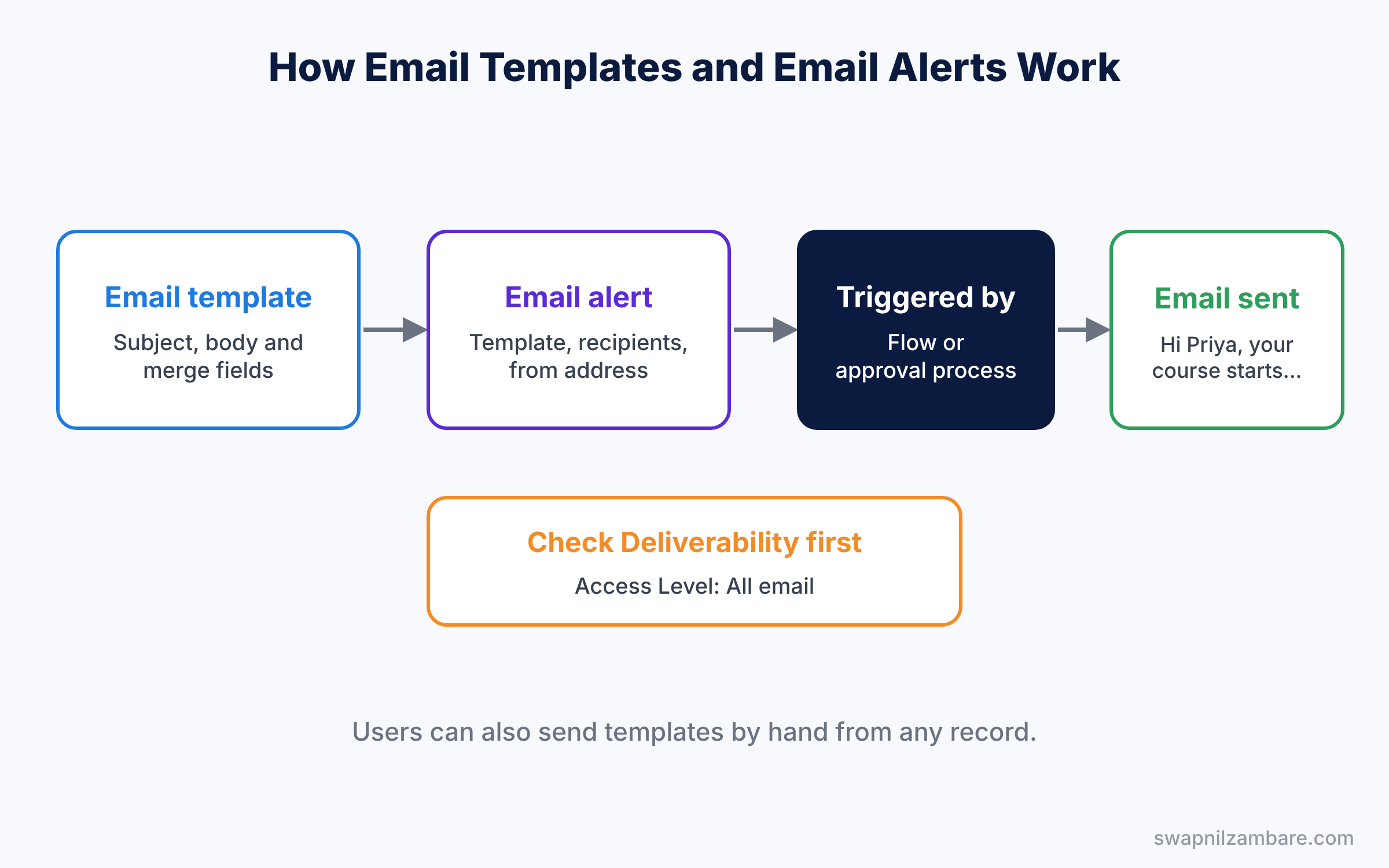
An email template is a saved email with placeholders called merge fields. When Salesforce sends the email, it replaces each merge field with real data from a record. For example, a placeholder for the first name becomes “Priya” for one student and “Rahul” for another.
An email alert is an automated action that sends a template to chosen recipients. Also, you do not send an email alert by hand. Instead, flows and approval processes call it when something happens.
Here is a simple analogy. A template is like a wedding invitation card with blank lines for the guest’s name. Then the email alert is the person who fills in each name and posts the cards on the right day.
Why Email Templates Matter
Without templates, every user writes emails their own way. As a result, some forget key details, some use old prices, and some make typing mistakes. Templates fix all of this, because everyone sends the same tested message.
Here are some real situations.
- Sales reps send the same course details email ten times a day.
- Also, students should get a reminder the day before their course starts.
- Managers need an email when a discount is waiting for their approval.
- Similarly, support agents reply to common questions with a standard answer.
Also, when the course fee or the office address changes, you update one template. So every future email is correct from that moment.
How Salesforce Email Templates and Alerts Work
A template holds the subject, the body and the merge fields. When a user sends it manually, Salesforce fills the merge fields from the record they are on. When automation sends it, an email alert picks the template and the recipients, and a flow or approval process triggers the alert.
Merge fields
Merge fields use a special syntax, and the syntax depends on the template type. The table below shows examples.
| Template type | Merge field syntax | Example output |
|---|---|---|
| Lightning | {{{Recipient.FirstName}}} | Priya |
| Lightning | {{{Sender.Name}}} | Asha Mehta |
| Classic | {!Course__c.Name} | Spoken English |
| Classic | {!Course__c.Start_Date__c} | 1/6/2026 |
Always use the Insert Merge Field button instead of typing them by hand. This means it picks the correct field names for you.
Email alert recipients
An email alert can send to several kinds of recipients. For example, common choices are the record owner, a user, a role, a related contact, or an email field on the record. You can also add a few extra email addresses for people outside Salesforce.
Folders and sharing
Templates live in folders, just like reports. So you can create a folder per team, such as Sales Templates and Support Templates. Then share each folder with the right public group or role, as Viewer or Editor. This keeps personal drafts private and team templates easy to find. Also, it stops someone from editing a template that the whole company depends on.
Who the email comes from
By default, an email alert comes from the user who triggered it. You can instead use an Organization-Wide Email Address, such as courses@brightpath.com. As a result, this looks more professional and keeps replies in one shared inbox.
Lightning vs Classic Salesforce Email Templates
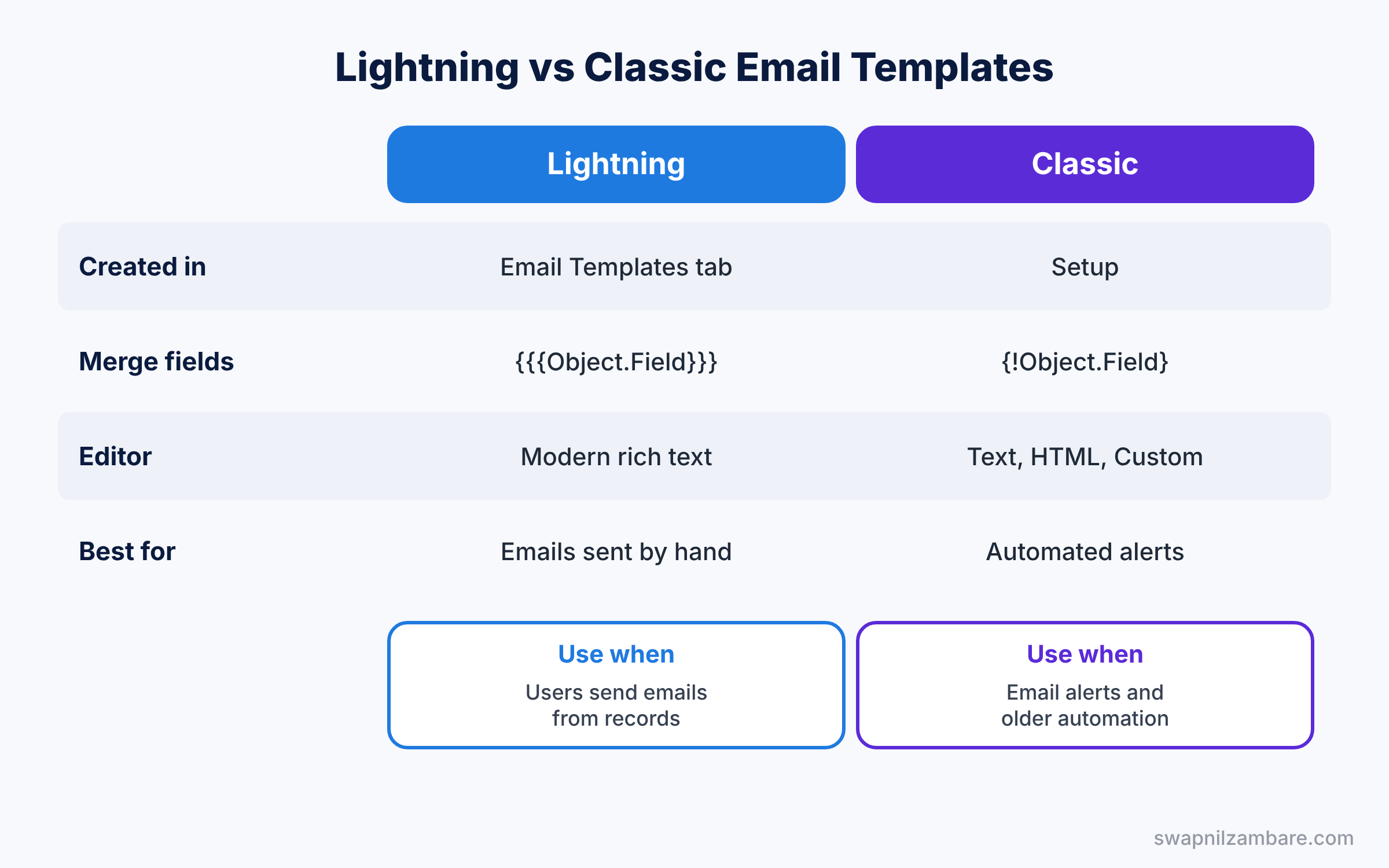
Salesforce has two families of templates. The table below compares them.
| Feature | Lightning email templates | Classic email templates |
|---|---|---|
| Where you create them | Email Templates tab in an app | Setup, Classic Email Templates |
| Merge field syntax | {{{Object.Field}}} | {!Object.Field} |
| Editor | Modern rich text editor | Text, HTML, Custom or Visualforce |
| Best for | Emails users send by hand | Automated email alerts and older processes |
| Folders and sharing | Lightning folders | Classic folders |
In short, use Lightning templates for emails users send from records. Classic templates still work everywhere, including email alerts in older orgs, so many admins keep them for automation.
Hands-on Example: Course Reminder Email
Let’s build a reminder that goes to the course owner the day before a course starts. Then we will add a template for reps to send by hand.
Step 1: Check email deliverability
In Setup, type “Deliverability” in Quick Find. Make sure Access Level is set to “All email”. However, new sandboxes often use “System email only”, which blocks most emails.
Step 2: Create a Classic text template
- In Setup, type “Classic Email Templates” in Quick Find and click New Template.
- Choose Text, then click Next.
- Pick a folder, tick Available For Use, and name it “Course Start Reminder”.
- Enter the subject and body shown below, then click Save.
Subject: Reminder: {!Course__c.Name} starts tomorrow

Hi {!Receiving_User.FirstName},

This is a reminder that {!Course__c.Name} starts on {!Course__c.Start_Date__c}.

Duration: {!Course__c.Duration_in_Weeks__c} weeks
Level: {!Course__c.Level__c}

Please check the room and the student list today.

Bright Path Tutors
Step 3: Create the email alert
- In Setup, type “Email Alerts” in Quick Find and click New Email Alert.
- Fill in the values from the table below and click Save.
| Setting | Value |
|---|---|
| Description | Course Starting Tomorrow |
| Object | Course |
| Email Template | Course Start Reminder |
| Recipient Type | Owner, then add Course Owner |
| From Email Address | Current User’s email address |
Step 4: Call the alert from your flow
Open the daily reminder flow from the flow types post. Replace the Send Email action with an Action element, search for “Course Starting Tomorrow”, and select the email alert. Pass {!$Record.Id} as the Record ID, then save and activate a new version.
Step 5: Create a Lightning template for reps
- Open the App Launcher and search for Email Templates. Click New Email Template.
- Name it “Course Details”, set Related Entity Type to Course, and pick a folder.
- Write the body below, using Insert Merge Field for each placeholder. Click Save.
Hi {{{Recipient.FirstName}}},

Thank you for your interest in {{{Course__c.Name}}}.
The course runs for {{{Course__c.Duration_in_Weeks__c}}} weeks.

Reply to this email if you have any questions.

{{{Sender.Name}}}
Bright Path Tutors
Now open any Contact, click the Email action, and choose Insert Template. Pick Course Details, and Salesforce fills in the name and course details for you. Then read the email once more before you click Send.
Common Mistakes with Salesforce Email Templates
- Deliverability set to system email only. So nothing goes out, and there is no error. Check this first when emails do not arrive.
- Typing merge fields by hand. One typo leaves a blank or raw code in the email. Use Insert Merge Field.
- Blank values in merge fields. If Start Date is empty, the email says “starts on” with nothing after it. Use validation rules to fill key fields.
- Sending from a personal address. Replies go to one person who may be on leave. Use an org-wide address for automated emails.
- Too many automated emails. People ignore inboxes full of alerts. Send only what someone will act on.
Best Practices for Salesforce Email Templates
- Keep subjects short and specific. “Reminder: Spoken English starts tomorrow” beats “Course Update”.
- Test with a real record. Send a test to yourself and read it like a customer would.
- Organise templates in folders by team. Folders make templates easy to find and share safely.
- Use org-wide email addresses for automation. Replies reach a shared inbox, not one person.
- Review templates every quarter. Prices, addresses and links change over time.
Practice Task
Create an email alert called “Discount Approved” that uses a Classic template and sends to the Course owner. Add it to the Final Approval Actions of the approval process from our approval processes guide.
Hint: open the approval process, click Add Existing under Final Approval Actions, and choose Email Alert.
Salesforce Email Templates FAQ
Can I add attachments to Salesforce Email Templates?
Yes. Both Lightning and Classic templates can include attachments. However, large attachments slow emails down, so link to files instead when you can.
Why did my email alert not send?
First, check Deliverability. Next, check that the flow or approval process actually ran, using the flow’s debug details or the approval history. Finally, check your daily email limits, because every org has a cap on automated emails per day.
Can users edit a template before sending it?
Yes, when they send an email by hand. They pick the template, and then they can change the text before clicking Send. Email alerts, on the other hand, always send the template exactly as saved.
Should I use Salesforce Email Templates for newsletters?
Not really. Templates suit one-to-one or small automated emails. For large newsletters, a marketing tool handles unsubscribes, tracking and design much better.
Official Resources
Quick Recap
- Salesforce Email Templates store a reusable email with merge fields.
- Lightning templates use {{{Object.Field}}}, while Classic templates use {!Object.Field}.
- Email alerts send a template automatically from flows and approval processes.
- Check Deliverability first when emails do not arrive.
- Use org-wide email addresses for automated emails.
What’s Next?
Emails tell people what changed. Next, learn how Salesforce records who changed what, and when. Read Salesforce Field History Tracking and Setup Audit Trail.


