Salesforce Duplicate Rules and matching rules stop the same customer, lead or course from being entered twice. Duplicates look harmless at first. Then a customer gets two welcome emails, a report counts one deal twice, and two reps call the same person on the same day. After building a clean Lightning app for your team, the next job is to keep its data free of copies.
In this post, you will learn how matching rules and duplicate rules work together, what exact and fuzzy matching mean, and what users see when they try to save a duplicate. Then you will build real rules for the Course object. Good duplicate management is one of the quickest wins an admin can deliver.
What are Salesforce Duplicate Rules?
Salesforce uses two tools together to manage duplicates. A matching rule decides how two records are compared, such as “same email” or “similar company name”. A duplicate rule decides what happens when the matching rule finds a match, such as showing a warning or blocking the save.
Here is a simple analogy. Think of a hotel front desk. The matching rule is the receptionist checking the guest list for the same name and phone number. The duplicate rule is the hotel policy: either “warn the guest they already have a booking” or “do not allow a second booking”.
So the matching rule finds possible copies. The duplicate rule decides the action.
Why Duplicate Management Matters
Duplicates damage trust in your data. Once users see two copies of a customer, they stop believing reports. Sales and service teams also waste time, because history gets split across two records.
Here are some real situations.
- A rep creates a new Lead for someone who is already a Contact.
- The same company appears as “Infosys”, “Infosys Ltd” and “Infosys Limited”.
- A trainer adds “Spoken English” starting on 1 June, when that course already exists.
- An import from a spreadsheet brings in 300 people who are already in Salesforce.
Fixing duplicates after they spread is slow, because you must merge records and move related data. Stopping them at entry is far cheaper.
How Salesforce Duplicate Rules Work
When a user saves a record, Salesforce runs every active duplicate rule for that object. Each duplicate rule uses one or more matching rules to search for similar records. If a match is found, Salesforce follows the rule’s action.
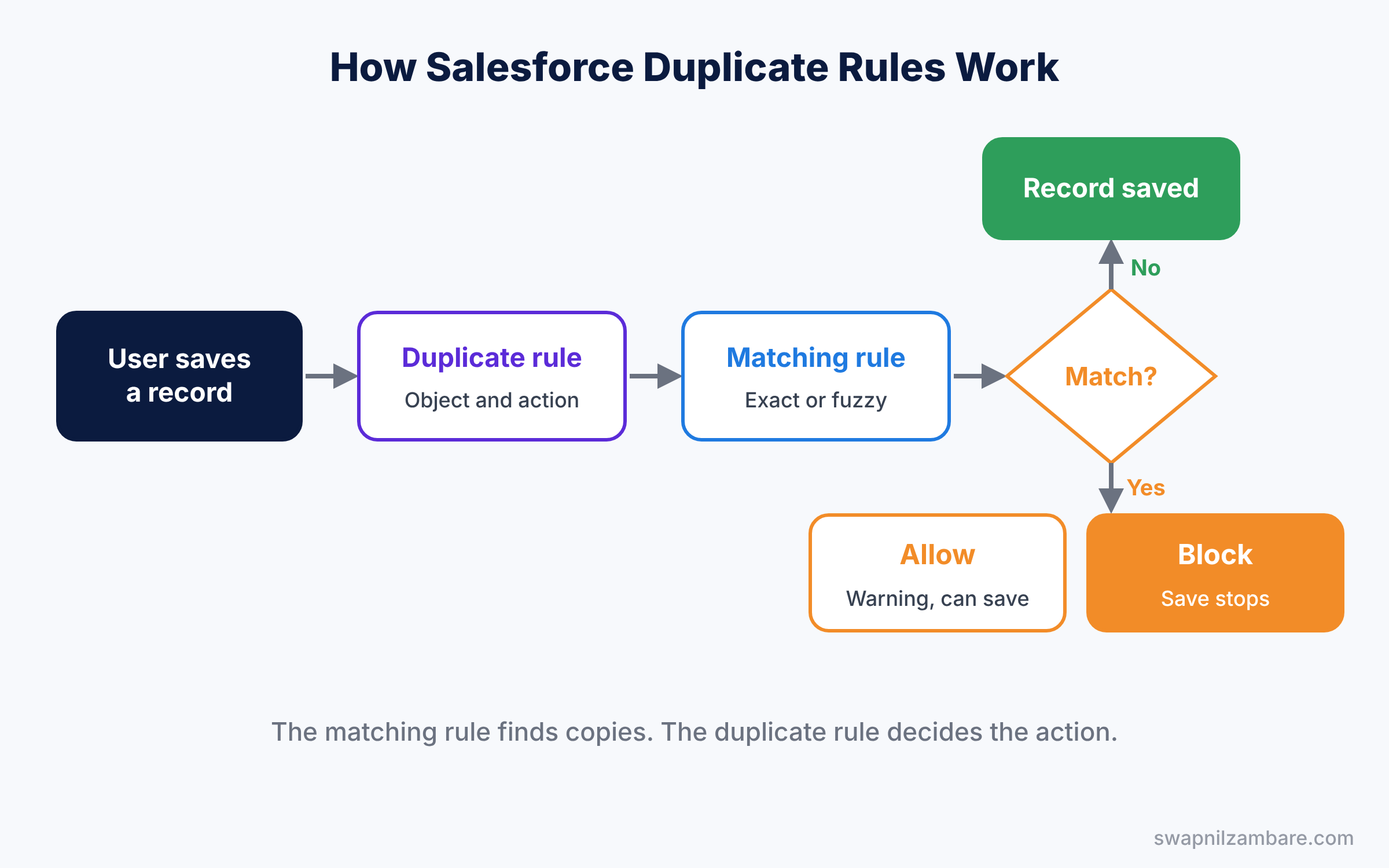
So when the action is Allow, the user sees a warning and can still save. But when the action is Block, the save stops and the user sees your message. You can also tick Report, so Salesforce logs each duplicate it finds for later clean-up.
The Building Blocks of Salesforce Duplicate Rules
Matching rules
A matching rule lists the fields to compare and how to compare each one. Exact matching needs the values to be identical. Fuzzy matching allows small differences, like “Jon” and “John”, or “Infosys Ltd” and “Infosys Limited”.
Salesforce includes standard matching rules for Accounts, Contacts and Leads. These use fuzzy logic on names, company, email, phone and address. For custom objects, you build your own matching rules, usually with exact matching.
Duplicate rules
A duplicate rule picks the object, the matching rule and the actions. The table below shows the main settings.
| Setting | What it controls | Example |
|---|---|---|
| Object | Which records the rule checks | Course |
| Matching rule | How records are compared | Course Name and Start Date match |
| Action on Create | Allow with alert, or Block | Block |
| Action on Edit | Allow with alert, or Block | Allow with alert |
| Alert text | The message users see | “This course already exists on this date.” |
| Conditions | Optional filter for when the rule applies | Only for active courses |
Cross-object matching
A duplicate rule on Leads can also check Contacts. So when a rep enters a new lead, Salesforce can warn them that this person is already a customer. This is one of the most useful rules in a sales org.
Merging duplicates
When duplicates already exist, you can merge them. For Accounts, Contacts and Leads, Salesforce offers a merge tool that combines several records into one. It keeps one master record and moves related records onto it.
Salesforce Duplicate Rules vs Validation Rules
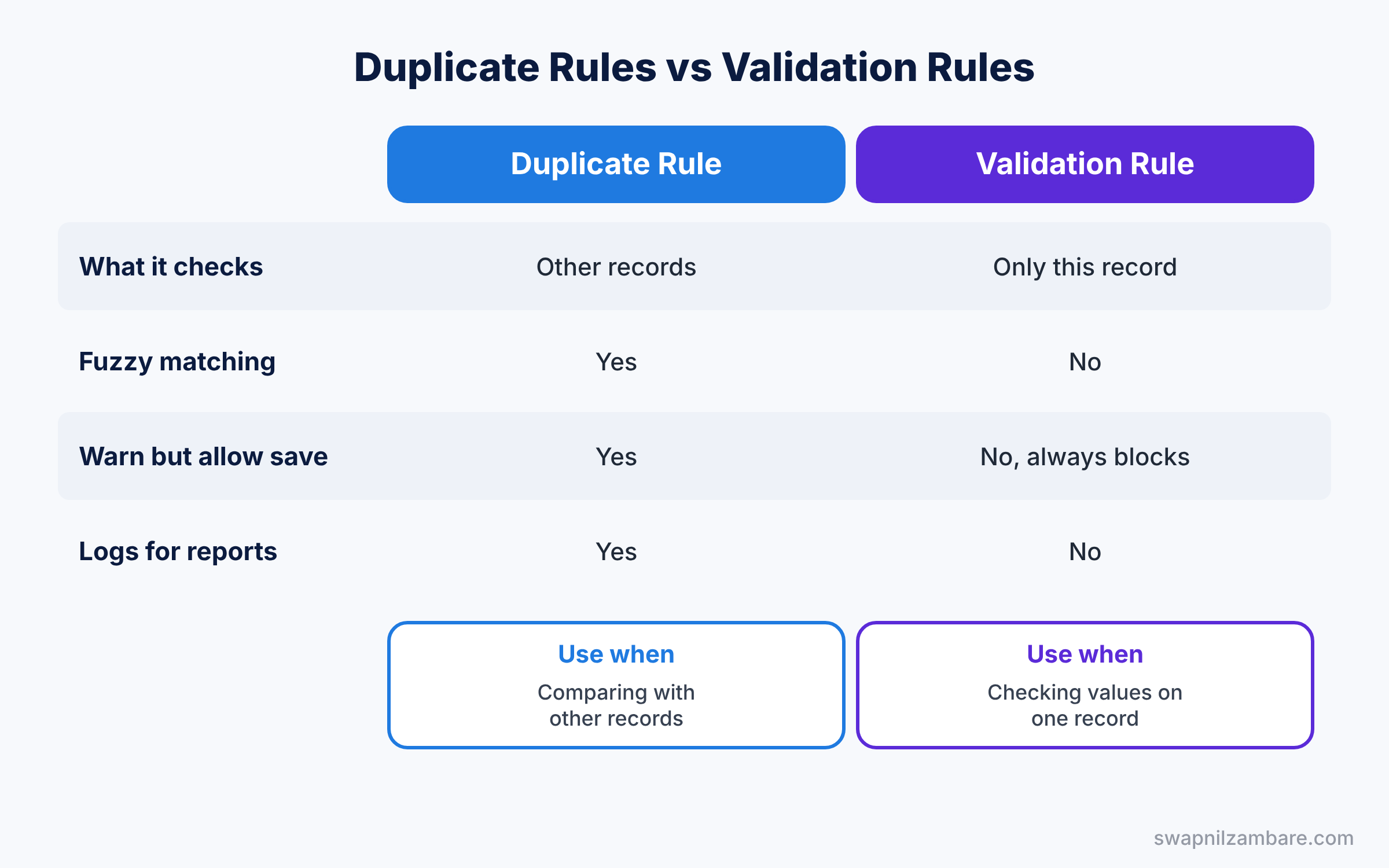
Both tools can block a save, so beginners mix them up. The table below shows the difference.
| Feature | Duplicate rule | Validation rule |
|---|---|---|
| What it checks | Other records in the org | Only the record being saved |
| Main question | “Does a similar record already exist?” | “Is this record’s data valid?” |
| Fuzzy matching | Yes | No |
| Can warn and still allow save | Yes | No, it always blocks |
| Logs findings for reports | Yes, with the Report option | No |
So use a duplicate rule when you compare with other records. Use a validation rule when you only check the values on one record.
Hands-on Example: Stop Duplicate Courses
At Bright Path Tutors, two courses with the same name and start date are almost always a mistake. Let’s block them on create and warn on edit.
Step 1: Create the matching rule
- In Setup, type “Matching Rules” in Quick Find and click New Rule.
- Pick Course as the object and click Next.
- Enter the values from the table below and click Save.
- Click Activate. Activation can take a few minutes, and you will get an email when it is done.
| Setting | Value |
|---|---|
| Rule Name | Course Name and Start Date |
| Field 1 | Course Name, Matching Method Exact |
| Field 2 | Start Date, Matching Method Exact |
| Match Blank Fields | Not ticked |
Step 2: Create the duplicate rule
- Type “Duplicate Rules” in Quick Find, click New Rule and pick Course.
- Name it “Block Duplicate Courses”.
- Set Action on Create to Block, and Action on Edit to Allow with Alert and Report ticked.
- Enter the alert text “A course with this name already starts on this date.”
- Under Matching Rules, pick “Course Name and Start Date”. Click Save, then Activate.
Step 3: Test it
Create a course called “Spoken English” starting on 1 June. Then try to create a second one with the same name and date. Salesforce blocks the save and shows your message.
When the Report option is on, Salesforce stores found duplicates in Duplicate Record Sets. Developers and admins can list them with this SOQL query.
SELECT Name, DuplicateRule.MasterLabel, RecordCount
FROM DuplicateRecordSet
ORDER BY CreatedDate DESC
You can also build a report on Duplicate Record Sets to track how many duplicates each rule catches every month.
Common Mistakes with Salesforce Duplicate Rules
- Activating the duplicate rule before the matching rule. The matching rule must be active first, or the duplicate rule cannot work.
- Blocking too strictly on edit. Blocking edits can stop users from fixing old records. Use Allow with alert on edit.
- Matching on too few fields. Matching only on first name flags hundreds of false duplicates.
- Ignoring imports. Some import tools can skip duplicate rules, so check your import settings too.
- Never reviewing the reports. Logged duplicates are useful only if someone cleans them up.
Best Practices for Salesforce Duplicate Rules
- Start with Allow and Report. Watch what the rule catches for a week, then switch to Block if it is accurate.
- Write helpful alert text. Tell users what to do, such as “Search for the existing course and update it instead.”
- Use cross-object rules for Leads. Checking Leads against Contacts saves sales teams a lot of wasted calls.
- Combine fields for accuracy. Name plus email, or name plus date, gives far fewer false matches.
- Merge old duplicates regularly. Schedule a monthly clean-up using the duplicate reports.
Practice Task
Turn on the standard Lead duplicate rule that compares new Leads with existing Contacts. Then create a Lead with the same name and email as an existing Contact.
Hint: open Duplicate Rules, pick the standard Lead rule, and check its matching rules section.
Salesforce Duplicate Rules FAQ
Are Salesforce Duplicate Rules active in a new org?
Yes, for some objects. New orgs usually include standard duplicate and matching rules for Accounts, Contacts and Leads. So check them first before you build your own.
Do duplicate rules work during data imports?
It depends on the tool. The Data Import Wizard can match on fields to avoid duplicates, as shown in our Data Loader and Import Wizard guide. Therefore, test your import tool with a few known duplicates before a big load.
How is a fuzzy match different from an exact match?
An exact match needs identical values. A fuzzy match, however, allows small differences in spelling, spacing or short forms, like “Ltd” and “Limited”.
Official Resources
Quick Recap
- Matching rules decide how records are compared, with exact or fuzzy matching.
- Salesforce Duplicate Rules decide what happens when a match is found.
- Actions are Allow with an alert, or Block, separately for create and edit.
- Duplicate rules compare with other records; validation rules check one record.
- Turn on Report to track duplicates and clean them up over time.
What’s Next?
Clean data makes clean emails. Next, learn how to send consistent messages from Salesforce. Read Salesforce Email Templates and Email Alerts Guide.


