Lightning App Builder is the drag-and-drop tool you use to design pages in Salesforce. You already used it in our page layouts and Lightning record pages guide to add a conditional section. Now we go further and build a whole app for a team, with its own tabs, home page and dashboard-style workspace.
In this post, you will learn what a Lightning app is, which page types it can create, and which components beginners use most. Then you will build a “Bright Path Tutors” app from scratch, step by step. A well-designed app gives each team one clean place to do their daily work.
What is Lightning App Builder?
It is a visual editor for Lightning pages. You pick a page template, then drag components, like lists, charts and text, onto it. You do not write any code, although developers can add their own custom components too.
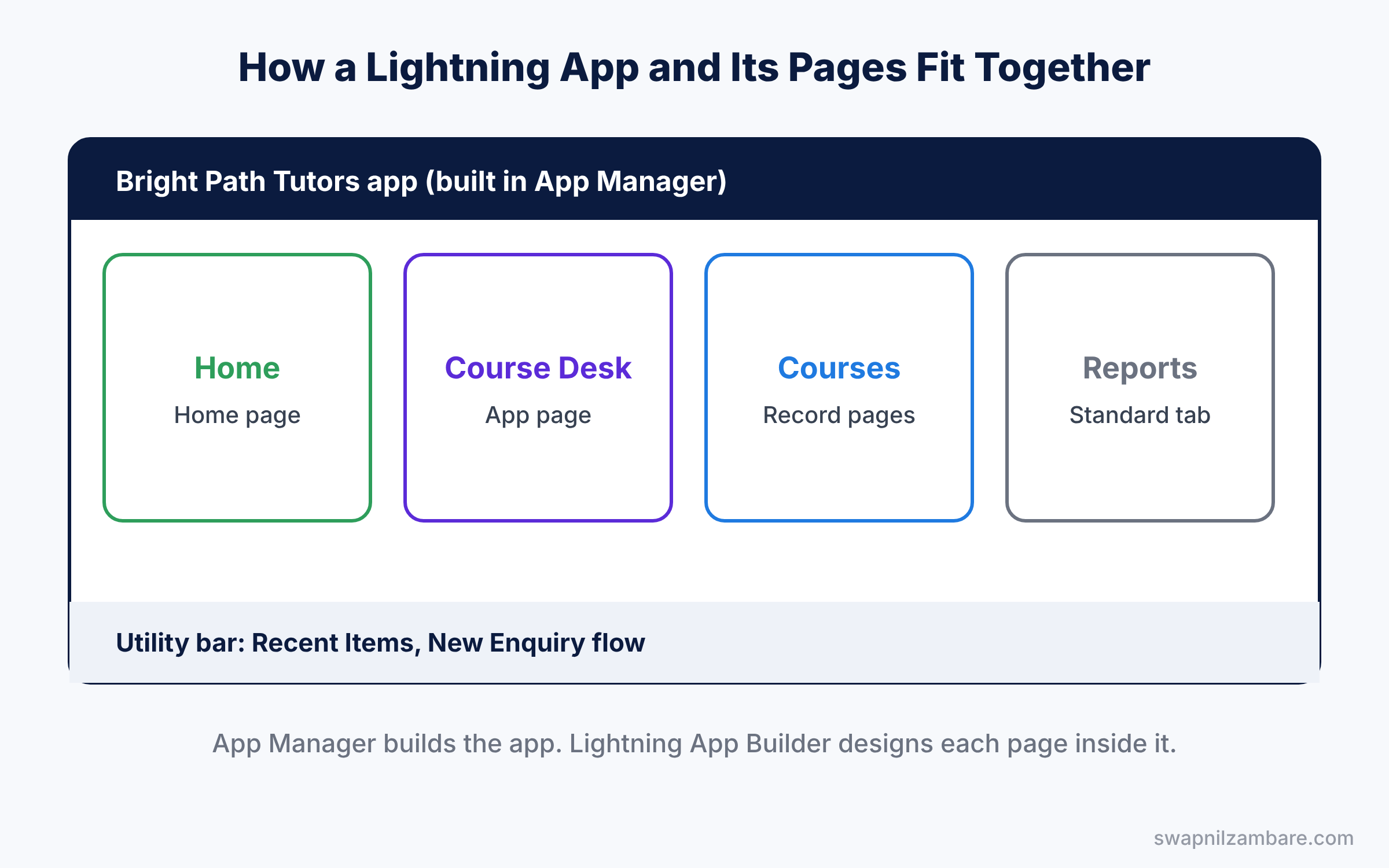
However, a Lightning app is different from a Lightning page. An app is a collection of tabs, branding and utility items that a team uses together. You create apps in App Manager, and you design the pages inside them with the builder.
Here is a simple analogy. A Lightning app is like a shopping mall, with its name, entrance and list of shops. Then each Lightning page is one shop inside the mall. Finally, the builder is the interior designer who arranges the shelves inside each shop.
Why Lightning App Builder Matters
Different teams need different screens. For example, sales reps want deals and leads. Trainers, however, want courses and schedules. If everyone uses the same crowded app, people waste time hunting for tabs.
Here are some real situations.
- The training team needs one app with only Courses, Teachers and Reports.
- Managers want a home page with a pipeline chart and a list of overdue tasks.
- Receptionists need a quick enquiry form always open at the bottom of the screen.
- A new joiner needs a simple page with links to help guides.
So with the builder and App Manager, an admin can build all of this in an afternoon. In short, no developer is needed.
How Lightning App Builder Works
Building a team workspace usually takes three steps. First, you create the app in App Manager and pick its tabs. Then you design pages in the builder. Finally, you activate those pages and assign the app to the right profiles.
Page templates
Every Lightning page starts from a template. Also, a template sets the layout, such as one column, two columns, or a header with a main area and a sidebar. You can change the template later, but it is easier to pick the right one at the start.
Components
Next, components are the building blocks you drag onto a page. The table below lists the standard ones beginners use most.
| Component | What it shows | Example use |
|---|---|---|
| List View | Records from a list view | All upcoming Courses |
| Report Chart | A chart from a saved report | Courses by Level donut chart |
| Rich Text | Formatted text and links | Team notices and help links |
| Tabs | Several tabs inside one area | Details, Related and Notes tabs |
| Flow | A screen flow users can run | New enquiry form |
| Recent Items | Records the user opened recently | Quick access to last five courses |
Visibility rules
Each component can have a visibility rule. For example, a chart can show only on desktop, or only for users with a certain permission. As a result, one page can serve several groups of users.
Types of Pages in Lightning App Builder
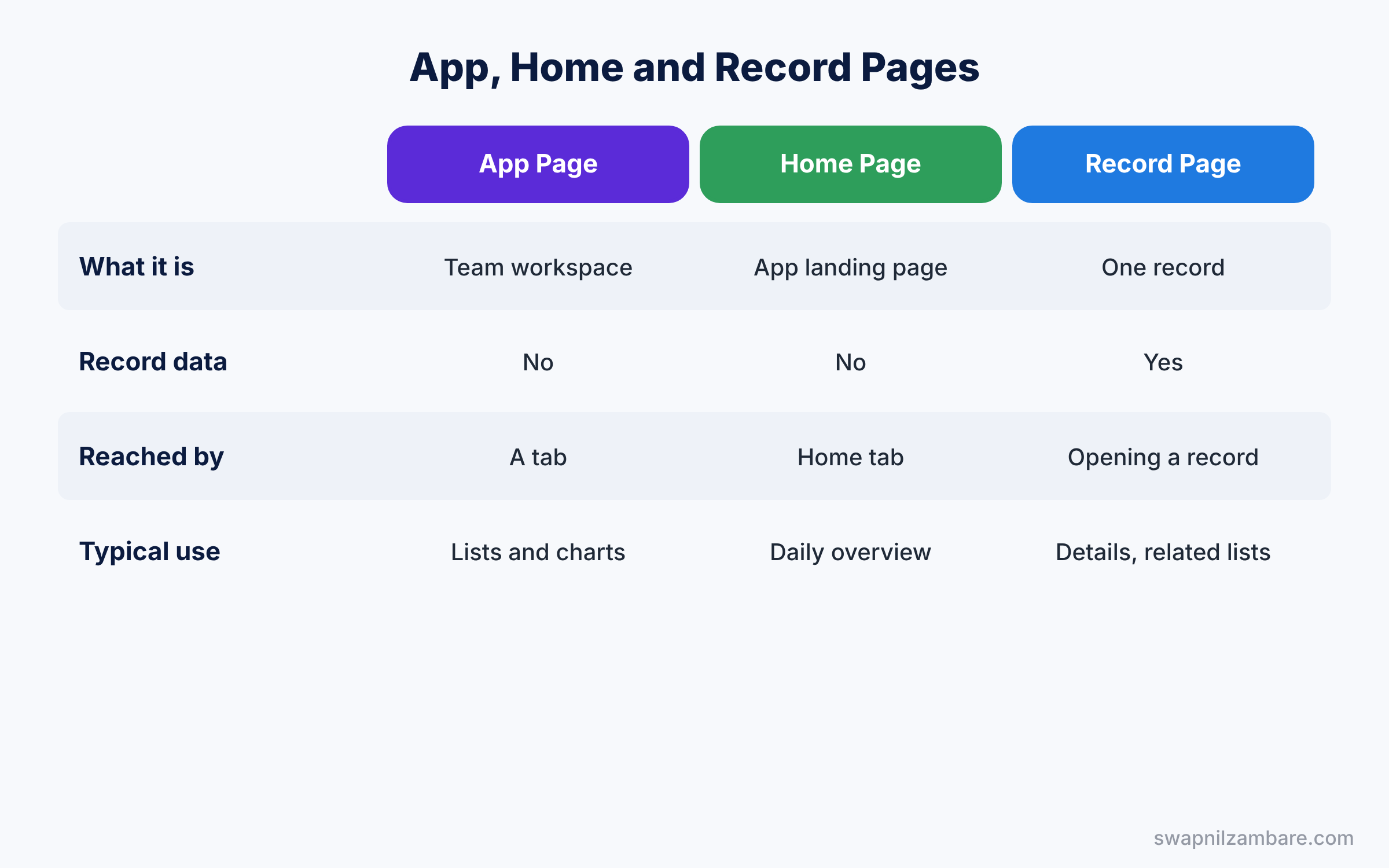
Also, the builder creates three main page types. The table below compares them.
| Feature | App page | Home page | Record page |
|---|---|---|---|
| What it is | A standalone page, like a workspace | The landing page of an app | The page for one record |
| Has record data | No | No | Yes, from the open record |
| How users reach it | A tab in the app | Home tab | Opening any record |
| Activation | As a Lightning page tab | Org, app or profile default | Org, app, record type and profile |
| Typical use | Team workspace with lists and charts | Daily overview for a role | Details and related lists |
In short, use an app page for a team workspace, a home page for a daily overview, and a record page for working on one record.
Hands-on Example: Build the Bright Path Tutors App
Let’s build a complete app for the training team. First, we will create the app, then design a “Course Desk” app page, and add it as a tab.
Step 1: Create the Lightning app
First, here are the app details you will enter in the wizard.
| Setting | Value |
|---|---|
| App Name | Bright Path Tutors |
| Developer Name | Bright_Path_Tutors |
| Primary Color | Any calm blue |
| Navigation Style | Standard navigation |
- In Setup, type “App Manager” in Quick Find and open it. Click New Lightning App.
- Fill in the app details from the table above, then click Next.
- On Utility Items, click Add Utility Item and pick Recent Items. Click Next.
- On Navigation Items, add Home, Courses, Leads, Reports and Dashboards. Click Next.
- Add the System Administrator profile and click Save and Finish.
Step 2: Build the Course Desk app page
- In Setup, type “Lightning App Builder” in Quick Find and click New.
- Choose App Page, click Next, and name it “Course Desk”.
- Pick the “Header and Right Sidebar” template and click Done.
- First, drag a Rich Text component into the header. Type “Welcome to the Course Desk. Check new courses every morning.”
- Next, drag a List View component into the main area. Set Object to Course and the list view to All.
- Then drag a Report Chart into the sidebar and pick the “Courses by Level” report from our reports and dashboards guide.
- Click Save.
Step 3: Activate the page as a tab
- Click Activation. Choose a tab icon and click the Lightning Experience tab.
- Add the page to the Bright Path Tutors app, move it to the top, and click Save.
- Open the App Launcher and pick Bright Path Tutors. The Course Desk tab now shows your list and chart together.
Step 4: Add the enquiry flow to the utility bar
Go back to App Manager, edit Bright Path Tutors, and open Utility Items. Add a Flow utility item and pick the New Enquiry screen flow from our flow types guide. Now the enquiry form is one click away on every page of the app.
Common Mistakes with Lightning App Builder
- Forgetting to activate. A saved page does nothing until you activate it and add it to an app.
- Assigning the app to nobody. Apps appear only for profiles you add on the User Profiles step.
- Adding too many components. Every component loads data. A heavy page feels slow, so keep only what users need.
- Using pages as security. Hiding a component does not hide data. Use permissions and sharing for real security.
- Mixing up apps and pages. Create apps in App Manager, and design pages in Lightning App Builder.
Best Practices for Lightning App Builder
- Build one app per team. A focused app with five or six tabs is easier than one giant app for everyone.
- Put the daily task first. The top-left area of a page should answer the user’s first question of the day.
- Use visibility rules instead of many pages. Fewer pages are easier to maintain.
- Ask users to test before go-live. Watch two people use the page for five minutes. You will spot problems fast.
- Add help links in a Rich Text component. New joiners learn faster when guides sit right on the page.
Practice Task
Create a Home page for the Bright Path Tutors app with a Report Chart and a Recent Items component. Activate it as the app default for that app only.
Hint: in Activation, choose App Default and pick Bright Path Tutors.
Lightning App Builder FAQ
Do I need to know code to use Lightning App Builder?
No. Everything in this post works with clicks only. However, developers can build custom Lightning web components, and you can then drag those onto pages too.
How is App Manager different from the page builder?
App Manager creates and edits apps, including their tabs, branding and profiles. In contrast, the builder designs the pages inside those apps. So you often use both tools for one project.
Why does my new page not appear for users?
Usually the page is saved but not activated. First, check the Activation settings. Then check that the app is assigned to the users’ profiles.
Official Resources
- Lightning App Builder module (Trailhead)
- Customize Lightning Experience (Trailhead)
- App Builder overview (Salesforce Help)
Quick Recap
- Lightning App Builder designs App pages, Home pages and record pages by drag and drop.
- You create Lightning apps in App Manager, where they group tabs, branding and utility items.
- Components like List View, Report Chart and Rich Text cover most beginner needs.
- Pages work only after you activate them.
- Visibility rules let one page serve several user groups.
What’s Next?
Your app is ready, so let’s keep its data clean. Next, learn how to stop duplicate records. Read Salesforce Duplicate Rules and Matching Rules Explained.


