Salesforce Flow Types decide how and when your automation starts. In our first Flow Builder guide, you built a simple flow and learned the basic elements. Now we go deeper. Some flows run when a user clicks a button, some run when a record changes, and some run on a schedule at night.
In this post, you will learn the five main flow types, when each one fits, and the difference between before-save and after-save flows. Then you will build three real flows for Bright Path Tutors. Flow is now the main automation tool in Salesforce, so this post is worth reading twice.
What are Salesforce Flow Types?
A flow type is the way a flow gets started. You choose it on the first screen of Flow Builder, when you click New Flow. The type decides what triggers the flow, whether users see screens, and which elements you can use.
Here is a simple analogy. Think of the lights in your home. Some turn on when you press a switch. Some turn on when a motion sensor sees someone. Others turn on by a timer at 7 PM every evening. The light is the same, but the trigger is different. Flow types work the same way.
Why the Right Salesforce Flow Types Matter
Picking the wrong type causes real problems. For example, a record-triggered flow that should have been a before-save flow runs slower and uses more system resources. A screen flow used where no user is present simply fails.
Here are some real situations, each with the right type.
- A receptionist enters a new student enquiry through a guided form, so a screen flow fits.
- Every new course must have its code in capital letters, so a record-triggered flow fits.
- Every morning, owners need an email about courses starting tomorrow, so a schedule-triggered flow fits.
- Three different flows need the same “calculate discount” logic, so an autolaunched subflow fits.
So the first question for any automation is always “What should start it?” The answer points you to the type.
How Salesforce Flow Types Start
Every flow begins with a Start element. For each type, that element works differently. The diagram below shows the five main types and what starts each one.
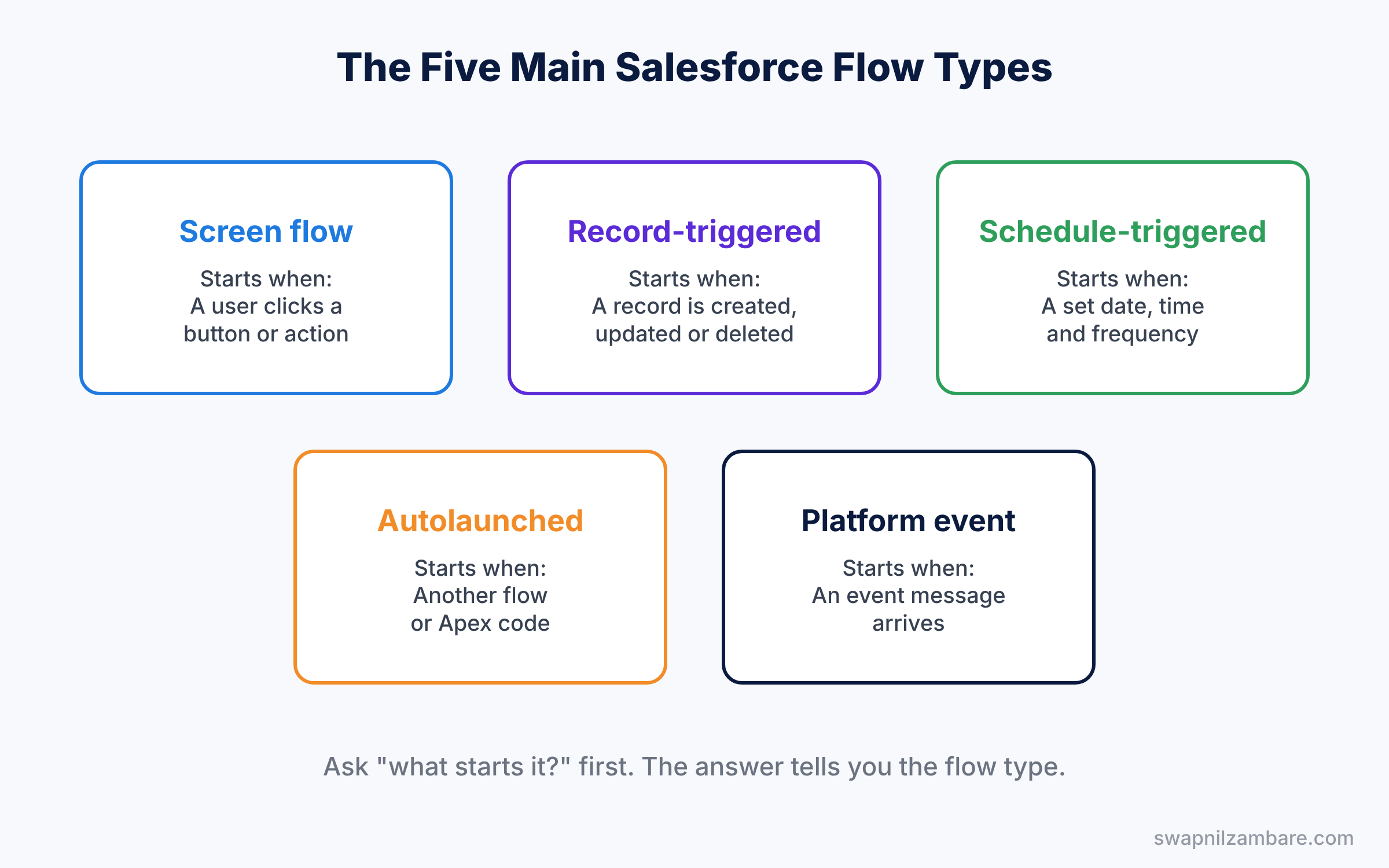
The Five Main Salesforce Flow Types
The table below gives a quick summary before we look at each type.
| Flow type | What starts it | Example |
|---|---|---|
| Screen flow | A user, through a button, page or action | New enquiry form |
| Record-triggered flow | A record is created, updated or deleted | Uppercase the course code |
| Schedule-triggered flow | A date, time and frequency | Daily reminder at 8 AM |
| Autolaunched flow (no trigger) | Another flow, Apex or a process | Reusable discount calculator |
| Platform event-triggered flow | A platform event message | An order update from another system |
Screen flow
A screen flow shows one or more screens to a user. It can collect input, show information and guide people through steps. You can launch it from a button, a quick action, a Lightning page or the utility bar.
Record-triggered flow
A record-triggered flow runs when a record is created, updated or deleted. You choose the object and the conditions, such as “only when Level changes”. It is the most common flow type for admins.
Schedule-triggered flow
A schedule-triggered flow runs at a set time, once, daily or weekly. It can work on a batch of records that match your filters. It suits reminders, clean-up jobs and daily updates.
Autolaunched flow with no trigger
This flow has no trigger of its own. Other flows call it as a subflow, or Apex code starts it. It is perfect for logic you want to reuse in many places.
Platform event-triggered flow
This flow runs when a platform event message arrives. Platform events are messages that systems send to each other. We will cover them later in the developer track.
Before-Save vs After-Save Record-Triggered Flows
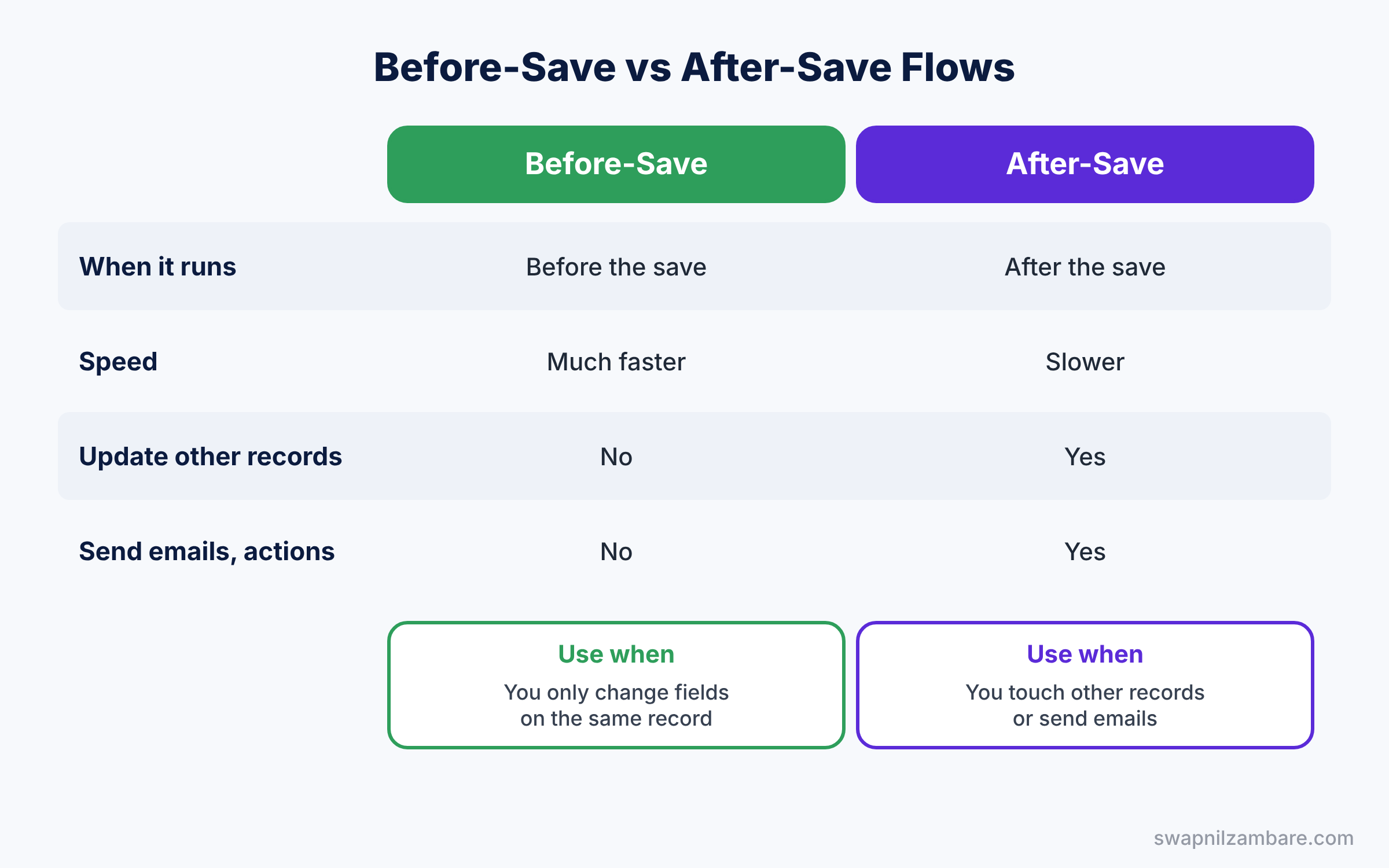
Record-triggered flows can run in two modes. Salesforce calls them “Fast Field Updates” and “Actions and Related Records”. The table below compares them.
| Feature | Before-save (Fast Field Updates) | After-save (Actions and Related Records) |
|---|---|---|
| When it runs | Before the record is saved | After the record is saved |
| Speed | Much faster | Slower |
| Update the same record | Yes, directly with no extra save | Yes, but it needs another update |
| Create or update other records | No | Yes |
| Send emails and call actions | No | Yes |
In short, use before-save when you only change fields on the record that started the flow. Use after-save when you need to touch other records, send emails or call actions.
Hands-on Example: Three Salesforce Flow Types in Action
Let’s build three small flows for Bright Path Tutors. Each one uses a different flow type.
Flow 1: Uppercase the course code (record-triggered, before-save)
- In Setup, open Flows and click New Flow. Choose Record-Triggered Flow and click Create.
- Set Object to Course and the trigger to “A record is created or updated”.
- Under Optimize the Flow for, choose Fast Field Updates.
- Click + under the Start element and add an Update Triggering Record element.
- Set Course_Code__c to a formula resource called UpperCode, using the formula below.
UPPER({!$Record.Course_Code__c})Save the flow as “Course – Uppercase Code” and click Activate. Now type “eng-301” as a course code and save. Salesforce stores it as “ENG-301”.
Flow 2: Daily reminder (schedule-triggered)
- Click New Flow, choose Schedule-Triggered Flow and click Create.
- Set the start date to tomorrow, the time to 8:00 AM, and Frequency to Daily.
- Choose Course as the object, so the flow runs once for each Course record.
- Add a Decision element with an outcome called “Starts Tomorrow”. Its condition uses a Boolean formula resource, shown after these steps.
- On the Starts Tomorrow path, add a Send Email action. Send it to the owner’s email and write a short message.
Here is the formula for the Starts Tomorrow outcome.
{!$Record.Start_Date__c} = TODAY() + 1Save and activate. Every morning, owners now get a reminder for courses that start the next day.
Flow 3: New enquiry form (screen flow)
- Click New Flow and choose Screen Flow.
- Add a Screen element with three inputs: Student Name (Text), Phone (Phone) and Course Interest (Text).
- Add a Create Records element that creates a Lead. Map Student Name to Last Name, Phone to Phone, and use “Bright Path Enquiry” as the Company.
- Add a final Screen that says “Thank you, we will call you soon.”
Save and activate. Then add the flow to the Home page with Lightning App Builder, using the Flow component.
Common Mistakes with Salesforce Flow Types
- Using after-save for simple field updates. Before-save is much faster for changes on the same record.
- Forgetting entry conditions. A record-triggered flow without conditions runs on every save. Add conditions like “only when Level is changed”.
- Building loops that update records one by one. Collect records in a list and update them once, after the loop.
- Creating many flows on one object with no plan. Too many flows on one object make the order hard to predict. Keep them few and well named.
- Testing only in production. Use Debug in Flow Builder and test in a sandbox first.
Best Practices for Salesforce Flow Types
- Ask “what starts it?” first. The trigger tells you the flow type.
- Name flows as Object – Purpose. Names like “Course – Uppercase Code” make the flow list easy to scan.
- Add a description to every flow. Explain what it does and why.
- Reuse logic with subflows. One autolaunched flow can serve many other flows.
- Add fault paths. A fault path catches errors and can email the admin instead of showing users a confusing message.
Practice Task
Build a record-triggered, before-save flow that sets Approval Status to “Not Submitted” when a new Course is created without a status.
Hint: use the trigger “A record is created” and an entry condition that Approval Status is null.
Salesforce Flow Types FAQ
Which Salesforce Flow Types should a beginner learn first?
Start with record-triggered flows, because most business automation reacts to record changes. Then learn screen flows, which help users with guided forms. After that, schedule-triggered and autolaunched flows will feel easy.
What about Workflow Rules and Process Builder?
Salesforce has moved to Flow as its main automation tool. So Workflow Rules and Process Builder are no longer the place to build new automation. If your org still has old ones, plan to move them to Flow.
Can one object have many record-triggered flows?
Yes, but keep them organised. Use clear entry conditions, and set the Trigger Order value so Salesforce runs them in a known order. Also, approvals that need a human still belong in an approval process.
Official Resources
- Flow Basics module (Trailhead)
- Record-Triggered Flows module (Trailhead)
- Flow Types (Salesforce Help)
Quick Recap
- Salesforce Flow Types are defined by what starts the flow.
- Screen flows need a user; record-triggered flows react to record changes.
- Schedule-triggered flows run at set times; autolaunched flows are reused by others.
- Before-save flows are fastest for updating the same record.
- After-save flows can create records, send emails and call actions.
What’s Next?
You built a screen flow and placed it on a page. Next, learn how to build whole apps and pages around your work. Read Lightning App Builder: Build Custom Apps in Salesforce.


