Salesforce Field History Tracking records every change to the fields you choose, with the old value, the new value, who made the change and when. Similarly, Setup Audit Trail does the same for admin changes in Setup. Together, they answer the question every admin hears sooner or later: “Who changed this?” After setting up email templates and alerts, it is time to make sure every important change leaves a trace.
In this post, you will learn how field history works, which fields you can track, and how long Salesforce keeps the history. Then you will learn what Setup Audit Trail shows and how to download it. Finally, you will turn on tracking for the Course object at Bright Path Tutors and read the history in three different ways.
What is Salesforce Field History Tracking?
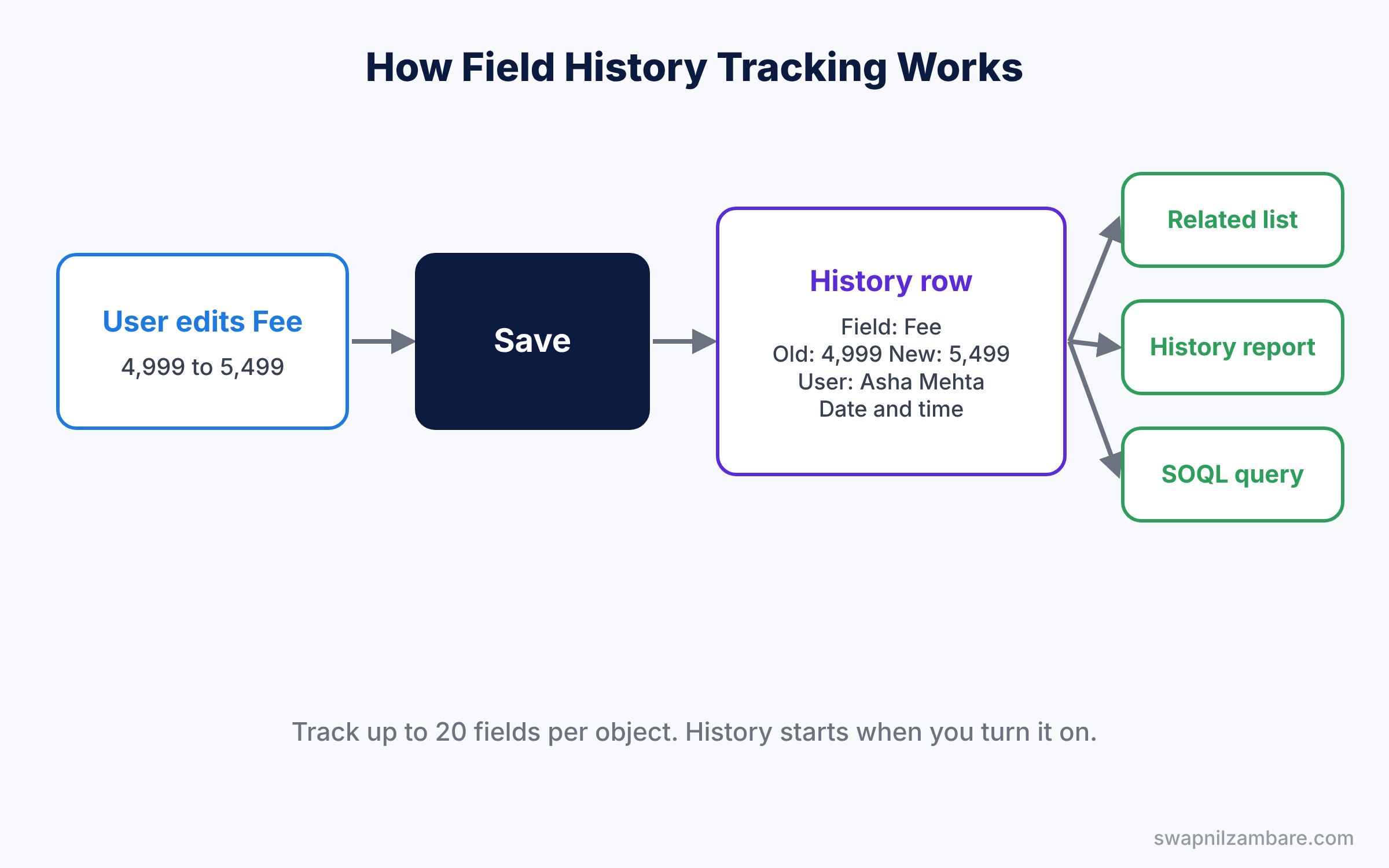
Field history tracking is a setting on each object. When it is on, Salesforce saves a history row every time a tracked field changes. Each row then stores the field name, the old value, the new value, the user and the date and time.
Setup Audit Trail is a separate log for configuration changes. For instance, it records things like “Asha Mehta changed the Fee field length” or “Rahul created a validation rule”. However, it does not track record data. Instead, it tracks changes to how the org is built.
Here is a simple analogy. Field history is like the edit history on a shared Google Doc, showing who changed which line. In contrast, Setup Audit Trail is like the building’s maintenance log, showing who moved walls or changed the locks.
Why Salesforce Field History Tracking Matters
Mistakes happen, and people forget what they did. Without history, admins guess. But with history, they know. As a result, this saves hours of arguments and helps fix problems faster.
Here are some real situations.
- A course fee changed from 4,999 to 499, and nobody knows how.
- Your sales manager asks when a deal moved from Negotiation to Closed Lost.
- A validation rule suddenly blocks users, and you need to know who changed it.
- An auditor asks for proof of every change to customer bank details.
Also, field history helps teams learn. You can see how long courses usually stay in each status, or how often owners change. So it turns an audit tool into a reporting tool.
How Salesforce Field History Tracking Works
First, you enable history on the object and choose which fields to track. From then on, every change to those fields creates a history row. You can see the rows in a related list on the record, in a history report, or with a SOQL query.
Fields You Can Include in Field History Tracking
You can track up to 20 fields per object with the standard feature. Also, most field types work, including text, number, currency, date, picklist and lookup fields. However, formula, roll-up summary and auto-number fields cannot be tracked, because users never edit them directly.
Long text area fields are a special case. Salesforce records that the field changed, but it does not store the old and new text.
How Long Field History Tracking Keeps Data
Salesforce keeps field history for a limited time. In general, you can see 18 months of history in the app, and up to 24 months through the API. If a company needs longer retention, Salesforce sells an add-on called Field Audit Trail that keeps history for years.
Where history appears
The table below shows the three places where you can read field history.
| Where | How to use it | Best for |
|---|---|---|
| History related list | Add it to the page layout | Checking one record quickly |
| History report | Use the object’s History report type | Changes across many records |
| SOQL query | Query the History object, like Course__History | Developers and data exports |
What Setup Audit Trail Shows
Setup Audit Trail tracks configuration changes in Setup. You open it from Setup by typing “View Setup Audit Trail” in Quick Find. Then the page shows the 20 most recent changes, and you can download the last 180 days as a CSV file.
Also, each row shows the date, the user, the type of change and the area of Setup. For example, “Changed Fee field length from 10 to 12” under Customize Courses. If someone logged in as another user, it also shows that delegate user.
Salesforce Field History Tracking vs Setup Audit Trail
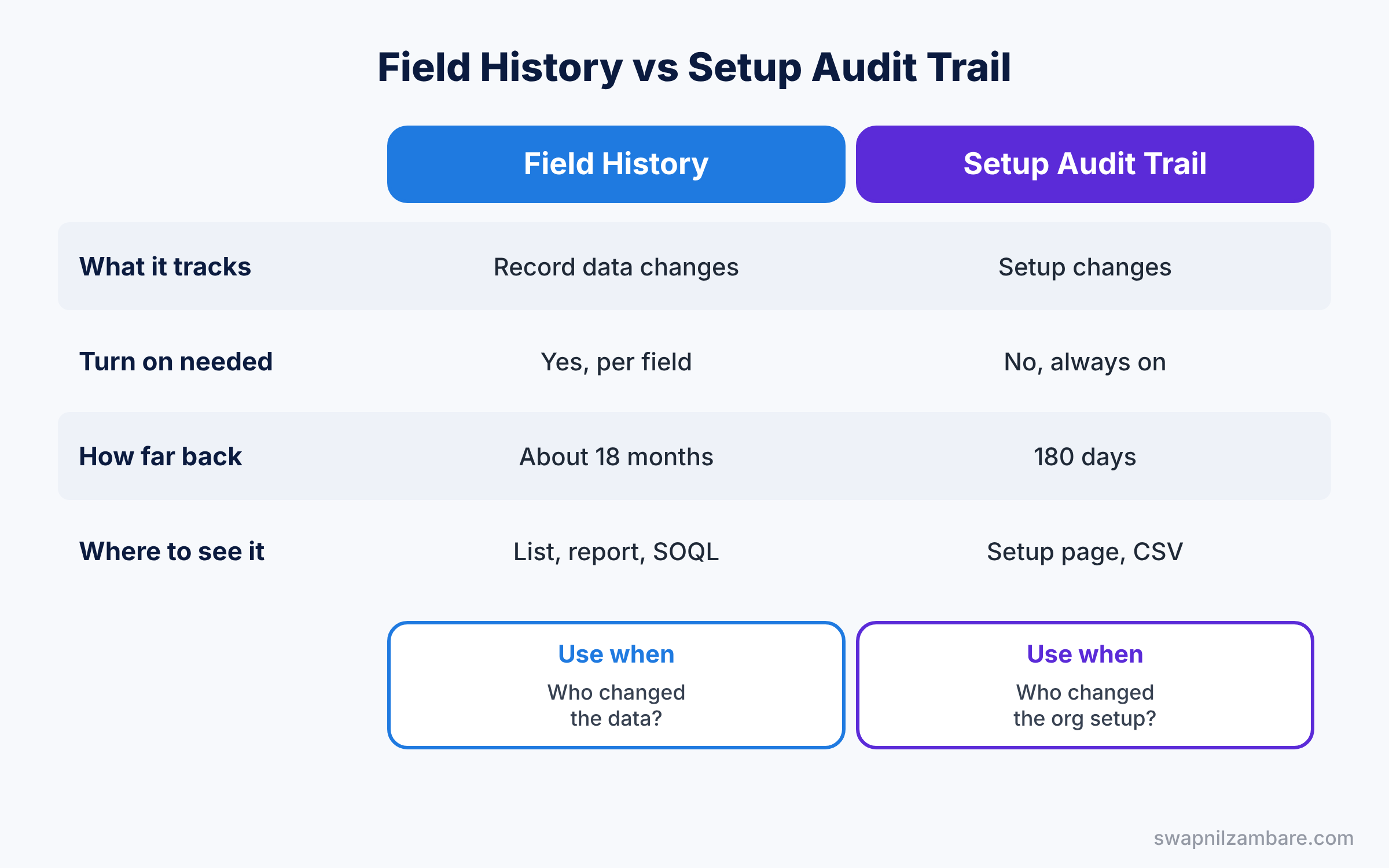
The two tools sound similar, but they track very different things. The table below compares them.
| Feature | Field history tracking | Setup Audit Trail |
|---|---|---|
| What it tracks | Changes to record data | Changes to configuration in Setup |
| Example | Fee changed from 4,999 to 5,499 | Validation rule Fee_Must_Be_Positive edited |
| Needs to be turned on | Yes, per object and per field | No, always on |
| How far back | About 18 months in the app | 180 days |
| Where to see it | Related list, report, SOQL | Setup page and CSV download |
In short, use field history to see who changed data. Use Setup Audit Trail to see who changed the org itself.
Hands-on Example: Field History Tracking for Courses
Let’s turn on history for the Course object at Bright Path Tutors and read it three ways.
Step 1: Turn on history tracking
- Go to Setup, then Object Manager, then Course, then Fields and Relationships.
- Next, click Set History Tracking.
- Then tick Enable Course History.
- Tick the fields from the table below and click Save.
| Field | Why track it |
|---|---|
| Fee | Price changes affect revenue |
| Level | Shows how courses are re-graded |
| Start Date | Explains schedule changes |
| Owner | Shows who handed over a course |
| Approval Status | Proves when approvals happened |
Step 2: Add the history related list
- Open Page Layouts on the Course object and edit Course Layout.
- In the palette, click Related Lists and drag Course History onto the page. Click Save.
- Open any course, change the Fee, and save. The Course History list now shows a new row with the old and new fee.
Step 3: Build a history report
- Open the Reports tab and click New Report.
- Search for “Course History” and pick it. Click Start Report.
- Add the columns Course Name, Field / Event, Old Value, New Value, Edited By and Edit Date.
- Filter Field / Event to Fee, then save the report as “Course Fee Changes”.
Step 4: Query history with SOQL
Developers can read the same rows from the Course__History object. Here is a query for recent fee changes.
SELECT Parent.Name, Field, OldValue, NewValue,
       CreatedBy.Name, CreatedDate
FROM Course__History
WHERE Field = 'Fee__c'
ORDER BY CreatedDate DESC
LIMIT 10
The result looks like this.
Parent.Name      Field    OldValue  NewValue  CreatedBy.Name  CreatedDate
Spoken English   Fee__c   4999      5499      Asha Mehta      2026-05-21
Basic Maths      Fee__c   2999      3299      Asha Mehta      2026-05-21
Step 5: Check Setup Audit Trail
In Setup, type “View Setup Audit Trail” in Quick Find and open it. You will see your history tracking change at the top of the list. Click Download to save the last 180 days as a CSV file.
Common Mistakes with Salesforce Field History Tracking
- Turning it on too late. History starts from the moment you enable it. Old changes are not recorded, so enable it early.
- Tracking unimportant fields. You only get 20 fields per object, so save them for fields that truly matter.
- Forgetting the related list. History is saved, but users cannot see it until you add the related list.
- Expecting history forever. Standard history is kept for a limited time. Export it regularly if you need long-term records.
- Confusing the two tools. If a validation rule changed, look in Setup Audit Trail, not field history.
Best Practices for Field History Tracking
- Track money, status and owner fields first. These cause the most disputes.
- Build a monthly history report. Managers can review key changes without asking admins.
- Download Setup Audit Trail regularly. Keep the CSV files, because the log covers only 180 days.
- Write descriptions on Setup changes. Descriptions on rules and fields make the audit trail easier to understand.
- Review who has Modify All Data. Fewer admins means fewer surprise changes in the audit trail.
Practice Task
Turn on history tracking for the Account object and track the Industry and Phone fields. Then change one Account and find the change in an Account History report.
Hint: for Accounts, the setting is under Object Manager, Account, Fields and Relationships, Set History Tracking.
Salesforce Field History Tracking FAQ
Does Field History Tracking slow down Salesforce?
Not in any way users notice. Salesforce writes history rows as part of the normal save. Still, track only fields that matter, because history also uses storage over time.
Can I track changes on standard objects too?
Yes. Accounts, Contacts, Opportunities, Cases and many other standard objects support history tracking. The steps are the same as for custom objects.
Who can see the history of a record?
Anyone who can see the record and the tracked field can see its history. So field-level security also protects history values.
Official Resources
- Field History Tracking (Salesforce Help)
- Monitor Setup Changes with Setup Audit Trail (Salesforce Help)
Quick Recap
- Salesforce Field History Tracking saves old and new values for chosen fields.
- You can track up to 20 fields per object, but not formula or roll-up fields.
- History shows in a related list, a history report and SOQL.
- Setup Audit Trail logs configuration changes for the last 180 days.
- Enable tracking early, because history starts only from that moment.
What’s Next?
Tracking changes is good. Testing changes before they reach users is better. Read Salesforce Sandboxes and Change Sets for Beginners to learn how admins work safely.


