Salesforce Quick Actions are buttons that let users create or update records in one or two clicks, without leaving the page they are on. They also power the Salesforce mobile app, where fast, simple actions matter most. In our page layouts guide, you saw a section called Salesforce Mobile and Lightning Experience Actions. This post explains what goes in that section and how to build your own actions.
In this post, you will learn the difference between object-specific actions and global actions, how action layouts and predefined values work, and how to set up the Salesforce mobile app navigation. Then you will build a follow-up action and a quick enquiry form for Bright Path Tutors. These small buttons often make the biggest difference to how much users like Salesforce.
What are Salesforce Quick Actions?
A quick action is a button that opens a short form or runs a task. For example, “Log a Call” on a Contact, or “New Task” on a Course. The form shows only the few fields that matter, so users finish the job in seconds.
In short, there are two main kinds. Object-specific actions live on one object and know which record the user is on. Global actions live in the global actions menu, the plus icon at the top of every page, and work from anywhere.
Here is a simple analogy. Think of the shortcuts on your phone’s lock screen, like the camera or torch. You do not open a full app and search for the feature. You tap once and get the job done. Quick actions are those shortcuts for Salesforce.
Why Quick Actions Matter
Full record pages often have dozens of fields, which is fine for detailed work. However, when a user only needs to log a call or set a follow-up date, opening the full edit page is slow. On a phone, it is even slower.
Here are some real situations.
- A counsellor finishes a phone call and wants to log it against the Course in two clicks.
- Also, a trainer needs to change only the start date and online flag of a course.
- Meanwhile, a receptionist wants to add a new enquiry from any page, without first opening the Leads tab.
- A sales rep in the field uses the phone app and needs big, simple buttons.
Also, predefined values let you fill fields automatically. So users type less, and the data is more consistent.
How Salesforce Quick Actions Work
Every action has three parts. First comes the action type, such as Create a Record or Update a Record. Next, the action layout decides which fields appear on the form. Then predefined values fill some fields automatically. Finally, you add the action to a page layout or to the global publisher layout, so users can see it.
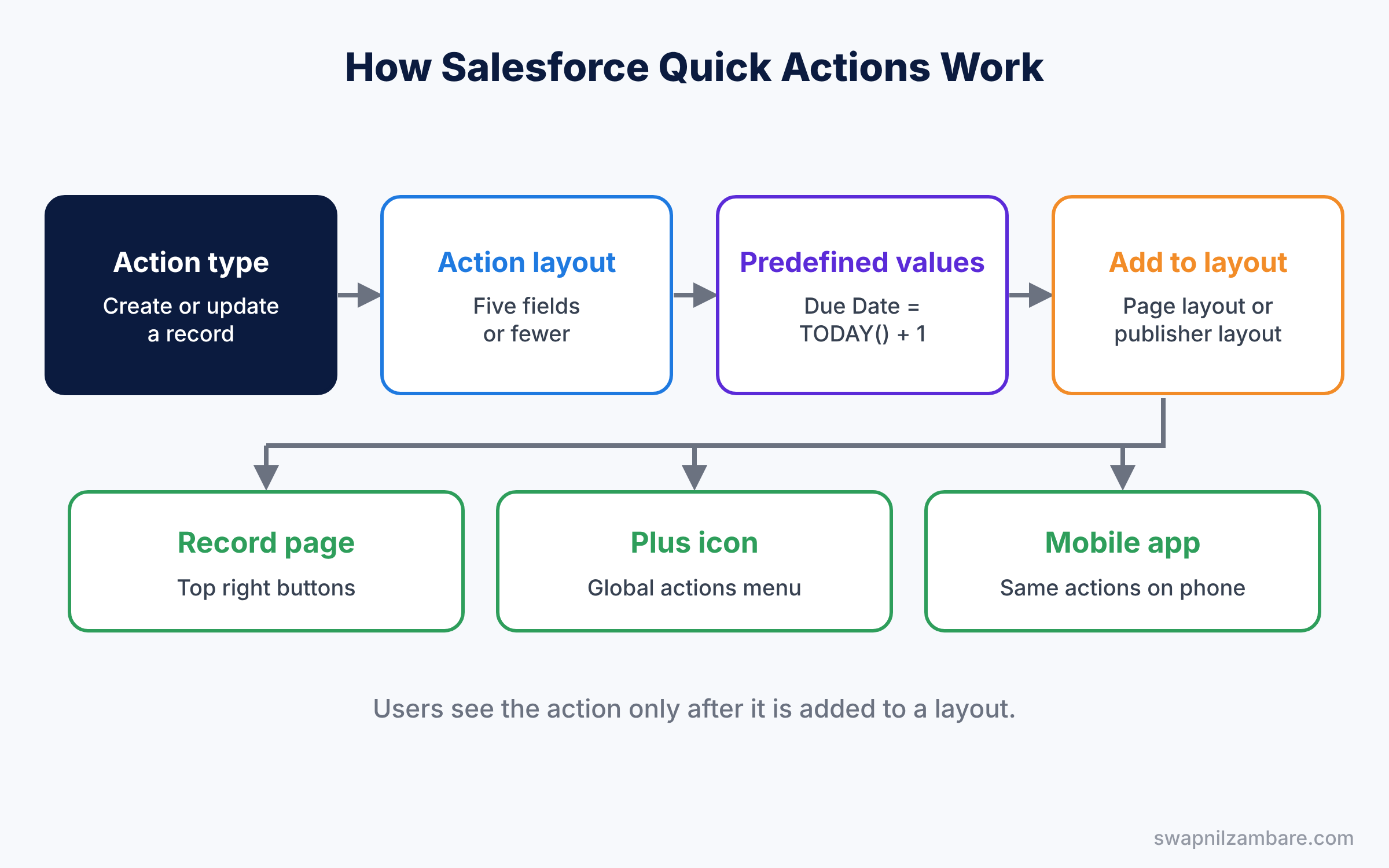
Users then see object-specific actions on the record page, in the actions area at the top right. They see global actions under the plus icon in the header, and both kinds in the Salesforce mobile app.
Types of Salesforce Quick Actions
The table below lists the common action types and when to use each.
| Action type | What it does | Example |
|---|---|---|
| Create a Record | Opens a short form to create a record | New Task linked to this Course |
| Update a Record | Edits a few fields on the current record | Change Start Date and Is Online |
| Log a Call | Creates a completed call task | Log a parent’s phone call |
| Send Email | Opens the email composer | Email course details |
| Flow | Runs a screen flow | Guided enrollment form |
| Lightning Web Component | Opens custom developer code | Fee calculator built by a developer |
Object-specific actions
Object-specific actions automatically link new records to the current record. For example, a “New Task” action on Course sets the task’s Related To field to that course. They appear only on that object’s record pages.
Global actions
In contrast, global actions create records that are not tied to the current page. They live in Setup under Global Actions, and you control which ones appear using the Publisher Layout. They are great for “create anything from anywhere” tasks.
Action layouts and predefined values
Also, each action has its own layout, separate from the page layout. So keep it short, ideally five fields or fewer. Predefined values then fill hidden or visible fields, such as setting a due date to tomorrow.
The Salesforce mobile app
Finally, the Salesforce mobile app for iOS and Android uses the same actions, compact layouts and Lightning apps. You choose its menu items in Setup under Salesforce Navigation. So the work you do for desktop actions improves the phone experience too.
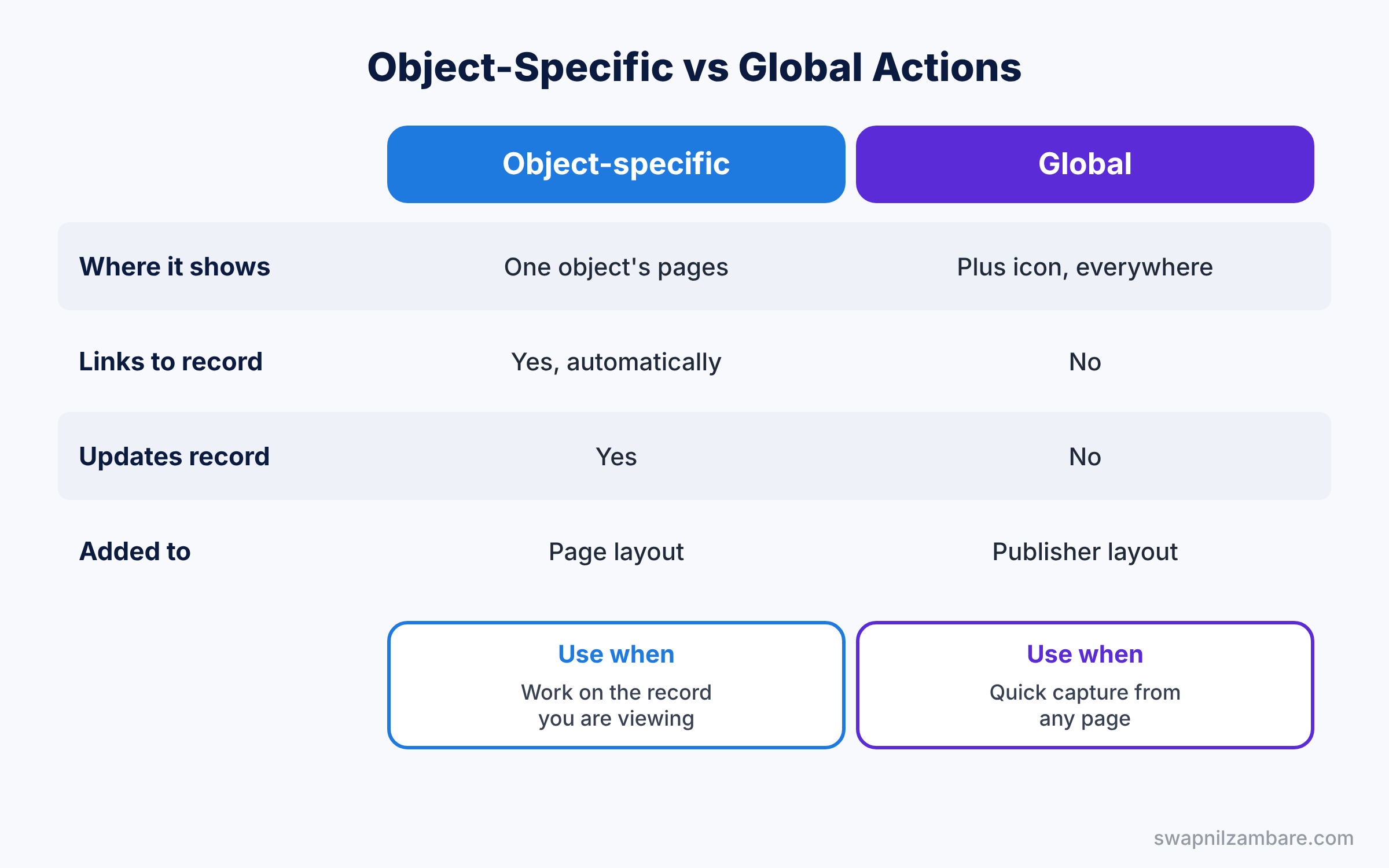
Object-Specific vs Global Quick Actions
The table below compares the two main kinds of actions.
| Feature | Object-specific action | Global action |
|---|---|---|
| Where it appears | On one object’s record pages | Plus icon in the header, everywhere |
| Links to current record | Yes, automatically | No |
| Can update the current record | Yes, with Update a Record | No |
| Where you add it | Page layout, actions section | Global publisher layout |
| Best for | Work on the record you are viewing | Quick capture from any page |
In short, use object-specific actions for work on the record in front of you. Use global actions for quick capture that can start anywhere.
Hands-on Example: Quick Actions for Bright Path Tutors
Let’s build a follow-up action on Course and a global enquiry action. Make sure Allow Activities is ticked on the Course object first, under its Edit page in Object Manager.
Step 1: Create the “Follow Up” object-specific action
- Go to Setup, then Object Manager, then Course, then Buttons, Links, and Actions. Click New Action.
- Fill in the values from the table below and click Save.
- On the layout editor, keep only Subject, Due Date and Assigned To. Click Save.
| Field | Value |
|---|---|
| Action Type | Create a Record |
| Target Object | Task |
| Label | Follow Up |
| Success Message | Follow-up task created |
Step 2: Add predefined values
- On the Follow Up action page, scroll to Predefined Field Values and click New.
- Pick Due Date Only and enter the formula below. Click Save.
TODAY() + 1- Add another predefined value for Subject with this formula, which pulls the course name from the current record.
"Follow up: " & Course__c.NameNow every follow-up task gets tomorrow’s date and a clear subject, without typing.
Step 3: Add the action to the page layout
- Open Page Layouts on Course and edit Course Layout.
- In the palette, click Mobile and Lightning Actions and drag Follow Up into the Salesforce Mobile and Lightning Experience Actions section.
- Click Save, then open a course. The Follow Up button now appears at the top right.
Step 4: Create a global “New Enquiry” action
- In Quick Find, type “Global Actions”, click Global Actions, then New Action.
- Choose Create a Record, Target Object Lead, and Label New Enquiry. Click Save.
- Keep First Name, Last Name, Phone, Company and Lead Source on the layout.
- Add a predefined value for Lead Source, such as Phone Inquiry.
- Open Publisher Layouts, edit the Global Layout, drag New Enquiry into the actions section, and save.
Now click the plus icon in the header on any page. New Enquiry appears in the menu, ready to use.
Step 5: Check the mobile app
In Setup, open Salesforce Navigation and move Courses near the top of the Selected list. Then install the Salesforce mobile app on your phone and log in. You will see the Follow Up action on any course.
Common Mistakes with Salesforce Quick Actions
- Long action layouts. An action with 15 fields is just a slow edit page. Keep five fields or fewer.
- Forgetting to add the action to the layout. A new action does nothing until it is on a page layout or publisher layout.
- Missing Allow Activities. Task and event actions on custom objects need Allow Activities turned on.
- Hard-coding values users should choose. Predefine only values that are always the same.
- Ignoring the mobile app. Test actions on a phone, because small screens show problems fast.
Best Practices for Salesforce Quick Actions
- Start each label with a verb. Labels like “Log Call” or “Follow Up” tell users what happens.
- Use success messages. A short message confirms the action worked.
- Order actions by frequency. Put the most used action first, because only a few show before the “more” menu.
- Use flows for multi-step tasks. A screen flow action guides users through several steps, as covered in our flow types guide.
- Review actions with real users. Watch someone use them for a day and remove what they ignore.
Practice Task
Create an Update a Record action on Course called “Go Online” that shows only Is Online and Start Date. Add it to the Course page layout.
Hint: choose Update a Record as the action type, then edit its action layout.
Salesforce Quick Actions FAQ
Can a quick action run a flow?
Yes. Choose Flow as the action type and pick an active screen flow. The flow receives the current record’s ID automatically.
Do Salesforce Quick Actions work in the mobile app?
Yes. The same actions appear in the mobile app, which is one of the main reasons to build them.
Why do I not see my action on the record page?
Check that the action is on the page layout assigned to your profile and record type. Also check that the Lightning record page uses the Highlights Panel or actions area.
Official Resources
Quick Recap
- Salesforce Quick Actions let users create or update records in a few clicks.
- Object-specific actions link to the current record; global actions work anywhere.
- Action layouts should be short, with predefined values filling repeat fields.
- Add actions to page layouts or the global publisher layout so users see them.
- The mobile app uses the same actions, so good actions improve mobile work too.
What’s Next?
Your follow-up action creates tasks. Next, learn everything about tasks, events and email in Salesforce. Read Salesforce Activities: Tasks, Events, Calendar and Email Integration.


