Salesforce Activities are the tasks, events, calls and emails that show what people actually did with a customer. A record tells you who the customer is. Activities tell you what happened and what should happen next. In our quick actions guide, you built a Follow Up action that creates tasks. Now you will learn how activities work as a whole.
In this post, you will learn the difference between tasks and events, how the Name and Related To fields link activities to records, and how the activity timeline, calendar and email integration fit together. Then you will log a call, schedule a meeting and set up recurring tasks for Bright Path Tutors. Clean activity data is what managers use to coach their teams, so it is worth getting right.
What are Salesforce Activities?
Salesforce Activities are records that track work with people and companies. There are two main types. A task is a to-do item with a due date, like “Call Priya about the Python course”. An event is a calendar meeting with a start and end time, like “Demo class on Friday at 4 PM”.
Also, calls and emails count as activities. A logged call is a completed task, and an email sent from Salesforce is saved as an activity too. All of them appear on the record’s activity timeline.
Here is a simple analogy. Think of a doctor’s clinic. The patient file shows who the patient is. The visit notes, test reminders and appointment calendar show what happened and what comes next. Activities are those visit notes and appointments for your customers.
Why Salesforce Activities Matter
Without activities, nobody knows the history of a customer. As a result, people repeat questions the customer already answered. A new counsellor cannot tell whether a parent was already called, and managers cannot see which reps follow up quickly. Activities turn individual memory into shared team knowledge.
Here are some real situations.
- A counsellor logs a 10-minute call with a parent about course fees.
- Then a trainer schedules a demo class as an event with two parents invited.
- Later, a manager reports on how many calls each rep logged last week.
- An admin creates a task that repeats every Monday to check new enquiries.
Also, activities drive automation. For example, a flow can create a follow-up task when a lead reaches a certain stage.
How Salesforce Activities Work
Every activity links to records using two special fields. The Name field, also called WhoId, points to a person, like a Contact or a Lead. The Related To field, also called WhatId, points to a business record, like an Account, an Opportunity or a custom object such as Course.
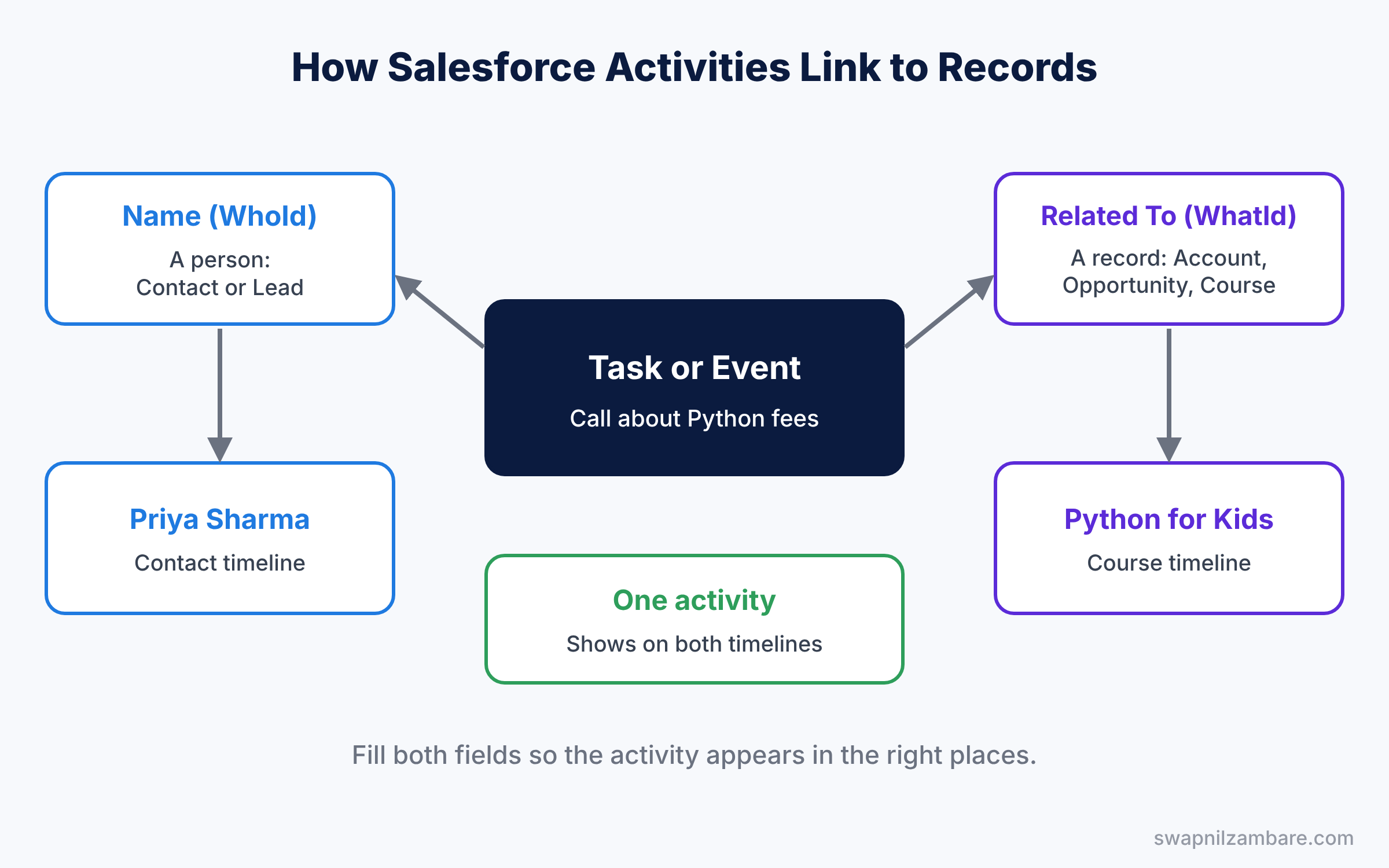
Because of these links, one task can appear on several timelines at once. For example, a call with Priya about Spoken English shows on Priya’s contact record and on the Spoken English course record.
Types of Salesforce Activities
The table below lists the activity types and their key fields.
| Activity | What it is | Key fields |
|---|---|---|
| Task | A to-do with a due date | Subject, Due Date, Status, Priority |
| Event | A meeting on the calendar | Subject, Start, End, Location |
| Logged call | A completed task of type Call | Subject, Comments, Call date |
| A sent email saved as an activity | Subject, Body, Recipients |
Tasks
First, tasks have a Status, such as Not Started or Completed, and a Priority. Open tasks appear under Upcoming and Overdue on the activity timeline. Completed tasks move into the past activity section.
Events and the calendar
Events, on the other hand, appear on the user’s Salesforce calendar. Users can invite other users and contacts, and they can view colleagues’ calendars if sharing allows. So teams can plan demos without double booking.
Recurring tasks and events
When admins turn on recurrence in Activity Settings, users can create tasks and events that repeat daily, weekly or monthly. This is useful for routine checks, like a weekly enquiry review.
Email integration
Salesforce connects with Gmail and Outlook through official integrations. Users can see Salesforce records next to their emails and log emails to the right record with one click. Einstein Activity Capture can also sync emails and events automatically, depending on your licences. As a result, reps spend less time copying emails and more time talking to parents.
Activities on custom objects
However, custom objects only show activities if Allow Activities is ticked on the object. This setting is off by default for new custom objects, which surprises many beginners. So remember to switch it on for objects like Course.
Tasks vs Events in Salesforce Activities
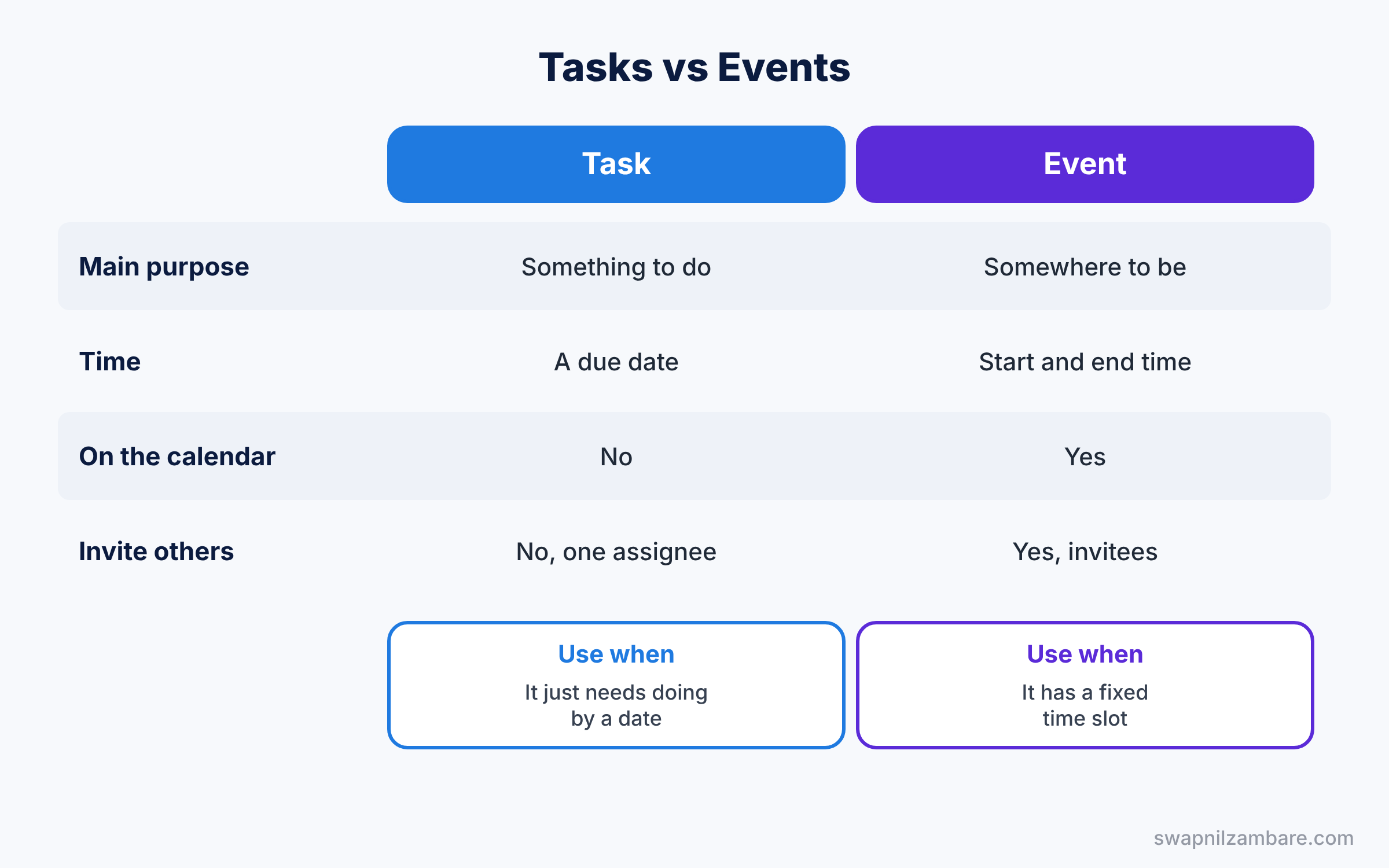
Tasks and events look similar, but they serve different needs. The table below compares them.
| Feature | Task | Event |
|---|---|---|
| Main purpose | Something to do | Somewhere to be |
| Time | A due date, optional time reminder | A start and end time |
| Shows on calendar | No, shows in task lists | Yes |
| Invite others | No, one assignee | Yes, invitees |
| Example | Send fee details by Friday | Demo class on Friday, 4 to 5 PM |
In short, if it has a fixed time slot, use an event. If it just needs to be done by a date, use a task.
Hands-on Example: Activities for a Course Enquiry
Let’s track a parent’s enquiry about the Python for Kids course. First, check that Allow Activities is ticked on the Course object.
Step 1: Turn on recurring tasks
- Go to Setup, type “Activity Settings” in Quick Find, and open it.
- Tick Enable Creation of Recurring Tasks and Enable Creation of Recurring Events.
- Click Submit.
Step 2: Log a call
- Open the contact record for the parent, Priya Sharma.
- In the activity area, click Log a Call.
- Enter the values from the table below and click Save.
| Field | Value |
|---|---|
| Subject | Call about Python for Kids fees |
| Comments | Parent wants weekend batch details |
| Related To | Course: Python for Kids |
Step 3: Schedule a demo event
- On the same contact, click New Event.
- Set Subject to “Demo class”, Start to next Friday at 4:00 PM and End to 5:00 PM.
- Set Related To to the Python for Kids course and click Save.
Step 4: Create a recurring task
- Open the Courses tab, open any course, and click New Task.
- Set Subject to “Review new enquiries” and tick Repeat.
- Choose Weekly, every Monday, ending after 8 occurrences. Click Save.
Step 5: Report on activities with SOQL
Developers can read activities with SOQL. This query lists open tasks with their person and related record.
SELECT Subject, Status, ActivityDate, Who.Name, What.Name
FROM Task
WHERE IsClosed = false
ORDER BY ActivityDate
This query lists events in the next seven days.
SELECT Subject, StartDateTime, EndDateTime, What.Name
FROM Event
WHERE StartDateTime = NEXT_N_DAYS:7
ORDER BY StartDateTime
Who.Name and What.Name follow the Name and Related To links. So one query shows the person and the course for each activity.
Common Mistakes with Salesforce Activities
- Forgetting Allow Activities on custom objects. The activity area does not appear on the record page without it.
- Using tasks for meetings. Meetings belong on the calendar as events, so others can see busy times.
- Leaving Related To empty. The activity then shows on the person but not on the course or deal.
- Never closing tasks. Overdue lists fill up and become useless. Mark tasks Completed when done, or ask a manager to review old tasks weekly.
- Logging emails by copy and paste. Use the Gmail or Outlook integration so emails link correctly.
Best Practices for Salesforce Activities
- Write clear subjects. “Call about Python fees” is far more useful in reports than “Call”.
- Always fill Related To. It ties activities to the business record that matters.
- Use quick actions for logging. One-click actions mean users actually log their work.
- Build an activity report for managers. A weekly report of calls per rep supports coaching, as shown in our reports guide.
- Automate routine follow-ups. A flow can create tasks after key events, so nothing is forgotten.
Practice Task
Create a list view on the Tasks tab called “My Overdue Course Tasks” that shows only your open tasks with a due date before today.
Hint: filter on Status not equal to Completed and Due Date less than TODAY.
Salesforce Activities FAQ
Can one task relate to several contacts?
Yes, when Shared Activities is turned on. Then one task or event can list several contacts in the Name field.
Do Salesforce Activities count towards storage?
Yes. Tasks and events use data storage like other records. Very old activities can be archived by Salesforce based on your settings.
Can I see activities from all related records in one place?
Yes. Activities linked to contacts and opportunities also roll up to the parent account’s timeline, so you get one complete history.
Official Resources
Quick Recap
- Salesforce Activities track tasks, events, calls and emails.
- Name links to a person; Related To links to a business record.
- Tasks have due dates; events have start and end times on the calendar.
- Turn on Allow Activities for custom objects and recurrence in Activity Settings.
- Gmail and Outlook integrations log emails to the right records.
What’s Next?
Activities track work with customers. Next, learn how your own team collaborates inside Salesforce. Read Salesforce Chatter, Files and Collaboration Explained.


