Salesforce Org Security covers everything that decides who can log in, from where, at what time, and for how long. In our profiles and permission sets guide and our sharing rules guide, you controlled what users can do and see after they log in. This post covers the front door: the login itself.
In this post, you will learn how multi-factor authentication (MFA) works, how password policies, login hours and IP ranges protect your org, and what session settings control. Then you will run Salesforce Health Check and tighten the security of your practice org step by step. Security is one area where a small effort prevents very big problems.
What is Salesforce Org Security?
Org security is the set of settings that protect access to your Salesforce org as a whole. It includes how users prove who they are, which passwords are allowed, where and when people can log in, and how long a session stays open without activity.
Here is a simple analogy. For example, think of a bank branch. MFA is like asking for both your ID card and a one-time code. Then login hours are the branch opening times. Also, IP ranges are like allowing entry only through the main door. Session timeout is the guard who asks you to leave after you stop doing anything for a while.
So these settings work together. One weak setting can let an attacker in, even if the others are strong.
Why Salesforce Org Security Matters
Salesforce holds customer names, phone numbers, deals and often financial data. So if someone steals one password, they could export all of it. In fact, most real attacks start with stolen or guessed passwords, not clever hacking.
Here are some real situations.
- An employee reuses the same password on a website that gets hacked.
- A sales rep leaves their laptop open in a cafe while logged in.
- A former contractor still knows a shared admin password.
- Someone tries thousands of passwords against one username.
However, strong org security stops each of these. Also, many customers and auditors now ask companies to prove these controls are in place.
How Salesforce Org Security Works at Login
Every login goes through a series of checks. First, Salesforce checks the username and password against your password policy. Then it checks login hours and IP ranges from the user’s profile. Next, it asks for the second factor through MFA. Finally, it starts a session that follows your session settings.
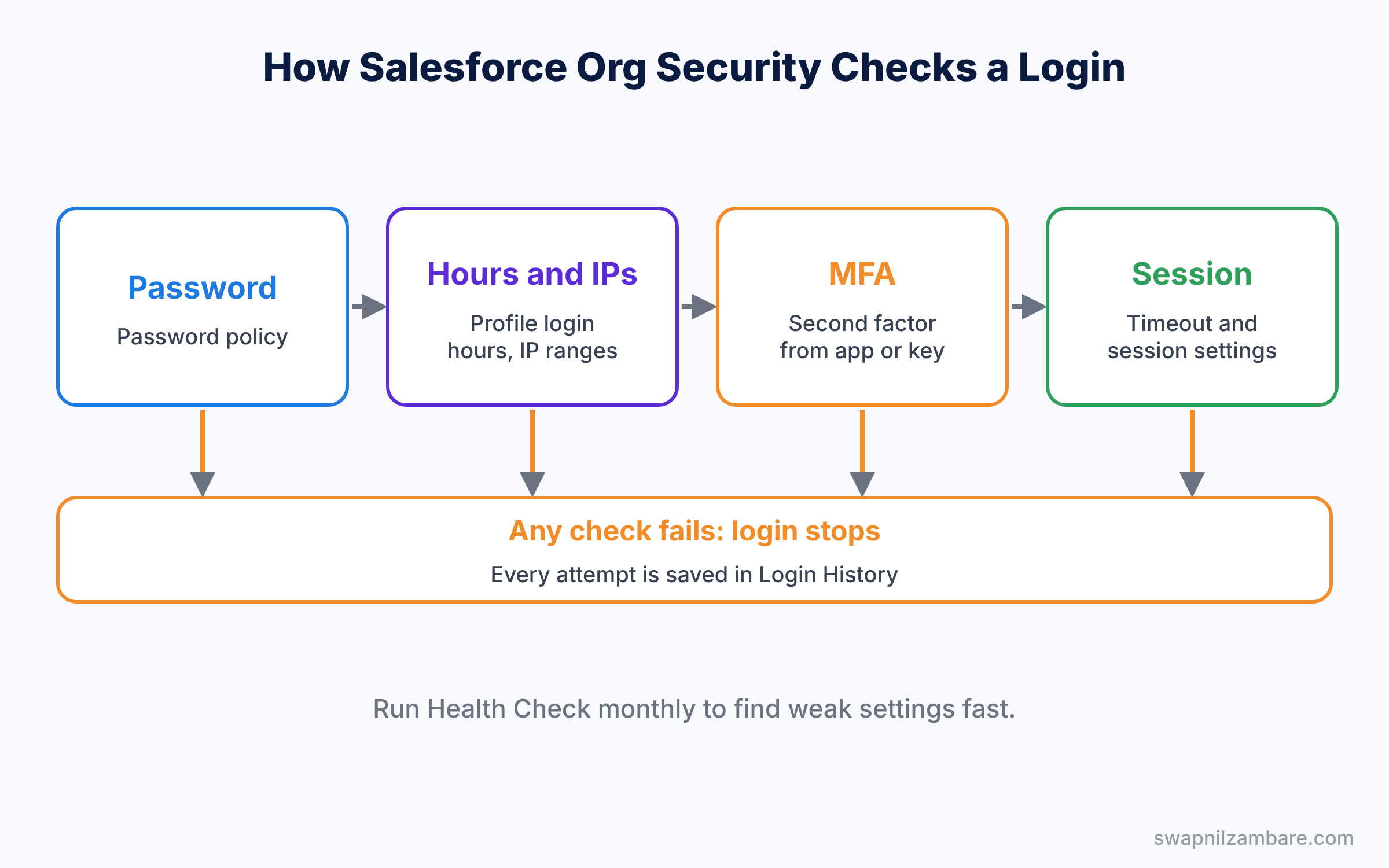
So if any check fails, the login stops. Also, Login History records every attempt, successful or not.
The Main Salesforce Org Security Settings
Multi-factor authentication (MFA)
MFA means users prove who they are with two things: something they know, like a password, and something they have, like a phone. Salesforce requires MFA for users who log in to the Salesforce user interface. The table below lists the common verification methods.
| Method | How it works | Example |
|---|---|---|
| Salesforce Authenticator | Push notification on a phone, tap to approve | Approve the login in the app |
| Authenticator app (TOTP) | A six-digit code that changes every 30 seconds | Google or Microsoft Authenticator |
| Security key | A small USB or NFC device | Insert a key and touch it |
| Built-in authenticator | The device’s own fingerprint or face check | Touch ID or Windows Hello |
Password policies
Password policies set the rules for passwords, such as minimum length, complexity, expiry and how many wrong attempts lock the account. Next, you set them for the whole org in Setup, and you can override some of them on a profile.
Login hours and login IP ranges
Login hours, set on a profile, decide when users can log in, such as Monday to Saturday from 8 AM to 9 PM. Login IP ranges, also on a profile, allow logins only from specific network addresses, like the office network.
Session settings
Session settings control how long a session lasts without activity before Salesforce logs the user out. They also include protections like locking a session to the IP address where it started. Shorter timeouts are safer, but too short annoys users.
Health Check for Salesforce Org Security
Health Check compares your security settings with a recommended standard from Salesforce. Then it gives a score out of 100 and lists risky settings with a Fix Risks button. As a result, it is the best place to start any security review.
Login IP Ranges vs Trusted IP Ranges
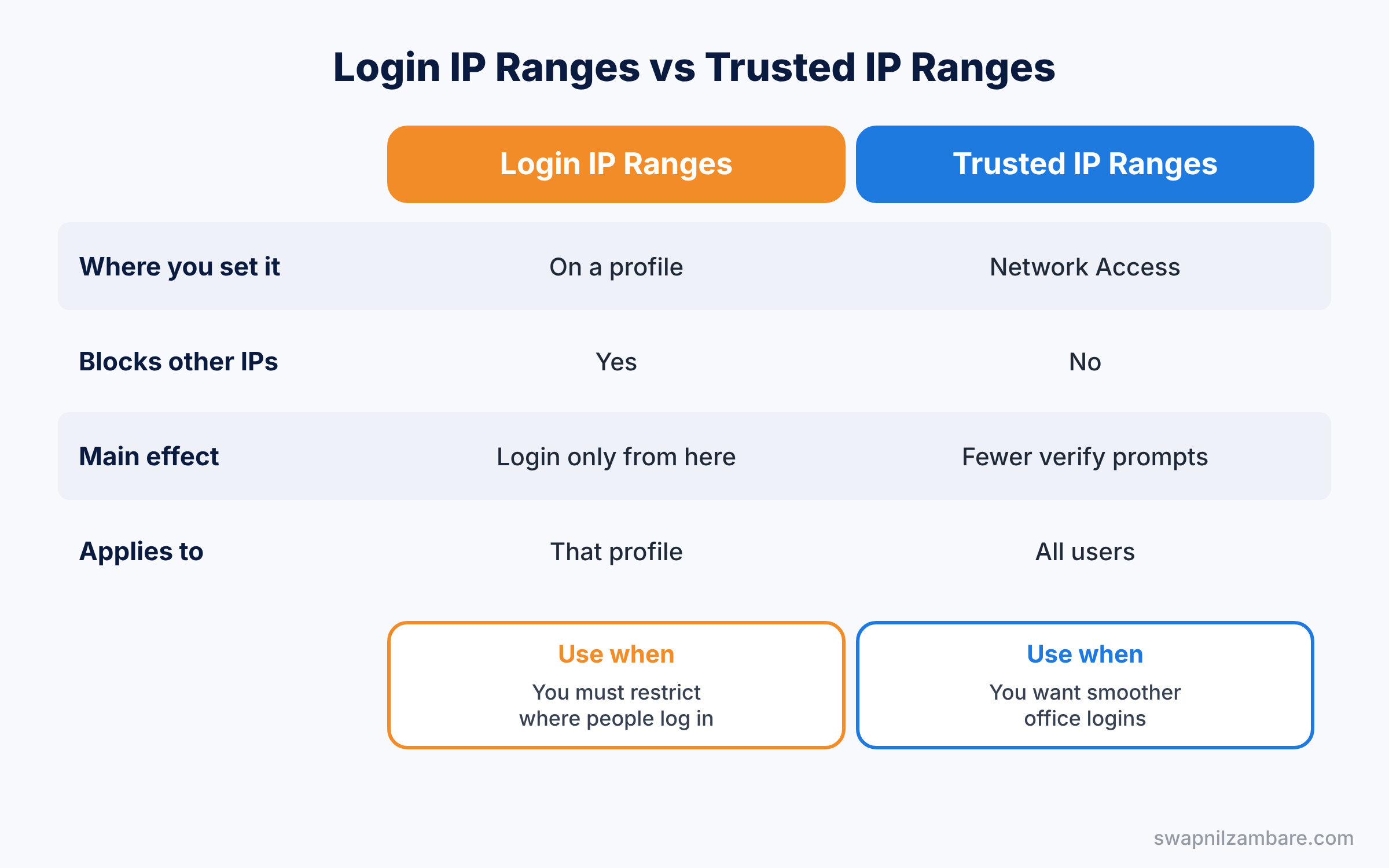
These two settings sound alike, but they do very different jobs. The table below compares them.
| Feature | Login IP ranges | Trusted IP ranges |
|---|---|---|
| Where you set it | On a profile | In Setup, Network Access |
| Blocks logins from other addresses | Yes | No |
| Main effect | Users can log in only from these addresses | Users here skip the new-device verification step |
| Applies to | Users with that profile | All users in the org |
| Typical use | Strict access for sensitive teams | Fewer verification prompts in the office |
In short, login IP ranges restrict access. Trusted IP ranges only make logins from known places smoother.
Hands-on Example: Improve Salesforce Org Security
Let’s review and improve the security of your Developer Edition org. Be careful with login hours and IP ranges on your own admin profile, or you may lock yourself out.
Step 1: Run Health Check
- In Setup, type “Health Check” in Quick Find and open it.
- Read your score and scroll to High-Risk Security Settings.
- Finally, click Fix Risks, review the suggested changes, and confirm the ones you understand.
Step 2: Set a password policy
In Setup, open Password Policies and set the values from the table below. Click Save.
| Setting | Value |
|---|---|
| User passwords expire in | 90 days |
| Enforce password history | 3 passwords remembered |
| Minimum password length | 12 |
| Password complexity requirement | Must include alpha, numeric and special characters |
| Maximum invalid login attempts | 5 |
| Lockout effective period | 30 minutes |
Step 3: Set login hours on the Sales Rep profile
- Open Profiles and click Sales Rep, the profile you cloned in an earlier post.
- Scroll to Login Hours and click Edit.
- Set Monday to Saturday from 8:00 AM to 9:00 PM, leave Sunday empty, and click Save.
Do this only on test profiles, never on System Administrator.
Step 4: Shorten the session timeout
In Setup, open Session Settings. Set Timeout Value to 2 hours, tick “Force logout on session timeout”, and click Save.
Step 5: Check login history
Open Login History in Setup to see recent logins, their status and source IP. Developers can query the same data with SOQL.
SELECT UserId, LoginTime, Status, SourceIp, Application
FROM LoginHistory
ORDER BY LoginTime DESC
LIMIT 10
A failed login looks like this in the results.
UserId              LoginTime            Status            SourceIp
0055g00000AbCdEAAV  2026-05-22 09:14:03  Invalid Password  203.0.113.25
Several failures from an unknown IP in a short time are a warning sign. Freeze that user and investigate.
Common Mistakes with Salesforce Org Security
- Locking yourself out. Never test login hours or IP ranges on your own admin profile first.
- Sharing admin logins. Every person needs their own user. Shared logins make Login History useless.
- Confusing trusted IP ranges with restrictions. Trusted ranges do not block anyone.
- Ignoring Health Check. A low score often hides easy fixes that take minutes.
- Leaving former staff active. Deactivate or freeze users on their last working day.
Best Practices for Salesforce Org Security
- Require MFA for everyone. It blocks most attacks that start with a stolen password.
- Use strong password policies. Long passwords protect better than frequent changes.
- Review Health Check monthly. Settings drift as admins make changes.
- Restrict powerful profiles more. Add login IP ranges for admin-level users where possible.
- Freeze first, investigate second. If an account looks compromised, freeze it right away.
Practice Task
Add a trusted IP range for your current network in Network Access. Then log out and log in again to see if a verification prompt appears.
Hint: you can find your current IP address on the Login History page.
Salesforce Org Security FAQ
Is MFA required for every Salesforce user?
Salesforce requires MFA for users who log in to the user interface directly. However, users who log in through single sign-on can meet the requirement through their company’s identity provider. Also, API-only integration users follow different rules.
What should I do if a user loses their phone?
First, an admin can disconnect the lost verification method from the user’s record. Then the user connects a new device at their next login. In the meantime, an admin can generate a temporary verification code.
How often should I review Salesforce Org Security settings?
Run Health Check at least once a month, and after every big release. Also, review admin users and powerful permissions every quarter.
Official Resources
Quick Recap
- Salesforce Org Security protects the login itself, before profiles and sharing apply.
- MFA asks for a second proof, such as an app approval or a security key.
- Password policies, login hours and login IP ranges limit how and when people log in.
- Trusted IP ranges reduce prompts but do not block access.
- Health Check scores your settings and helps fix risks fast.
What’s Next?
You have now covered every core admin topic. Next, bring it all together for the exam. Read Salesforce Admin Certification Guide: How to Prepare.


