Salesforce Company Settings control the basic facts about your organisation, like its time zone, currency, working hours and financial year. Every report, every due date and every escalation rule depends on them. In our Developer Edition setup guide, you glanced at the Company Information page. Now we will set it up properly, the way a real admin does on day one of a new project.
In this post, you will learn what Company Information, Business Hours, Holidays, Fiscal Year and Currency settings do. Then you will configure them for Bright Path Tutors, a training company based in India. These settings look simple, but some of them cannot be undone, so it pays to understand them before you click Save.
What are Salesforce Company Settings?
Salesforce Company Settings are the org-wide settings that describe your company. They live in Setup under a group called Company Settings. The main pages are Company Information, Business Hours, Holidays, Fiscal Year, Language Settings and Manage Currencies.
Think of them like the profile page of a new employee at a bank. Before the employee does any work, HR records their branch, working hours, holidays and the currency they deal in. Every later task depends on those details. Similarly, every Salesforce feature reads these settings to decide dates, times and amounts.
Why Company Settings Matter
Wrong company settings cause confusing problems later. For example, a report might show a deal in the wrong quarter, or a case might escalate on a public holiday. Users then lose trust in the data, even though the records themselves are correct.
Here are some real situations where these settings matter.
- A company in India runs its financial year from April to March, not January to December.
- Support promises a reply within eight working hours, not eight calendar hours.
- An office closes for Diwali, so escalation timers should pause that day.
- A business sells in rupees and dollars, so amounts need the right currency.
So it is best to set these values before you load data or build automation. Changing some of them later can affect thousands of records.
How Salesforce Company Settings Work
Each setting works at a different level. Company Information sets the defaults for the whole org. Then each user can override a few of those defaults, such as time zone and locale, on their own user record. Features like reports, escalation rules and forecasts read the final values.
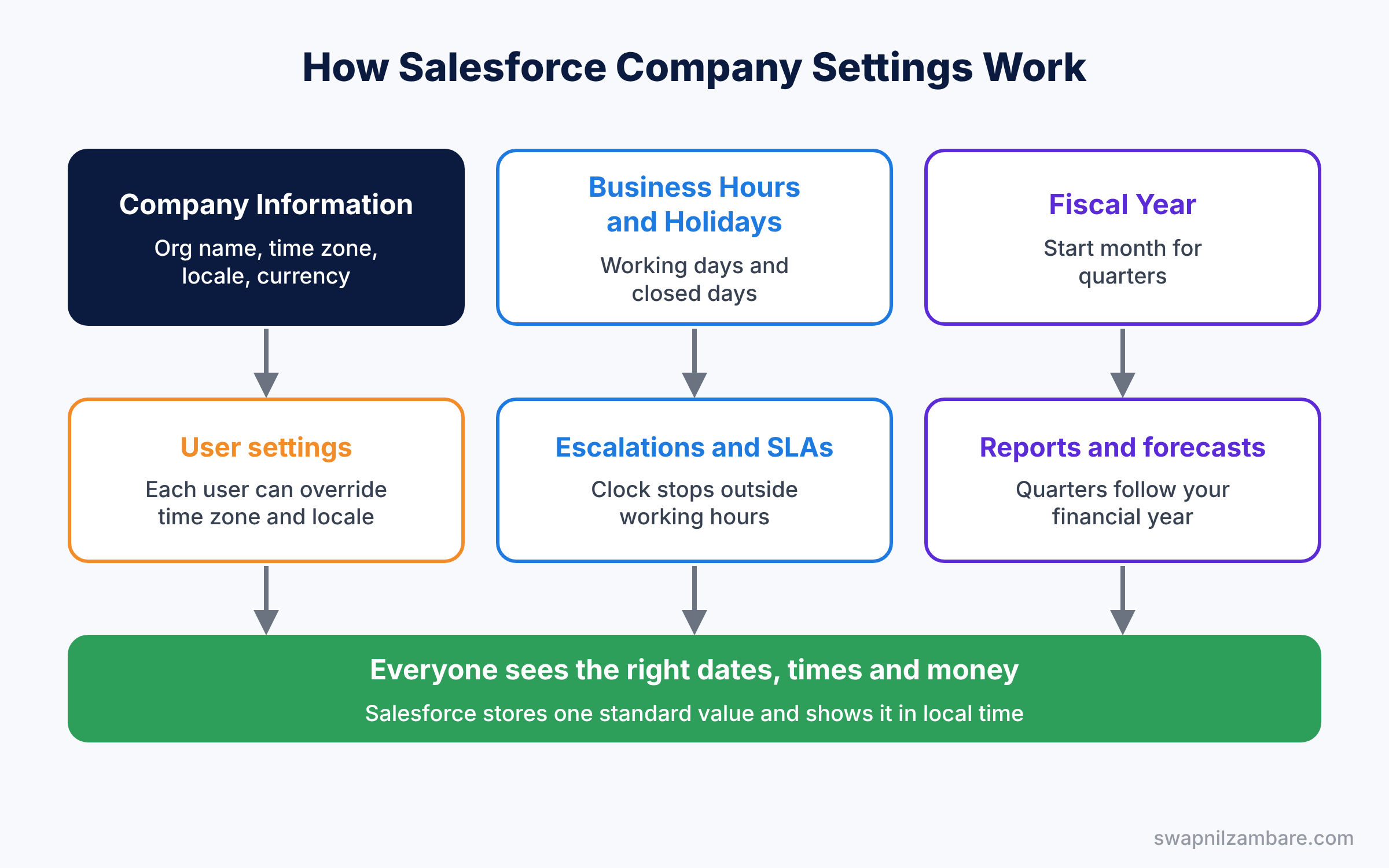
For example, the org time zone might be India Standard Time, while a sales rep in Dubai sets their own time zone to Gulf Standard Time. As a result, each person sees dates and times in their own local time, but Salesforce stores them in one standard format behind the scenes.
The Main Salesforce Company Settings
The table below lists the main settings, where to find them and what they control.
| Setting | Where in Setup | What it controls |
|---|---|---|
| Company Information | Company Settings, Company Information | Org name, default time zone, locale, currency, storage |
| Business Hours | Company Settings, Business Hours | Working days and times for cases and SLAs |
| Holidays | Company Settings, Holidays | Days when business hours do not count |
| Fiscal Year | Company Settings, Fiscal Year | Start month for quarters, reports and forecasts |
| Manage Currencies | Company Settings, Manage Currencies | Currencies and exchange rates |
Company Information
First, this page shows your org ID, default locale, default language, default time zone and corporate currency. It also shows licence counts and storage used. Admins open it often, because support teams ask for the org ID when you raise a case.
Business Hours and Holidays
Next, Business Hours define when your company works, such as Monday to Saturday, 9 AM to 6 PM. So features like case escalation rules and entitlements use them to count time. Holidays then remove specific days, like Diwali or Independence Day, from those hours.
Fiscal Year
A standard fiscal year follows the normal calendar, but you can choose the start month. So an Indian company can start its year in April. On the other hand, a custom fiscal year allows unusual patterns, such as 4-4-5 week quarters. However, once you turn on custom fiscal years, you cannot turn them off.
Currency settings
Usually, small orgs use one currency. Larger companies can turn on multiple currencies, so each record can store its own currency, with a corporate currency for totals. Again, turning on multiple currencies cannot be reversed, so test it in a sandbox first.
Salesforce Company Settings vs Personal Settings
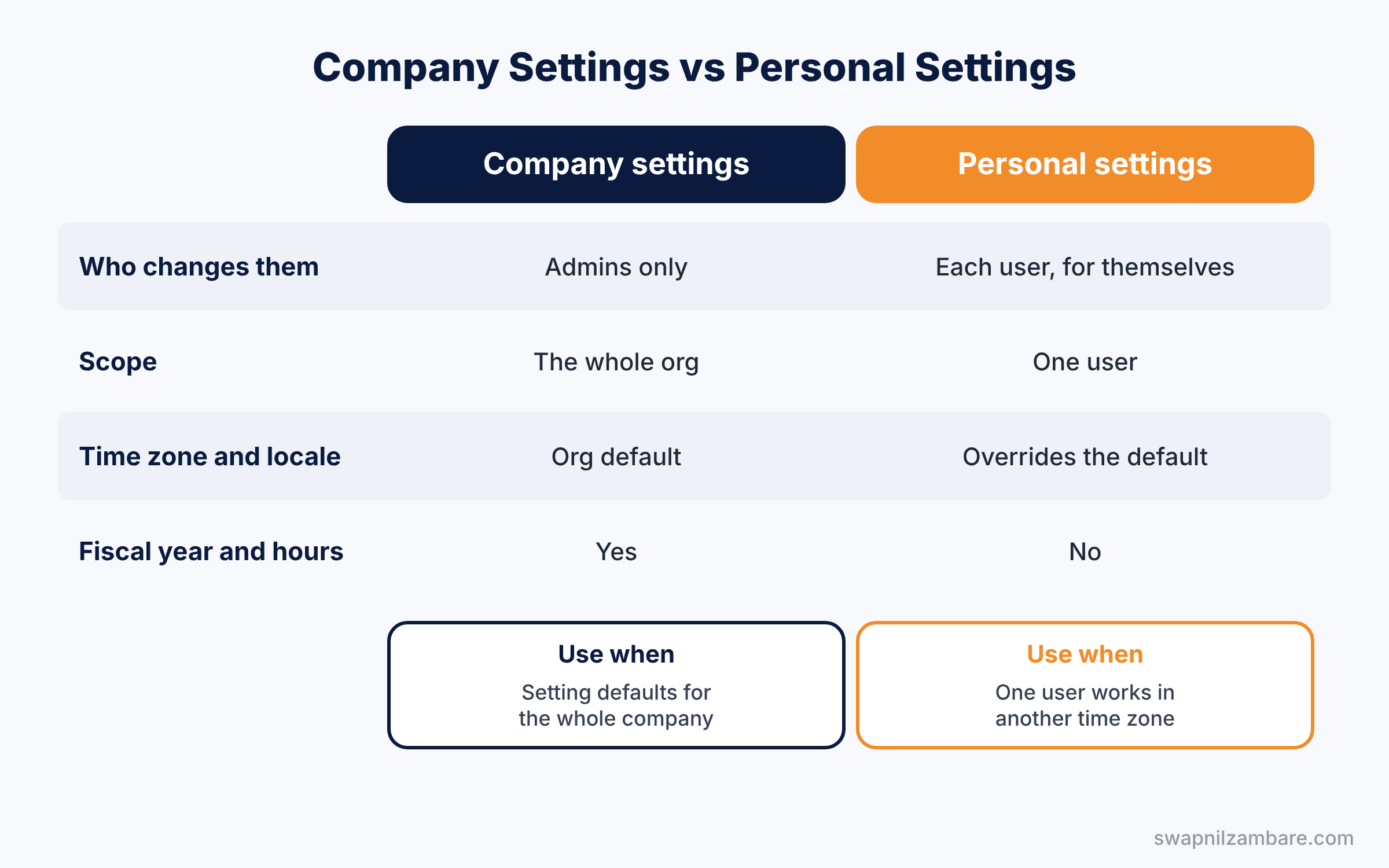
Company settings and personal settings often look similar. The table below shows how they differ.
| Feature | Company settings | Personal (user) settings |
|---|---|---|
| Who changes them | Admins only | Each user, for themselves |
| Scope | The whole org | One user |
| Time zone | Org default | Overrides the org default |
| Locale and language | Org default | Overrides the org default |
| Fiscal year and business hours | Yes | No |
In short, set company settings as sensible defaults for most people. Then let users change their own time zone and locale when they live elsewhere.
Hands-on Example: Set Up Company Settings for Bright Path Tutors
Let’s configure your practice org for a training company in India. Use the values in each table as you go.
Step 1: Update Company Information
- Go to Setup and type “Company Information” in Quick Find.
- Click Edit and enter the values from the table below.
- Click Save. Then note your Organization ID somewhere safe.
| Field | Value |
|---|---|
| Organization Name | Bright Path Tutors |
| Default Locale | English (India) |
| Default Language | English |
| Default Time Zone | (GMT+05:30) India Standard Time (Asia/Kolkata) |
| Currency Locale | English (India) – INR |
Step 2: Create business hours
- In Quick Find, type “Business Hours” and click New Business Hours.
- Name it “India Office Hours” and tick Active.
- Set Monday to Saturday from 9:00 AM to 6:00 PM, and leave Sunday as No Hours.
- Set the time zone to India Standard Time, tick Use these business hours as the default, and click Save.
Step 3: Add a holiday
- In Quick Find, type “Holidays” and click New.
- Name it “Diwali”, pick the date, and tick All Day. Click Save.
- Click Add/Remove under Business Hours, add India Office Hours, and save again.
Step 4: Set the fiscal year
Then open Fiscal Year in Setup and choose Standard Fiscal Year. Set the start month to April, keep “Fiscal year is based on the starting month”, and click Save. Now reports group “This Fiscal Year” from April to March.
Step 5: Check your settings with SOQL
Developers and curious admins can read these settings with SOQL in the Developer Console. This query shows your business hours.
SELECT Name, IsDefault, MondayStartTime, MondayEndTime
FROM BusinessHours
WHERE IsActive = true
This one lists your holidays.
SELECT Name, ActivityDate, IsAllDay
FROM Holiday
ORDER BY ActivityDate
Note how business hours times come back in a 24-hour format, such as 09:00:00.000Z. The holiday query shows Diwali with its date.
Common Mistakes with Salesforce Company Settings
- Changing the time zone after go-live. Existing date and time values stay correct, but users may get confused. Agree the time zone before launch.
- Turning on custom fiscal years by accident. This cannot be undone and changes forecasting. Use the standard fiscal year unless finance really needs custom periods.
- Enabling multiple currencies without testing. It is permanent and adds a currency field to many objects. Test in a sandbox first.
- Forgetting holidays. Without holidays, escalation timers keep running on days the office is closed.
- Leaving default business hours at 24 hours. New orgs often start with 24/7 hours, which makes SLAs look wrong.
Best Practices for Company Settings
- Set everything before loading data. Dates, currencies and fiscal periods then line up from the first record.
- Write down the org ID. You need it for support cases, integrations and some licences.
- Add next year’s holidays in December. A short yearly task keeps escalations accurate.
- Keep one default business hours record. Add more only for teams in other countries.
- Review storage on the Company Information page monthly. It warns you before you hit limits.
Practice Task
Create a second business hours record called “Weekend Support” that runs only on Saturday and Sunday from 10 AM to 4 PM. Do not make it the default.
Hint: set every weekday to No Hours and fill in only Saturday and Sunday.
Salesforce Company Settings FAQ
Can users see a different time zone from the company?
Yes. Each user can change their time zone in their personal settings. So a rep in Dubai sees Dubai time, while the org default stays India Standard Time.
Can I go back to a single currency later?
No. Once you turn on multiple currencies, you cannot turn them off. Therefore, only enable them after finance agrees and you have tested in a sandbox.
Do Salesforce Company Settings affect formula fields?
Yes, in some cases. For example, TODAY() uses the user’s time zone, and currency fields display in the record’s currency. So test date formulas with users in different time zones.
Official Resources
- Language, Locale, and Currency Settings (Salesforce Help)
- Set Business Hours (Salesforce Help)
- Lightning Experience Basics (Trailhead)
Quick Recap
- Salesforce Company Settings set org-wide defaults like time zone, locale and currency.
- Business hours and holidays control how Salesforce counts working time.
- The fiscal year start month decides quarters in reports and forecasts.
- Custom fiscal years and multiple currencies cannot be turned off.
- Users can override time zone and locale for themselves.
What’s Next?
With your company set up, it is time to manage the people who use it. Read Salesforce User Management: Create, Freeze, Deactivate and Login As.


