Salesforce Delegated Administration lets you give a trusted user a few admin powers, like creating users or resetting passwords for their own team, without making them a full System Administrator. It is a simple way to share daily admin work safely. In our user management guide, you created, froze and deactivated users yourself. As the company grows, those small tasks can fill an admin’s whole day.
In this post, you will learn what a delegated group is, which powers you can hand over, and where the limits are. Then you will make the Support Manager at Bright Path Tutors a delegated administrator for her own team. You will also see how this fits with the role hierarchy from our sharing and roles guide.
What is Salesforce Delegated Administration?
Delegated administration is a Setup feature that creates delegated groups. Each group lists some users, called delegated administrators, and the exact tasks they may do. For example, they can manage users in certain roles, assign certain profiles, and manage certain custom objects.
Here is a simple analogy. Think of a school principal and a class monitor. The principal runs the whole school. But the monitor can take attendance and hand out books for one class only. The monitor cannot change the timetable or hire teachers. A delegated administrator is the class monitor of your Salesforce org.
Why Salesforce Delegated Administration Matters
Full admin access is powerful and risky. One wrong click can change security for the whole org. However, admins cannot handle every password reset and new user request in a busy company.
Here are some real situations at Bright Path Tutors.
- The Support Manager hires two new agents every month and needs them ready on day one.
- Agents forget passwords or get locked out late in the evening.
- The academic team wants to add fields to the Course object without waiting a week.
- Auditors want to know that team leads cannot give anyone System Administrator access.
So delegation spreads routine work to the right people, while the main admin keeps control of the risky settings.
How Salesforce Delegated Administration Works
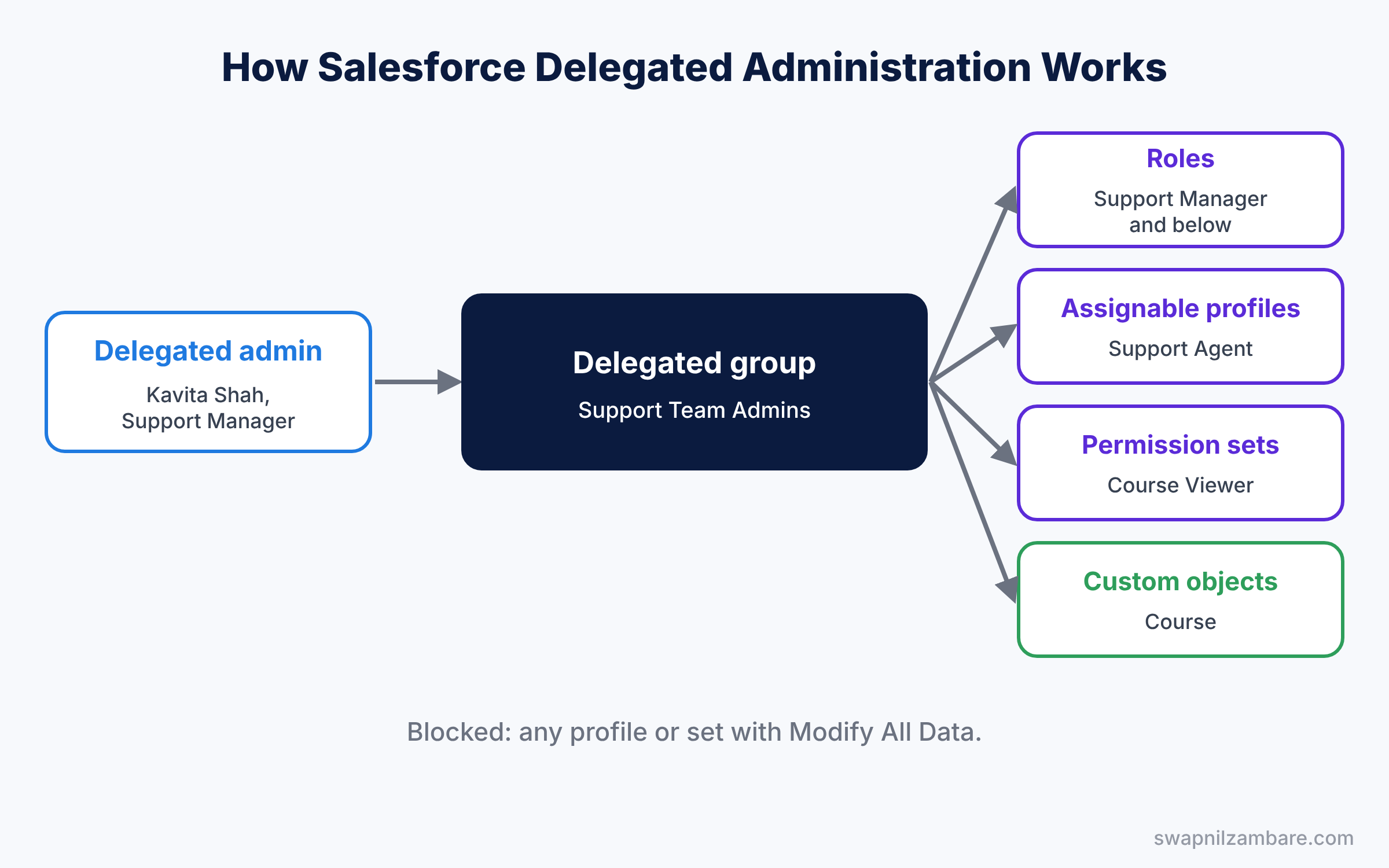
The setup has five parts. First, the admin creates a delegated group, such as “Support Team Admins”. Next, the admin adds the delegated administrators to the group. Then the admin picks the roles they can manage, which also covers all roles below them. After that, the admin lists the profiles, permission sets and public groups they may assign. Finally, the delegated administrators work from the normal Users page in Setup, but only within these limits.
If the group allows it, delegated administrators can also log in as the users they manage. This helps them see exactly what an agent sees when something looks wrong.
Key Parts of Salesforce Delegated Administration
Delegated groups
First, a delegated group is the container for all the rules. You can create many groups, such as one for support and one for sales. Each group has a name, an API name and the “Enable Group Members to Login as Users” checkbox.
Delegated administrators
Next, these are the users who receive the extra powers. They keep their own profile and permissions for normal work. The group only adds the listed admin tasks on top.
Delegated administration by role
Then you choose roles under User Administration. Delegated administrators can create and edit users in those roles and every role below them. They can also reset passwords for those users, so a locked-out agent can get back to work in minutes.
Assignable profiles, permission sets and groups
Delegated administrators can only give the profiles and permission sets you list. Salesforce blocks any profile or permission set with Modify All Data, so they cannot create a new full admin. You can also list public groups they may add users to.
Custom object administration
Finally, you can let them manage chosen custom objects, such as Course. They can then create and edit fields, page layouts and validation rules on that object. However, they cannot change sharing settings or create relationships.
The table below sums up what a delegated administrator can and cannot do.
| Task | Delegated admin | Notes |
|---|---|---|
| Create and edit users | Yes | Only in assigned roles and below |
| Reset passwords | Yes | Only for those users |
| Assign profiles | Yes | Only profiles you list |
| Assign permission sets | Yes | Only sets you list |
| Manage custom object fields | Yes | Only objects you list |
| Change org-wide sharing | No | Stays with full admins |
Delegated Administration vs System Administrator
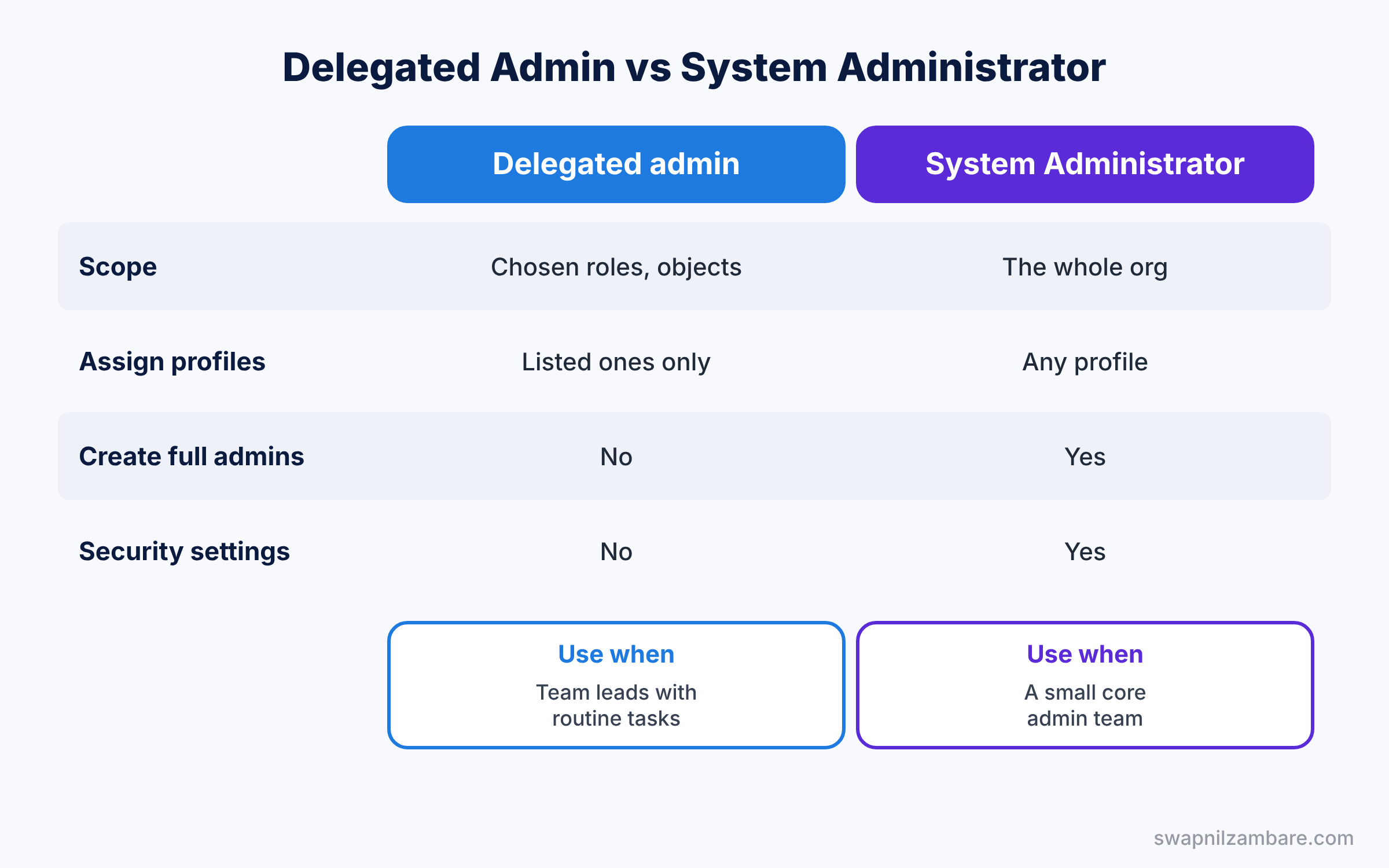
Both can manage users, so the difference must be clear before you set it up. The table below compares them.
| Feature | Delegated administrator | System Administrator |
|---|---|---|
| Scope | Chosen roles and objects | The whole org |
| Profiles they can assign | Only listed ones | Any profile |
| Can create another full admin | No | Yes |
| Change security settings | No | Yes |
| Best for | Team leads with routine tasks | The core admin team |
In short, keep the System Administrator profile for a small core team. Use Salesforce Delegated Administration for team leads who need a few safe, repeat tasks.
Hands-on Example: Salesforce Delegated Administration for Support
Let’s make Kavita Shah, our Support Manager, a delegated administrator for her team.
Step 1: Create the delegated group
- Go to Setup, type “Delegated Administration” in Quick Find, and click New.
- Enter the values from the table below and save.
| Field | Value |
|---|---|
| Delegated Group Name | Support Team Admins |
| Group Name | Support_Team_Admins |
| Enable Group Members to Login as Users | Ticked |
Step 2: Add the delegated administrator
- In the Delegated Administrators related list, click Add.
- Find Kavita Shah, select her, and save.
Step 3: Choose roles and assignable access
- In User Administration, click Add and pick the Support Manager role. This also covers the Support Agent role below it.
- Under Assignable Profiles, add the Support Agent profile.
- In Assignable Permission Sets, add Course Viewer and Case Management.
Step 4: Allow management of a custom object
- In Custom Object Administration, click Add and choose Course.
- Save the group. Kavita can now add fields to Course, but she cannot touch other objects. If she later needs another custom object, such as Survey, you add it to the same group. You never need to change her profile for this.
Step 5: Test as Kavita
- Log in as Kavita Shah and open Setup, then Users.
- Click New User, choose the Support Agent role and the Support Agent profile, and save.
- Then try to pick the System Administrator profile. It does not appear in the list.
Admins can review the delegated groups with this SOQL query.
SELECT Name, DeveloperName, CreatedDate
FROM DelegateGroup
ORDER BY Name
This second query shows the users Kavita can now manage, based on the roles in her group.
SELECT Name, UserRole.Name, Profile.Name, IsActive
FROM User
WHERE UserRole.Name IN ('Support Manager', 'Support Agent')
ORDER BY UserRole.Name
The result might look like this.
Name          UserRole.Name     Profile.Name    IsActive
Kavita Shah   Support Manager   Support User    true
Arjun Mehra   Support Agent     Support Agent   true
Sana Khan     Support Agent     Support Agent   true
The first query is a quick way to list every delegated group in the org. So you can review them during an access audit.
Common Mistakes with Salesforce Delegated Administration
- Picking a high role. Choosing CEO lets the group manage almost everyone in the company.
- Listing too many profiles. Delegated admins can then give more access than the team needs.
- Forgetting the login-as setting. Leave it off if team leads do not need to see users’ screens.
- Expecting full Setup access. Delegated admins only see what their group allows.
- Never reviewing groups. People change jobs, so remove old delegated administrators.
Best Practices for Salesforce Delegated Administration
- One group per team. Support and sales should each have their own group and roles.
- List permission sets, not profiles, where you can. Our permission set groups guide shows how to keep access small and clear.
- Write a short guide for team leads. Explain which tasks they own and when to call the admin.
- Check Setup Audit Trail monthly. It shows every change made by delegated administrators.
- Start with users only. Add custom object rights later, once the team is comfortable.
Practice Task
Create a second delegated group called “Academic Admins” for the academic head. Let her manage only the Course object and assign only the Course Viewer permission set.
Hint: leave User Administration empty if she should not manage any users.
Salesforce Delegated Administration FAQ
Can a delegated admin reset any user’s password?
No. They can only reset passwords for users in the roles listed in their group, and the roles below them.
Can a delegated admin create a System Administrator?
No. Salesforce blocks profiles and permission sets with Modify All Data from delegated assignment.
Can one user be in several delegated groups?
Yes. The user then gets the combined powers of all their groups.
Official Resources
- Set up a Delegated Administrator (Salesforce Help)
- Manage Users (Salesforce Help)
- User Management (Trailhead)
Quick Recap
- Salesforce Delegated Administration shares a few admin tasks with trusted users.
- Delegated groups list the administrators, roles, profiles and permission sets.
- Delegated admins manage users in their roles and every role below.
- They cannot assign profiles or sets with Modify All Data.
- Custom object rights let them manage fields on chosen objects.
What’s Next?
Team leads can now handle routine admin work. Next, learn how to hide certain records from users even when sharing would show them. Read Salesforce Restriction Rules and Scoping Rules.


