Salesforce Restriction Rules hide records from users who would otherwise see them through sharing, so each person only sees the records that are right for their job. Normal sharing in Salesforce only adds access. In our sharing and roles guide, you opened records up with roles and sharing rules. Restriction rules are the opposite tool, because they narrow access down.
In this post, you will learn how restriction rules filter records, how they differ from scoping rules, and where each one applies. Then you will build a rule at Bright Path Tutors so online support agents see only online courses. You will also see how scoping rules set a helpful default view without removing access. Our queues and public groups guide is useful background for the teams in this example.
What are Salesforce Restriction Rules?
A restriction rule is a filter on one object that decides which records a group of users can see. It has two parts: who the rule applies to, and which records those users may see. Users only see records that match the record criteria, even if sharing gives them more.
A scoping rule looks similar but does a different job. It sets the default records a user sees in list views, reports and lookups. However, the user can still reach the other records if sharing allows it.
Here is a simple analogy. Think of a big library. Sharing decides which floors you may enter. A restriction rule is a locked shelf on that floor that you simply cannot open. A scoping rule is a librarian who puts the books for your class on the front table, but you can still walk to other shelves.
Why Salesforce Restriction Rules Matter
Sharing can only grow access, never shrink it. So if a public read setting or a wide sharing rule opens too much, admins used to rebuild the whole sharing model. Restriction rules fix the gap with a simple filter.
Here are some real situations at Bright Path Tutors.
- Online support agents should see only online courses, even though all courses are public read.
- Contractors should see only tasks they own, not the whole team’s tasks.
- The HR team keeps private feedback records that only HR should list.
- Sales reps want their own region’s accounts first, without losing access to others.
The first three need restriction rules. The last one needs a scoping rule, because the reps still need access to the other records.
How Salesforce Restriction Rules Work
Salesforce checks access in a clear order. First, it works out what the user can see through org-wide defaults, roles, sharing rules and teams. Next, it checks whether an active restriction rule applies to this user, using the user criteria. Then it keeps only the records that match the rule’s record criteria. Finally, the user sees this smaller set everywhere, including list views, lookups, related lists, reports, search and SOQL queries.
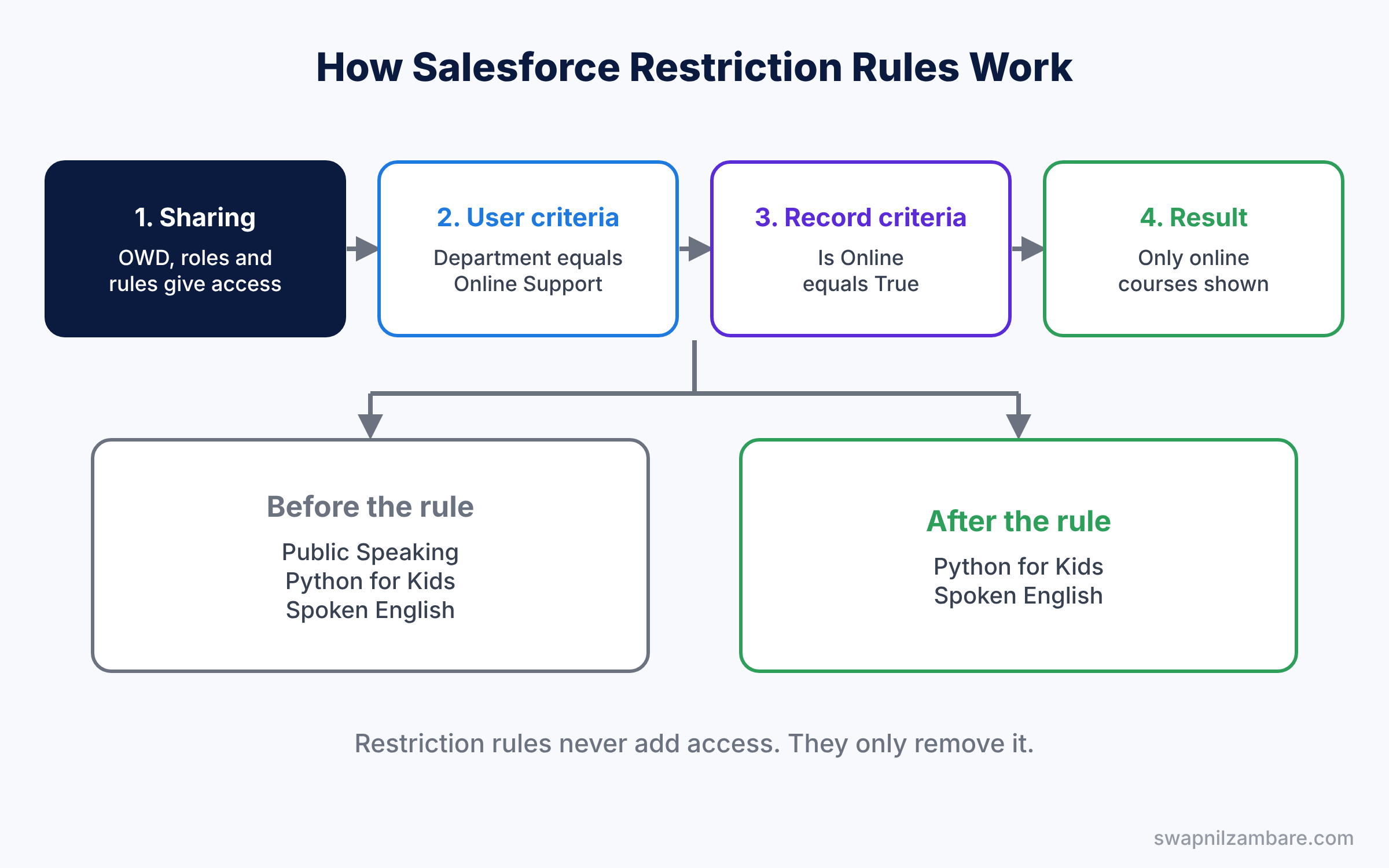
A restriction rule never adds access. If sharing does not show a record, the rule cannot show it either.
Key Parts of Salesforce Restriction Rules
Supported objects
First, restriction rules work on custom objects, external objects, contracts, events, tasks and a few other objects. They do not work on every standard object, so check Salesforce Help for the current list before you plan.
User criteria
Next, user criteria decide who the rule applies to. You usually compare a user field, such as $User.Department equals “Online Support”. You can also base it on a custom permission, so only users with that permission are restricted.
Record criteria
Then record criteria decide which records those users can see. For example, Is Online equals True, or Owner ID equals the current user’s ID. Records that do not match become invisible to the restricted users.
Active rules per object
Each object can have only a few active restriction rules, and the number depends on your edition. Also, make sure only one active rule applies to any one user. Salesforce does not check this for you.
Scoping rules
Finally, scoping rules use the same idea of user and record criteria, but they only set the default view. Users see the scoped records first, and they can still open other records they have access to. Developers can use the scope in SOQL with USING SCOPE scopingRule.
The table below shows the rule we will build.
| Setting | Value |
|---|---|
| Object | Course |
| Rule Name | Online Support Sees Online Courses |
| User criteria | $User.Department equals Online Support |
| Record criteria | Is Online equals True |
| Active | Ticked |
Restriction Rules vs Scoping Rules
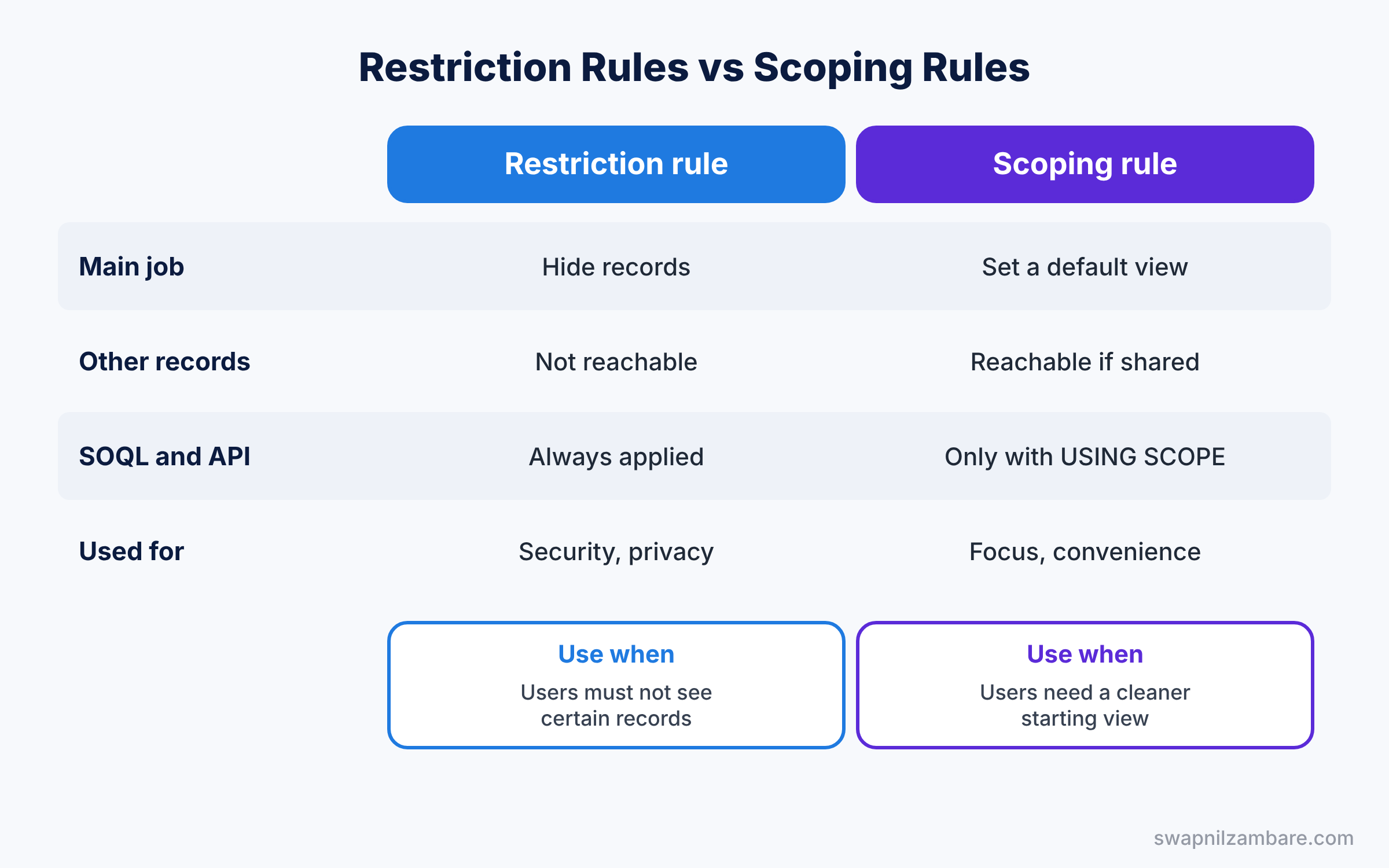
Beginners often mix up these two features, so compare them before you build. The table below shows the main differences.
| Feature | Restriction rule | Scoping rule |
|---|---|---|
| Main job | Hide records completely | Set a default view |
| Can user reach other records | No | Yes, if sharing allows |
| Affects SOQL and API | Yes, always | Only with USING SCOPE |
| Used for | Security and privacy | Focus and convenience |
| Typical example | Agents see only online courses | Reps see their region first |
In short, use Salesforce Restriction Rules when users must not see certain records. Use scoping rules when users only need a cleaner starting view.
Hands-on Example: Salesforce Restriction Rules for Online Support
Let’s build the rule in your Developer Edition org.
Step 1: Prepare the user and data
- Open the user record of a test support agent, such as Sana Khan, and set Department to “Online Support”.
- Make sure some Course records have Is Online ticked and some do not.
- Check that the Course object’s org-wide default is Public Read Only, so Sana can see every course today.
Step 2: Create the restriction rule
- Go to Setup, then Object Manager, then Course, and click Restriction Rules.
- Click Create a Rule and fill in the values from the table above.
- For User Criteria, choose the User field Department, set the operator to Equals, and enter Online Support.
- For Record Criteria, choose Is Online, set Equals, and pick True. Save.
Step 3: Test as the agent
- Log in as Sana Khan and open the Courses tab with the All list view.
- She now sees only online courses, and the classroom courses are gone from lookups and reports too.
Step 4: Check the result with SOQL
The same query returns different rows for different users. Run this query as the admin and then as Sana.
SELECT Name, Is_Online__c, Fee__c
FROM Course__c
ORDER BY Name
As the admin, the result might look like this.
Name               Is_Online__c  Fee__c
Public Speaking    false         6000
Python for Kids    true          9000
Spoken English     true          9000
As Sana, the Public Speaking row disappears, because the restriction rule removes it before the results come back. So even custom code and integrations respect the rule.
Step 5: Compare with a scoping rule
If your org has scoping rules turned on, a scoping rule can set Sana’s default view without hiding anything. Developers then ask for the scoped records with this query.
SELECT Name, Is_Online__c
FROM Course__c
USING SCOPE scopingRule
Without USING SCOPE, the query would still return all courses that sharing allows. That is the key difference from a restriction rule.
Common Mistakes with Salesforce Restriction Rules
- Expecting the rule to add access. Restriction rules only remove records, so fix sharing first.
- Two rules for one user. Overlapping rules give unclear results, so keep one rule per user group.
- Wrong user field values. A typo in Department means the rule never applies.
- Using it on unsupported objects. Check the object list before you design the solution.
- Skipping a test user. Always log in as an affected user and check list views, reports and lookups.
Best Practices for Salesforce Restriction Rules
- Start with sharing. Our profiles and permission sets guide explains the base access to check first.
- Use custom permissions for user criteria. A permission set is easier to manage than a department name.
- Name rules by their effect. “Online Support Sees Online Courses” tells everyone what it does.
- Write a description. Explain why the rule exists, so future admins do not delete it.
- Pick scoping rules for convenience. Do not hide records when a default view would solve the problem.
Practice Task
Create a restriction rule on Task so users with the department “Contractor” see only tasks they own. Then log in as a contractor and check the task list.
Hint: in the record criteria, compare Owner ID with the current user’s ID using $User.Id.
Salesforce Restriction Rules FAQ
Do restriction rules affect admins?
Only if the user criteria match the admin. So always test with a normal user who matches the criteria.
Can I use restriction rules on Accounts?
Check the current Salesforce Help list. Restriction rules support a limited set of objects, while scoping rules cover more standard objects.
Do restriction rules slow down the org?
A simple rule has little effect. Keep criteria simple and use indexed fields where you can.
Official Resources
Quick Recap
- Salesforce Restriction Rules hide records that sharing would otherwise show.
- Each rule has user criteria and record criteria.
- The rule applies everywhere, including reports, search and SOQL.
- Scoping rules only set a default view and do not remove access.
- Restriction rules never add access, so start with a correct sharing model.
What’s Next?
You can now open access with sharing and narrow it with restriction rules. Next, we look at storing app settings that admins can change without code and deploy between orgs. Coming soon: Custom Metadata Types vs Custom Settings in Salesforce.


