Custom Metadata Types let you store app settings, such as discount rates or routing rules, as records that admins can change without code and move between orgs like any other setup item. Custom settings do a similar job, but they behave like data instead of metadata. In our validation rules guide, you typed fixed numbers straight into formulas. That works until the number changes and you must hunt through every rule that uses it.
In this post, you will learn what custom metadata and custom settings are, how the two kinds of custom settings differ, and when to pick each tool. Then you will build a Discount Rule type for Bright Path Tutors and use it in a formula, plus a hierarchy setting that lets an integration user skip validation rules. You will also see the Apex and SOQL that developers use to read them, which is a gentle start for the Developer track.
What are Custom Metadata Types?
A custom metadata type is like a custom object for settings. You define fields, then create records that hold your values, such as “Beginner courses get 10% off”. The type’s API name ends in __mdt, for example Discount_Rule__mdt.
The key word is metadata. Salesforce treats these records as part of your setup, not as business data. So change sets, packages and deployment tools carry them from a sandbox to production along with your fields and flows.
Here is a simple analogy. Think of a school rule book. The rules are printed once and copied to every branch, and teachers read them but do not change them during class. Custom metadata is that rule book. Custom settings are more like a notice board in each staff room, which anyone with a key can update on the spot.
Why Custom Metadata Types Matter
Hard-coded values cause quiet problems. A discount of 10% might sit in three formulas, two flows and a validation rule. When the CEO changes it to 12%, someone misses one place, and fees are wrong for weeks.
Here are some real situations at Bright Path Tutors.
- Discount rates differ by course level and change twice a year.
- The support team maps each case reason to a queue, and the list grows every month.
- An integration user loads thousands of records at night and should skip some validation rules.
- New settings must move from the sandbox to production without anyone retyping them.
So these tools keep values in one place, where admins can find and change them safely.
How Custom Metadata Types Work
The process has four steps. First, you create the type in Setup and add fields, like Level and Discount Percent. Next, you add records, one per rule, such as Beginner with 10. Then formulas, validation rules, flows and Apex read those records by name. Finally, when you deploy, the records travel with the type, so production gets the same values as the sandbox.
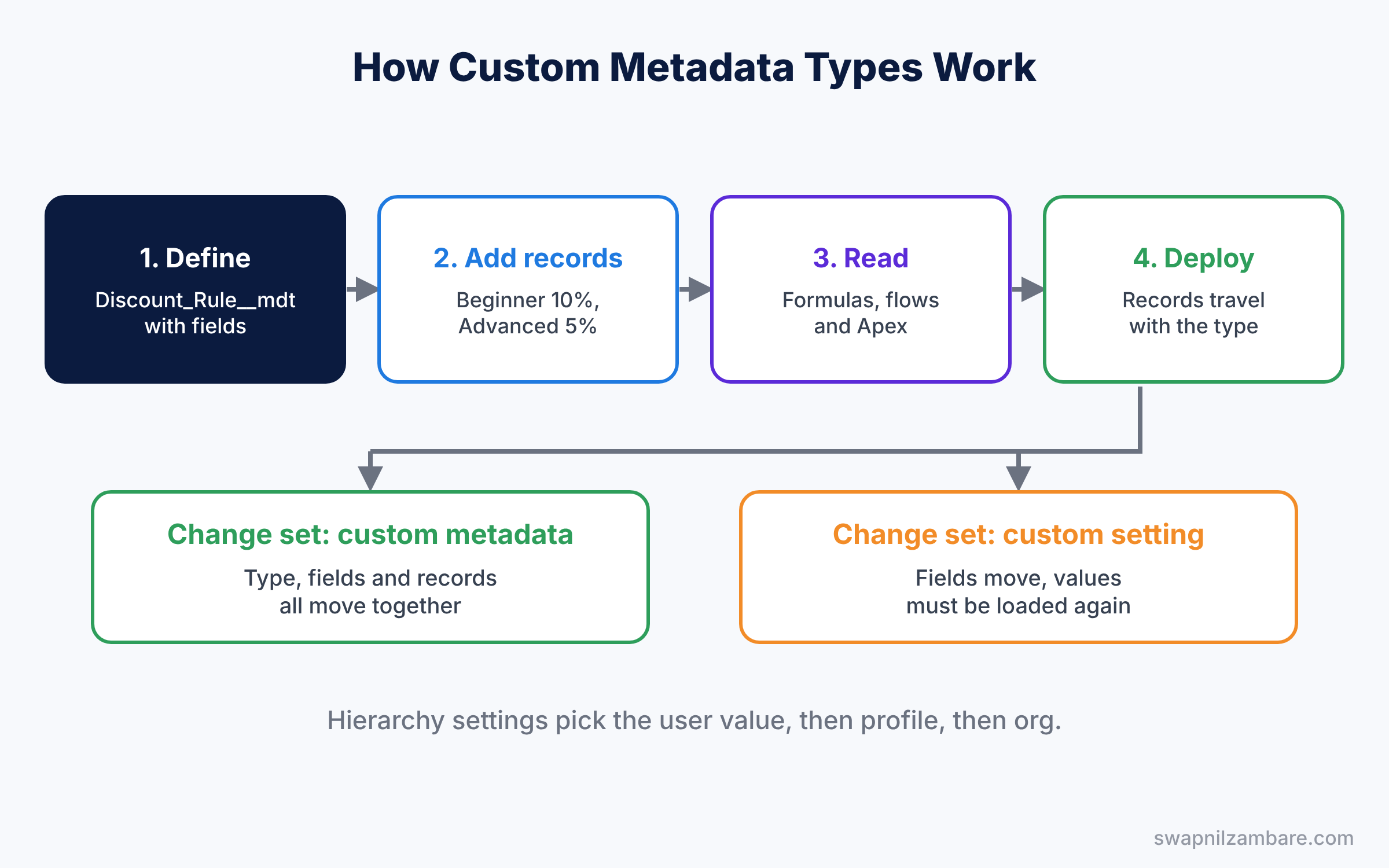
Custom settings follow a similar path, but with one big difference. Their records are data, so a change set copies the setting’s fields but not its values. You must enter or load the values again in each org.
Key Parts of Custom Metadata Types and Custom Settings
Records in Custom Metadata Types
First, each record has a Label, a unique Name (its API name) and your custom fields. Field types are limited to simple ones, such as Text, Number, Percent, Checkbox, Picklist and Metadata Relationship. You cannot add lookups to normal records, because metadata cannot point at business data.
Reading custom metadata in formulas and flows
Next, formula fields and validation rules read a record with the $CustomMetadata global variable. Flows read records with a normal Get Records element. Developers use the getAll() and getInstance() methods in Apex, which do not use up SOQL query limits.
List custom settings
Then a list custom setting stores a simple table of values, like a list of country codes. Every user sees the same data. Salesforce now suggests custom metadata for this job, so list settings are turned off by default in new orgs.
Hierarchy custom settings
A hierarchy custom setting can hold different values for the whole org, for a profile and for a single user. Salesforce picks the most specific value: user first, then profile, then the org default. Formulas read it with the $Setup global variable.
Protection and access
Finally, both tools can be protected inside managed packages, so subscribers cannot see secret values. Inside your own org, admins with the Customize Application permission manage them from Setup.
The table below shows which tool fits each Bright Path Tutors need.
| Need | Best tool | Why |
|---|---|---|
| Discount by course level | Custom metadata type | Same values in every org |
| Case reason to queue map | Custom metadata type | Deploys with the queues |
| Integration user skips rules | Hierarchy custom setting | Different value per user |
| Per-org API endpoint label | Hierarchy custom setting | Org default you can change live |
Custom Metadata Types vs Custom Settings
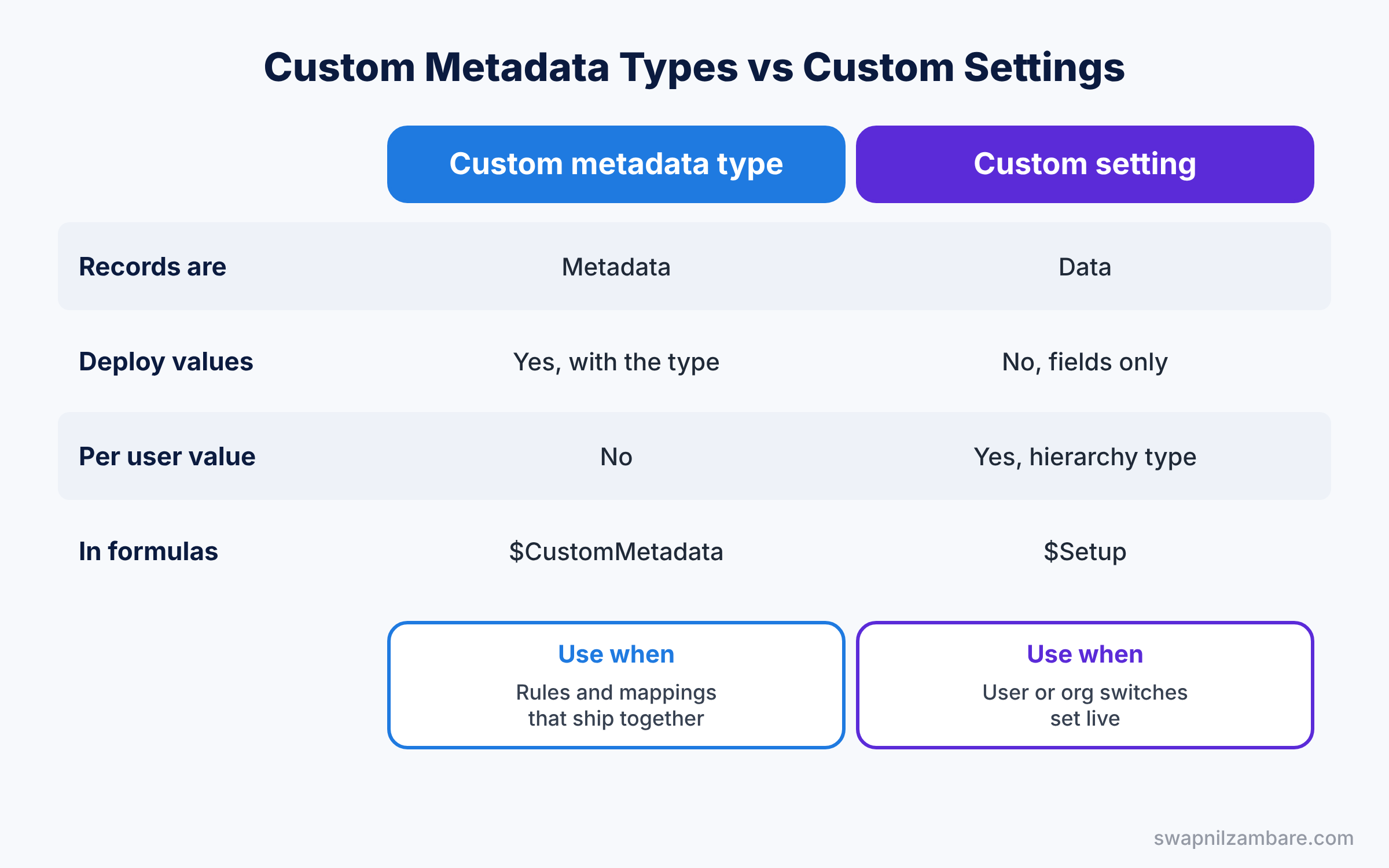
Both tools look alike in Setup, so the difference matters before you build. The table below compares them.
| Feature | Custom metadata type | Custom setting |
|---|---|---|
| Records are | Metadata | Data |
| Deploy values with change sets | Yes | No, only the fields |
| Different value per user or profile | No | Yes, hierarchy type |
| Read in formulas | $CustomMetadata | $Setup, hierarchy only |
| Best for | Rules and mappings that ship together | User or org switches set live |
In short, use Custom Metadata Types for settings that should be the same in every org and travel with your releases. Use a hierarchy custom setting when the value depends on who the user is.
Hands-on Example: Custom Metadata Types for Course Discounts
Let’s build both tools in your Developer Edition org.
Step 1: Create the custom metadata type
- Go to Setup, type “Custom Metadata Types” in Quick Find, and click New Custom Metadata Type.
- Set Label to “Discount Rule”, Plural Label to “Discount Rules”, and save. The API name becomes Discount_Rule__mdt.
- In Custom Fields, add a Text field called “Level” and a Percent field called “Discount Percent”.
Step 2: Add records
- Click Manage Discount Rules, then New.
- Create the records from the table below.
| Label | Name | Level | Discount Percent |
|---|---|---|---|
| Beginner | Beginner | Beginner | 10 |
| Intermediate | Intermediate | Intermediate | 7 |
| Advanced | Advanced | Advanced | 5 |
Step 3: Use the record in a formula
On the Course object, create a Currency formula field called “Beginner Price” with the formula below.
Fee__c * (1 - $CustomMetadata.Discount_Rule__mdt.Beginner.Discount_Percent__c)The formula reads the Discount Percent field from the record named Beginner. So when the CEO changes 10 to 12, you edit one record, and every course updates.
Step 4: Create a hierarchy custom setting
- In Quick Find, type “Custom Settings” and click New.
- Set Label to “Automation Settings”, choose Setting Type Hierarchy, and save.
- Add a Checkbox field called “Bypass Validation”, default unchecked.
- Click Manage, then New above the user list, choose the integration user, tick Bypass Validation, and save.
Then add the check to any validation rule that the night load should skip.
AND(
  NOT($Setup.Automation_Settings__c.Bypass_Validation__c),
  Fee__c < 1000
)
Step 5: Read both tools in Apex and SOQL
Developers can read the records like this, which is a small preview of Apex.
Map<String, Discount_Rule__mdt> rules = Discount_Rule__mdt.getAll();
Discount_Rule__mdt beginner = Discount_Rule__mdt.getInstance('Beginner');
System.debug(beginner.Discount_Percent__c);

Automation_Settings__c settings = Automation_Settings__c.getInstance();
System.debug(settings.Bypass_Validation__c);
getAll() returns every record by name, and getInstance(‘Beginner’) returns one. For the custom setting, getInstance() with no user returns the value for the running user. Custom metadata records can also be queried with SOQL.
SELECT DeveloperName, Level__c, Discount_Percent__c
FROM Discount_Rule__mdt
ORDER BY Discount_Percent__c DESC
Common Mistakes with Custom Metadata Types
- Expecting custom setting values to deploy. Change sets move the fields, so reload the values in production.
- Using list custom settings for new work. Custom metadata does the same job and deploys cleanly.
- Storing secrets in plain fields. Use Named Credentials for passwords and keys instead.
- Changing the record Name later. Formulas use the Name, so renaming breaks them.
- Bypass switch left on. A ticked Bypass Validation for everyone lets bad data in.
Best Practices for Custom Metadata Types
- Name records by meaning. “Beginner” is clearer than “Rule_01” in formulas.
- Add a Description field. Explain why each value exists and who owns it.
- Keep bypass switches per user. Turn them on only for integration or migration users.
- Deploy with the rest of the change. Our sandboxes and change sets guide shows how to add custom metadata records.
- Use flows to read rules. Our flow types guide shows Get Records, which works on __mdt types too.
Practice Task
Create a custom metadata type called “Case Routing Rule” with fields Case Reason and Queue Name. Add three records, then build a flow that reads the rule for a new case.
Hint: in Get Records, choose the Case_Routing_Rule__mdt object and filter by Case Reason.
Custom Metadata Types FAQ
Can users edit custom metadata records from a normal tab?
No. Admins manage them from Setup, which keeps rules safe from accidental edits.
Can a custom metadata record point to a field or object?
Yes. A Metadata Relationship field can point to an object, a field or another custom metadata type.
Do custom settings count against data storage?
Custom settings use their own cache limit, which you can check on the Custom Settings page in Setup.
Official Resources
- Custom Metadata Types Basics (Trailhead)
- Develop and Test with Custom Metadata (Trailhead)
- Custom Settings (Apex Developer Guide)
Quick Recap
- Custom Metadata Types store settings as metadata that deploys with your setup.
- Formulas read them with $CustomMetadata, and Apex with getAll() and getInstance().
- Custom settings store values as data, so values do not deploy.
- Hierarchy custom settings give different values per user, profile or org.
- Pick custom metadata for shared rules and hierarchy settings for per-user switches.
What’s Next?
Your settings now live in one safe place. Next, learn how to load and update records from other systems without creating duplicates. Coming soon: Salesforce External IDs and Upsert for Clean Data Loads.


