Salesforce Roll-Up Summary Fields calculate totals from child records and store them on the parent, such as the total fees collected for a course. Cross-object formulas work in the other direction and bring parent data down to the child, such as the course fee on each enrollment. In our master-detail vs lookup guide, you created a simple Total Enrollments count. Now you will go further with filters, several roll-up types and formulas that span objects.
In this post, you will learn the four roll-up types, how filters and recalculation work, and what cross-object formulas can and cannot do. Then you will add money and progress fields to the Course and Enrollment objects at Bright Path Tutors. You should know formula basics from our formula fields guide before you start.
What are Salesforce Roll-Up Summary Fields?
A roll-up summary field is a read-only field on a parent record that calculates a value from its child records. It can count the children, or find the sum, the smallest value or the largest value of a child field. Salesforce updates it automatically whenever a child is added, changed or deleted.
A cross-object formula is a formula field that reads fields from a parent record. For example, an Enrollment can show its Course’s fee, or even the student’s school name, two levels up.
Here is a simple analogy. Think of a class teacher and her students. The teacher’s register shows the class total and the highest mark, which is a roll-up. Each student’s report card shows the teacher’s name at the top, which is a cross-object formula. Data flows up for totals and down for details.
Why Salesforce Roll-Up Summary Fields Matter
Managers want totals on the parent page, not in a separate report. They also want child records to show key parent details without extra clicks.
Here are some real situations at Bright Path Tutors.
- The academic head wants each course page to show the total fees collected.
- Finance wants only paid enrollments counted, not free trial seats.
- Support agents want each enrollment to show the balance the student still owes.
- The sales team wants the student’s school name on every enrollment for reports.
So these two tools put the right numbers in the right place, with no code.
How Salesforce Roll-Up Summary Fields Work
A roll-up summary follows a clear chain. First, a child record, such as an Enrollment, is created or edited. Next, Salesforce checks the roll-up’s filter criteria, like “Fee Paid greater than 0”. Then it recalculates the COUNT, SUM, MIN or MAX across all matching children. Finally, it saves the new value on the parent Course.
A cross-object formula works on demand instead. Each time someone views the child record or runs a report, the formula reads the parent’s current values and shows the result.
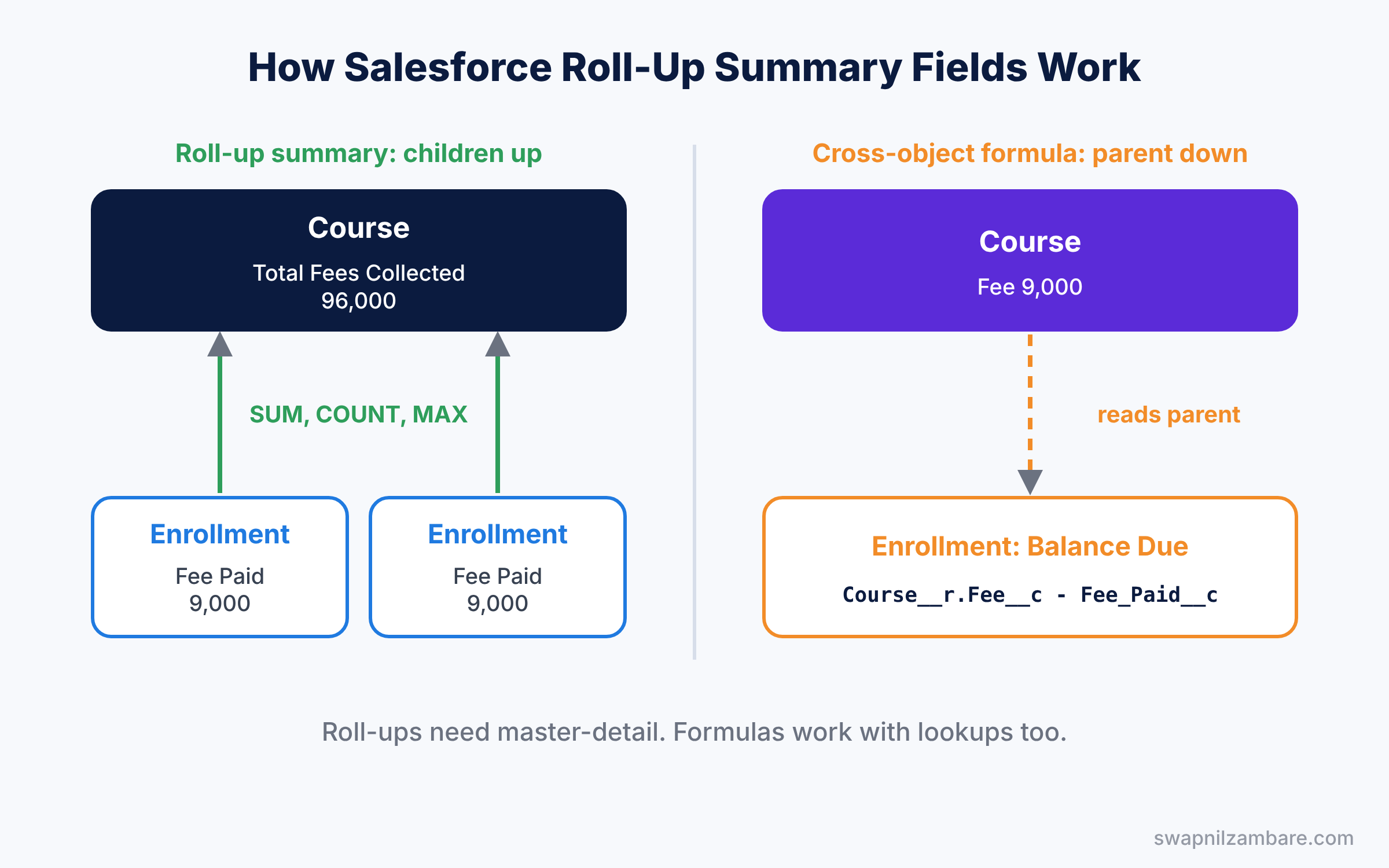
Both tools depend on relationships, which is why we built the Enrollment object as a junction with two master-detail fields. Roll-ups need a master-detail relationship, while cross-object formulas work with both lookup and master-detail.
Key Parts of Salesforce Roll-Up Summary Fields
The four roll-up types
First, choose the calculation. COUNT counts child records. SUM adds a number, currency or percent field. MIN and MAX find the smallest or largest value, and they also work with date fields.
Filter criteria
Next, a filter limits which children count. For example, “Fee Paid greater than 0” skips free trial seats. Without a filter, every child record is included.
Recalculation
Then remember that changing a roll-up definition starts a mass recalculation. Large objects can take some time, and the field shows old values until it finishes. So make big changes outside working hours. Also, roll-up values are stored like normal fields. This means you can filter list views and reports on them, and use them in validation rules, just like any other number field.
Cross-object formula syntax
Cross-object formulas use the relationship name with __r for custom relationships. For example, Course__r.Fee__c reads the fee from the parent course. You can go up to ten relationships away, such as Student__r.Account.Name.
Limits of roll-up summary fields
Finally, roll-ups have some rules. They cannot sum a formula field that uses cross-object references or functions like TODAY. Each object also has a limit on how many roll-up fields it can have, so plan them.
The table below shows the fields we will create at Bright Path Tutors.
| Field | Object | Type | Calculation |
|---|---|---|---|
| Total Fees Collected | Course | Roll-up, SUM | Sum of Fee Paid |
| Paid Enrollments | Course | Roll-up, COUNT | Count where Fee Paid above 0 |
| Highest Payment | Course | Roll-up, MAX | Largest Fee Paid |
| Balance Due | Enrollment | Cross-object formula | Course fee minus Fee Paid |
| School Name | Enrollment | Cross-object formula | Student’s account name |
Roll-Up Summary Fields vs Cross-Object Formulas
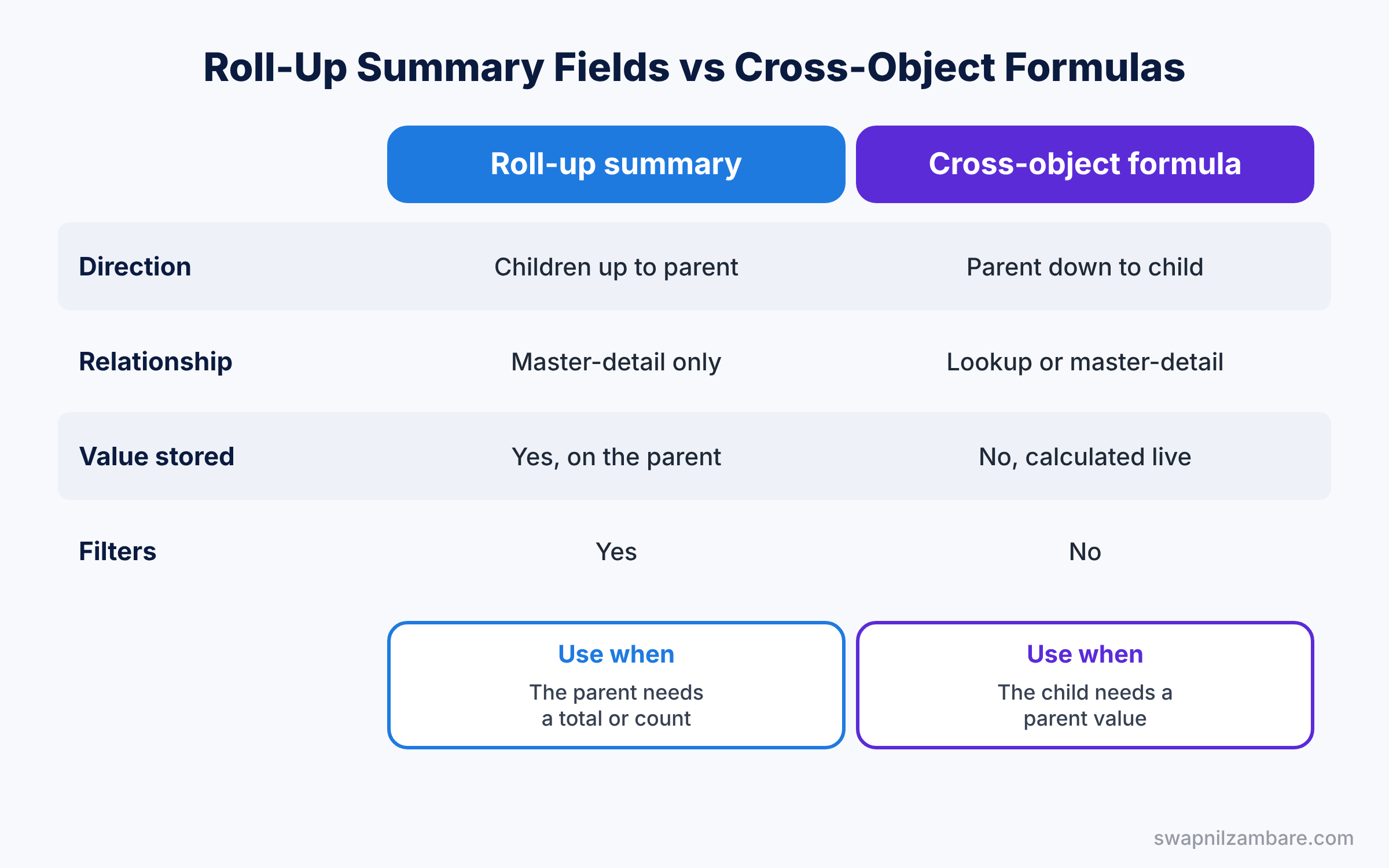
Beginners often mix up the two tools, because both use related records. The table below compares them.
| Feature | Roll-up summary field | Cross-object formula |
|---|---|---|
| Direction | Children up to parent | Parent down to child |
| Relationship needed | Master-detail | Lookup or master-detail |
| Value stored | Yes, saved on the parent | No, calculated when read |
| Can filter records | Yes | No |
| Best for | Totals, counts, highest values | Showing parent details on children |
In short, use Salesforce Roll-Up Summary Fields when the parent needs a total. Use a cross-object formula when the child needs to show a parent value.
Hands-on Example: Salesforce Roll-Up Summary Fields for Courses
Let’s add the fields in your Developer Edition org.
Step 1: Create a SUM roll-up
- Go to Setup, then Object Manager, then Course, then Fields and Relationships, and click New.
- Choose Roll-Up Summary and name it “Total Fees Collected”.
- Pick Enrollments as the summarized object, choose SUM, and select Fee Paid. Save.
Step 2: Create a filtered COUNT roll-up
- Create another roll-up called “Paid Enrollments” with COUNT on Enrollments.
- Under filter criteria, choose “Only records meeting certain criteria” and add Fee Paid greater than 0. Save.
- Then create “Highest Payment” with MAX on Fee Paid.
Step 3: Add a progress formula on Course
A formula on the same object can use roll-up fields. Create a Percent formula field called “Collection Percent” with the formula below.
IF(
  Fee__c * Total_Enrollments__c = 0,
  0,
  Total_Fees_Collected__c / (Fee__c * Total_Enrollments__c)
)
The IF stops a divide-by-zero error when a course has no enrollments yet. For example, a new Robotics course with zero students would show an error on its page without this check. With it, the field simply shows 0%.
Step 4: Add cross-object formulas on Enrollment
- Open Object Manager, then Enrollment, and create a Currency formula called “Balance Due” with the formula below.
Course__r.Fee__c - Fee_Paid__c- Then create a Text formula called “School Name” with the formula below.
Student__r.Account.NameCourse__r follows the master-detail field to the Course, and Student__r follows the Student field to the Contact. Then Account.Name goes one more level up to the school.
Step 5: Check the totals with SOQL
Developers can confirm the roll-ups with this aggregate SOQL query on the child.
SELECT Course__r.Name, SUM(Fee_Paid__c) total, COUNT(Id) seats
FROM Enrollment__c
GROUP BY Course__r.Name
The result should match the parent fields from this second query.
SELECT Name, Total_Fees_Collected__c, Paid_Enrollments__c, Collection_Percent__c
FROM Course__c
ORDER BY Total_Fees_Collected__c DESC
The result might look like this.
Name             Total_Fees_Collected__c  Paid_Enrollments__c  Collection_Percent__c
Spoken English   96000                    11                   88.89
Python for Kids  45000                    5                    100
Common Mistakes with Salesforce Roll-Up Summary Fields
- Using a lookup relationship. Roll-ups need master-detail, so plan the relationship first.
- Summing a field that uses TODAY. Salesforce blocks it, so use a stored field instead.
- Forgetting filters. Free or cancelled records then inflate the totals.
- Dividing by zero in formulas. Always wrap the division in an IF check.
- Changing roll-ups at peak hours. Recalculation can slow down big objects for a while.
Best Practices for Salesforce Roll-Up Summary Fields
- Name fields by their meaning. “Paid Enrollments” is clearer than “Enrollment Count 2”.
- Add help text. Explain the filter, such as “Counts enrollments with a payment”.
- Use flows for lookups. Our flow types guide shows how a record-triggered flow can total lookup children.
- Keep formulas short. Long chains across many objects are hard to read and slow reports.
- Show the fields on layouts. Totals help most when users see them on the record page.
Practice Task
Add a “Lowest Payment” roll-up with MIN on Fee Paid, filtered to Fee Paid greater than 0. Then add a cross-object formula on Enrollment that shows the Course Level.
Hint: Level is a picklist, so wrap it with TEXT(Course__r.Level__c) in the formula.
Salesforce Roll-Up Summary Fields FAQ
Can I create a roll-up on a standard object?
Yes, on some standard relationships, such as Opportunities on Account and Opportunity Products on Opportunity.
Can a cross-object formula read child records?
No. Formulas only read parent records, so use a roll-up or a flow for children.
Do roll-ups update when a child is deleted?
Yes. Deleting or undeleting a child recalculates the parent’s roll-up value.
Official Resources
- Roll-Up Summary Field (Salesforce Help)
- Implement Roll-Up Summary Fields (Trailhead)
- Formula Operators and Functions (Salesforce Help)
Quick Recap
- Salesforce Roll-Up Summary Fields total child records on the parent.
- COUNT, SUM, MIN and MAX are the four roll-up types.
- Filters decide which children count, like paid enrollments only.
- Cross-object formulas bring parent values down to child records.
- Roll-ups need master-detail, while formulas work with lookups too.
What’s Next?
Your data now totals and links itself. Next, we return to security and learn a cleaner way to bundle permissions for each job role. Read Salesforce Permission Set Groups and Muting Permission Sets.


