Salesforce Dynamic Dashboards show each viewer the data they are allowed to see, so one dashboard can serve a whole sales team. Rahul sees his own pipeline, Neha sees hers, and their manager sees the team total, all from the same dashboard. In our reports and dashboards guide, you built a dashboard that showed the same numbers to everyone. Now you will make it personal.
In this post, you will learn how the running user decides what a dashboard shows, how dynamic dashboards differ from standard ones, and how dashboard filters let viewers slice the data with one click. Then you will build a “My Pipeline” dashboard for Bright Path Tutors with a Region filter. The ideas here depend on record access, so our sharing and roles guide is a good refresher.
What are Salesforce Dynamic Dashboards?
Every dashboard runs as one user, called the running user. The dashboard shows the data that this user can see. A dynamic dashboard sets the running user to the person viewing it, so the data changes with each viewer.
Here is a simple analogy. Think of a school notice board with a mirror in the middle. Everyone who looks into it sees their own face, not the principal’s. A dynamic dashboard works like that mirror, while a standard dashboard is like a printed photo that shows the same face to all.
A dashboard filter is a dropdown at the top of the dashboard. It lets viewers narrow every chart at once, for example to show only West India or only Q2.
Why Salesforce Dynamic Dashboards Matter
Without dynamic dashboards, admins often build one dashboard per rep. With ten reps, that means ten dashboards to update every time the sales process changes. Dynamic dashboards replace all of them with one.
Here are some real situations at Bright Path Tutors.
- Each rep wants to see only their own open deals and closed revenue.
- The Sales Manager wants the same charts, but for the whole team.
- The CEO wants to switch between regions without opening different dashboards.
- Data privacy matters, so reps must not see deals of other teams.
So dynamic dashboards save admin time and keep the data private at the same time.
How Salesforce Dynamic Dashboards Work
Each time a dashboard refreshes, Salesforce follows the same steps. First, it checks the View Dashboard As setting to find the running user. Next, it runs each source report as that user, so record access, sharing and field security apply. Then it draws each chart with the results. Finally, if a dashboard filter is selected, it narrows every matching chart to the chosen value.
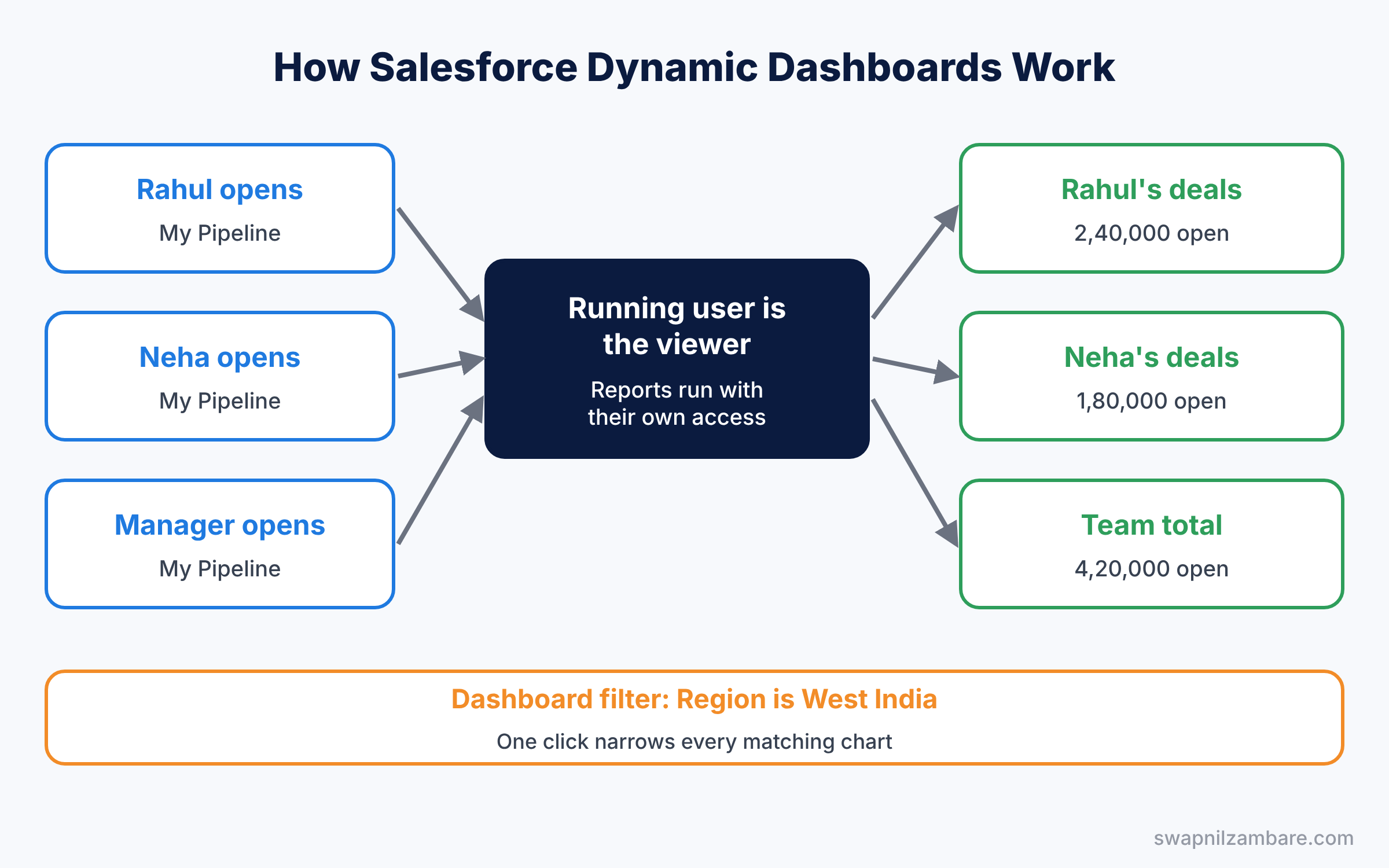
The key idea is simple. The dashboard design stays the same, but the running user changes, and that changes the data.
Key Parts of Salesforce Dynamic Dashboards
The View Dashboard As setting
First, the View Dashboard As setting in Dashboard Properties has three choices. “Me” runs as you, “Another person” runs as a chosen user, and “The dashboard viewer” makes it dynamic. Only the last option changes the data for each viewer.
Letting viewers change the running user
Next, you can tick “Let dashboard viewers choose whom they view the dashboard as”. Managers with the View My Team’s Dashboards permission can then pick a team member and see that person’s view. Users with View All Data can pick anyone.
Limits on dynamic dashboards
Then remember that each org can have only a small number of dynamic dashboards, based on its edition. Also, dynamic dashboards cannot be scheduled to refresh, so viewers refresh them by hand. So save this option for dashboards that many people really use.
Dashboard filters
Dashboard filters add a dropdown at the top of the dashboard. You can add up to three filters, and each one uses a field that the source reports share, like Region or Close Date. A component ignores a filter when its report does not contain that field.
Filter values
Finally, each filter has a list of values or ranges, with labels you choose. For example, the Amount filter could offer “Under 1 Lakh” and “1 Lakh and above”. Viewers pick a value, and every matching chart updates at once.
The table below shows what each View Dashboard As option means for Rahul, Neha and their manager.
| View Dashboard As | Rahul sees | Manager sees |
|---|---|---|
| Me (the admin) | Admin’s data | Admin’s data |
| Another person: Rahul | Rahul’s data | Rahul’s data |
| The dashboard viewer | Rahul’s data | Whole team’s data |
Dynamic Dashboards vs Standard Dashboards
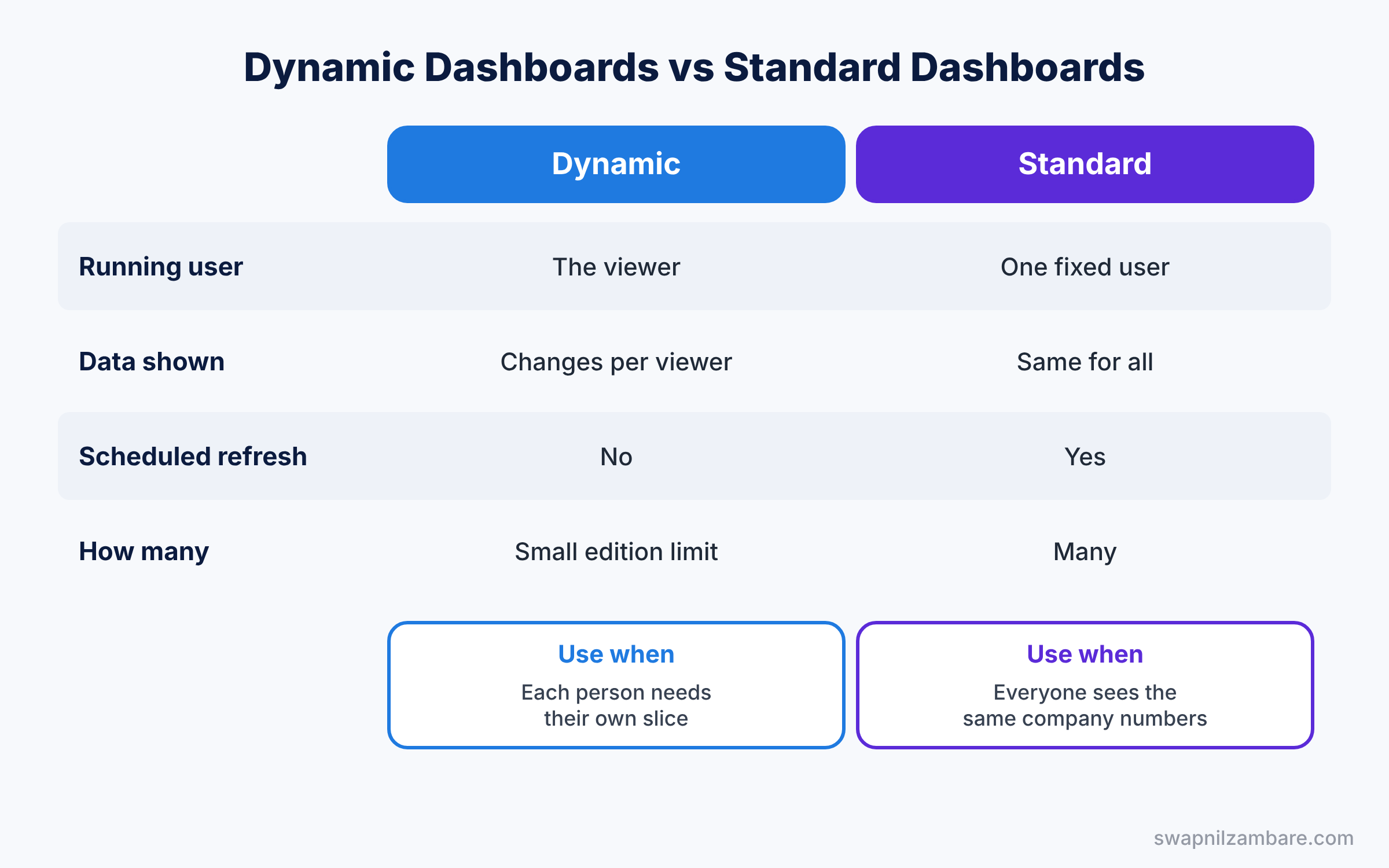
Both types look the same on screen, so the difference can surprise beginners. The table below compares them.
| Feature | Dynamic dashboard | Standard dashboard |
|---|---|---|
| Running user | The person viewing it | One fixed user |
| Data shown | Changes per viewer | Same for everyone |
| Scheduled refresh | No | Yes |
| Number allowed | Small limit per edition | Many |
| Best for | Personal team views | Company-wide numbers |
In short, use a standard dashboard when everyone should see the same company numbers. Choose Salesforce Dynamic Dashboards when each person should see only their own slice of the data.
Hands-on Example: Salesforce Dynamic Dashboards for Sales Reps
Let’s build a personal pipeline dashboard in your Developer Edition org.
Step 1: Prepare the source report
- Open the Reports tab and create an Opportunities report called “Pipeline by Stage”.
- Set Show Me to All opportunities, group rows by Stage, and add a Region field from the account if you have one.
- Save it in a shared folder that the sales team can view.
Running as the viewer already limits the data to what each person can see. So the report itself can show all opportunities.
Step 2: Create the dashboard
- Open the Dashboards tab, click New Dashboard, name it “My Pipeline”, and pick a shared folder.
- Add three components using the values in the table below.
| Component | Source report | Chart type |
|---|---|---|
| Open Pipeline | Pipeline by Stage | Donut, by Stage |
| Closed This Month | Closed Won This Month | Metric, sum of Amount |
| Deals by Close Month | Pipeline by Stage | Vertical bar, by Close Date |
Step 3: Make it dynamic
- Click the gear icon to open Dashboard Properties.
- Under View Dashboard As, choose The dashboard viewer.
- Tick “Let dashboard viewers choose whom they view the dashboard as” for managers. Save.
Step 4: Add a dashboard filter
- Click Add Filter, choose the Region field, and set the display label to “Region”.
- Add the values West India and North India, then click Add and save the dashboard.
Step 5: Test as different users
- Log in as Rahul Verma and open My Pipeline. He should see only his deals.
- Then log in as the Sales Manager and choose Rahul from the View Dashboard As menu.
Admins can count dynamic dashboards with this SOQL query, which helps when you hit the limit.
SELECT Title, Type, FolderName, LastModifiedDate
FROM Dashboard
WHERE Type IN ('LoggedInUser', 'MyTeamUser')
ORDER BY Title
The result might look like this.
Title           Type          FolderName       LastModifiedDate
My Pipeline     MyTeamUser    Sales Dashboards 2026-06-19
Support Queue   LoggedInUser  Support Team     2026-05-12
LoggedInUser means the dashboard runs as the viewer. MyTeamUser means it is dynamic and managers can also choose a team member.
Common Mistakes with Salesforce Dynamic Dashboards
- Saving in a private folder. Other users cannot open the dashboard at all.
- Report filter set to My opportunities. Managers then see only their own deals, not the team’s.
- Expecting a scheduled refresh. Dynamic dashboards must be refreshed by the viewer.
- Forgetting field access. If a rep cannot see a field, charts that use it stay empty for them.
- Filters on fields the report lacks. The component then ignores the filter, which confuses viewers.
Best Practices for Salesforce Dynamic Dashboards
- Plan the limit. Use dynamic dashboards only where many people need a personal view.
- Keep source reports broad. Let sharing do the filtering, so one report serves everyone.
- Use clear filter labels. “Region: West India” is easier than a long field name.
- Test as real users. Our user management guide shows how to log in as another user safely.
- Add a title that says whose data it is. For example, “My Pipeline” tells viewers the data is personal.
Practice Task
Add a second filter for Close Date with the values This Quarter and Next Quarter. Then view the dashboard as Neha Joshi and check that every chart updates.
Hint: date filters use ranges, so pick the relative values from the list.
Salesforce Dynamic Dashboards FAQ
Can I email a dynamic dashboard on a schedule?
No. Dynamic dashboards cannot be scheduled, so viewers open and refresh them when they need them.
Do dashboard filters change the source report?
No. Filters only change what the dashboard shows, and the report stays the same.
Can dashboard filters use any field?
They can use fields that the source reports have in common, like Region or Close Date.
Official Resources
- Analyze Your Data with Reports and Dashboards (Salesforce Help)
- Dynamic Dashboard Limits (Salesforce Help)
- Reports and Dashboards for Lightning Experience (Trailhead)
Quick Recap
- Salesforce Dynamic Dashboards run as the person viewing them.
- The running user’s access decides which records each chart shows.
- Managers can view the dashboard as a team member when allowed.
- Dashboard filters narrow every matching chart with one click.
- Dynamic dashboards have an edition limit and no scheduled refresh.
What’s Next?
Your dashboards now give each person their own view. Next, we return to the data model and learn how to total child records and pull parent data into formulas. Read Salesforce Roll-Up Summary Fields and Cross-Object Formulas. You can also revisit joined reports to add them to this dashboard.


