Salesforce Joined Reports show several reports side by side in one view, grouped by a common field such as Account Name. Each part, called a block, can use a different report type. So you can compare deals and support cases for the same school on one page. In our custom report types guide, you shaped the data behind a report. Now you will learn three tools that make reports far more useful without creating a single new field.
In this post, you will learn how joined reports, bucket fields and summary formulas work, and when to use each one. Then you will build a “School Health” joined report for Bright Path Tutors, add size buckets to opportunities, and calculate the average deal size. You should already know report formats from our reports and dashboards guide.
What are Salesforce Joined Reports?
A joined report is a report format that holds up to five blocks. Each block is like a small report with its own report type, columns and filters. The blocks share a common grouping, so rows for the same account line up across all blocks.
Here is a simple analogy. Think of a school report card. One section shows marks, another shows attendance, and a third shows sports results. They come from different registers, but they are all grouped by the same student. A joined report does the same for your data.
Bucket fields and summary formulas often travel with joined reports. A bucket field sorts values into groups, like Small, Medium and Large, without a new custom field. A summary formula calculates a number from report totals, like average fee per enrollment.
Why Salesforce Joined Reports Matter
Managers rarely ask a question that one object can answer. They ask things like “Which schools buy a lot but also raise many complaints?” That needs opportunities and cases together.
Here are some real situations at Bright Path Tutors.
- The CEO wants each school’s open pipeline next to its open cases.
- Sales managers want deals grouped as Small, Medium and Large without asking for a new field.
- Finance wants the average deal size per rep, shown as a number on the report.
- The support manager wants won revenue as a percentage of the total for each region.
In short, these tools answer real business questions in minutes, without a developer.
How Salesforce Joined Reports Work
You build a joined report in a clear order. First, you create a report with any report type, such as Opportunities. Next, you change the format to Joined Report. Then you add a second block with another report type, such as Cases. After that, you group all blocks by a field they share, like Account Name. Finally, you add columns, filters and formulas to each block, and save.
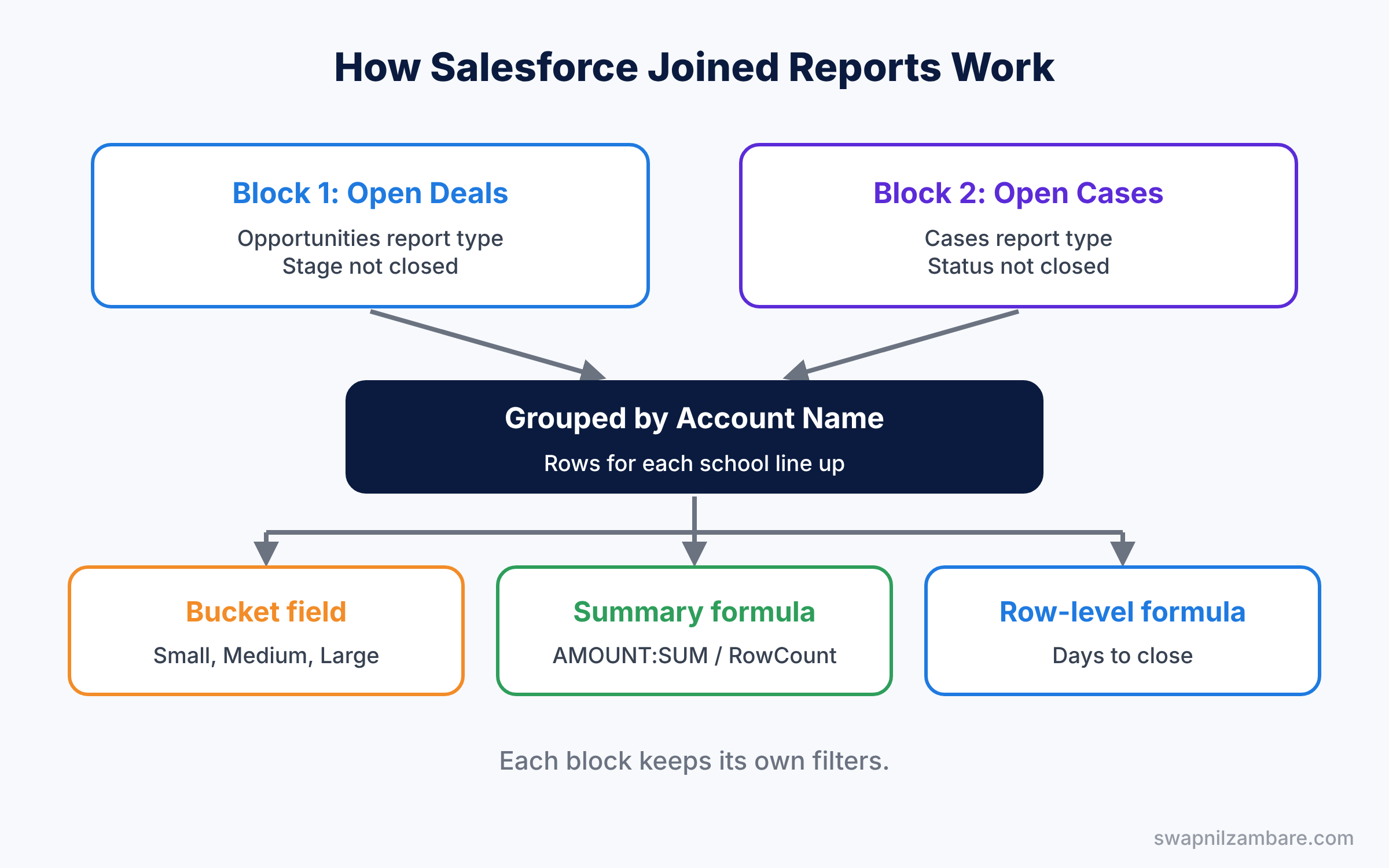
Each block keeps its own filters. So the Opportunities block can show only open deals, while the Cases block shows only open cases.
Key Parts of Salesforce Joined Reports
Blocks in joined reports
First, a block is one part of the joined report. You can have up to five blocks, and each can use a different report type. You can also use the same report type twice, with different filters, such as Open deals and Won deals.
Common groupings
Next, a common grouping is a field that every block’s report type contains. Account Name is the usual choice, because opportunities, cases and contacts all link to accounts. Without a common grouping, the blocks do not line up. Also, if a school has deals but no cases, its row still appears, with the Cases block left empty. This gap is often the most useful part of the report, because it shows schools that never contact support.
Bucket fields
Then bucket fields group values into named buckets. You can bucket numbers, picklist values or text. For example, Amount up to 50,000 becomes Small, and Amount above 2,00,000 becomes Large. The bucket only lives inside that report, so nothing changes in your data model.
Summary formulas
A summary formula works on totals, such as the sum of Amount or the record count. For example, the formula below gives the average deal size for each group.
AMOUNT:SUM / RowCountRow-level formulas
Finally, a row-level formula calculates a value for each row, like a temporary formula field. For example, this formula shows how many days each deal took to close.
CLOSE_DATE - DATEVALUE(CREATED_DATE)The table below sums up the three report tools.
| Tool | Works on | Example |
|---|---|---|
| Bucket field | One field’s values | Amount into Small, Medium, Large |
| Summary formula | Group totals | Average deal size per rep |
| Row-level formula | Each row | Days from created to closed |
Joined Reports vs Summary Reports
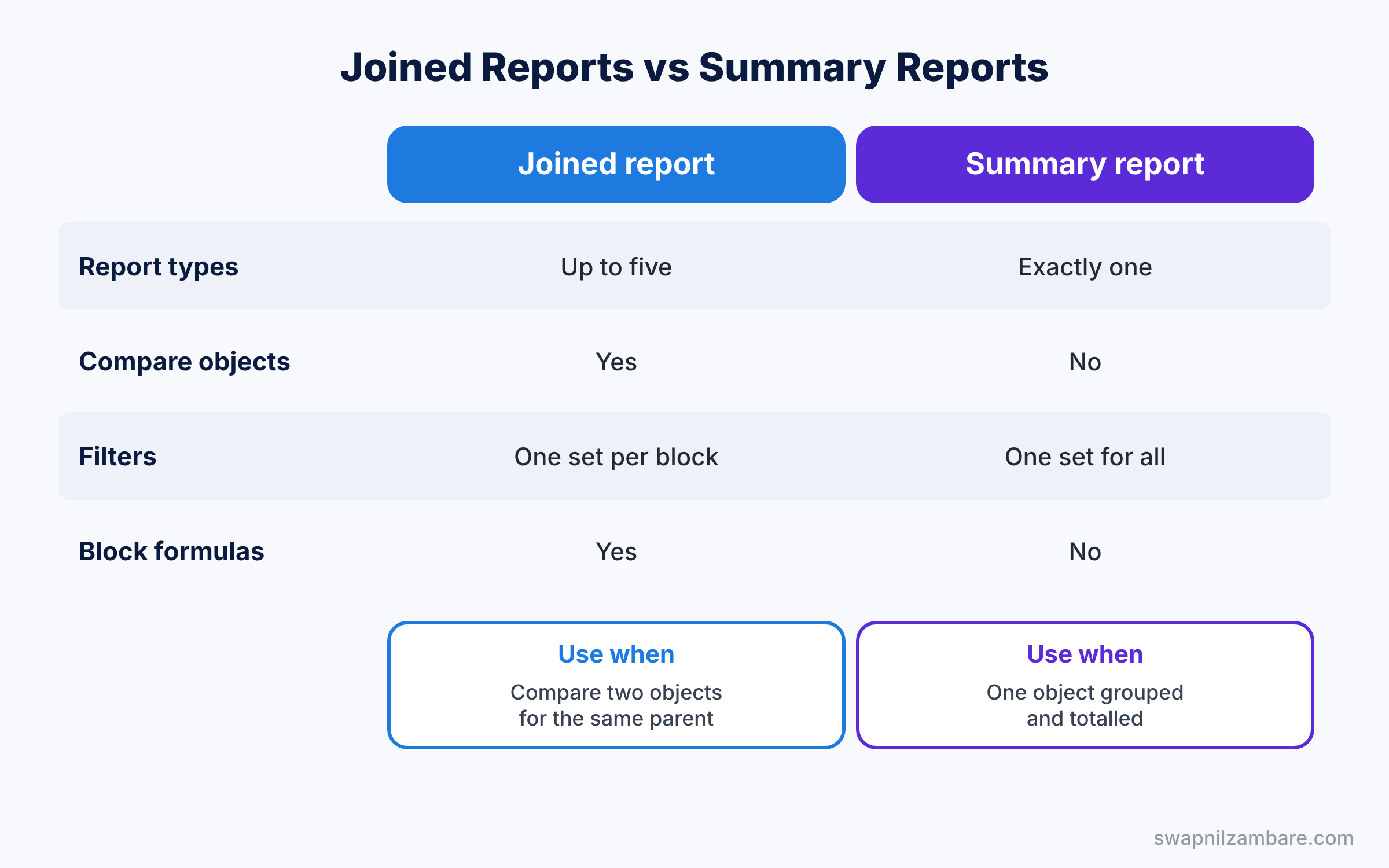
Joined reports are powerful, but a summary report is often enough. The table below compares them.
| Feature | Joined report | Summary report |
|---|---|---|
| Report types used | Up to five, one per block | Exactly one |
| Compare different objects | Yes | No |
| Filters | Separate for each block | One set for all rows |
| Cross-block formulas | Yes | No |
| Best for | Side-by-side comparisons | One object grouped and totalled |
In short, use a summary report for one object. Choose Salesforce Joined Reports when you must compare two or more objects for the same parent record.
Hands-on Example: Salesforce Joined Reports for School Health
Let’s build the report in your Developer Edition org.
Step 1: Create the first block
- Open the Reports tab, click New Report, choose Opportunities, and click Start Report.
- Add a filter for Stage not equal to Closed Won and Closed Lost, so only open deals show.
- Keep the columns Opportunity Name, Amount and Close Date.
Step 2: Change the format and add a block
- In the report builder, click the Report format menu at the top left and choose Joined Report.
- Click Add Block, choose the Cases report type, and click Add Block again to confirm.
- In the Cases block, add a filter for Status not equal to Closed, and keep Subject, Priority and Status.
Step 3: Group by account
- In the Group Across Blocks area, add Account Name.
- Rename the blocks to “Open Deals” and “Open Cases” by clicking each block name.
Step 4: Add a bucket field to the deals block
- In the Open Deals block, open the column menu on Amount and click Bucket This Column.
- Name it “Deal Size” and create the buckets from the table below.
| Bucket name | Amount range |
|---|---|
| Small | Up to 50,000 |
| Medium | 50,000 to 2,00,000 |
| Large | Above 2,00,000 |
Step 5: Add a summary formula
- In the Open Deals block, click Add Summary Formula and name it “Average Deal”.
- Enter the formula below, set the format to Currency with 0 decimals, and apply it at all summary levels.
AMOUNT:SUM / RowCount- Then add a second formula called “Share of Pipeline” with the formula below, formatted as a percent.
AMOUNT:SUM / PARENTGROUPVAL(AMOUNT:SUM, GRAND_SUMMARY)PARENTGROUPVAL reads the total from a higher grouping level, here the grand total. So each school shows its share of the whole open pipeline. Save the report as “School Health” in a shared folder.
Common Mistakes with Salesforce Joined Reports
- No common grouping. The blocks then show separate lists that do not line up.
- One filter for everything. Each block needs its own filters, or closed deals sneak in.
- Dividing by zero. Wrap formulas in IF(RowCount = 0, 0, …) when a group can be empty.
- Using buckets for permanent data. If many reports need the same groups, a formula field is better.
- Too many blocks. Five blocks with many columns are hard to read on a laptop.
Best Practices for Salesforce Joined Reports
- Name each block clearly. “Open Deals” is better than “Opportunities block 1”.
- Keep two or three blocks. Most questions need only a simple comparison.
- Reuse the same bucket names. Small, Medium and Large should mean the same in every report.
- Format formula results. Currency and percent formats make numbers easy to read.
- Add charts on dashboards. Our opportunities guide explains the stages these charts usually show.
Practice Task
Add a third block to School Health using the Contacts report type, and count contacts for each school. Then add a summary formula that shows open cases per contact.
Hint: cross-block formulas are added from the Group Across Blocks area, not from inside a single block.
Salesforce Joined Reports FAQ
Can a dashboard use a joined report?
Yes. You can show a joined report on a dashboard with a chart, as long as the report has a chart added.
Do bucket fields change my data?
No. A bucket only exists inside the report where you create it.
How many row-level formulas can a report have?
A report can have one row-level formula, so use it for the calculation that matters most.
Official Resources
- Create a Joined Report (Salesforce Help)
- Summary Formulas with Joined Reports (Salesforce Help)
- Reports and Dashboards for Lightning Experience (Trailhead)
Quick Recap
- Salesforce Joined Reports show up to five blocks side by side.
- Blocks line up through a common grouping, like Account Name.
- Bucket fields group values without creating a new field.
- Summary formulas calculate from totals, like average deal size.
- Row-level formulas calculate a value for each row.
What’s Next?
Your reports now answer harder questions. Next, learn how to build one dashboard that shows each viewer their own numbers. Read Salesforce Dynamic Dashboards and Dashboard Filters.


