
Salesforce Opportunities track the deals your team is working on, from the first conversation to a signed order or a lost deal. An opportunity says what you hope to sell, how much it is worth and when it may close. In our accounts and contacts guide, you set up partner schools and their people. Now you will track the training deals you make with those schools.
In this post, you will learn the key opportunity fields, how stages, probability and forecast categories work together, how a sales process gives each team its own stages, and how Path and opportunity teams guide reps. Then you will build a school training sales process for Bright Path Tutors. Good opportunity data is what sales managers use to forecast revenue, so it is worth setting up carefully.
What are Salesforce Opportunities?
An opportunity is a possible sale that is linked to an account. It has a name, an amount, a close date and a stage. For example, “Green Valley North, Spoken English for 40 students, 2,00,000 rupees, closing 30 June, stage Proposal”.
As the deal moves forward, the rep updates the stage. Finally, the opportunity ends as Closed Won or Closed Lost. Reports then show how many deals you won, how much revenue they bring and why you lost the others.
Here is a simple analogy. Think of a train trip with fixed stations. Each station is a stage, like Qualification, Demo and Proposal. The train moves from station to station until it reaches the final stop, which is either “won” or “lost”.
Why Salesforce Opportunities Matter
Without opportunities, sales managers only learn about deals when money arrives. So they cannot plan trainers, rooms or targets. Opportunities give them an early view of what is coming.
Here are some real situations at Bright Path Tutors.
- The sales manager wants to know the total value of school deals closing this quarter.
- A new rep needs clear guidance on what to do at each step of a school deal.
- Two people work on one big deal, and both need access and credit.
- Management wants to know why deals are lost, so they can improve the offer.
Also, opportunities connect to products, quotes and forecasts. We cover those in the next post.
How Salesforce Opportunities Work
The flow is the same for every deal. First, a rep creates the opportunity, often during lead conversion. Next, the rep moves it through the stages of its sales process. Each stage sets a default probability and a forecast category. Then the deal closes as won or lost, and reports and forecasts update straight away.
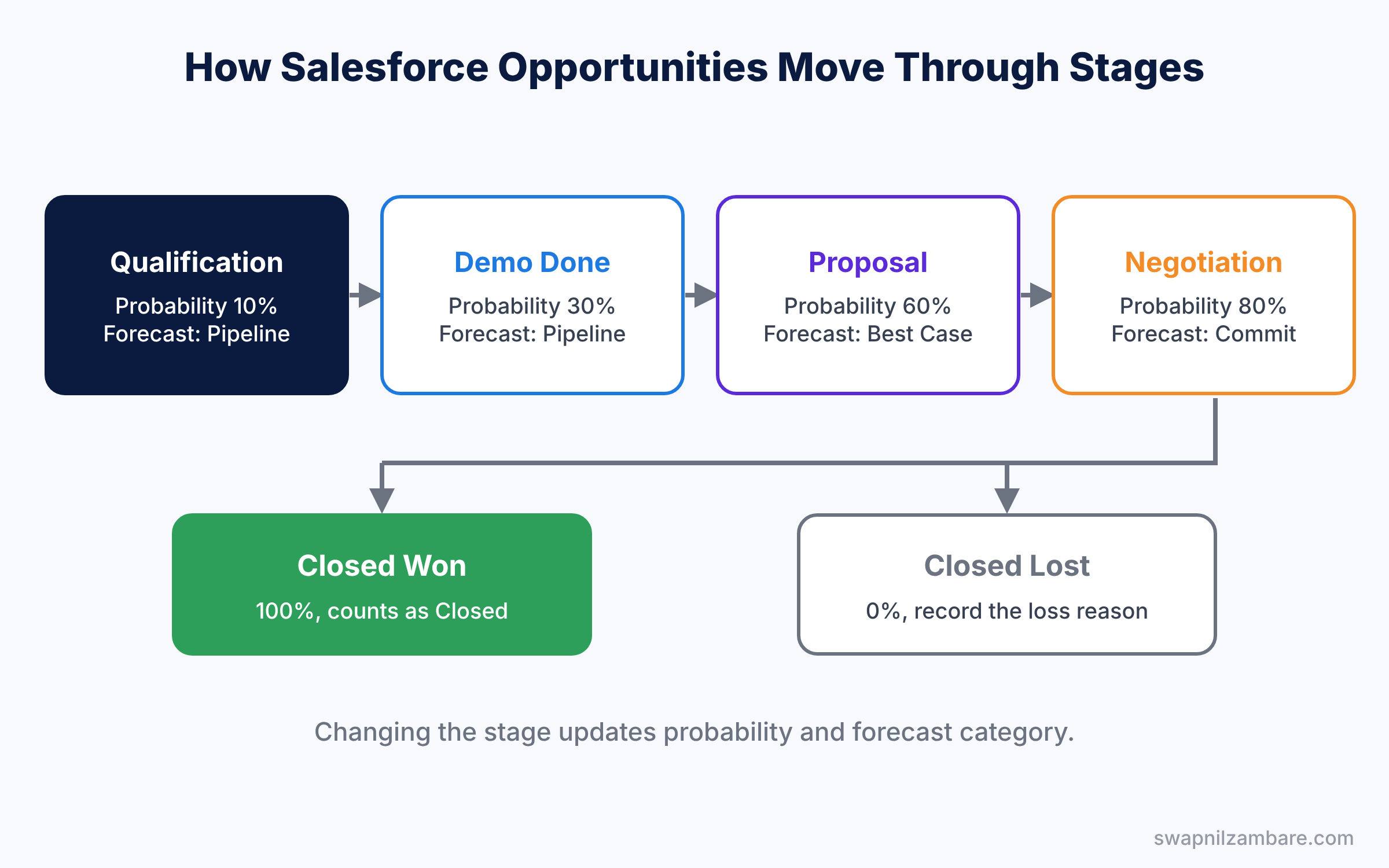
The Stage field drives most of this. When a rep changes the stage, Salesforce updates Probability and Forecast Category for them. As a result, managers get consistent numbers without asking reps to guess.
Key Parts of Salesforce Opportunities
Key opportunity fields
The table below lists the fields you will use most often.
| Field | What it means | Example |
|---|---|---|
| Opportunity Name | A short, clear deal name | Green Valley North, Spoken English |
| Account Name | The customer for this deal | Green Valley School North |
| Amount | Expected value of the deal | 200000 |
| Close Date | When you expect to close | 30 June 2026 |
| Stage | Where the deal is now | Proposal |
| Probability (%) | Chance of winning, set by stage | 60 |
| Forecast Category | How the deal counts in forecasts | Best Case |
Stages, probability and forecast category
First, admins define the stage values in the Opportunity Stage picklist. Each value has a type (Open, Closed Won or Closed Lost), a probability and a forecast category. For instance, Proposal might be 60% and Best Case, while Negotiation might be 80% and Commit.
Sales processes in Salesforce Opportunities
Next, a sales process picks which stages a team uses. For example, school deals may need Demo and Pilot stages, while parent deals skip them. You link each sales process to an opportunity record type, as we explained in our record types guide.
Path
Then Path adds a visual bar at the top of the record that shows each stage. For every stage, you can show key fields and short guidance, like “Book a demo date and add the principal as a contact role”. So reps know exactly what to do next.
Opportunity teams
Finally, opportunity teams let several users work on one deal with set roles and access. Opportunity splits, which need teams, share revenue credit between team members, such as 70% for Asha and 30% for a trainer.
Salesforce Opportunities vs Leads
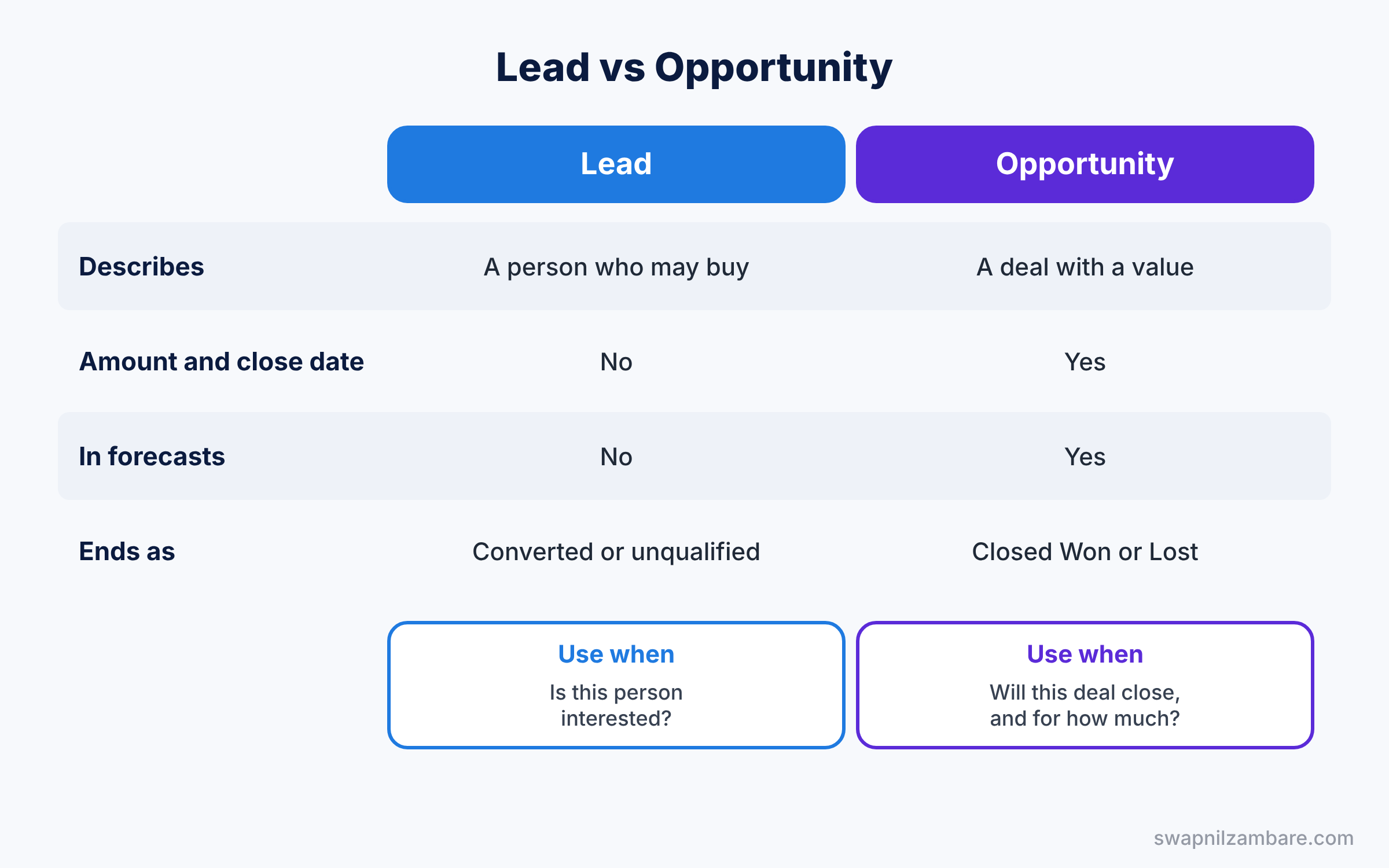
Leads and opportunities both describe possible sales, so beginners often mix them up. The table below compares them.
| Feature | Lead | Opportunity |
|---|---|---|
| Describes | A person who may buy | A specific deal with a value |
| Linked to an account | No | Yes, always |
| Has amount and close date | No | Yes |
| Appears in forecasts | No | Yes |
| Ends as | Converted or unqualified | Closed Won or Closed Lost |
In short, a lead asks “is this person interested?”. An opportunity asks “will this deal close, and for how much?”.
Hands-on Example: Salesforce Opportunities for School Deals
Let’s set up a school training sales process in your Developer Edition org.
Step 1: Add opportunity stages
- Go to Setup, then Object Manager, then Opportunity, then Fields and Relationships, then Stage.
- Click New and add the stages from the table below, if they do not exist already.
- Set the probability and forecast category for each one and save.
| Stage | Type | Probability | Forecast Category |
|---|---|---|---|
| Qualification | Open | 10 | Pipeline |
| Demo Done | Open | 30 | Pipeline |
| Proposal | Open | 60 | Best Case |
| Negotiation | Open | 80 | Commit |
| Closed Won | Closed/Won | 100 | Closed |
| Closed Lost | Closed/Lost | 0 | Omitted |
Step 2: Create the sales process and record type
- In Quick Find, type “Sales Processes” and click New. Name it “School Deals” and select the six stages above.
- Then go to Object Manager, Opportunity, Record Types, and create a record type called “School Deal” that uses the School Deals sales process.
- Make the record type available to the Sales profile.
Step 3: Turn on Path
- In Quick Find, type “Path Settings” and click Enable.
- Click New Path, choose Opportunity, the School Deal record type and the Stage field.
- For Demo Done, add the key fields Next Step and Amount, and the guidance “Confirm the number of students and the start date”.
- Activate the path and open a School Deal opportunity to see it.
Step 4: Add an opportunity team
- In Quick Find, type “Opportunity Team Settings” and tick Enable Team Selling. Add the Opportunity Team related list to the layout.
- On the Green Valley deal, add Rahul Verma as Trainer with Read Only access.
Step 5: Check the pipeline with SOQL
Developers can summarise the open pipeline by stage with this SOQL query.
SELECT StageName, COUNT(Id) deals, SUM(Amount) total
FROM Opportunity
WHERE IsClosed = false
GROUP BY StageName
The result might look like this.
StageName       deals   total
Qualification   6       540000
Demo Done       4       610000
Proposal        3       720000
Negotiation     1       200000
IsClosed = false removes won and lost deals. So the table shows only deals that are still in progress.
Common Mistakes with Salesforce Opportunities
- Old close dates. Deals with close dates in the past make forecasts wrong. Ask reps to update them every week.
- Too many stages. Eight or more stages confuse reps. Five to seven is usually enough.
- No loss reason. Add a required Loss Reason field for Closed Lost, so you can learn from lost deals.
- Creating opportunities without an account. Every deal needs a customer for reports to work.
- Editing probability by hand everywhere. Let the stage set it, so numbers stay consistent.
Best Practices for Salesforce Opportunities
- Use clear naming. “Account, Product, Month” is easy to scan in lists.
- Add guidance in Path. New reps learn the process faster.
- Review the pipeline weekly. A Kanban list view grouped by stage makes this quick.
- Track stage history. Field history on Stage shows how long deals sit in each stage, as covered in our field history guide.
- Use validation rules for key stages. For example, require Amount before Proposal.
Practice Task
Create a validation rule on Opportunity that blocks saving a deal in the Negotiation stage if Amount is blank.
Hint: use ISPICKVAL(StageName, “Negotiation”) together with ISBLANK(Amount).
Salesforce Opportunities FAQ
Can an opportunity have no amount?
Yes, but it then adds nothing to forecasts. It is better to enter your best estimate early and update it later.
Can I change the stage probability for one deal?
Yes, users can edit Probability on a record if field-level security allows it. However, most teams keep it read-only so numbers stay consistent.
Do Salesforce Opportunities work without products?
Yes. You can track just an amount. Products add detail about what you sell, which we cover next.
Official Resources
- Opportunity Fields (Salesforce Help)
- Guide Users with Path (Salesforce Help)
- Leads and Opportunities for Lightning Experience (Trailhead)
Quick Recap
- Salesforce Opportunities track deals with an amount, a close date and a stage.
- Each stage sets probability and forecast category automatically.
- A sales process picks the stages a team uses, through a record type.
- Path shows stages visually with key fields and guidance.
- Opportunity teams and splits share work and credit on big deals.
What’s Next?
Your deals now move through clear stages. Next, learn how to add what you sell and send a price quote. Read Salesforce Products and Price Books: Quotes and Forecasts.


