Salesforce Accounts and Contacts are the heart of every sales org, because they store the companies you work with and the people inside them. When you converted a lead in our lead management guide, Salesforce created one account and one contact. Now you will learn how to organise them properly as your customer list grows.
In this post, you will learn how accounts and contacts relate, how account hierarchies show parent companies and branches, how one contact can work with several accounts, and how account teams and contact roles show who does what. Then you will set all of this up for Bright Path Tutors and its partner schools. Clean account data makes every later step, like opportunities and cases, much easier.
What are Salesforce Accounts and Contacts?
An account is an organisation you do business with, such as a school, a company or a partner. A contact is a person who works at or with that account, such as the school principal or the IT teacher. Every contact usually has one main account, shown in the Account Name field.
So accounts answer “which organisation?” and contacts answer “which person?”. Opportunities, cases and activities then link to both, as you saw in our activities guide.
Here is a simple analogy. Think of your phone’s contact list grouped by company. The company name is the account. Each saved person under it is a contact. A big company with several offices is like a parent account with branch accounts under it.
Why Accounts and Contacts Matter
If accounts and contacts are messy, everything built on top of them is messy too. For example, a report of revenue by school is wrong if the same school exists three times. Also, a support agent cannot help a parent quickly if the parent’s contact record has no phone number.
Here are some real situations at Bright Path Tutors.
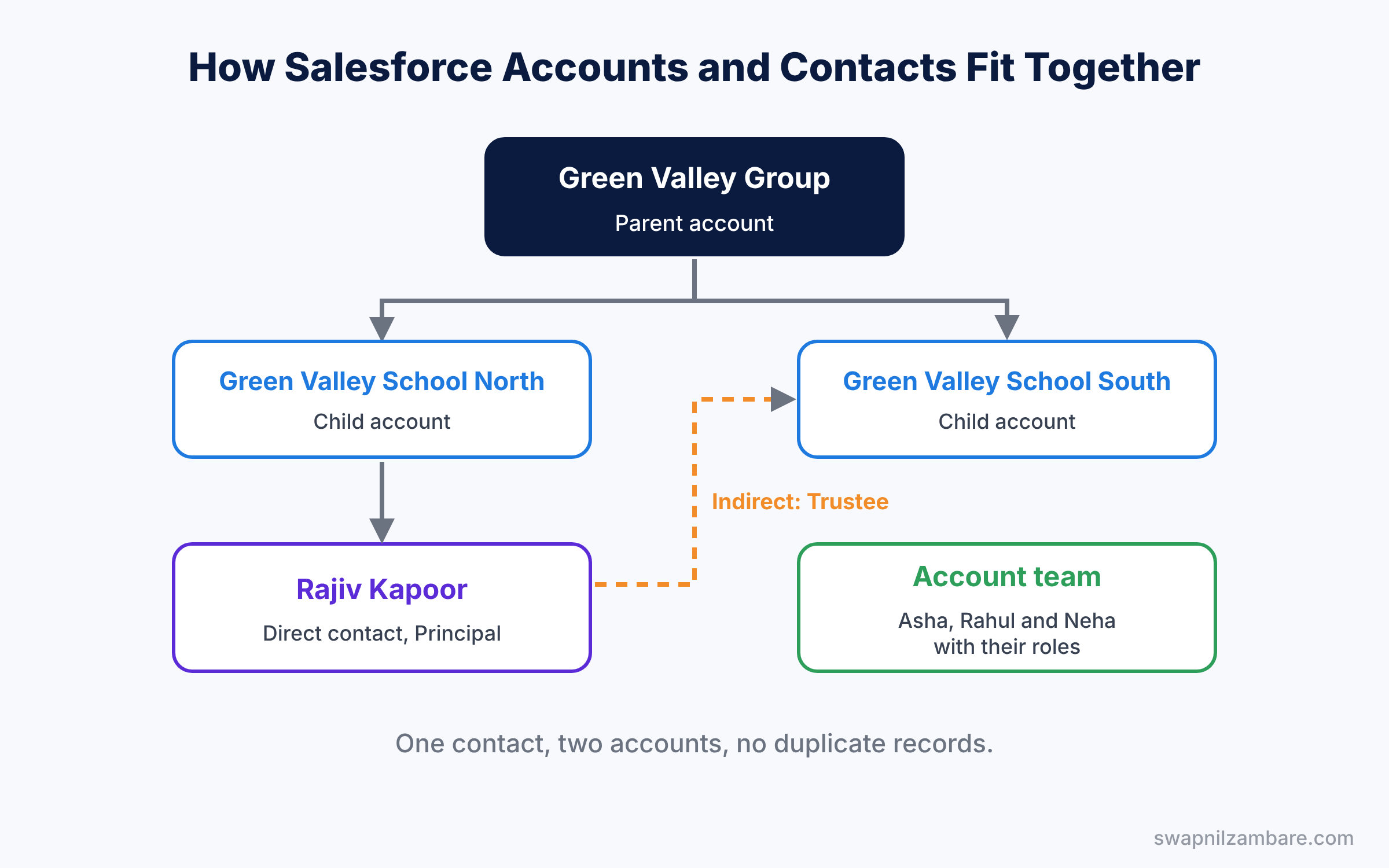
- Green Valley Group runs three schools, and the CEO wants revenue for the whole group and for each school.
- Mr Kapoor is the principal of one school and also a trustee of another.
- Asha owns the Green Valley account, but a trainer and a support agent also work on it.
- For each training deal, sales needs to know who decides and who only gives advice.
In short, a good account structure gives everyone the same, correct picture of each customer.
How Salesforce Accounts and Contacts Work
The structure has three layers. First, accounts can link to a parent account, which builds a hierarchy. Next, each contact has a primary account and can also relate to other accounts. Then account teams and opportunity contact roles describe how people are involved.
Ownership works in a simple way too. The account owner usually controls access, and contacts linked to an account follow the account’s sharing by default. So if Asha can see the Green Valley account, she can see its contacts as well, as covered in our sharing rules guide.
Key Features of Salesforce Accounts and Contacts
Account hierarchy
First, the Parent Account field links a branch to its head office. Salesforce then shows a View Account Hierarchy action. This lets you see the full tree of a customer group in one screen.
Contacts to Multiple Accounts
Next, the Contacts to Multiple Accounts setting lets one contact relate to several accounts. The main account is a direct relationship. Other accounts are indirect relationships, and each one can have its own role, like Trustee or Consultant.
Account teams
Also, account teams list the users who work on an account, each with a team role. For example, Asha is Account Manager, Rahul is Trainer and Neha is Support Lead. Team members can also get extra access to the account and its related records.
Contact roles on opportunities
Then contact roles show how each contact is involved in a deal. Common roles are Decision Maker, Economic Buyer and Influencer. One contact can be marked as Primary, which helps in reports.
Business accounts and person accounts
Finally, most orgs use business accounts with contacts under them. Person accounts combine an account and a contact for one individual, which suits companies that sell to single people. However, once enabled, person accounts cannot be turned off, so test them in a sandbox first.
The table below shows where you switch on each feature.
| Feature | Where in Setup | Default |
|---|---|---|
| Account hierarchy | Parent Account field, on by default | On |
| Contacts to Multiple Accounts | Feature Settings, Sales, Account Settings | Off |
| Account teams | Feature Settings, Sales, Account Teams | Off |
| Opportunity contact roles | Feature Settings, Sales, Contact Roles on Opportunities | On |
| Person accounts | Request from Salesforce Support | Off |
Business Accounts vs Person Accounts
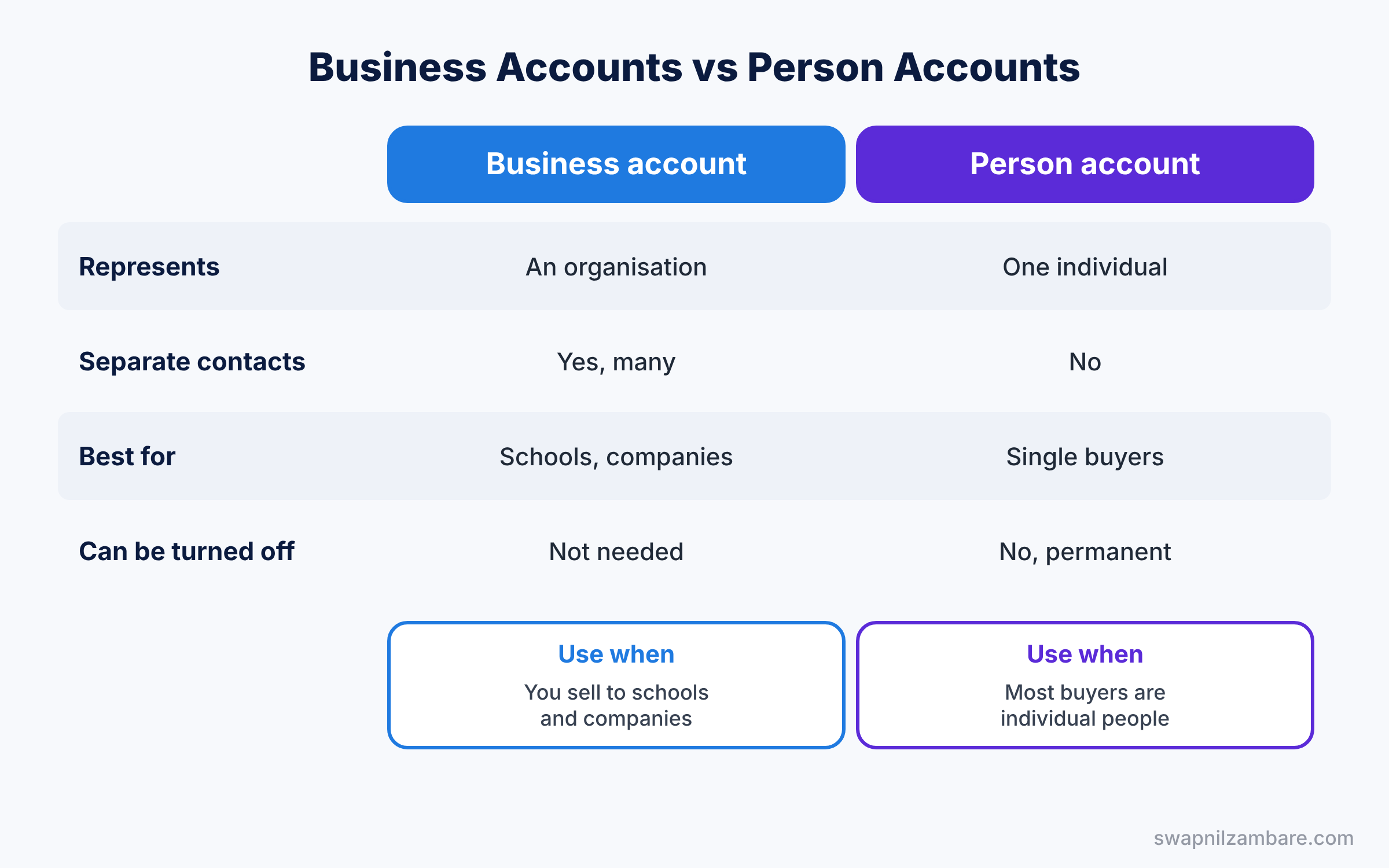
Many beginners wonder which account type to use. The table below compares them.
| Feature | Business account | Person account |
|---|---|---|
| Represents | An organisation | One individual |
| Has separate contacts | Yes, many per account | No, the person is both |
| Best for | Schools, companies, partners | Single parents, retail buyers |
| Can be switched off | Not needed | No, permanent once enabled |
| Used at Bright Path Tutors | Yes, for schools | Not for now |
In short, use business accounts when you sell to organisations. Consider person accounts only when most customers are individuals and you have tested them well.
Hands-on Example: Salesforce Accounts and Contacts for Partner Schools
Let’s set up a school group in your Developer Edition org. Use the account and contact you created in the lead post, or create new test records.
Step 1: Build an account hierarchy
- Open the Accounts tab and create an account named “Green Valley Group”.
- Create two more accounts, “Green Valley School North” and “Green Valley School South”.
- On each school, set Parent Account to Green Valley Group and save.
- Open Green Valley Group and click View Account Hierarchy from the actions menu.
Step 2: Relate one contact to two accounts
- In Setup, type “Account Settings” in Quick Find and tick Allow users to relate a contact to multiple accounts. Save.
- Add the Related Accounts list to the contact page layout and the Related Contacts list to the account page layout.
- Create the contact Rajiv Kapoor with Account Name set to Green Valley School North.
- On his record, open Related Accounts, click Add Relationship, pick Green Valley School South and set the role to Trustee.
Step 3: Set up an account team
- In Quick Find, type “Account Teams” and click Enable Account Teams. Add Trainer and Support Lead to the Team Role picklist.
- Add the Account Team related list to the account page layout.
- On Green Valley School North, click Add Team Members and enter the values from the table below.
| User | Team Role | Account Access |
|---|---|---|
| Asha Mehta | Account Manager | Read/Write |
| Rahul Verma | Trainer | Read Only |
| Neha Joshi | Support Lead | Read Only |
Step 4: Query accounts and contacts with SOQL
Developers can query the hierarchy with SOQL. This query lists child schools with their parent group.
SELECT Name, Parent.Name, Owner.Name
FROM Account
WHERE Parent.Name = 'Green Valley Group'
ORDER BY Name
This second query lists every contact related to a school, including indirect ones like trustees.
SELECT Contact.Name, Account.Name, Roles, IsDirect
FROM AccountContactRelation
WHERE Account.Name LIKE 'Green Valley%'
IsDirect is true for the contact’s main account. So Rajiv appears twice: once as direct for North and once as Trustee for South.
Common Mistakes with Salesforce Accounts and Contacts
- Creating duplicate accounts. Search before you create, and turn on duplicate rules for accounts.
- Using text instead of the Parent Account field. Typing “part of Green Valley” in a description breaks hierarchy reports.
- Contacts with no account. Private contacts are hidden from most users and drop out of reports.
- Enabling person accounts without testing. You cannot turn them off later.
- Giving account team members too much access. Use Read Only unless they really edit the account.
Best Practices for Salesforce Accounts and Contacts
- Agree on naming rules. For example, always write the full legal school name, then the branch.
- Keep one owner per account. A clear owner means clear responsibility.
- Use contact roles on every deal. Reports then show who really decides.
- Review accounts with no activity each quarter. Old records slow down search and reporting.
- Fill key fields with validation rules. Our validation rules guide shows how to require a phone number.
Practice Task
Create an account report that groups accounts by Parent Account and shows the number of child accounts in each group.
Hint: use the Accounts report type and group rows by Parent Account.
Salesforce Accounts and Contacts FAQ
Can a contact exist without an account?
Yes, but it becomes a private contact that only the owner and admins can see. So it is better to always link contacts to an account.
How deep can an account hierarchy go?
Hierarchies can have many levels. In practice, most companies use three or four levels, such as group, region and branch.
Do Salesforce Accounts and Contacts need Sales Cloud?
Accounts and contacts come with every Salesforce edition. Sales Cloud adds deal features like opportunities, forecasts and quotes on top of them.
Official Resources
- Manage Accounts and Contacts (Salesforce Help)
- Contacts to Multiple Accounts (Salesforce Help)
- Accounts and Contacts (Trailhead)
Quick Recap
- Salesforce Accounts and Contacts store the organisations and the people you work with.
- The Parent Account field builds hierarchies for groups and branches.
- Contacts to Multiple Accounts adds indirect relationships with roles.
- Account teams show which users work on an account.
- Contact roles show who decides and who influences each deal.
What’s Next?
Your accounts and contacts are in place. Next, learn how to track the deals you make with them. Read Salesforce Opportunities: Sales Process, Path and Opportunity Teams.


