Salesforce Lead Management is the process of capturing new enquiries, sending each one to the right person and turning good ones into real customers. Every sales team starts here, because a lead is the first record Salesforce creates for a possible buyer. In our queues and public groups guide, you built a Course Enquiries queue. Now you will fill that queue with real leads from a website form.
In this post, you will learn what a lead is, how Web-to-Lead captures enquiries, how lead assignment rules route them, and what happens when you convert a lead. Then you will build the full flow for Bright Path Tutors, from a website form to a new account, contact and opportunity. This is the first post in our Sales Cloud series, so we will keep every step simple.
What is Salesforce Lead Management?
A lead is a person or company that has shown interest but is not yet a customer. For example, a parent fills in “Tell me about weekend Python classes” on your website. Salesforce Lead Management covers everything that happens to that enquiry, from capture to conversion.
The main tools are Web-to-Lead, lead assignment rules, lead statuses, lead queues and lead conversion. They all come with Sales Cloud and need no code.
Here is a simple analogy. Think of the front desk of a coaching centre. Visitors leave their name and phone number in a register. The receptionist passes each entry to the right counsellor. When a visitor finally pays the fee, the counsellor opens a proper student file. A lead is the register entry, and conversion is opening the student file.
Why Lead Management Matters
Leads go cold quickly. So if nobody calls a parent within a day, they often join another institute. Good lead management makes sure every enquiry reaches a person fast and nothing gets lost in an inbox.
Here are some real situations at Bright Path Tutors.
- A parent submits the website form at 10 PM, and a counsellor should see it first thing next morning.
- Enquiries about school training should go to Asha, while parent enquiries go to the Course Enquiries queue.
- The sales manager wants to know how many leads came from Google Ads compared with referrals.
- Once a school agrees to a deal, the team needs an account, a contact and an opportunity without typing everything again.
Also, clean lead data feeds your reports. As a result, managers can see which marketing source brings the best customers, as you learned in our reports and dashboards guide.
How Salesforce Lead Management Works
The process follows a clear path. First, a lead arrives from a web form, an import, or manual entry. Next, a lead assignment rule checks the lead’s values and sets the owner to a user or a queue. Then the owner works the lead by calling, emailing and updating the Lead Status. Finally, a qualified lead is converted, and Salesforce creates an account, a contact and, if you want, an opportunity.
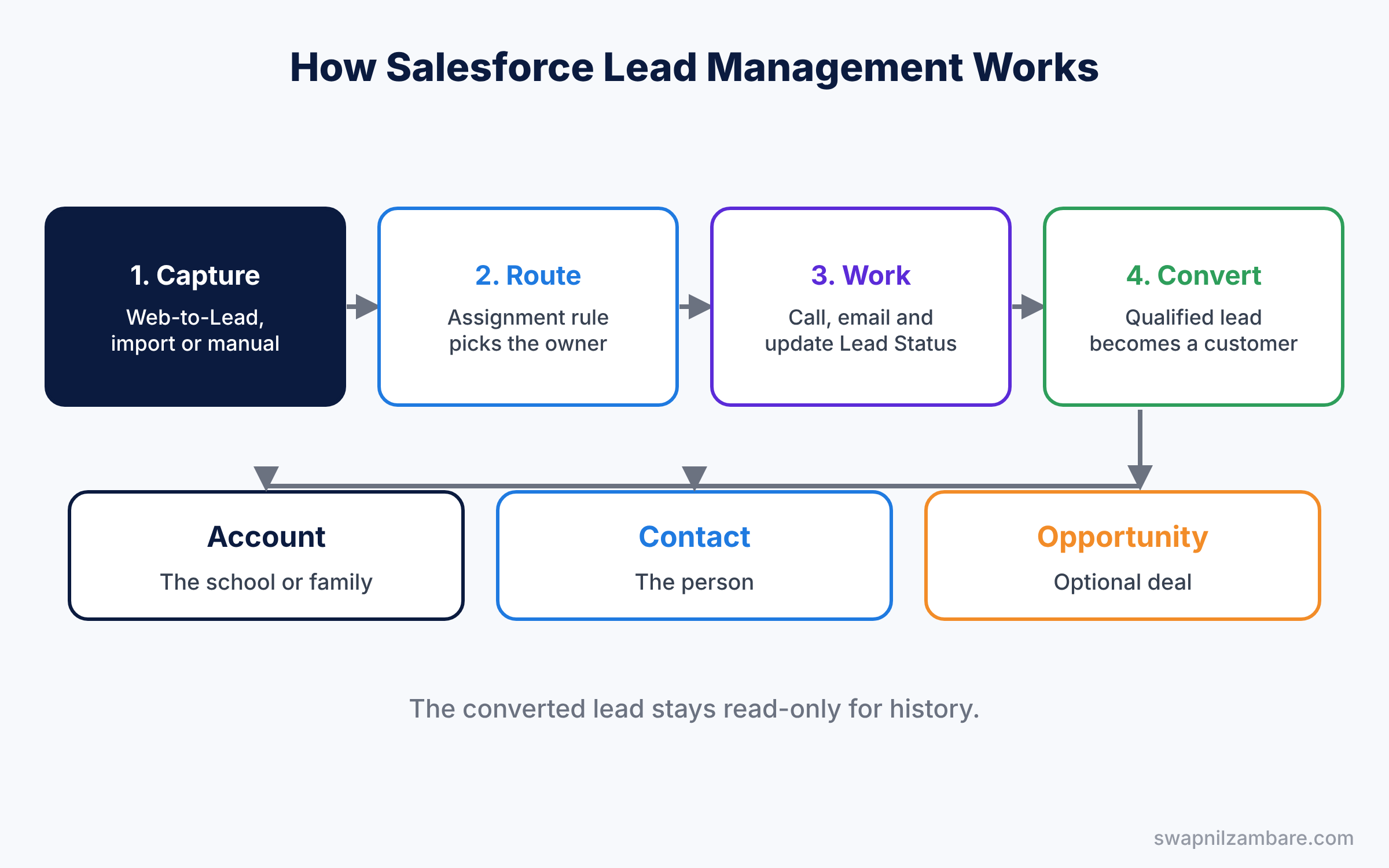
When you convert a lead, Salesforce marks the lead as converted and keeps it for history. However, users can no longer edit it, and it disappears from normal lead list views. All the real work then continues on the account, contact and opportunity.
Key Parts of Salesforce Lead Management
Lead fields and Lead Status
First, every lead has standard fields like First Name, Last Name, Company, Email, Phone, Lead Source and Lead Status. Lead Status tracks progress, for example Open, Contacted, Qualified and Unqualified. One status value must be marked as Converted, so Salesforce knows which value to set during conversion.
Web-to-Lead
Next, Web-to-Lead creates leads straight from a form on your website. Salesforce generates the HTML for you, and your web developer pastes it into the site. When a visitor submits the form, Salesforce creates a lead within seconds. There is a daily limit on web leads, which is 500 per day for most editions, and extra requests wait in a queue.
Assignment Rules in Lead Management
Then an assignment rule decides who owns a new lead. Each rule has entries in a set order, such as “Lead Source equals School Partner, assign to Asha Mehta”. Salesforce checks the entries from top to bottom and stops at the first match. Only one lead assignment rule can be active at a time.
Lead queues and auto-response
Also, queues hold leads until a team member takes them. Meanwhile, an auto-response rule can email the visitor straight away, for example “Thanks, a counsellor will call you within one working day.” We cover auto-response rules in more detail in the Service Cloud posts.
Lead conversion
Finally, conversion turns a qualified lead into an account, a contact and an optional opportunity. You can also match the lead to an existing account, so you do not create duplicates. Custom lead fields copy across only if you map them in Setup.
The table below lists the main lead tools and where to find them in Setup.
| Tool | Where in Setup | What it does |
|---|---|---|
| Web-to-Lead | Feature Settings, Marketing, Web-to-Lead | Builds the HTML form for your website |
| Lead Assignment Rules | Feature Settings, Marketing, Lead Assignment Rules | Picks the owner of new leads |
| Lead Auto-Response Rules | Feature Settings, Marketing, Lead Auto-Response Rules | Emails the person who sent the form |
| Lead Settings | Feature Settings, Marketing, Lead Settings | Default owner and conversion options |
| Map Lead Fields | Object Manager, Lead, Fields and Relationships | Copies custom fields on conversion |
Lead vs Contact in Salesforce Lead Management
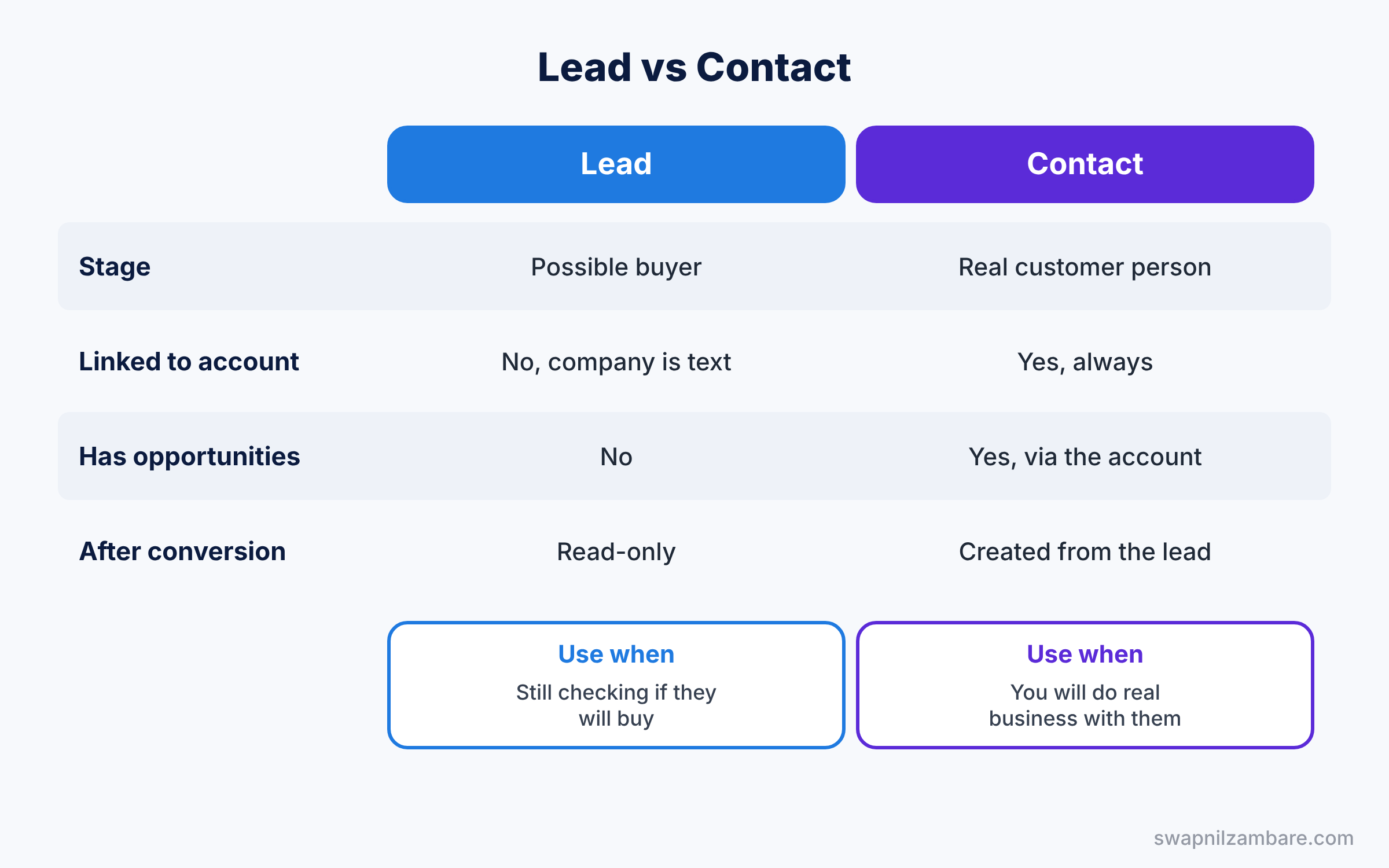
Beginners often ask why Salesforce has both leads and contacts. The table below shows the difference.
| Feature | Lead | Contact |
|---|---|---|
| Stage | Possible buyer, not yet qualified | Real person you do business with |
| Linked to an account | No, company is just a text field | Yes, always linked to an account |
| Can have opportunities | No | Yes, through the account |
| Used in | Marketing and early sales | Sales, service and billing |
| After conversion | Read-only, kept for history | Created from the lead |
In short, keep unqualified people as leads. Convert them to contacts only when you plan to do real business with them.
Hands-on Example: Lead Management at Bright Path Tutors
Let’s build the full lead flow in your Developer Edition org. You will need the Course Enquiries queue from the earlier post.
Step 1: Add Lead Source and Lead Status values
- Go to Setup, then Object Manager, then Lead, then Fields and Relationships.
- Open Lead Source and add the values Website, School Partner and Referral.
- Open Lead Status and check that Qualified is marked as Converted. Click Save.
Step 2: Create the Web-to-Lead form
- In Quick Find, type “Web-to-Lead” and open it. Tick Web-to-Lead Enabled if it is off.
- Click Create Web-to-Lead Form and pick the fields from the table below.
- Enter your website’s thank-you page as the Return URL and click Generate.
| Field | Why we need it |
|---|---|
| First Name and Last Name | To greet the parent by name |
| Email and Phone | So the counsellor can reach them |
| Company | School name, or the parent’s name for families |
| Lead Source | Hidden field set to Website |
| Description | The parent’s question |
Salesforce then shows HTML like the short version below. Your real form includes your own org ID.
<form action="https://webto.salesforce.com/servlet/servlet.WebToLead?encoding=UTF-8&orgId=00DXXXXXXXXXXXX" method="POST">
  <input type="hidden" name="oid" value="00DXXXXXXXXXXXX">
  <input type="hidden" name="retURL" value="https://example.com/thank-you">
  <input type="hidden" name="lead_source" value="Website">
  <label for="first_name">First Name</label>
  <input id="first_name" name="first_name" type="text">
  <label for="last_name">Last Name</label>
  <input id="last_name" name="last_name" type="text">
  <label for="email">Email</label>
  <input id="email" name="email" type="text">
  <label for="company">Company</label>
  <input id="company" name="company" type="text">
  <input type="submit" name="submit" value="Send enquiry">
</form>
The oid field tells Salesforce which org gets the lead. Next, the retURL field is the page the visitor sees after clicking Send. The hidden lead_source field quietly sets Lead Source to Website for every form lead.
Step 3: Create a lead assignment rule
- In Quick Find, type “Lead Assignment Rules” and click New. Name it “Bright Path Lead Routing” and tick Active.
- Open the rule and click New in Rule Entries.
- For entry 1, set Lead Source equals School Partner and assign to Asha Mehta.
- For entry 2, set Lead Source equals Website and assign to the Course Enquiries queue.
- Save both entries.
Step 4: Map a custom field and convert a lead
- If your lead has a custom field, such as Course Interest, open Map Lead Fields and map it to a contact or opportunity field.
- Open a test lead, set Lead Status to Qualified, and click Convert.
- Choose to create a new account and contact, and tick the box to create an opportunity named “Python Weekend Batch”. Click Convert.
Step 5: Check leads with SOQL
Developers can count leads by source with SOQL. Run this in the Developer Console Query Editor.
SELECT LeadSource, COUNT(Id) total
FROM Lead
WHERE IsConverted = false
GROUP BY LeadSource
The result looks like this.
LeadSource       total
Website          42
School Partner   7
Referral         11
IsConverted = false keeps only open leads. So the numbers show where your current pipeline of enquiries comes from.
Common Mistakes with Salesforce Lead Management
- Forgetting to activate the assignment rule. New leads then go to the default lead owner instead of the right team.
- Putting the broad rule entry first. Salesforce stops at the first match, so specific entries must come before general ones.
- Not mapping custom lead fields. Unmapped fields are left behind on the converted lead.
- Converting leads too early. Unqualified contacts clutter accounts and reports.
- Ignoring duplicates. Use the matching rules from our duplicate rules guide so one parent is not added three times.
Best Practices for Lead Management
- Respond within one working day. Fast follow-up wins more enquiries.
- Keep Lead Status values short and clear. Four or five values are enough for most teams.
- Always set Lead Source. It tells you which marketing activity works.
- Use a queue for shared work. Counsellors pick leads as they become free.
- Add a spam check to web forms. Salesforce can add reCAPTCHA to the generated form, which blocks most fake submissions.
Practice Task
Create a lead list view called “My Open Website Leads” that shows only leads you own with Lead Source equal to Website and Lead Status not equal to Qualified.
Hint: use the filter “My leads” and add two field filters.
Salesforce Lead Management FAQ
Can I undo a lead conversion?
Not with a button. Converted leads stay read-only. If you converted by mistake, you can delete the new records and create a fresh lead.
Do I need Web-to-Lead if I use a marketing tool?
Not always. Many marketing tools create leads through their own integration. Still, Web-to-Lead is the simplest free option for a small website.
How is Salesforce Lead Management different from a contact list?
A contact list stores known people. Lead management tracks possible buyers until they qualify, and then hands them to sales.
Official Resources
- Leads List View (Salesforce Help)
- Generate Leads from Your Website (Salesforce Help)
- Leads and Opportunities for Lightning Experience (Trailhead)
Quick Recap
- Salesforce Lead Management covers capturing, routing, working and converting enquiries.
- Web-to-Lead turns a website form into new lead records.
- Assignment rules pick the owner using ordered entries, and only one rule is active.
- Lead Status tracks progress, and one value is marked as Converted.
- Conversion creates an account, a contact and an optional opportunity.
What’s Next?
Your converted lead created an account and a contact. Next, learn how to manage them well. Read Salesforce Accounts and Contacts: Hierarchies, Contact Roles and Account Teams.


