Salesforce AppExchange is the official marketplace where you can find ready-made apps, components and consultants for your Salesforce org. Instead of building every feature yourself, you can often install a tested app in minutes. In our Lightning App Builder guide, you built a custom app by hand. AppExchange is the other option: install something someone else has already built.
In this post, you will learn what AppExchange offers, the difference between managed and unmanaged packages, and how to install, review and uninstall an app safely. Then you will install a free app in your practice org, step by step. Installing apps is easy, but installing them safely is a real admin skill, so we will focus on the checks that matter.
What is Salesforce AppExchange?
Salesforce AppExchange is an online store run by Salesforce at appexchange.salesforce.com. Partners list apps, Lightning components, flow templates and consulting services there. Some listings are free, while others charge per user or per org.
When you install an app, Salesforce adds a package to your org. A package is a bundle of components, such as objects, fields, flows, Apex code and page layouts, that arrives together and can often be upgraded later.
Here is a simple analogy. AppExchange is like the app store on your phone. You read the reviews, check what permissions the app asks for, install it, and remove it if you do not like it. The same habits keep your Salesforce org safe.
Why Salesforce AppExchange Matters
Building everything from scratch costs time and money, and it also needs ongoing maintenance. In fact, many common needs, like e-signatures, surveys, document generation or advanced reporting, already have mature apps. A good app can save weeks of work. Also, partners usually update their apps for each Salesforce release, so you get new features without extra effort.
Here are some real situations.
- Bright Path Tutors wants parents to sign admission forms electronically.
- The training team needs feedback surveys after every course.
- Managers want a ready-made dashboard pack for sales activity.
- A small team needs a calendar view of classes without custom code.
However, every installed app adds code and data to your org. So you should treat installing an app like hiring a new team member: check them carefully first.
How Salesforce AppExchange Installs Work
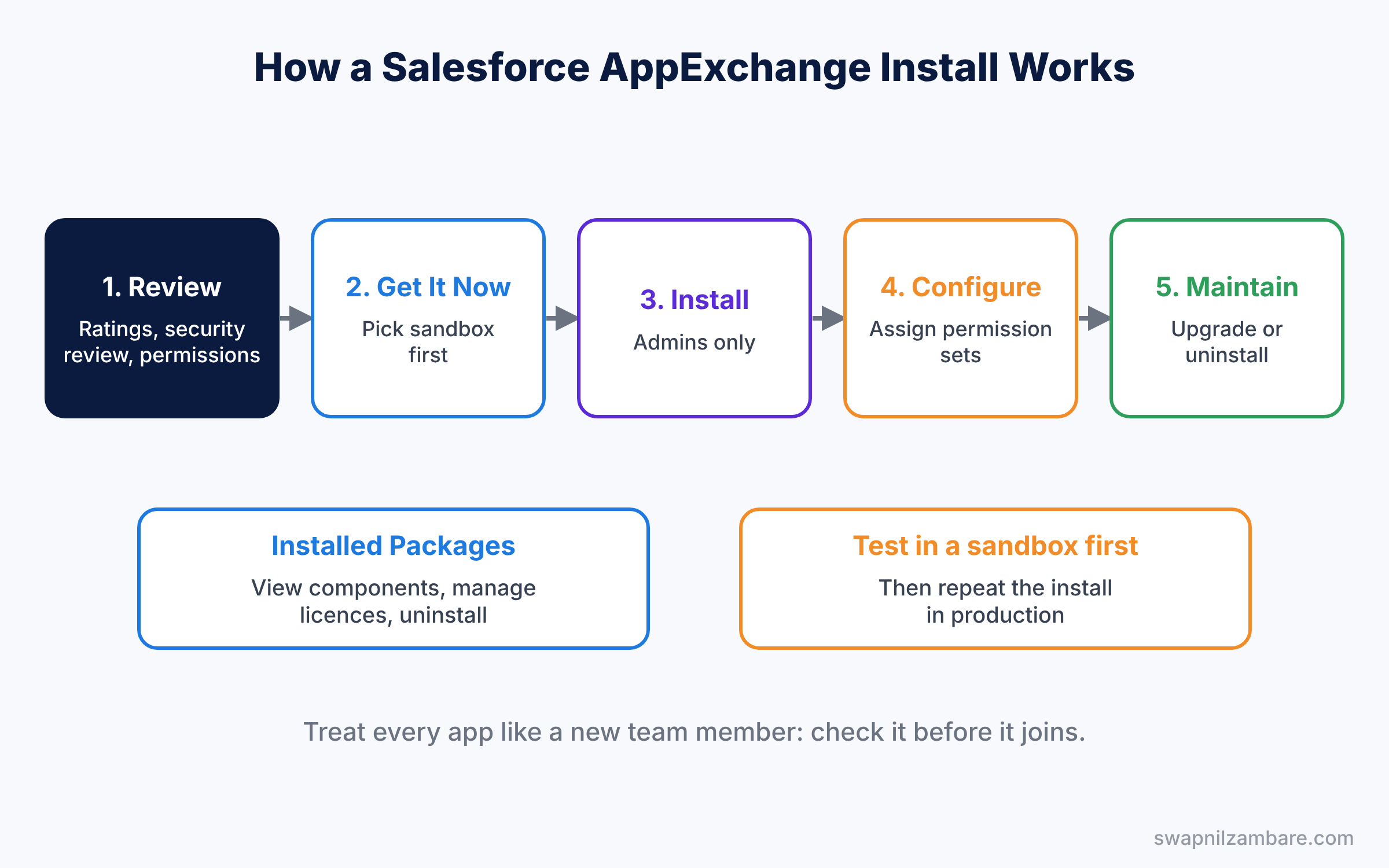
In general, the install process follows the same steps for most apps. First, you find an app and review its listing. Then you click Get It Now, choose production or sandbox, and pick who should get access. Salesforce installs the package, and you configure it. Finally, you can upgrade or uninstall it later from Installed Packages.
Apps that pass Salesforce’s security review show this on their listing. The review checks the app’s code and security practices, which gives you extra confidence, especially for paid apps that handle sensitive data.
Types of Packages on Salesforce AppExchange
The table below lists the package types you will meet.
| Package type | Can you edit it? | Upgrades | Typical use |
|---|---|---|---|
| Managed | Mostly no, code is protected | Yes, from the publisher | Commercial apps |
| Unmanaged | Yes, everything | No automatic upgrades | Free templates and samples |
| Unlocked (developer type) | Yes, built for developers | Yes, by your own team | Internal projects |
Managed packages
First, managed packages have a namespace, which is a short prefix added to every component name. For example, an object might be called abc__Survey__c, where abc is the namespace. You cannot see or change most of the code, but the publisher can send upgrades. This protects the publisher’s work and lets them fix bugs for every customer at once.
Unmanaged packages
In contrast, unmanaged packages copy components into your org as if you built them. You can edit everything, but you never get upgrades. They suit samples, templates and learning projects.
Salesforce Labs Apps on AppExchange
Finally, Salesforce Labs apps are free apps built by Salesforce employees. They are useful and popular, but they usually come without official support. So test them well before using them for important work.
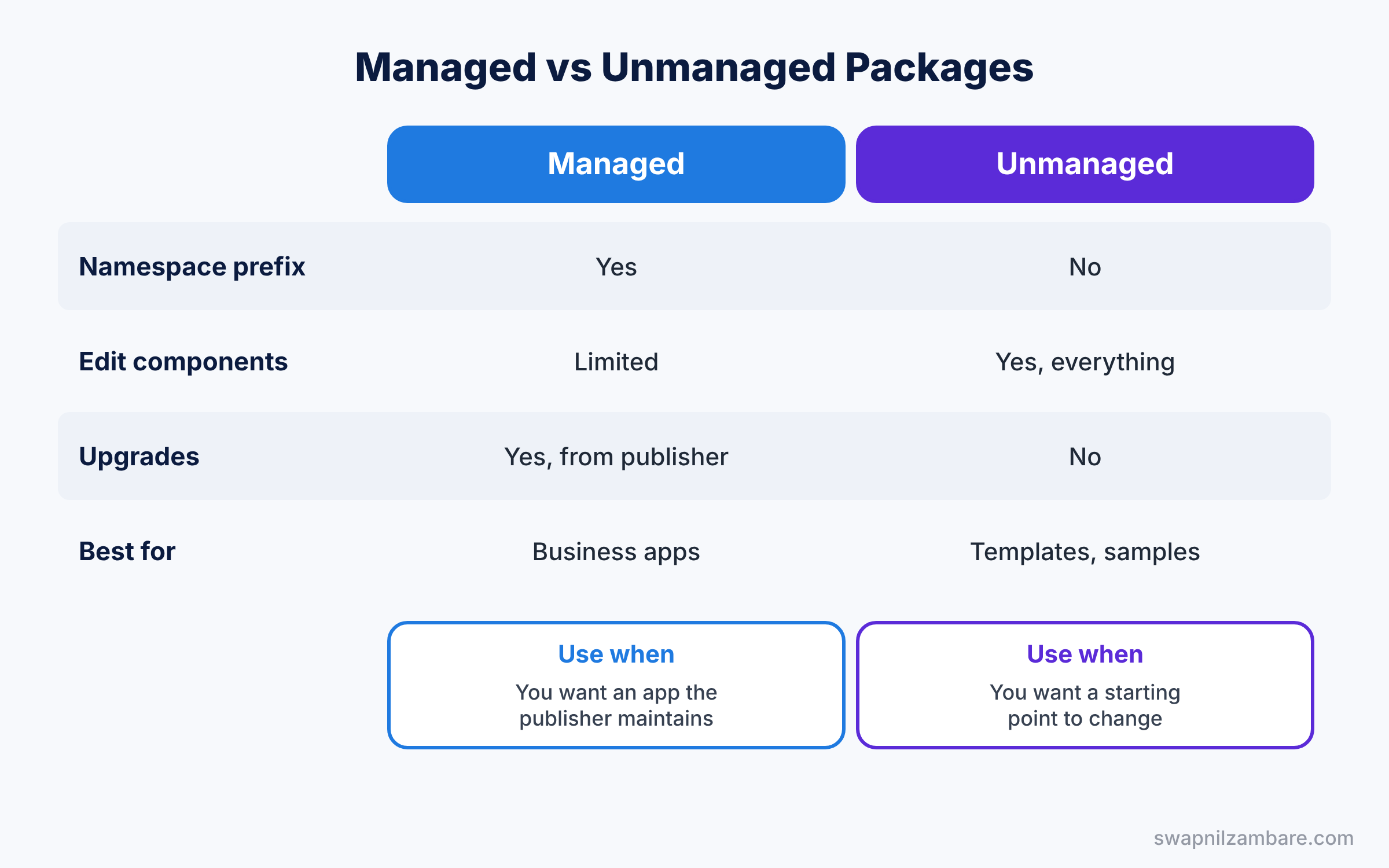
Managed vs Unmanaged Packages
The table below compares the two most common package types.
| Feature | Managed package | Unmanaged package |
|---|---|---|
| Namespace prefix | Yes | No |
| Edit code and components | Limited | Yes |
| Upgrades from publisher | Yes | No |
| Uninstall removes everything | Yes, cleanly | Components stay as your own |
| Best for | Apps you rely on long term | Templates you want to customise |
In short, choose managed packages for business apps you want maintained. Choose unmanaged packages when you want a starting point you can change freely.
Salesforce AppExchange Hands-on: Install a Free App Safely
Let’s install a free app in your Developer Edition org. Pick any free app from Salesforce Labs that interests you, such as a dashboard pack.
Step 1: Review the listing
Before you install, check the points in the table below on the app’s listing page.
| Check | What to look for |
|---|---|
| Reviews and ratings | Recent reviews from real customers |
| Security review | “Security reviewed” on paid or data-heavy apps |
| Requirements | Supported editions and required features |
| Permissions | What data and external sites the app needs |
| Support | Who to contact if something breaks |
Step 2: Install the app
- On the listing, click Get It Now and log in with your Developer Edition username.
- Choose Install in Production. For a real company, always choose a sandbox first.
- Agree to the terms and click Confirm and Install.
- Choose Install for Admins Only. You can give access to other users later.
- If asked, approve third-party access only if you trust the publisher. Click Install.
Step 3: Review what was installed
- When you get the confirmation email, go to Setup and type “Installed Packages” in Quick Find.
- Click the package name and then View Components to see what was added.
- Assign the app’s permission sets to the users who need it, as you learned in our profiles and permission sets guide.
Step 4: Find installed packages with SOQL
Developers can list installed packages with a Tooling API query. In the Developer Console Query Editor, tick Use Tooling API and run this.
SELECT SubscriberPackage.Name, SubscriberPackageVersion.Name
FROM InstalledSubscriberPackage
ORDER BY SubscriberPackage.Name
Managed package objects carry their namespace, so a normal SOQL query includes the prefix.
SELECT Id, Name
FROM abc__Survey__c
LIMIT 10
So replace abc with the real namespace shown in View Components. Without the prefix, Salesforce cannot find the object.
Step 5: Uninstall if needed
If the app is not right for you, open Installed Packages and click Uninstall next to the package. This keeps your org clean and avoids paying for unused licences. Salesforce shows what will be removed and offers to save an export of the package data. Read it carefully, then confirm.
Common Mistakes with Salesforce AppExchange
- Installing straight into production. Always test in a sandbox first, as covered in our sandboxes guide.
- Installing for all users by default. Start with admins only, then grant access with permission sets to the people who need the app.
- Ignoring the permissions screen. Some apps send data to outside systems. Approve only what you understand.
- Keeping unused apps. Old apps add clutter and risk. Uninstall what nobody uses.
- Skipping the reviews. Low or old reviews often warn of problems, so read the newest reviews first.
Best Practices for Salesforce AppExchange
- Write down why each app was installed. Future admins then know whether it is still needed.
- Prefer security-reviewed apps for sensitive data. The review adds an extra layer of trust.
- Test upgrades in a sandbox. Managed package upgrades can change behaviour.
- Check licence counts for paid apps. Use Manage Licenses on the package to assign seats.
- Review installed packages twice a year. Remove what is unused and update what is old.
- Check the publisher’s support hours. Problems in a busy week need quick help, so confirm support suits your time zone.
Practice Task
Search AppExchange for a free survey app. Compare two listings using the checklist from Step 1 and write down which one you would install and why.
Hint: filter by Price, Free, and sort by rating.
Salesforce AppExchange FAQ
Is everything on Salesforce AppExchange made by Salesforce?
No. Most listings come from Salesforce partners. Salesforce reviews listed apps, but the partner builds and supports them.
Do managed package objects count towards my org limits?
It depends. Components from some certified managed packages do not count towards certain limits, while others do. Check the listing and your org’s limits before installing large apps.
Can I install an app in a Developer Edition org?
Yes, most free apps install in Developer Edition orgs. This is a great way to test an app before your company buys it.
Official Resources
- Salesforce AppExchange marketplace
- Install a Package (Salesforce Help)
- AppExchange Basics (Trailhead)
Quick Recap
- Salesforce AppExchange is the official marketplace for apps, components and consultants.
- Managed packages have a namespace and get upgrades; unmanaged packages are fully editable.
- Review ratings, security review, requirements and permissions before installing.
- Install in a sandbox first, for admins only, then grant access with permission sets.
- Use Installed Packages to view components, manage licences and uninstall.
What’s Next?
That completes the core admin gaps. Next, we start the Sales Cloud topics. Coming soon: Lead Management with Web-to-Lead, Assignment Rules and Lead Conversion.


