Salesforce Custom Report Types let you choose exactly which objects and fields a report can use, including your own custom objects and their child records. Standard report types cover common needs, like Accounts with Contacts. However, they do not always fit your data model. In our reports and dashboards guide, you built reports from standard types. Now you will build the report type itself.
In this post, you will learn what a report type is, how object relationships and the “with or without” choice change the results, and how to add fields from lookups. Then you will create a “Courses with or without Enrollments” report type for Bright Path Tutors, so the team can finally see courses that nobody has joined. This builds on the Enrollment object from our master-detail vs lookup guide.
What are Salesforce Custom Report Types?
A report type is a template that decides which records and fields a report can show. It has a primary object, such as Courses, and up to three related objects below it. A custom report type is one that you design yourself in Setup, instead of using the ones Salesforce creates for you.
Here is a simple analogy. Think of a restaurant menu. The kitchen can cook many dishes, but the menu decides what customers can order. A report type is the menu for reports. If a field is not on the menu, nobody can add it to a report, even though the data exists.
Why Salesforce Custom Report Types Matter
Standard report types are useful, but they have limits. Some only show parent records that have children. Others do not include fields from lookup objects. So admins often build custom report types to answer real business questions.
Here are some real situations at Bright Path Tutors.
- The academic head wants a list of courses with no enrollments, so she can cancel or promote them.
- Finance wants enrollments with the student’s school name, which lives two objects away.
- The support manager wants cases with a custom Survey object attached.
- An admin wants a clean field list, so users are not confused by hundreds of fields.
In short, custom report types give users the right data in the right shape.
How Salesforce Custom Report Types Work
You build a report type in five steps. First, you pick the primary object, which cannot change after you save. Next, you give it a label, a description and a category, so users can find it. Then you add related objects and choose whether each parent must have children. After that, you set the field layout, including fields from lookup objects. Finally, you deploy the report type, and it appears in the report builder.
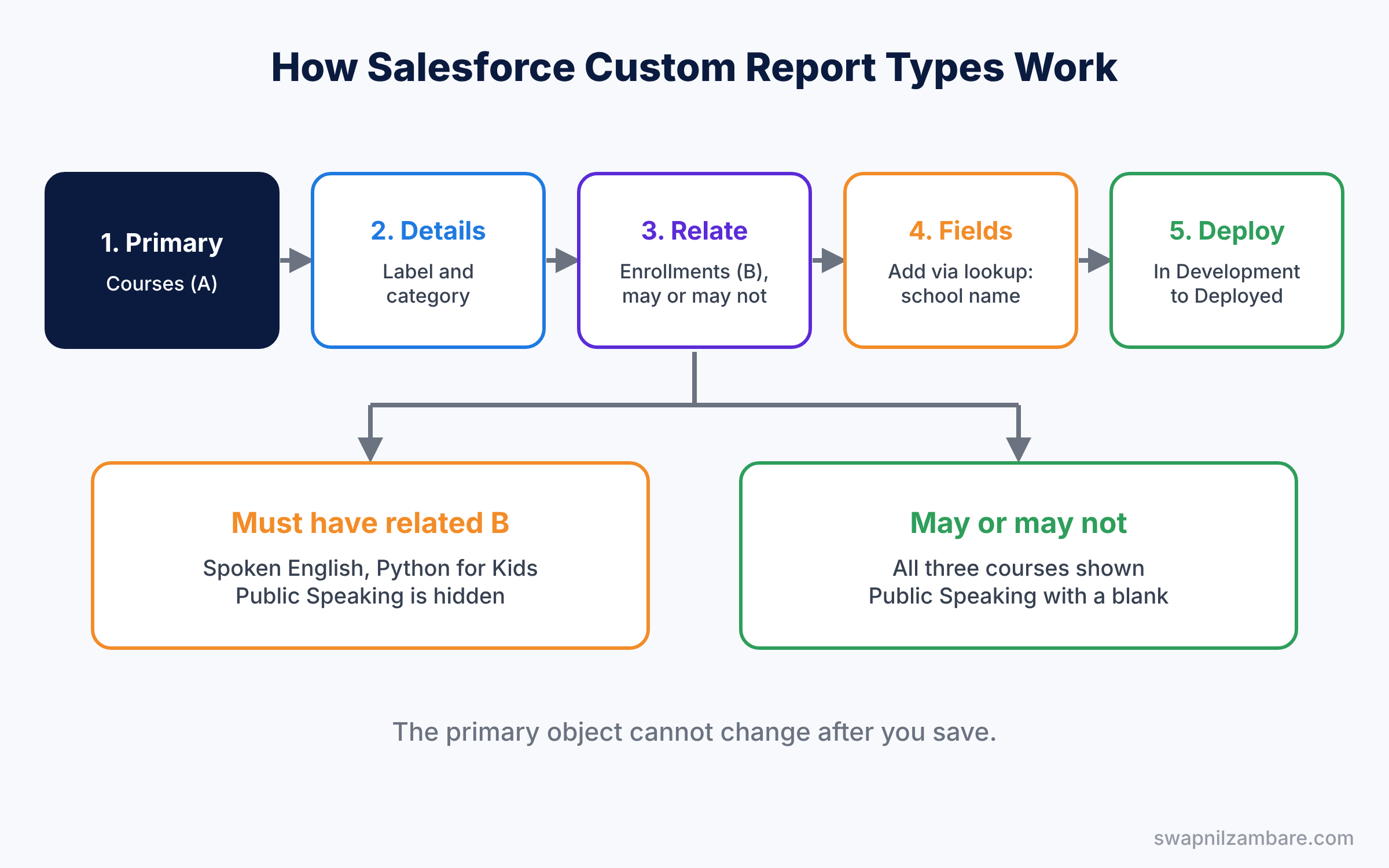
The “with or without” choice is the most important step. It decides whether a course with zero enrollments appears in the report at all.
Key Parts of Salesforce Custom Report Types
Primary object
First, the primary object is the main object of the report, called object A. Every row in the report starts from a record of this object. For example, choosing Courses means each row starts with a course.
Related objects
Next, you can add up to three more objects in a chain, called B, C and D. Each one must be a child of the object above it. For example, Courses (A), then Enrollments (B).
The with or without choice
Then, for each related object, you choose one of two options. “Each A record must have at least one related B record” works like an inner join, so courses without enrollments disappear. “A records may or may not have related B records” works like an outer join, so every course appears, even with no enrollments.
Field layout and lookup fields
The field layout decides which fields users see in the report builder, grouped into sections. You can also click “Add fields related via lookup” to pull in fields from parent objects. For example, from Enrollment you can add Student, then Account Name, to show the student’s school.
Deployment status and category
Finally, a report type has a Deployment Status of In Development or Deployed. While it is In Development, only users who manage report types can use it. The category decides which folder it appears under in the report builder, such as Other Reports.
The table below shows how the choice changes the rows for three courses.
| Course | Enrollments | Rows with “must have” | Rows with “may or may not” |
|---|---|---|---|
| Spoken English | 12 | 12 | 12 |
| Python for Kids | 5 | 5 | 5 |
| Public Speaking | 0 | 0 | 1, with blank enrollment |
Standard vs Custom Report Types
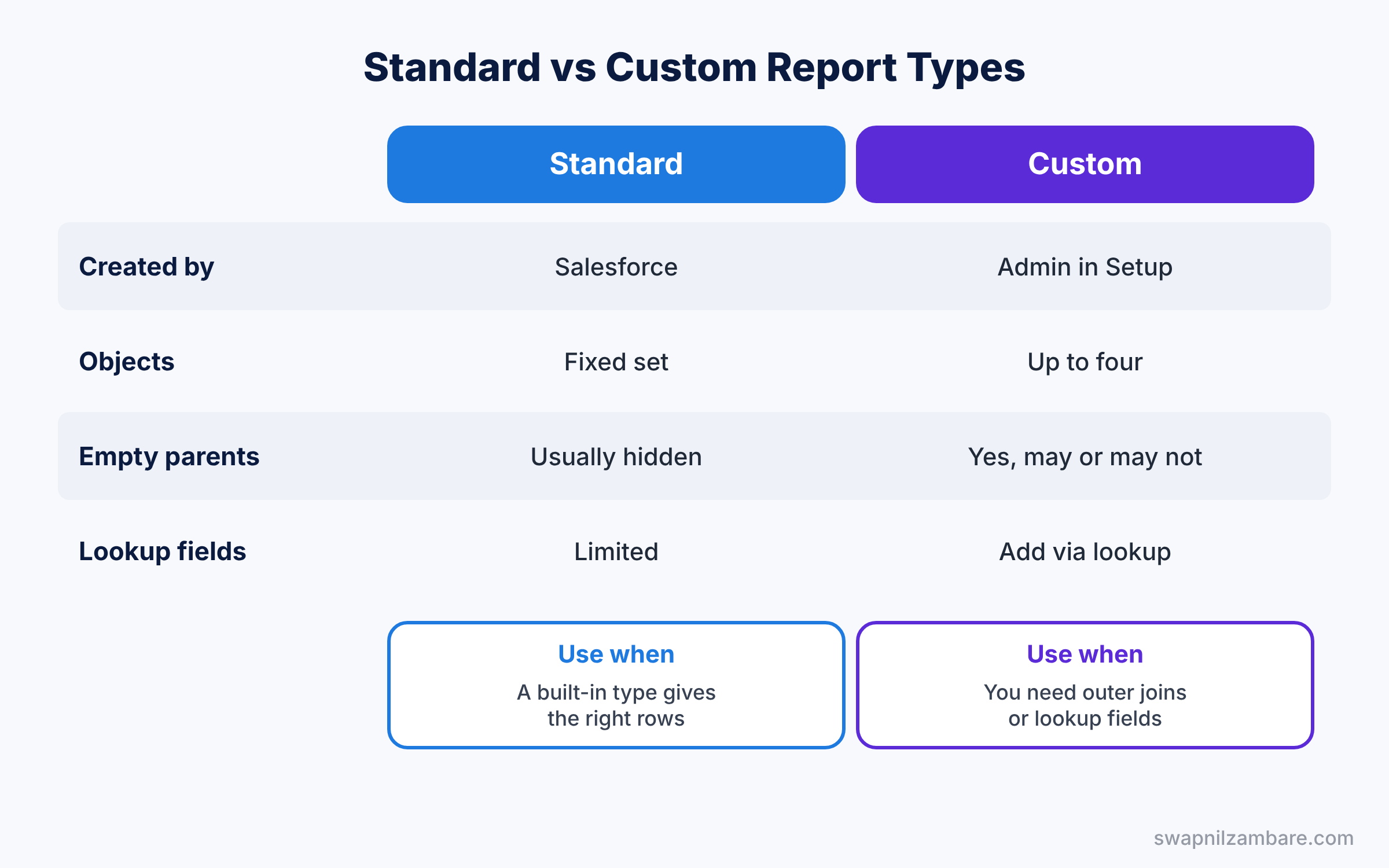
Admins often ask when a custom one is needed. The table below compares them.
| Feature | Standard report type | Custom report type |
|---|---|---|
| Created by | Salesforce, automatically | Admin, in Setup |
| Objects included | Fixed set | Up to four you choose |
| Courses without enrollments | Usually not shown | Yes, with “may or may not” |
| Lookup fields from other objects | Limited | Yes, add via lookup |
| Field list control | No | Yes, sections and labels |
In short, start with a standard report type when it gives the right rows. Build a custom one when you need outer joins, lookup fields or a cleaner field list.
Hands-on Example: Salesforce Custom Report Types for Courses
Let’s build the report type in your Developer Edition org.
Step 1: Create the report type
- Go to Setup, type “Report Types” in Quick Find, and click New Custom Report Type.
- Fill in the values from the table below and click Next.
| Field | Value |
|---|---|
| Primary Object | Courses |
| Report Type Label | Courses with or without Enrollments |
| Report Type Name | Courses_with_or_without_Enrollments |
| Description | All courses, including those with no enrollments |
| Store in Category | Other Reports |
| Deployment Status | In Development |
Step 2: Add the related object
- Click the box under Courses and choose Enrollments.
- Select “A records may or may not have related B records” and save.
Step 3: Edit the field layout
- On the report type page, click Edit Layout.
- Drag Fee Paid from Enrollments into the Enrollments section.
- Then click Add fields related via lookup, open Student, and tick Account Name. Click OK and save.
Step 4: Deploy and build a report
- Edit the report type and change Deployment Status to Deployed.
- Open the Reports tab, click New Report, search for “Courses with or without Enrollments”, and click Start Report.
- Group rows by Course Name, add Fee Paid, and add a filter where Enrollment ID equals blank. Save it as “Courses with No Enrollments”.
Step 5: Compare with SOQL
The report with the outer join returns the same courses as this parent-to-child SOQL query.
SELECT Name, Fee__c,
       (SELECT Name, Fee_Paid__c FROM Enrollments__r)
FROM Course__c
ORDER BY Name
To list only courses with no enrollments, developers can use a semi-join with NOT IN.
SELECT Name, Start_Date__c
FROM Course__c
WHERE Id NOT IN (SELECT Course__c FROM Enrollment__c)
The result might look like this.
Name              Start_Date__c
Public Speaking   2026-07-01
Robotics Basics   2026-07-15
So the report and the query agree, and the academic head can act on both courses.
Common Mistakes with Salesforce Custom Report Types
- Choosing the wrong primary object. You cannot change it later, so plan the starting object first.
- Using “must have” by accident. Courses without enrollments then vanish from every report.
- Leaving it In Development. Normal users cannot see it until you deploy it.
- Adding every field. Long field lists confuse users, so add only what reports need.
- Expecting new fields to appear. Fields created later are not always added to the layout, so check it.
Best Practices for Salesforce Custom Report Types
- Name them by their rows. “Courses with or without Enrollments” tells users exactly what they get.
- Write a clear description. It shows in the report builder and saves many questions.
- Rename confusing labels. In Edit Layout, you can change a field’s display label for this report type only.
- Test before deploying. Build one sample report while it is In Development.
- Review unused types. Old report types clutter the list, so remove ones nobody uses.
Practice Task
Create a report type called “Students with Enrollments” with Contacts as the primary object and Enrollments as the related object, using “must have”. Then build a report that counts enrollments per student.
Hint: Enrollments appear under Contacts because Student is a master-detail field to Contact.
Salesforce Custom Report Types FAQ
Can I change the primary object later?
No. If you picked the wrong one, create a new report type and rebuild the reports.
Do custom report types respect security?
Yes. Users only see records and fields they have access to, even if the report type includes more.
How many objects can one report type include?
Up to four objects in a chain, plus fields from lookups.
Official Resources
- Custom Report Types (Salesforce Help)
- Create a Custom Report Type (Salesforce Help)
- Reports and Dashboards for Lightning Experience (Trailhead)
Quick Recap
- Salesforce Custom Report Types decide which objects and fields reports can use.
- The primary object is fixed after you save, so choose it carefully.
- “May or may not” shows parents without children, like empty courses.
- Lookup fields bring in data from parent objects, like the student’s school.
- Deploy the report type so normal users can build reports with it.
What’s Next?
You can now shape the data behind your reports. Next, learn how to combine several reports in one view and group values without new fields. Read Salesforce Joined Reports, Bucket Fields and Summary Formulas.


