Enterprise Territory Management lets you split your customers into sales territories, such as North India or West India, and give each territory its own team and its own record access. Territories are useful when the role hierarchy alone cannot describe how you sell. In our sharing and roles guide, you saw that roles decide who sees what based on the reporting line. Territories add a second structure, based on where or what the customer is.
In this post, you will learn how territory types, territory models, territories, assignment rules and user assignments work together. Then you will build a small territory model for Bright Path Tutors, with schools split by region, and activate it. Some words in this topic sound similar, so we will define each one before we use it.
What is Enterprise Territory Management?
Enterprise Territory Management, often called ETM, is a Salesforce feature for organising accounts into territories. A territory is a group of accounts plus the users who work on them. Users in a territory get access to its accounts, and to related opportunities, contacts and cases, based on settings you choose.
Here is a simple analogy. Think of a city newspaper with delivery boys. The city is divided into areas, and each delivery boy has his own area. Every house belongs to one area, but a large apartment block may get papers from two boys. The areas are territories, the houses are accounts, and the delivery boys are the sales reps.
Why Enterprise Territory Management Matters
The role hierarchy shows who reports to whom. However, it cannot show that Rahul covers schools in Pune while Neha covers schools in Mumbai. It also cannot give one account to two teams, such as a regional team and a large-schools team.
Here are some real situations at Bright Path Tutors.
- Schools in Maharashtra should go to the West team, and schools in Delhi to the North team.
- Large school groups with more than 2,000 students need a special Key Accounts team as well.
- Reps change areas every year, and the company wants to plan new areas before switching.
- Sales managers want forecasts by region, not only by reporting line.
So ETM gives you flexible, rule-based coverage that you can plan and test before it goes live.
How Enterprise Territory Management Works
The setup follows a clear order. First, you create territory types, such as Geography or Key Accounts, and give each a priority. Next, you build a territory model in Planning state, with a hierarchy of territories inside it. Then you create account assignment rules, such as “Billing State equals Maharashtra”, and run them to place accounts. After that, you add users to each territory with a role, like Owner or Sales Rep. Finally, you activate the model, and Salesforce grants access to the matching users.
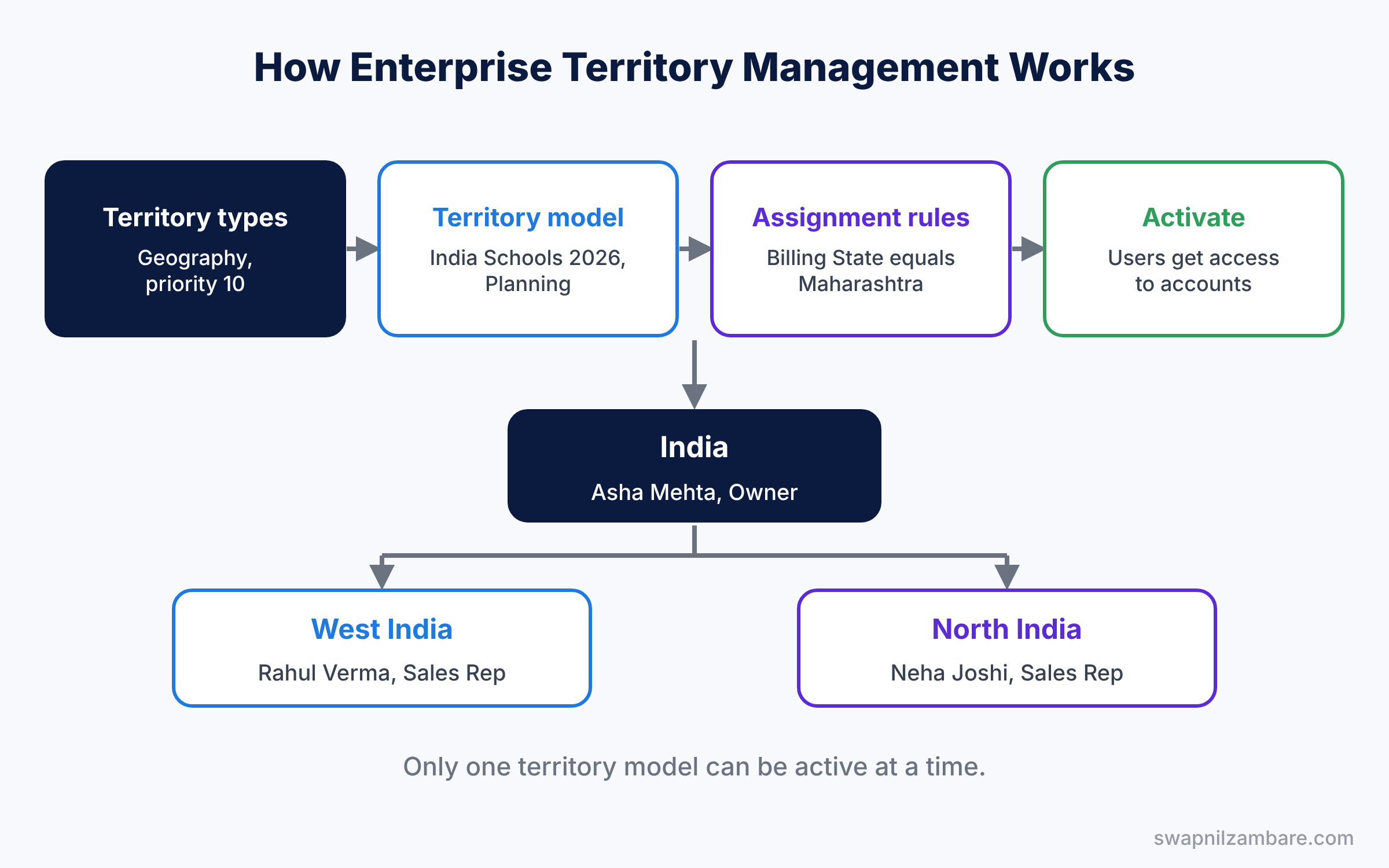
Only one territory model can be active at a time. You can keep another model in Planning to design next year’s territories without touching today’s access.
Key Parts of Enterprise Territory Management
Territory types and priority
First, a territory type is a label for a kind of territory, such as Geography or Industry. Every type needs a priority number. Salesforce uses this number when an opportunity could belong to more than one territory, so pick numbers with gaps, like 10, 20 and 30.
Territory models in Enterprise Territory Management
Next, a territory model is a complete plan of territories. It has three states: Planning, Active and Archived. You build and test in Planning, run your business in Active, and keep old plans in Archived.
Territories and the territory hierarchy
Then territories sit inside the model as a tree. For example, India is the top territory, with North India and West India below it. Users higher up in the tree can see the accounts of territories below them.
Account assignment rules
Account assignment rules place accounts into territories automatically. Each rule has criteria based on account fields, like Billing State or Number of Employees. A rule can apply to one territory and, if you choose, to its child territories as well.
User assignments and access
Finally, you add users to territories and give them a role in that territory, like Owner or Sales Rep. The territory’s access settings decide what they can do with accounts, opportunities, contacts and cases. For example, the West India team could get Read/Write on accounts and Read Only on cases.
The table below shows the objects behind this feature, which help with reports and SOQL.
| Object | API name | Stores |
|---|---|---|
| Territory model | Territory2Model | One complete territory plan |
| Territory | Territory2 | One territory in a model |
| Territory type | Territory2Type | A kind of territory with priority |
| User in a territory | UserTerritory2Association | User, territory and role |
| Account in a territory | ObjectTerritory2Association | Account and territory link |
Enterprise Territory Management vs the Role Hierarchy
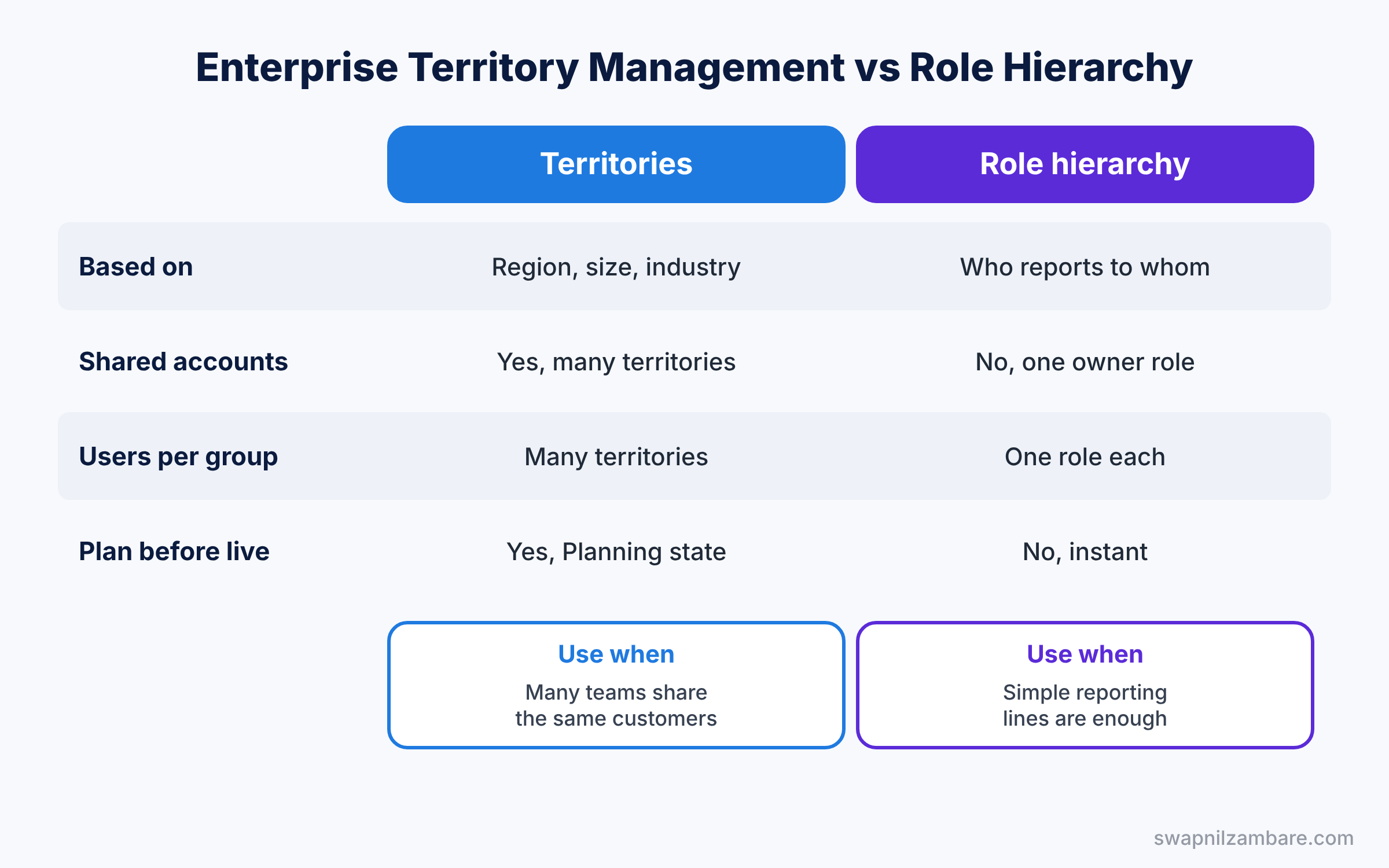
Both features open up access, so it helps to compare them side by side. The table below shows the main differences.
| Feature | Territories | Role hierarchy |
|---|---|---|
| Based on | Customer region, size or industry | Who reports to whom |
| Account in many groups | Yes, many territories | No, one owner’s role |
| User in many groups | Yes, many territories | No, one role |
| Plan before going live | Yes, Planning state | No, changes apply at once |
| Best for | Many teams sharing customers | Simple reporting lines |
In short, keep the role hierarchy for reporting lines and approvals. Add territories when one customer needs coverage from several teams, or when regions change often.
Hands-on Example: Enterprise Territory Management for Schools
Let’s build a regional model in your Developer Edition org.
Step 1: Turn on territories
- Go to Setup, type “Territory Settings” in Quick Find, and click Enable Enterprise Territory Management.
- On the same page, set the default access levels. Choose Read/Write for accounts, Read Only for opportunities, and Read Only for cases. Save.
Step 2: Create a territory type and a model
- In Quick Find, type “Territory Types” and create “Geography” with priority 10.
- Then open Territory Models and create “India Schools 2026”. It starts in Planning state.
Step 3: Build the territories
- Open the model and click View Hierarchy. Create “India” as the top territory with type Geography.
- Next, add two child territories, “West India” and “North India”, using the values in the table below.
| Territory | Parent | Rule criteria | Users |
|---|---|---|---|
| India | None | None | Asha Mehta, Owner |
| West India | India | Billing State equals Maharashtra | Rahul Verma, Sales Rep |
| North India | India | Billing State equals Delhi | Neha Joshi, Sales Rep |
Step 4: Add assignment rules and users
- On West India, create an assignment rule called “Maharashtra Schools” with the criteria from the table, and tick Active.
- Do the same for North India with Delhi.
- In each territory’s Assigned Users list, add the user and choose the role in territory.
- Back on the model, click Run Assignment Rules. Salesforce places matching accounts into the territories while the model is still in Planning.
Step 5: Activate and check with SOQL
- Review the Assigned Records list on each territory. When it looks right, click Activate on the model.
- Developers can then confirm which accounts landed where with this SOQL query.
SELECT ObjectId, Territory2.Name, AssociationCause
FROM ObjectTerritory2Association
WHERE Territory2.Territory2Model.Name = 'India Schools 2026'
AND SobjectType = 'Account'
AssociationCause shows Territory2AssignmentRule when a rule placed the account, or Territory2Manual when someone added it by hand. This second query lists the users in each territory.
SELECT User.Name, Territory2.Name, RoleInTerritory2
FROM UserTerritory2Association
ORDER BY Territory2.Name
The result might look like this.
User.Name     Territory2.Name   RoleInTerritory2
Asha Mehta    India             Owner
Neha Joshi    North India       Sales Rep
Rahul Verma   West India        Sales Rep
Common Mistakes with Enterprise Territory Management
- Building directly in the active model. Plan changes in a separate model, then activate it when ready.
- Forgetting to run the rules. New rules do nothing until you run them or the account is edited.
- Same priority on every type. Opportunity assignment then cannot pick the best territory.
- Very wide access defaults. Read/Write on everything can expose more data than you planned.
- Ignoring opportunities. Turn on opportunity territory assignment, or deals stay without a territory.
Best Practices for Enterprise Territory Management
- Start small. One territory type and a few territories are easier to test and explain.
- Use clear names. “West India” is clearer than “T-02” in reports and forecasts.
- Test with real accounts. Run rules in Planning and check the Assigned Records list before you activate.
- Keep roles for managers. Our user management guide shows how to keep roles tidy alongside territories.
- Review territories every year. Sales areas change, so plan the next model early.
Practice Task
Add a “Key Accounts” territory type with priority 20. Then create a Key Accounts territory with a rule for schools where Number of Employees is greater than 200, and run the rules again.
Hint: one school can now be in both West India and Key Accounts, which the role hierarchy could never do.
Enterprise Territory Management FAQ
Can I use territories with forecasting?
Yes. In forecast settings, you can choose the territory hierarchy instead of the role hierarchy for a forecast type.
Does ETM replace the role hierarchy?
No. Both work together, and a user gets the widest access that any of them gives.
Can an account belong to two territories?
Yes. An account can sit in several territories, each with its own team.
Official Resources
Quick Recap
- Enterprise Territory Management groups accounts and users into territories.
- Territory types have priorities, and models have Planning, Active and Archived states.
- Assignment rules place accounts automatically, based on account fields.
- Users get access to accounts and related records through their territories.
- One account can belong to many territories, unlike the role hierarchy.
What’s Next?
Your sales structure is now clear. Next, we move to analytics and learn how to report on objects that standard report types do not cover. Read Salesforce Custom Report Types: A Step by Step Guide. You can also revisit our forecasting guide to forecast by territory.


