Salesforce Collaborative Forecasting shows how much revenue your sales team expects to close in a month or a quarter, and lets managers adjust that number with their own judgement. It reads the open and closed opportunities of every rep and rolls them up through the sales team. In our opportunities guide, you saw that each stage maps to a forecast category. Forecasting is where those categories finally turn into a number your CEO can plan with.
In this post, you will learn how forecast types, forecast categories, the forecast hierarchy, quotas and adjustments fit together. Then you will set up a monthly forecast for the Bright Path Tutors sales team, load a quota for one rep, and check the numbers with SOQL. You will need the role hierarchy from our sharing and roles guide, because the forecast follows it.
What is Salesforce Collaborative Forecasting?
A forecast is a prediction of future sales. In Salesforce, the Forecasts tab shows each rep’s predicted revenue for a period, split into categories like Commit and Best Case. Managers see the totals of their whole team, and they can raise or lower a rep’s number when they know something the system does not.
Here is a simple analogy. Think of a cricket team before a big match. Each player tells the captain how many runs they expect to score. The captain adds them up, but he also knows one player is out of form, so he adjusts the team total. The players’ guesses are the reps’ forecasts, and the captain’s change is a manager adjustment.
Why Salesforce Collaborative Forecasting Matters
A business needs to know its future income before it spends money. Without a forecast, managers export opportunities to Excel every Monday and argue about the numbers. With forecasting, everyone looks at the same live number.
Here are some real situations at Bright Path Tutors.
- The CEO wants to know if June revenue will cover the new trainer salaries.
- The Sales Manager wants to see which rep is behind their monthly target.
- A rep wants to flag a large school deal as Commit after a good meeting.
- Finance needs a quarterly number for the bank, with the manager’s judgement included.
So forecasting helps the business plan hiring, spending and targets with real data.
How Salesforce Collaborative Forecasting Works
The numbers flow from bottom to top. First, a rep owns opportunities with an amount, a close date and a stage. Next, each stage maps to a forecast category, such as Pipeline, Best Case, Commit or Closed. Then Salesforce adds the amounts by category for each period, using the close date. After that, the totals roll up through the forecast hierarchy, from reps to their manager and then to the CEO. Finally, managers compare the result with each person’s quota and adjust where needed.
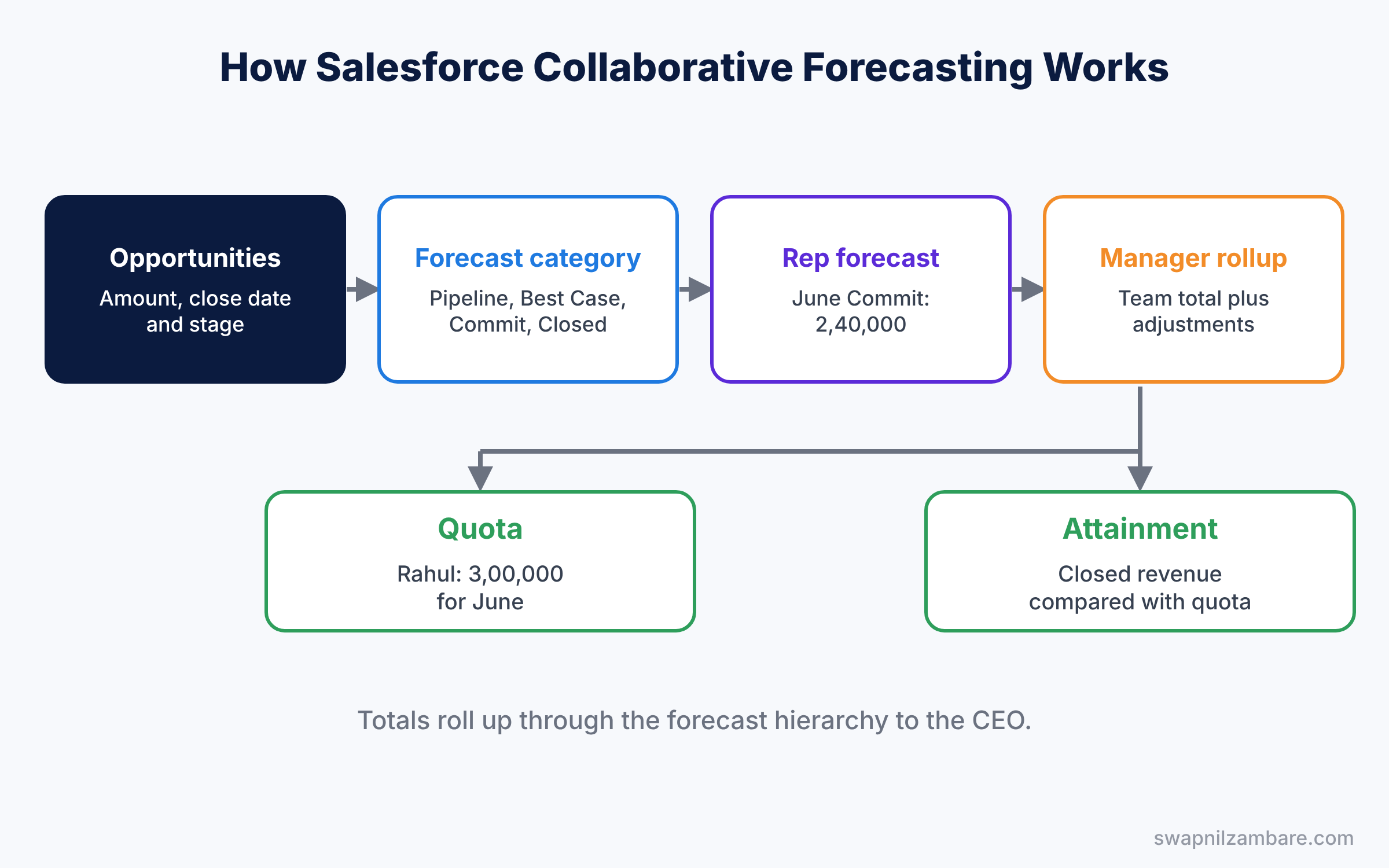
The forecast hierarchy usually matches the role hierarchy. However, only users with forecasting turned on appear in it, and each role with people under it needs a forecast manager.
Key Parts of Salesforce Collaborative Forecasting
Forecast types in Collaborative Forecasting
First, a forecast type decides what you measure. A common one is Opportunity Revenue by Close Date. You can also forecast quantity, product families or opportunity splits. Each forecast type gets its own tab view and its own settings.
Forecast categories
Next, forecast categories group deals by how sure the rep is. The standard categories are Pipeline, Best Case, Commit, Closed and Omitted. Each opportunity stage has a default category, and reps can change the category on a single deal.
Cumulative rollups
Then you choose how the categories add up. With cumulative rollups, Best Case includes Commit and Closed, and Open Pipeline includes Pipeline, Best Case and Commit. This shows the “at least” and “at most” number at a glance.
Quotas in Collaborative Forecasting
A quota is the sales target for one person in one period. For example, Rahul Verma has a target of 3,00,000 for June. When quotas are turned on, the Forecasts tab shows attainment, which is closed revenue compared with quota.
Adjustments
Finally, adjustments let people change a forecast without editing opportunities. Owner adjustments change your own number, while manager adjustments change a subordinate’s number. The original amount stays visible, so nobody loses the history. For example, Neha’s Commit may show 1,50,000, but the manager knows one school will sign early. So he raises it to 1,80,000, and managers above him see the new number with a small icon that marks the change.
The table below shows how the standard stages from our sales process map to forecast categories.
| Opportunity stage | Probability | Forecast category |
|---|---|---|
| Qualification | 10% | Pipeline |
| Demo Done | 30% | Pipeline |
| Proposal | 60% | Best Case |
| Negotiation | 80% | Commit |
| Closed Won | 100% | Closed |
| Closed Lost | 0% | Omitted |
Collaborative Forecasting vs Opportunity Reports
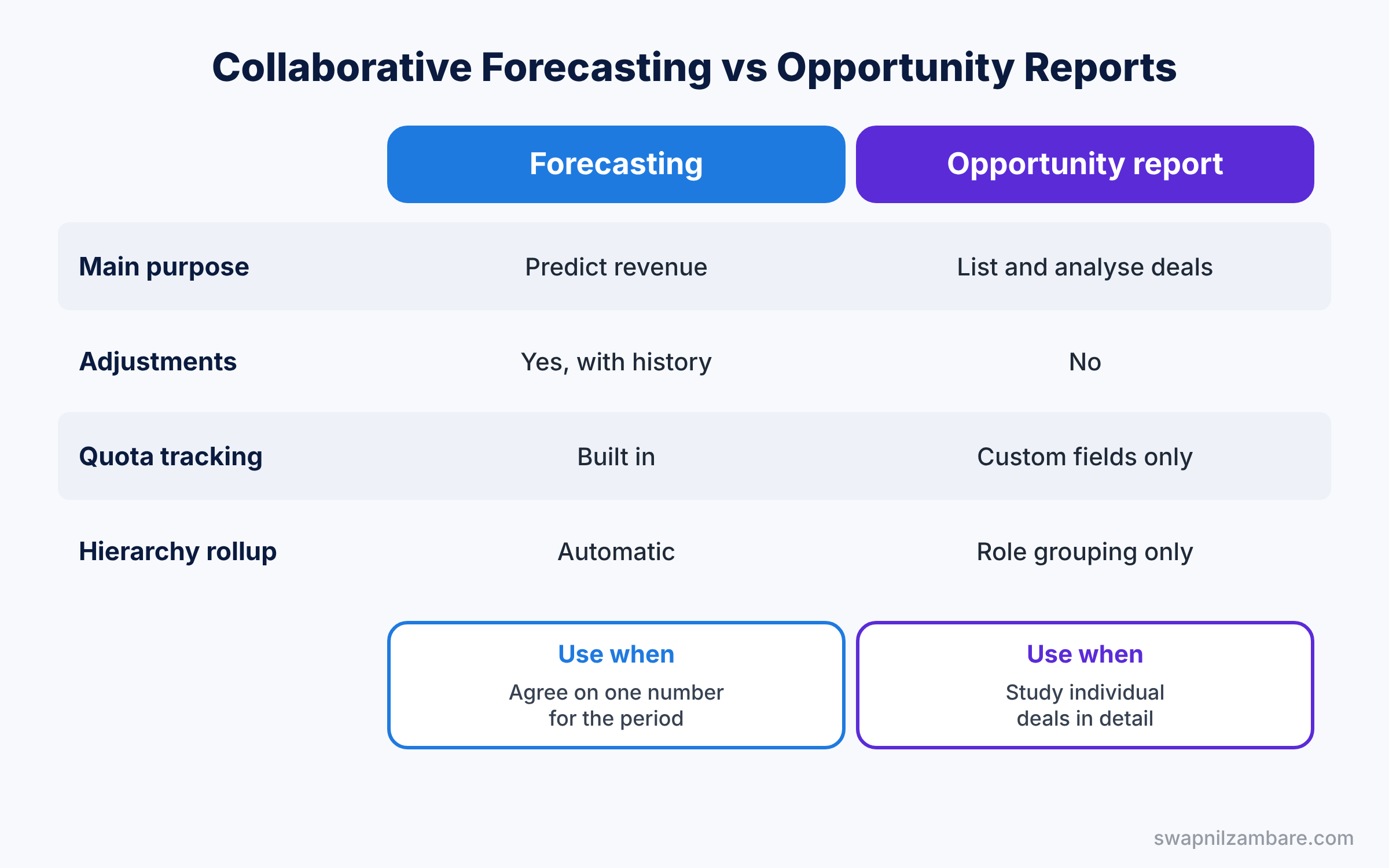
Both tools look at opportunities, so beginners wonder why forecasting is needed at all. The table below compares them.
| Feature | Collaborative Forecasting | Opportunity report |
|---|---|---|
| Main purpose | Predict revenue for a period | List and analyse deals |
| Manager adjustments | Yes, saved with history | No |
| Quota and attainment | Yes, built in | Only with custom fields |
| Rolls up by hierarchy | Yes, automatically | Only with role grouping |
| Best for | Target setting and planning | Detailed deal reviews |
In short, use reports to study deals and use Salesforce Collaborative Forecasting to agree on one number for the period.
Hands-on Example: Salesforce Collaborative Forecasting for June
Let’s set up a monthly forecast in your Developer Edition org.
Step 1: Turn on forecasts
- Go to Setup, type “Forecasts Settings” in Quick Find, and tick Enable Forecasts.
- Click Add a Forecast Type, choose Opportunities, then Opportunity Revenue, and pick Close Date. Save.
- Set the forecast period to Monthly, starting with the current month, and show six periods.
- Choose Cumulative Rollups and tick Show Quotas. Turn on Manager Adjustments as well. Save.
Step 2: Build the forecast hierarchy
- In Quick Find, type “Forecasts Hierarchy” and click Enable Users.
- Add the CEO, the Sales Manager and two reps, such as Rahul Verma and Neha Joshi.
- Next to the Sales Manager role, click Edit Manager and choose the Sales Manager user.
Step 3: Load quotas with Data Loader
Quotas live in the ForecastingQuota object, so you load them with Data Loader. Our Data Loader guide shows the insert steps. Prepare a CSV file like the one below.
QuotaOwnerId,QuotaAmount,StartDate,ForecastingTypeId
0055g00000ABC12,300000,2026-06-01,0Db5g000000XYZ1
0055g00000ABC34,250000,2026-06-01,0Db5g000000XYZ1
QuotaOwnerId is the rep’s user ID, and StartDate is the first day of the period. ForecastingTypeId is the ID of the forecast type you created, which you can find with the query below.
SELECT Id, DeveloperName, MasterLabel
FROM ForecastingType
WHERE IsActive = true
Step 4: Review and adjust the forecast
- Open the Forecasts tab and select June 2026.
- Click the Sales Manager row to see Rahul and Neha with their Commit, Best Case and Closed amounts.
- On Rahul’s Commit cell, choose Adjust Forecast, enter 2,80,000, and add a note like “Green Valley deal likely to slip”.
Step 5: Check forecast items with SOQL
Developers can read the rolled-up numbers with this SOQL query.
SELECT Owner.Name, ForecastCategoryName, AmountWithoutAdjustments, ForecastAmount
FROM ForecastingItem
WHERE Period.StartDate = 2026-06-01
ORDER BY Owner.Name
AmountWithoutAdjustments is the raw total from opportunities, while ForecastAmount includes any adjustments. So you can see exactly how much a manager changed.
Common Mistakes with Salesforce Collaborative Forecasting
- Users missing from the hierarchy. Their deals do not appear until you enable them in Forecasts Hierarchy.
- No forecast manager on a role. The team’s numbers then stop rolling up to the managers above them.
- Wrong close dates. Old close dates push deals into past periods, so the forecast looks too low.
- Quotas with the wrong start date. The start date must match the first day of the period.
- Changing stages to fix the forecast. Use adjustments instead, so the pipeline stays honest.
Best Practices for Salesforce Collaborative Forecasting
- Keep close dates current. Ask reps to update them in a weekly pipeline review.
- Use cumulative rollups. Managers then see a safe number and a stretch number side by side.
- Explain every adjustment. A short note helps the next manager understand the change.
- Load quotas before the period starts. Attainment is only useful from day one.
- Start with one forecast type. Add product or split forecasts later, when the team trusts the basics.
Practice Task
Add a quota of 2,00,000 for Neha Joshi for July 2026. Then move one of her opportunities to Negotiation and watch her Commit amount change.
Hint: use the same ForecastingTypeId and set StartDate to 2026-07-01.
Salesforce Collaborative Forecasting FAQ
Can I forecast by territory instead of role?
Yes. If you use Enterprise Territory Management, you can choose the territory hierarchy as the forecast hierarchy.
Do adjustments change the opportunity amount?
No. Adjustments only change the forecast number, and the opportunities stay the same.
Can reps see each other’s forecasts?
Normally no. Reps see their own forecast, and managers see the people below them.
Official Resources
Quick Recap
- Salesforce Collaborative Forecasting predicts revenue for each period.
- Opportunity stages map to forecast categories like Commit and Best Case.
- Totals roll up through the forecast hierarchy to managers and the CEO.
- Quotas show each rep’s target, loaded with Data Loader.
- Adjustments let owners and managers change the number with a note.
What’s Next?
Your forecast follows the role hierarchy today. Next, learn how to split customers by region or industry and give each sales team its own accounts. Read Enterprise Territory Management in Salesforce: Models, Rules and Users.


