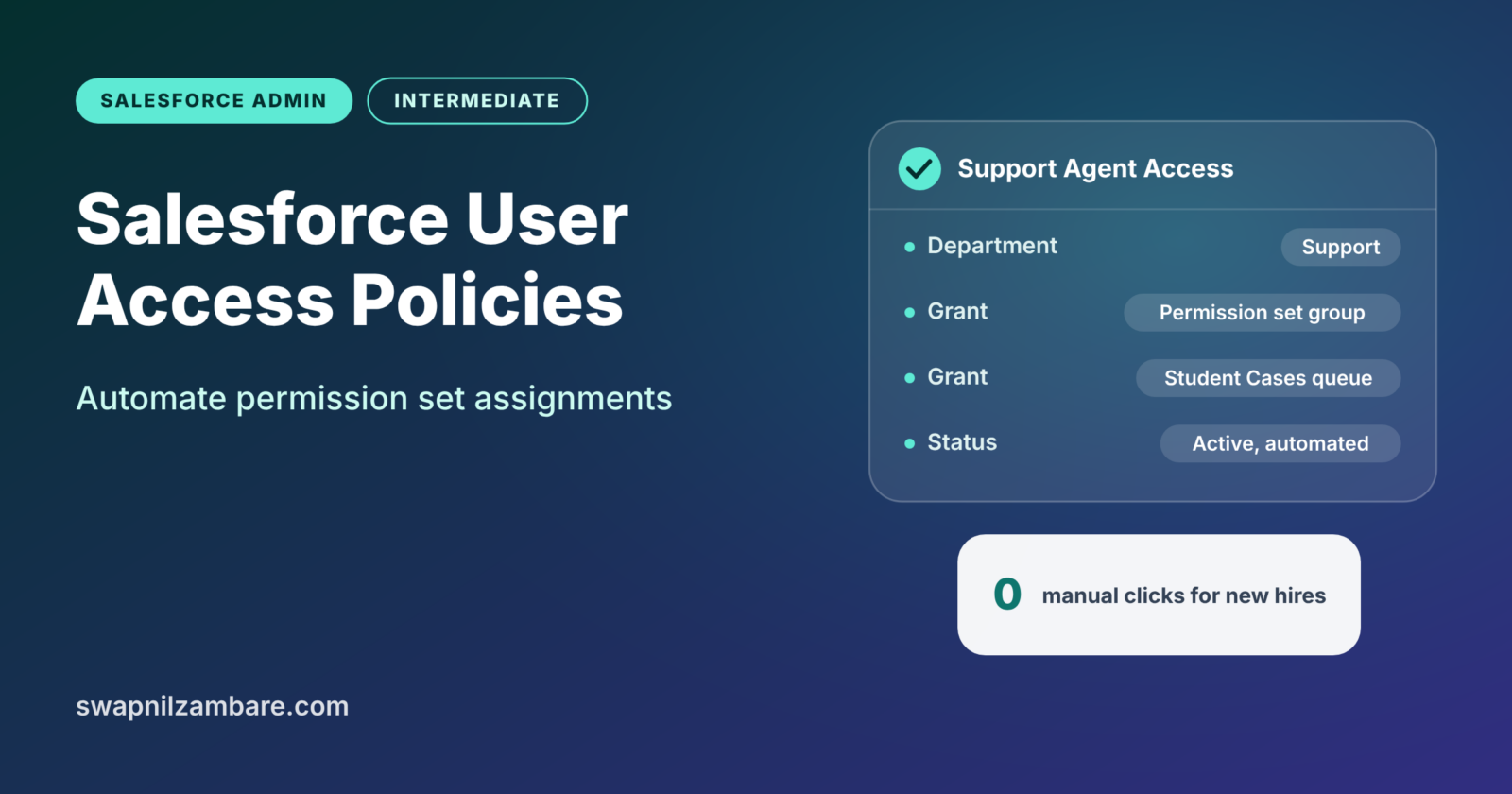
Salesforce User Access Policies let you assign permission sets, groups and queues to users automatically, based on rules you define. Instead of clicking through ten screens for every new hire, you write the rule once. Salesforce then gives the right access when someone joins or changes job.
In this post, you will learn what a user access policy is and how criteria and actions work. Then you will build one for a real team. This builds on profiles and permission sets and on permission set groups and muting. It also helps to know user management basics, because policies run when admins create or update users.
What Are Salesforce User Access Policies?
A user access policy is a rule with two parts. The criteria describe which users the policy applies to, such as “Department equals Support”. The actions describe what to grant or remove, such as a permission set group or a queue.
Think of a new employee joining a school. Every new teacher automatically gets a staff ID card, a locker and a place in the staff WhatsApp group. Nobody decides this from scratch each time. The school follows a standard rule for every teacher. User access policies are that standard rule for Salesforce users.
Why Salesforce User Access Policies Matter
Manual access assignment is slow and easy to get wrong, which is why Salesforce User Access Policies exist. One missed permission set means a new hire cannot work on day one. One forgotten removal means a person keeps access after moving teams.
Here is how policies help at Bright Path Tutors.
- Every new support agent gets the Support permission set group and the Student Cases queue automatically.
- When a trainer moves to sales, the policy removes trainer access and adds sales access.
- Admins spend less time on routine access tickets.
- Access stays consistent, because the same rule runs for every user.
- Audits are easier, because all the rules sit in one place.
So user access policies make access faster, safer and more predictable.
How Salesforce User Access Policies Work
Salesforce User Access Policies follow a simple flow. First, you create a policy and set its criteria. Next, you choose the actions, such as granting a permission set group. Then you decide when it runs: once for current users, automatically for future changes, or both.
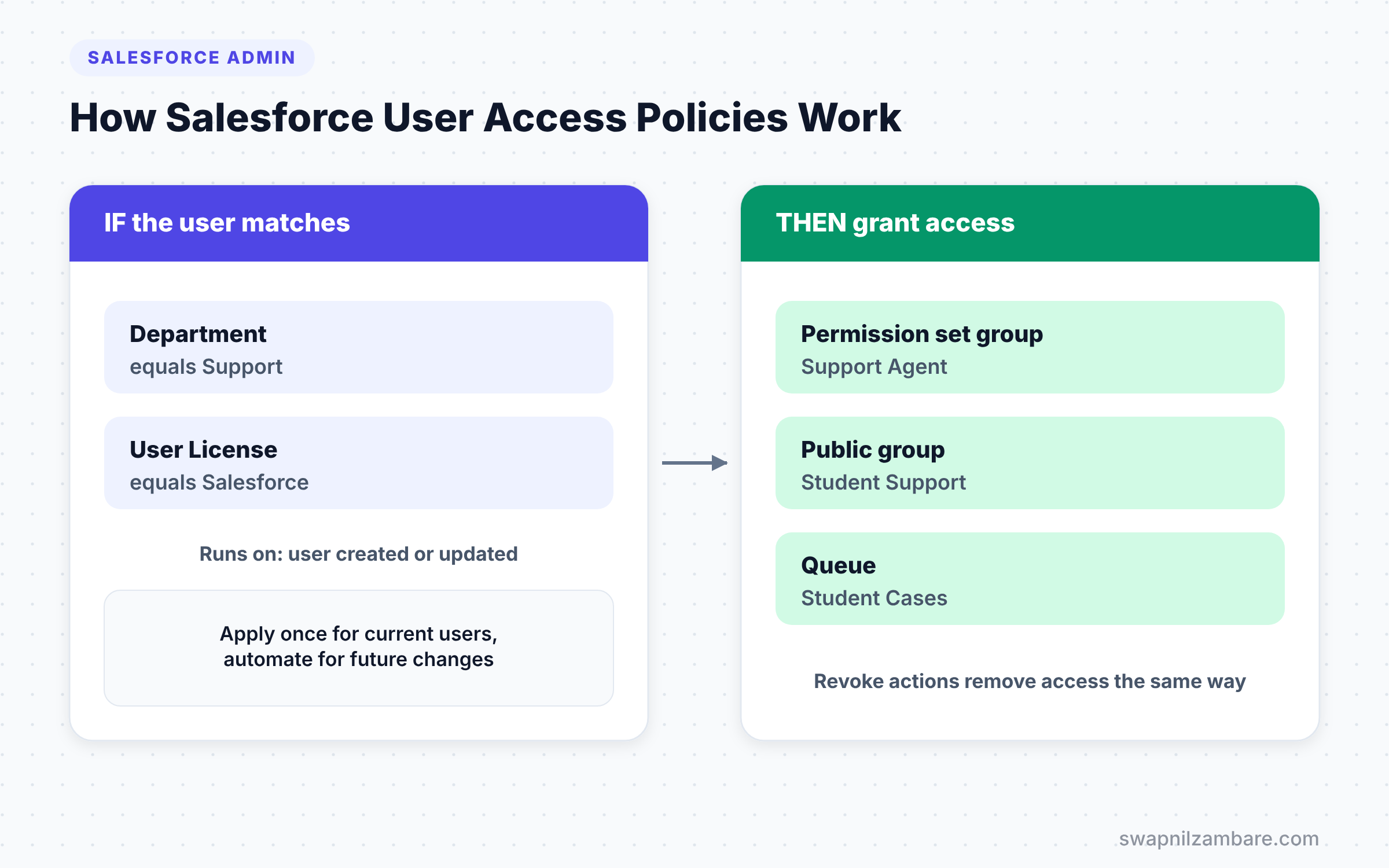
When the policy is active and automated, Salesforce checks it whenever someone creates or updates a user. If the user matches the criteria, the actions run. If the user does not match, nothing happens.
Criteria
Criteria use fields on the user record and existing assignments. Common fields include Profile, Role, Department, Title, User License and custom user fields. You can combine several conditions, such as “Department equals Support AND User License equals Salesforce”.
Actions
Actions grant or revoke access items. A single policy can include several actions. The table below lists what a policy can manage.
| Item | Grant | Revoke |
|---|---|---|
| Permission sets | Yes | Yes |
| Permission set groups | Yes | Yes |
| Permission set licences | Yes | Yes |
| Public groups | Yes | Yes |
| Queues | Yes | Yes |
| Managed package licences | Yes | Yes |
Run Once or Automate
You can apply a policy once to all matching users who already exist. You can also automate it, so it runs on every new or changed user. Many admins do both: apply once to clean up current users, then automate for the future.
User Access Policies vs Manual Assignment
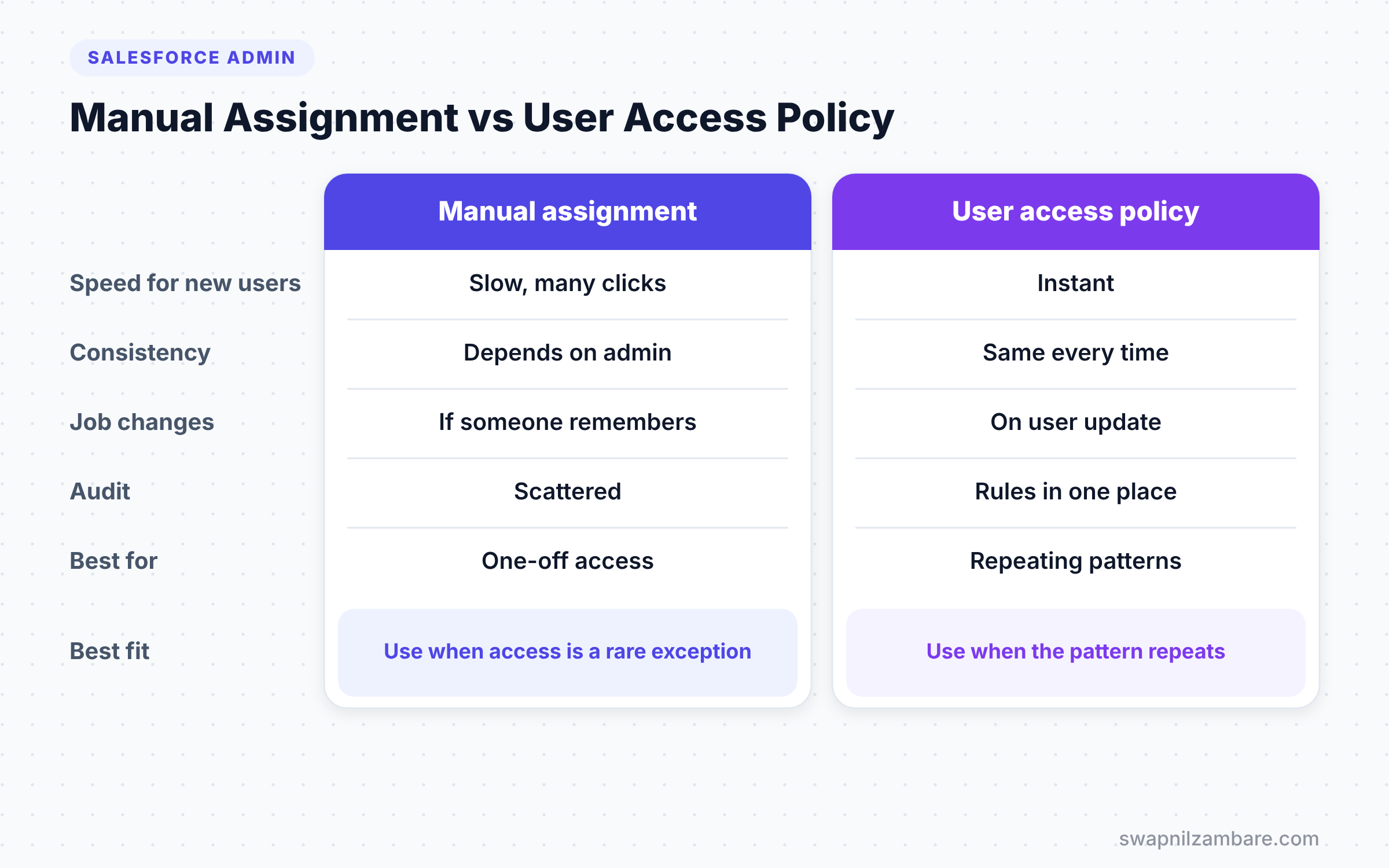
The table below compares policies with assigning access by hand.
| Feature | Manual assignment | User access policy |
|---|---|---|
| Speed for new users | Slow, many clicks | Instant, automatic |
| Consistency | Depends on the admin | Same rule every time |
| Handles job changes | Only if someone remembers | Yes, on user update |
| Audit trail | Scattered | Rules in one place |
| Best for | Rare one-off access | Repeating patterns |
When to use which is simple. Use policies for any access pattern you repeat. Keep manual assignment for true one-off exceptions.
A Real Salesforce User Access Policies Example
Let’s build Salesforce User Access Policies for new support agents at Bright Path Tutors. Every user in the Support department needs the “Support Agent” permission set group. They also need the “Student Support” public group and the “Student Cases” queue.
Step 1: Create the Policy
- Go to Setup and type “User Access Policies” in Quick Find.
- Click New Policy.
- Enter the label “Support Agent Access” and a short description.
- Then click Save.
Step 2: Add Criteria
- In the Criteria section, click Add Criteria.
- Choose the User object and the Department field.
- Set the operator to Equals and the value to “Support”.
- Next, add a second criterion: User License equals Salesforce.
- Finally, set the logic to require both conditions.
The table below sums up the criteria.
| Field | Operator | Value |
|---|---|---|
| Department | Equals | Support |
| User License | Equals | Salesforce |
Step 3: Add Actions
- In the Actions section, click Grant.
- Select the Support Agent permission set group.
- Then grant the Student Support public group.
- Next, grant the Student Cases queue.
- Click Save.
Step 4: Apply and Automate
- Click Apply Policy to run it once for current Support users.
- Then check the results in the policy’s assignment list.
- Next, click Automate and choose to run the policy on user create and user update.
- Finally, confirm that the status shows Active.
Now the HR team creates a new support agent with Department “Support”. Within moments, the agent gets all three items.
Removing Access When People Move
Salesforce User Access Policies can also remove access. This is just as important as granting it. Let’s handle trainers who move to another team.
- Create a policy called “Remove Trainer Access”.
- Set the criteria to Department Not Equal To “Training”, and the user has the Trainer permission set group assigned.
- Then add a Revoke action for the Trainer permission set group.
- Finally, automate it for user updates.
Now when someone’s department changes from Training to Sales, Salesforce removes the trainer access automatically. Then pair this with a separate policy that grants sales access, and Salesforce handles the whole move.
Tips for Planning Salesforce User Access Policies
Good Salesforce User Access Policies start with a simple access map. List each team, the permission set groups it needs, and the groups and queues it uses. Then turn each row into one policy.
Also, keep user data clean. Policies depend on fields like Department and Title. If HR enters “support”, “Support Team” and “SUPPORT” for the same team, your criteria will miss people. A picklist for Department solves this.
Finally, test in a sandbox. Create a few test users that should match and a few that should not. Then check the assignment results before you activate the policy in production.
Common Mistakes with Salesforce User Access Policies
- Writing criteria on free-text fields with messy values, so some users never match.
- Automating a policy without first applying it once, leaving current users out.
- Forgetting revoke policies, so people keep old access after moving teams.
- Building one giant policy for every team, which is hard to read and change.
- Skipping sandbox tests before activating in production.
Best Practices for Salesforce User Access Policies
- Create one policy per team or job, with a clear name.
- Grant permission set groups instead of many single permission sets.
- Use picklists for fields that drive policies, such as Department.
- Pair every grant policy with a matching revoke policy.
- Review active policies every quarter and after reorganisations.
Practice Task
Create a policy that gives the “Report Builder” permission set to every user whose Title contains “Manager”. Apply it once, then create a test user with the title “Sales Manager”. Hint: automate the policy for user creation before you create the test user.
Most Asked Interview Questions on Salesforce User Access Policies
Salesforce User Access Policies are a newer feature, so they impress interviewers when you know them well. Here are the questions you are most likely to hear.
Basic Questions on Salesforce User Access Policies
Q1. What are user access policies?
They are rules that grant or remove access for users who match criteria. Access items include permission sets, permission set groups, licences, public groups and queues.
Q2. What are the two main parts of a policy?
Criteria and actions. Criteria pick which users the policy applies to. Actions decide what to grant or revoke.
Q3. When do user access policies run?
You can apply a policy once to existing users. You can also automate it to run on every new or changed user.
Q4. Can a policy remove access?
Yes. A policy can revoke permission sets, groups, queues and licences, as well as grant them.
Practical Questions on Salesforce User Access Policies
Q5. How would you give every new support agent the same access?
Create a user access policy with criteria such as Department equals Support. Add grant actions for the support permission set group, public group and queue. Then automate it for user creation.
Q6. Why might a policy not apply to a new user?
Usually the user’s field values do not match the criteria exactly, such as a typo in Department. It could also be that the policy is not automated for user creation.
Q7. What is the difference between a user access policy and a permission set group?
A permission set group bundles permissions together. A user access policy decides automatically which users receive that group, and when to remove it.
Q8. How do you handle a user who changes department?
Use a revoke policy for the old access and a grant policy for the new access. Automate both for user updates, so the change happens as soon as HR updates the department.
Official Resources
- User Access Policies (Salesforce Help)
- Permission Set Groups (Salesforce Help)
- Trailhead: User Management
Quick Recap
- Salesforce User Access Policies assign access automatically based on user criteria.
- A policy has criteria and grant or revoke actions.
- Apply a policy once for current users, then automate it for future changes.
- Clean picklist fields make criteria reliable.
- Pair grant and revoke policies so Salesforce handles job moves fully.
What’s Next?
Policies control what users can do after they log in. Next, read our guide to Salesforce login flows, login IP ranges and trusted IPs to control the login itself.


