Salesforce Login Flows let you show extra screens to users right after they log in, before they reach Salesforce. You can use them to collect missing details, show terms to accept, or block access in special cases. Login IP ranges and trusted IPs work alongside them to control where users can log in from.
In this post, you will learn how Salesforce Login Flows work and how they differ from IP ranges and trusted IPs. Then you will build each one step by step. This builds on our guide to org security, MFA and login settings. It also uses Salesforce Flow types, because login flows are screen flows. Our post on single sign-on and My Domain also helps, since login settings often go together.
What Are Salesforce Login Flows?
A login flow is a screen flow that runs after a user enters the right username and password. It runs before Salesforce opens. You connect the flow to one or more profiles. Every user with those profiles then sees the flow at login.
Think of a gated apartment building. Your key opens the gate, but the guard still asks you to sign the visitor register before you go up. The key is your password. The guard’s register is the login flow.
Why Salesforce Login Flows Matter
Login is the one moment every user passes through, so Salesforce Login Flows sit at the perfect spot. So it is a perfect place to check or collect important things. Here is how Bright Path Tutors uses login flows and IP controls.
- New trainers must accept the data privacy policy once before they can work.
- Users with a missing mobile number must add it at login.
- Contract staff can only log in from the office network.
- Support agents can only log in during their shift hours.
- Users outside trusted networks must verify their identity.
These checks happen before any data is visible, which makes them strong controls.
How Salesforce Login Flows Work
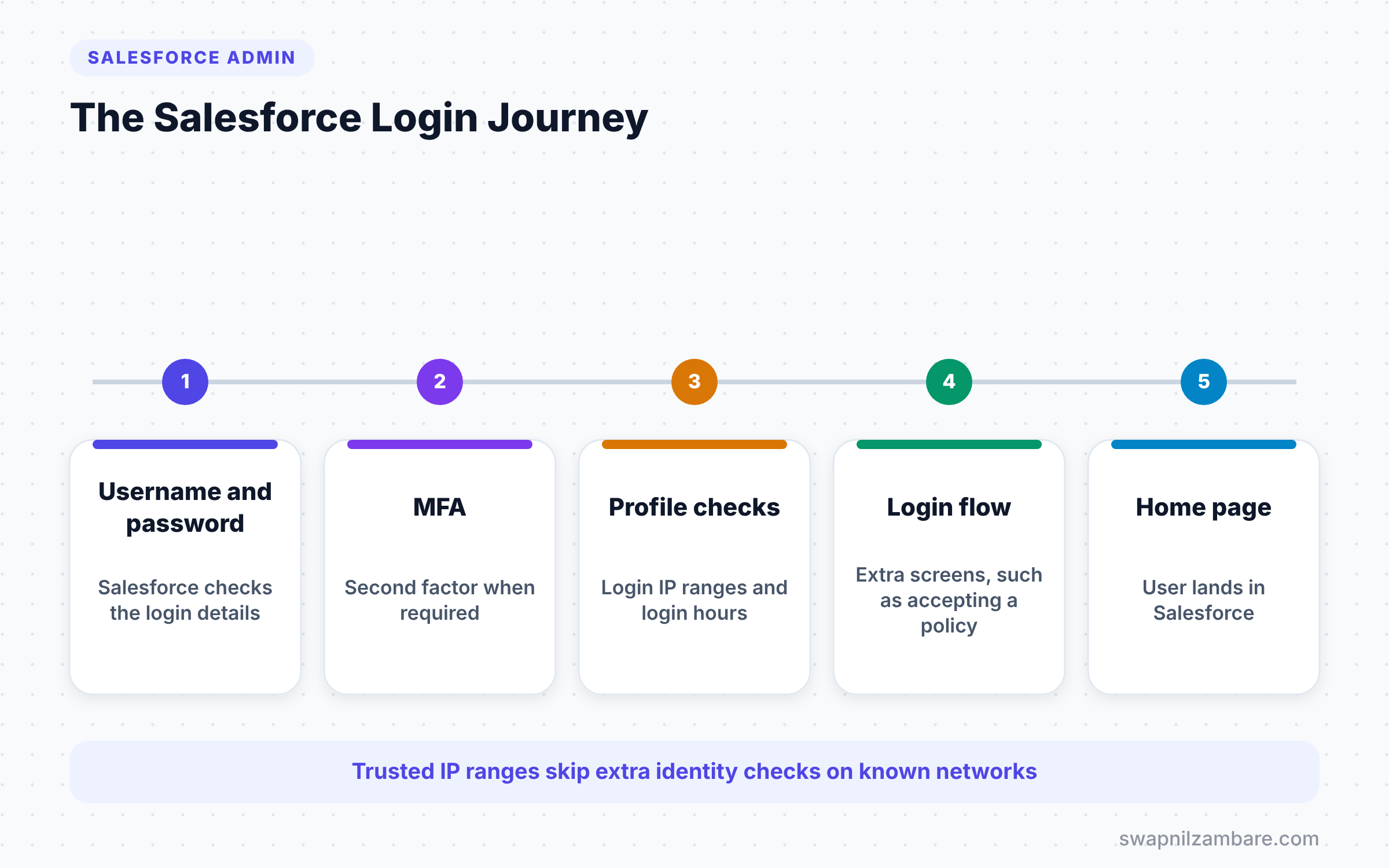
First, Salesforce checks the username and password, and MFA when your org requires it. Next, if the user’s profile has a login flow, Salesforce runs that flow. Then, when the flow finishes, the user lands on the home page. If the flow ends with a logout, the user never gets in.
Login IP Ranges
Login IP ranges live on the profile. If you set them, users with that profile can only log in from those IP addresses. Salesforce blocks anyone who tries from another address.
Trusted IP Ranges
Trusted IP ranges live in Network Access in Setup. They apply to the whole org. Users logging in from a trusted IP do not get an extra identity check, such as a verification code. Users from other addresses can still log in, but they must verify who they are.
Login Hours
Login hours also live on the profile. They set the days and times when users with that profile can log in. If a session is open when the hours end, Salesforce logs the user out.
Login IP Ranges vs Trusted IP Ranges
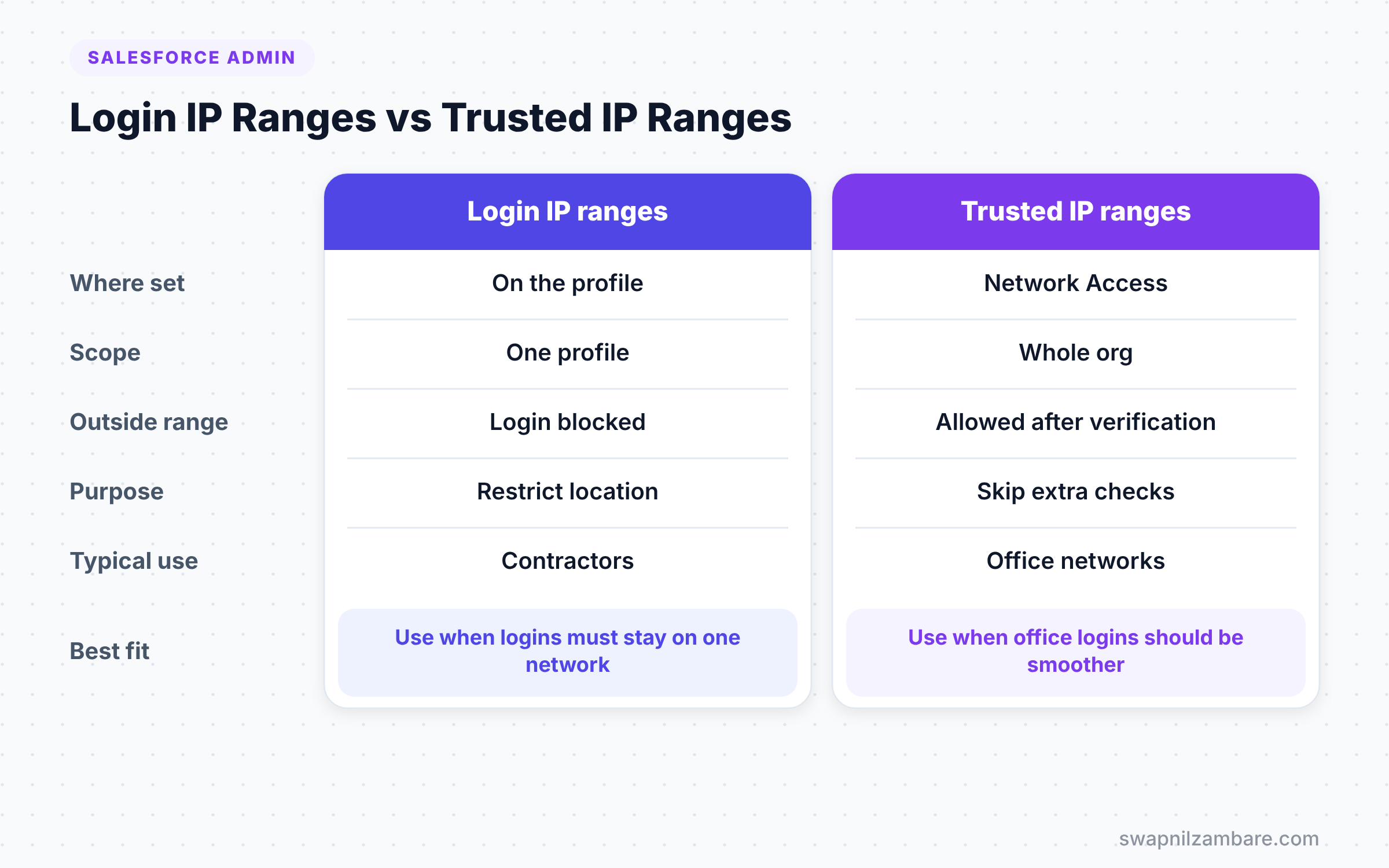
These two settings sound alike but behave very differently. The table below compares them.
| Feature | Login IP ranges | Trusted IP ranges |
|---|---|---|
| Where set | On the profile | Setup > Network Access |
| Scope | Users with that profile | Whole org |
| Outside the range | Login is blocked | Login allowed after verification |
| Main purpose | Restrict where users log in | Skip extra checks on known networks |
| Typical use | Contractors, sensitive teams | Office networks |
When to use which is clear. Use login IP ranges to block logins from anywhere else. Use trusted IP ranges to make office logins smoother without blocking others.
How to Build Salesforce Login Flows Step by Step
Let’s build Salesforce Login Flows that ask new trainers to accept the privacy policy once. We will store the answer in a checkbox field on the user record.
Step 1: Create a User Field
- Go to Setup > Object Manager > User > Fields & Relationships > New.
- Choose Checkbox, label it “Privacy Policy Accepted” and keep the default unchecked.
- Then give access only to admins through field-level security and save.
Step 2: Build the Screen Flow
- Go to Setup > Process Automation > Flows > New Flow and choose Screen Flow.
- First, add a Get Records element to get the current user using
{!$User.Id}. - Next, add a Decision. If Privacy Policy Accepted is true, go straight to the end.
- Then, for false, add a Screen with the policy text and a required checkbox “I accept”.
- Finally, add an Update Records element that sets Privacy Policy Accepted to true.
- Save the flow as “Trainer Privacy Login Flow” and activate it.
Step 3: Connect the Flow to a Profile
- Go to Setup and type “Login Flows” in Quick Find.
- Click New.
- Enter the values from the table below.
- Then click Save.
The table below shows the login flow settings.
| Setting | Value |
|---|---|
| Name | Trainer Privacy Check |
| Type | Flow |
| Flow | Trainer Privacy Login Flow |
| User License | Salesforce |
| Profile | Trainer |
Now log in as a trainer. The policy screen appears once. After the trainer accepts, the field turns true and the flow skips straight through on every later login.
How to Set Login IP Ranges and Trusted IPs
Login IP Ranges on a Profile
- Go to Setup > Users > Profiles and open the Contractor profile.
- Scroll to Login IP Ranges and click New.
- Enter the office start and end IP addresses from your IT team.
- Then click Save.
Trusted IP Ranges for the Org
- Go to Setup > Security > Network Access.
- Click New.
- Enter the office IP range and a short description, such as “Pune office”.
- Finally, click Save.
Login Hours on a Profile
- Open the Support Agent profile.
- Next, scroll to Login Hours and click Edit.
- Set Monday to Saturday from 8:00 AM to 10:00 PM.
- Then click Save.
Other Uses for Salesforce Login Flows
Privacy acceptance is only one idea. Companies use Salesforce Login Flows for many small but useful checks.
For example, a flow can show an important announcement once, such as a new holiday calendar. Another flow can check a custom field like “Training Completed” and send users to a training link before they work. A stricter flow can log out users whose account is marked as under review.
Developers can also build login flows with Visualforce pages for complex screens. However, screen flows cover most admin needs today, and they need no code.
Testing Login Flows Safely
A broken login flow can stop people from working, so test carefully. First, build and activate the flow in a sandbox. Next, connect it to a test profile with one test user. Then log in as that user and walk through every path in the flow.
Also keep one admin user on a profile with no login flow. If something goes wrong, that admin can still log in and switch the flow off.
Common Mistakes with Salesforce Login Flows
- Building a login flow that always shows the same screen, which annoys users every day.
- Forgetting a way out in the flow, so users get stuck on a screen.
- Setting login IP ranges on the System Administrator profile and locking yourself out.
- Mixing up login IP ranges and trusted IPs.
- Testing in production first instead of a sandbox.
Best Practices for Salesforce Login Flows
- Keep login flows short, with one or two screens at most.
- Use a user field to remember choices, so the flow skips next time.
- Test every login flow with a test user in a sandbox before production.
- Keep at least one admin profile without login IP ranges as a safety net.
- Ask IT for exact IP ranges and document where each one comes from.
Practice Task
Build a login flow that checks if the user’s Mobile Phone field is blank. If it is, show a screen to collect it and update the user record. Hint: use a Decision on the Get Records result before showing the screen.
Most Asked Interview Questions on Salesforce Login Flows
Salesforce Login Flows and IP settings are a common interview topic, and many candidates mix them up. These answers keep them clear.
Basic Questions on Salesforce Login Flows
Q1. What is a login flow?
It is a screen flow that runs after a user logs in successfully, but before they reach Salesforce. You connect it to profiles in Setup > Login Flows.
Q2. What can you do with Salesforce Login Flows?
You can show terms to accept, collect missing details, show announcements, or log a user out based on conditions. The flow runs before any data appears.
Q3. What are login IP ranges?
They are IP address ranges set on a profile. Users with that profile can only log in from those addresses. Salesforce blocks all other logins.
Q4. What do trusted IP ranges do?
They are IP ranges set in Network Access for the whole org. Logins from these addresses skip extra identity verification.
Practical Questions on Salesforce Login Flows
Q5. What is the difference between login IP ranges and trusted IP ranges?
Login IP ranges block logins from outside the range for one profile. Trusted IP ranges allow logins from anywhere, but only skip the extra check on known networks.
Q6. How do you stop a login flow from showing every day?
Store the user’s answer in a field, such as a checkbox. Then add a Decision at the start of the flow that skips the screens when the field is already set.
Q7. A contractor cannot log in from home. Why?
Most likely, the contractor profile has login IP ranges that only allow the office network. Login hours on the profile could also block them at that time.
Q8. What happens when login hours end during a session?
Salesforce ends the session and logs the user out. They cannot log in again until their allowed hours start.
Official Resources
- Login Flows (Salesforce Help)
- Set Trusted IP Ranges for Your Organization (Salesforce Help)
- Trailhead: Data Security
Quick Recap
- Salesforce Login Flows run a screen flow right after login.
- They connect to profiles in Setup > Login Flows.
- Login IP ranges on a profile block logins from other addresses.
- Trusted IP ranges for the org skip extra identity checks on known networks.
- Login hours limit when users with a profile can log in.
What’s Next?
Login security protects users. Next, let’s protect integrations. Read our guide to Salesforce Named Credentials and External Credentials.


