Salesforce Single Sign-On lets users log in to Salesforce with the same company account they already use for email and other apps, so they do not need a separate Salesforce password. It works through My Domain, the unique login address of your org. In our org security guide, you set up MFA and password policies. In our user management guide, you created users. SSO changes how those users sign in.
In this post, you will learn what My Domain is, how SAML single sign-on works, what an identity provider does, how Federation IDs link users, and how social sign-on differs. Then you will plan SSO for Bright Path Tutors with the company’s Microsoft or Google account. The Platform Administrator II exam asks about user authentication, so the ideas here matter for the exam as well.
What is Salesforce Single Sign-On?
Single sign-on, or SSO, means one login for many apps. The user signs in once with an identity provider, such as Microsoft Entra ID, Okta or Google Workspace. Then Salesforce trusts that sign-in and opens without asking for a Salesforce password.
My Domain is your org’s own login address, like brightpath.my.salesforce.com. Every org has one, and SSO buttons appear on that login page.
Here is a simple analogy. Think of an office building with one ID card. You tap the card at the main gate, and the same card opens the lift and your office floor. You do not carry a different key for each door. The identity provider is the main gate, and Salesforce is one of the doors that trusts the card.
Why Salesforce Single Sign-On Matters
Many passwords lead to weak passwords, sticky notes and reset requests. They also make it hard to remove access when someone leaves. For example, a trainer who leaves may still know their Salesforce password, even after IT has closed their email account. With SSO, closing the company account closes Salesforce access too, because every login passes through the same gate.
Here are some real situations at Bright Path Tutors.
- Staff already log in to email with company Microsoft accounts.
- IT wants one place to switch off access when a trainer leaves.
- Users forget their Salesforce password every few weeks.
- The security team wants MFA enforced in one place for every app.
So SSO improves security and saves time for both users and admins.
How Salesforce Single Sign-On Works
A SAML login follows a clear sequence. First, the user opens the My Domain login page and clicks the company login button. Next, Salesforce sends the user to the identity provider. Then the user signs in there, with MFA if required. After that, the identity provider sends a signed message, called a SAML assertion, back to Salesforce. Finally, Salesforce checks the signature, finds the user by Federation ID, and logs them in.
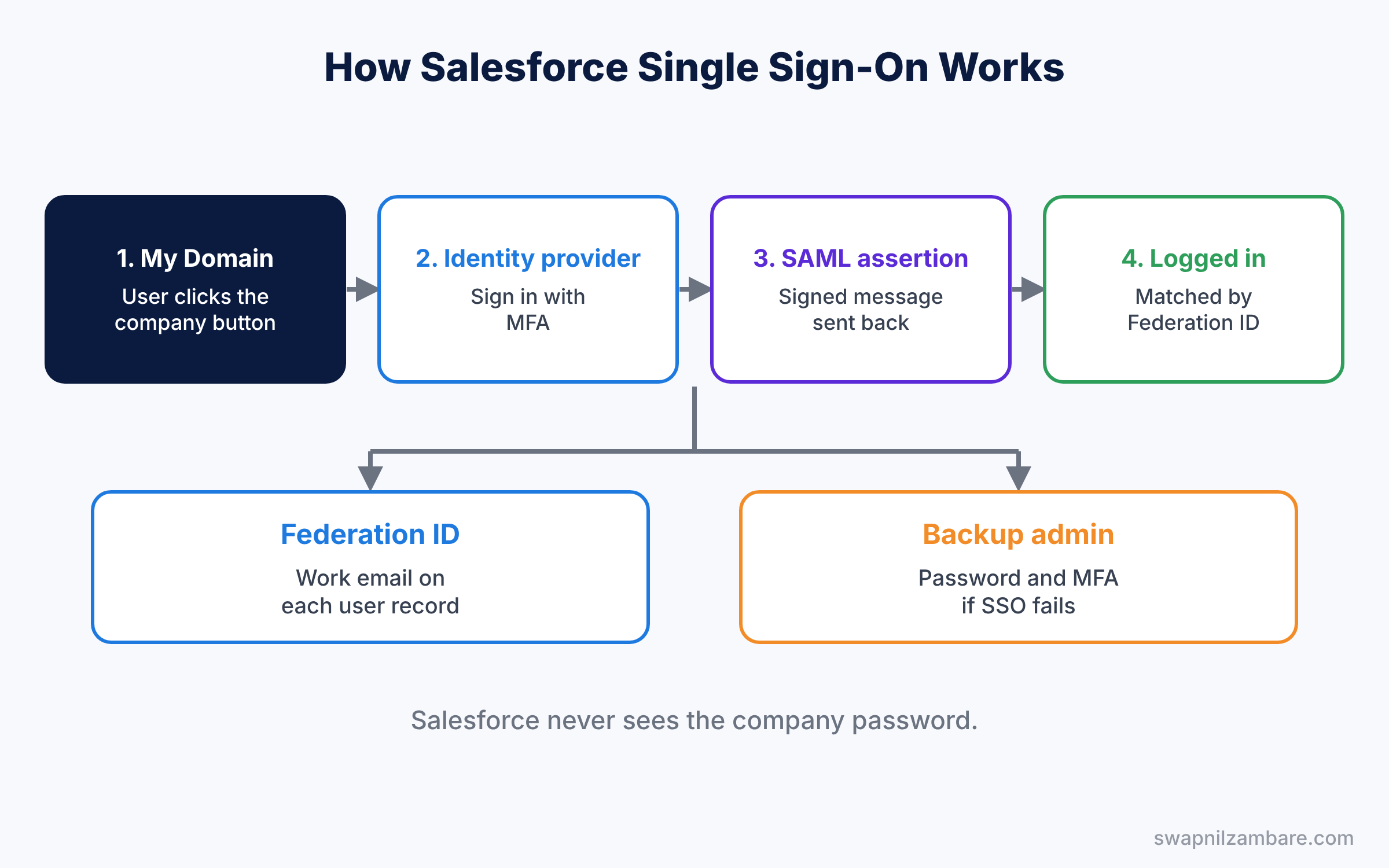
Salesforce never sees the user’s company password. Instead, it only trusts the signed message from the identity provider. So even if someone copies the message, they cannot change it, because the signature would no longer match the certificate.
Key Parts of Salesforce Single Sign-On
My Domain
First, My Domain gives your org a branded login URL. Also, it is required for every org today. The Authentication Configuration section of My Domain decides which login options appear on the page.
Identity provider and service provider
Next, the identity provider checks who the user is. Meanwhile, Salesforce acts as the service provider, which trusts the identity provider. Salesforce can also be an identity provider for other apps, but that is a different setup.
SAML settings for single sign-on
Then the SAML single sign-on settings in Setup hold the identity provider’s details. These include the issuer, the certificate that signs messages, and the login URL.
Federation ID in single sign-on
Each user record has a Federation ID field. It holds the value that the identity provider sends, often the work email. Then that value links the incoming login to the right Salesforce user. However, the value must match exactly, so a typo or an old email address blocks the login.
Social sign-on and Just-in-Time provisioning
Finally, authentication providers let users log in with accounts like Google or Microsoft through OpenID Connect. Just-in-Time provisioning can create or update users automatically during login. For example, when a new trainer logs in for the first time, Salesforce can create their user with the right profile and role from the details in the SAML message. This saves admin time, but test it carefully, because a wrong mapping can give the wrong access.
The table below lists the SAML settings we will enter.
| Setting | Example value |
|---|---|
| Name | Bright Path Microsoft SSO |
| Issuer | Identity provider’s entity ID |
| Identity Provider Certificate | Uploaded certificate file |
| SAML Identity Type | Federation ID |
| Identity Provider Login URL | Provider’s sign-in address |
SAML SSO vs Social Sign-On
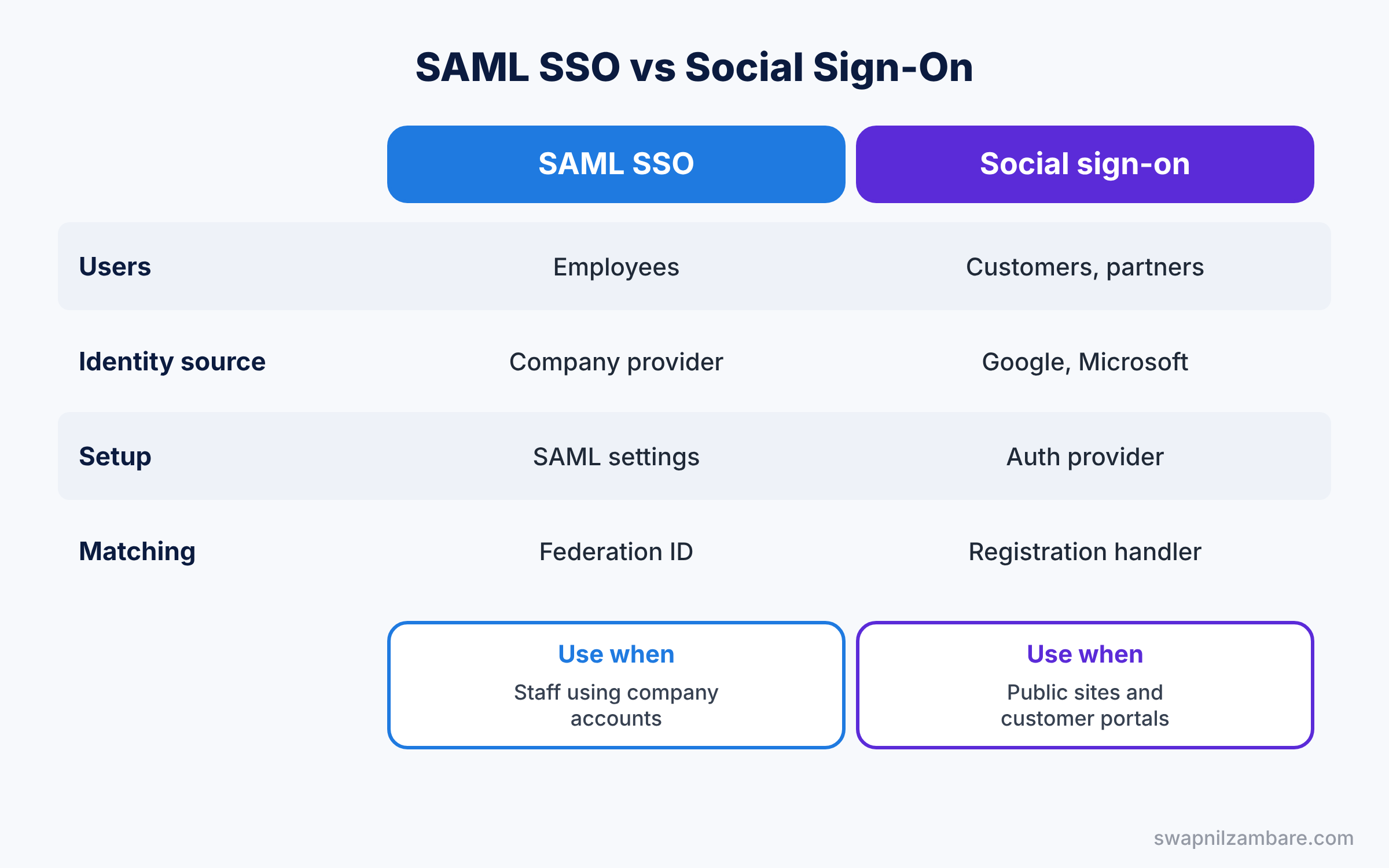
Both remove the separate Salesforce password, but they suit different users. The table below compares them.
| Feature | SAML single sign-on | Social sign-on |
|---|---|---|
| Typical users | Employees | Customers and partners |
| Identity source | Company identity provider | Google, Microsoft, Facebook and others |
| Setup in Salesforce | SAML settings | Authentication provider |
| User matching | Federation ID | Registration handler or linked accounts |
| Best for | Staff using company accounts | Public sites like customer portals |
In short, use SAML for employees with company accounts. Use social sign-on for customers who want to log in to a site with an account they already have.
Hands-on Example: Salesforce Single Sign-On with a Company Account
Let’s plan SSO in a sandbox first. You need admin access to your identity provider as well as Salesforce.
Step 1: Check My Domain
- Go to Setup, type “My Domain” in Quick Find, and note your login URL.
- Keep the standard login form available for admins as a backup, so you can still log in if the identity provider has an outage.
Step 2: Add Salesforce to the identity provider
- In the identity provider, create a new SAML app for Salesforce.
- Enter your My Domain URL details and choose to send the work email as the user identifier.
- Download the provider’s metadata or certificate.
Step 3: Create the SAML settings in Salesforce
- In Quick Find, open Single Sign-On Settings and click New from Metadata File, or New.
- Enter the values from the table above and save.
- Open My Domain, edit Authentication Configuration, and tick the new SSO option.
Step 4: Set Federation IDs
Set each user’s Federation ID to their work email. Developers can check which users are ready with this query.
SELECT Username, FederationIdentifier, IsActive
FROM User
WHERE IsActive = true AND FederationIdentifier = null
Any user in the result cannot log in with SSO yet. So fill their Federation ID before go-live, either by hand for a few users or with Data Loader for many.
Step 5: Test and monitor
- Log in as a test user through the company login button.
- Check Login History in Setup. The login type should show SAML single sign-on, not the standard application login.
SELECT UserId, LoginType, Status, LoginTime
FROM LoginHistory
WHERE LoginTime = TODAY
ORDER BY LoginTime DESC
LoginType shows how each user logged in. So you can confirm that SSO is working before you tell the whole company.
Common Mistakes with Salesforce Single Sign-On
- No backup admin login. If SSO fails, admins must still get in with a password.
- Missing Federation IDs. Users see an error after a successful provider login.
- Expired certificates. Logins stop on the expiry date, so track it in your team calendar.
- Testing in production first. Always test SSO in a sandbox.
- Forgetting MFA. Make sure the identity provider enforces MFA.
Best Practices for Salesforce Single Sign-On
- Use the work email as the Federation ID. It is unique and easy to match.
- Keep one or two break-glass admins. They log in with a password and MFA.
- Enforce MFA at the identity provider. One rule protects every app.
- Turn off users in one place. Disable the company account when someone leaves, then freeze the Salesforce user too.
- Review Login History after go-live. Look for failed SSO attempts.
Practice Task
Set up a social sign-on test for an Experience Cloud site with a Google authentication provider. Then log in to the site as a test parent.
Hint: create the authentication provider first, then add it to the site’s login page settings.
Salesforce Single Sign-On FAQ
Is My Domain required?
Yes. Every org has a My Domain, and SSO options appear on its login page.
Does SSO replace MFA?
No. SSO moves login to the identity provider, which should enforce MFA.
Can some users keep passwords?
Yes. You can allow both login options and choose who uses which.
Official Resources
Quick Recap
- Salesforce Single Sign-On lets users log in with their company account.
- My Domain is the login address where SSO buttons appear.
- SAML assertions from the identity provider prove who the user is.
- Federation IDs link the login to the right Salesforce user.
- Keep a backup admin login and enforce MFA at the provider.
What’s Next?
Your users now log in safely with one account. Next, learn how outside apps connect to Salesforce through External Client Apps. Read Salesforce External Client Apps and Connected Apps.


