Salesforce External Client Apps define how outside systems, such as a billing tool or a mobile app, connect to your org securely with OAuth. They are the new generation of connected apps. Starting with the Spring ’26 release, Salesforce stopped the creation of new connected apps by default, so new integrations use External Client Apps instead. Existing connected apps keep working. In our single sign-on guide, you controlled how people log in. This post covers how other systems log in.
In this post, you will learn what OAuth is in plain words, how an External Client App splits settings from policies, which OAuth flows suit which integrations, and how to limit what an integration can do. Then you will set up an External Client App for the Bright Path Tutors billing system. You should know permission sets from our permission set groups guide, because integrations get access the same way users do.
What are Salesforce External Client Apps?
An External Client App, or ECA, is a setup record that lets an outside application request access to Salesforce. It holds the OAuth settings, such as the callback URL and the scopes the app may use. Also, it holds the policies that decide which users can use it and how long sessions last.
OAuth is a way to give an app limited access without sharing a password. Instead, the app gets a token, which works like a visitor pass with an expiry time and a list of allowed rooms.
Here is a simple analogy. Think of a gated housing society. A delivery company does not get a resident’s house key. Instead, the security desk gives the driver a visitor pass for one building, valid for one hour. The ECA is the rule book at the security desk, and the token is the visitor pass.
Why Salesforce External Client Apps Matter
Integrations are powerful, so weak setup is risky. For example, an app with too much access can read or change data across the whole org.
Here are some real situations at Bright Path Tutors.
- The billing system needs to read paid enrollments every night.
- A partner school’s app wants to create leads through the API.
- The mobile app team needs parents to log in with their portal accounts.
- Security wants to see and control every system that connects to Salesforce.
So ECAs let you connect systems while keeping access small, visible and easy to switch off.
How Salesforce External Client Apps Work
The setup and use follow a clear path. First, an admin creates an External Client App in Setup and turns on OAuth. Next, they set the callback URL, the scopes and the OAuth flow the app will use. Then they set policies, such as which permission sets may use the app and how long tokens last. After that, the outside system requests a token from Salesforce. Finally, it calls Salesforce APIs with that token, and Salesforce applies the user’s or integration user’s permissions to every call.
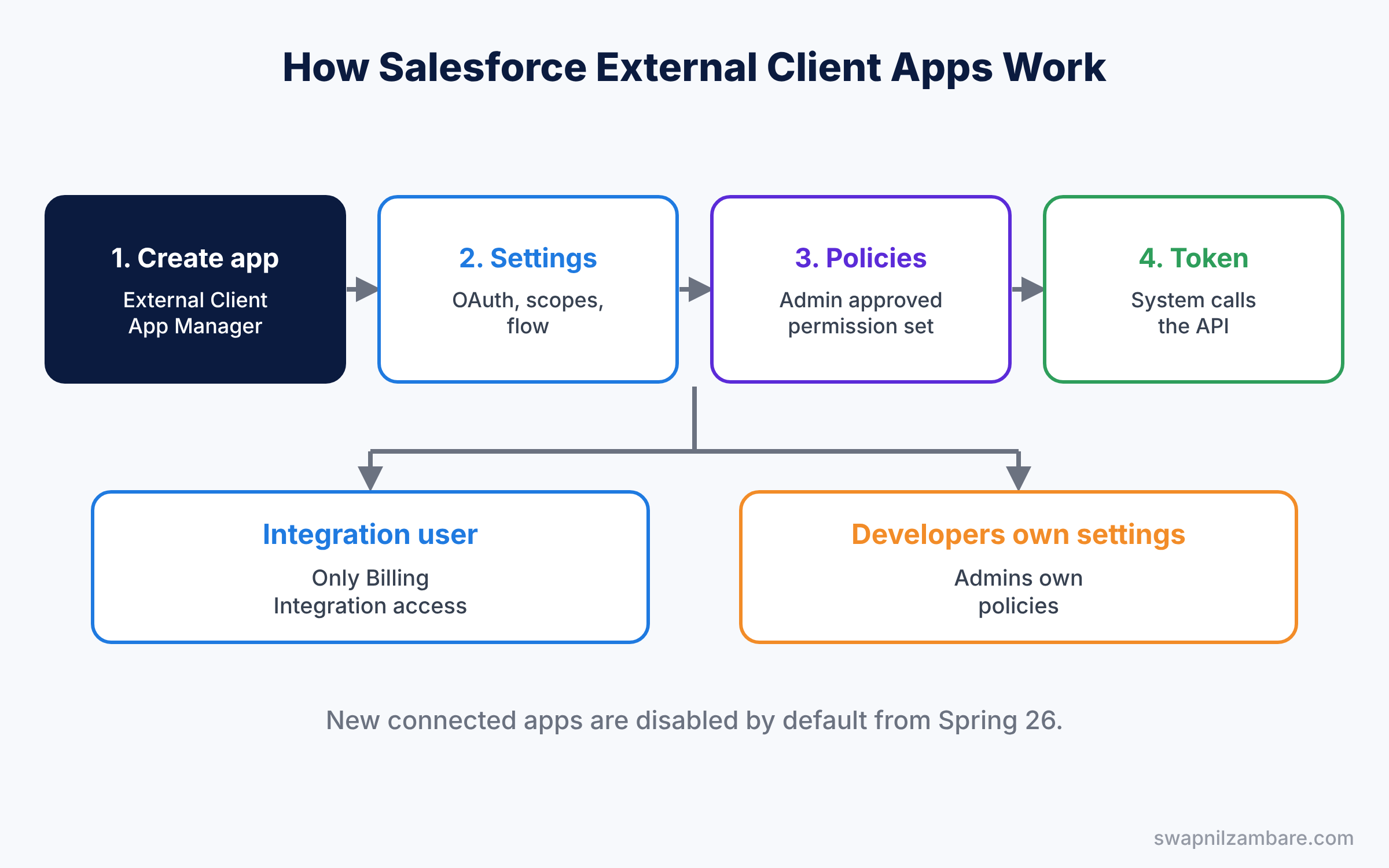
An important change from connected apps is that settings and policies are separate. So developers own the settings, while admins own the policies. As a result, an admin can tighten access later without asking a developer to rebuild anything.
Key Parts of Salesforce External Client Apps
OAuth settings
First, OAuth settings include the callback URL, where Salesforce sends the user after login, and the scopes. Scopes are the permissions the app asks for, such as api for data access and refresh_token for staying logged in.
Policies in External Client Apps
Next, policies control use of the app. They include permitted users, IP rules, session timeout and refresh token rules. For example, “Admin approved users are pre-authorized” means only users with an assigned permission set can use the app.
OAuth flows
Then the flow decides how the app gets a token. The authorization code flow suits apps where a person logs in. The client credentials and JWT bearer flows suit server-to-server integrations with no person present.
Integration users
Server integrations should run as a dedicated integration user with the Salesforce Integration licence. Then give that user only the permission sets the integration needs. Because the user is dedicated, its logins and changes are easy to spot in audits.
Local and packaged apps
Finally, an ECA can be local to one org or packaged for installation in other orgs, so you choose based on where the integration must run. Packaged apps make it easy to deploy the same integration from sandbox to production.
The table below shows our billing integration plan.
| Setting | Value |
|---|---|
| App name | Bright Path Billing |
| OAuth flow | Client credentials |
| Scopes | api |
| Run as user | billing.integration@brightpath.example |
| Permitted users | Admin approved, Billing Integration permission set |
External Client Apps vs Connected Apps
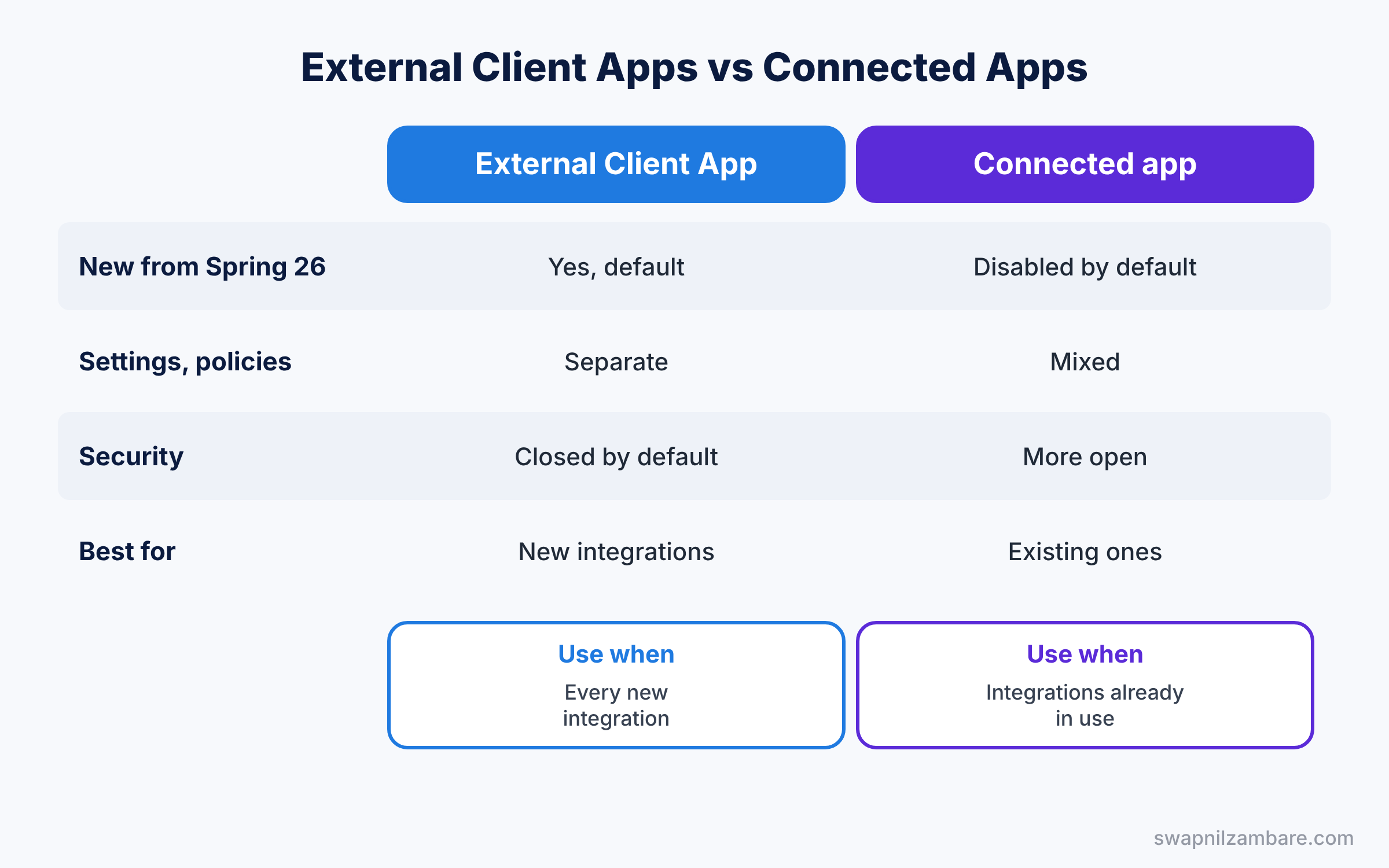
Many orgs still have connected apps, so it helps to compare them. The table below shows the differences.
| Feature | External Client App | Connected app |
|---|---|---|
| New ones from Spring ’26 | Yes, the default | Creation disabled by default |
| Settings and policies | Separate, with clear owners | Mixed in one record |
| Packaging | Designed for second-generation packaging | Older packaging model |
| Security defaults | Closed by default | More open by default |
| Best for | All new integrations | Existing integrations already in use |
In short, keep existing connected apps running and plan to migrate them over time. Build every new integration as one of your Salesforce External Client Apps.
Hands-on Example: Salesforce External Client Apps for Billing
Let’s set up the billing integration in a sandbox.
Step 1: Create the integration user
- In Setup, create a user “Billing Integration” with the Salesforce Integration user licence and the Minimum Access profile.
- Create a permission set “Billing Integration” with Read on Enrollment and Course, and API Enabled. Assign it to the user.
Step 2: Create the External Client App
- Go to Setup, type “External Client App Manager” in Quick Find, and click New External Client App.
- Enter the name “Bright Path Billing”, a contact email, and choose Local distribution.
- Turn on OAuth, add the api scope, and enable the client credentials flow. Save.
Step 3: Set the policies
- Open the app’s Policies tab and click Edit.
- Set Permitted Users to admin approved, and add the Billing Integration permission set.
- Set the client credentials run-as user to the Billing Integration user. Save.
Step 4: Share the keys safely
Next, copy the consumer key and secret from the app settings. Then share them with the billing team through a secure password manager, never by email or chat.
Step 5: Test the access
The billing system requests a token, then runs a query like this through the API.
SELECT Id, Name, Fee_Paid__c, LastModifiedDate
FROM Enrollment__c
WHERE LastModifiedDate = YESTERDAY
Because the run-as user only has the Billing Integration permission set, the same query on Opportunity would fail. That is the goal: the integration sees exactly what it needs.
Also, admins can review OAuth usage per app in Setup, and check logins by the integration user with this query.
SELECT LoginTime, LoginType, Status, Application
FROM LoginHistory
WHERE UserId = '005XXXXXXXXXXXXXXX'
ORDER BY LoginTime DESC
Common Mistakes with Salesforce External Client Apps
- Running integrations as an admin. One leaked token then exposes the whole org.
- Asking for full scope. Request only the scopes the app needs.
- Sharing secrets in email. Use a password manager or a secrets vault.
- Leaving policies open. Use admin approved users, not all users.
- Forgetting old connected apps. List them and plan their migration.
Best Practices for Salesforce External Client Apps
- One app per integration. You can switch off one system without affecting others.
- Use dedicated integration users. Their activity is easy to track.
- Rotate secrets on a schedule. Old keys should not live forever, so change them at least yearly.
- Document every app. Note the owner, the purpose and the data it touches.
- Test in a sandbox first. Then deploy the app with packaging or deployment tools.
Practice Task
Create a second External Client App for the partner school lead form, using the client credentials flow and a permission set that can only create leads. Then check that the integration user cannot read opportunities.
Hint: give the permission set Create on Lead and nothing else.
Salesforce External Client Apps FAQ
Will my existing connected apps stop working?
No. The Spring ’26 change only stops the creation of new connected apps by default.
Do I need a developer to create an ECA?
Admins can create simple ECAs in Setup. Developers usually build the outside system that uses it.
Can ECAs be used for single sign-on?
ECAs are mainly for API access and app login with OAuth. SAML SSO uses its own settings.
Official Resources
- New Connected Apps Can No Longer Be Created in Spring ’26 (Salesforce Help)
- External Client Apps (Metadata API Developer Guide)
Quick Recap
- Salesforce External Client Apps connect outside systems to Salesforce with OAuth.
- New connected apps are disabled by default from Spring ’26.
- Settings are owned by developers, and policies by admins.
- Integration users with small permission sets keep access limited.
- Keep secrets safe and document every integration.
What’s Next?
Your integrations are now controlled and visible. Next, learn how to monitor what users and systems do in your org. Read Salesforce Event Monitoring and Login History.


