Salesforce Event Monitoring records detailed activity in your org, such as logins, report exports, page views and API calls, in downloadable event log files. Together with Login History, it answers the security question every admin hears one day: “who did what, and when?”. In our org security guide, you set up MFA, login policies and Health Check. In our field history guide, you tracked changes to records and Setup. This post covers user activity.
In this post, you will learn what Login History shows, what event log files contain, which events are free and which need an add-on, and how to read the logs. Then you will investigate a suspicious report export at Bright Path Tutors. You will also query event logs with SOQL, which developers and security teams use every day.
What is Salesforce Event Monitoring?
Event Monitoring is a Salesforce feature that writes event log files about user actions. Each file covers one event type, such as Login, Report Export or API, for one day or one hour. Each row in the file is one action, with the user, time, IP address and details.
Login History is a simpler Setup page. It lists recent login attempts for your org, with the user, time, status, browser and location.
Here is a simple analogy. Think of a building with a visitor register at the gate and CCTV inside. The register shows who came in and when, which is Login History. The cameras show what they did inside, which is Event Monitoring. Security teams need both to tell the full story.
Why Salesforce Event Monitoring Matters
Data leaks often start with normal-looking actions, like a large report export. However, without logs, you cannot prove what happened or who did it. As a result, teams either blame the wrong person or miss the real problem. So good logs protect honest users too, because they show clearly who did not take the data.
Here are some real situations at Bright Path Tutors.
- A sales rep who is leaving the company exports the full student list.
- Someone logs in from an unknown country at 3 AM.
- An integration suddenly makes ten times more API calls than usual.
- Auditors ask for proof of who viewed fee records last quarter.
So these tools help you spot risky activity and answer audits with facts.
How Salesforce Event Monitoring Works
The process has four steps. First, users work in Salesforce as normal, and each action creates an event. Next, Salesforce collects the events and writes log files, usually daily, for each event type. Then admins open the files with the Event Log File Browser in Setup, or query the EventLogFile object. Finally, you review the data in a spreadsheet or analytics tool, and act on anything suspicious.
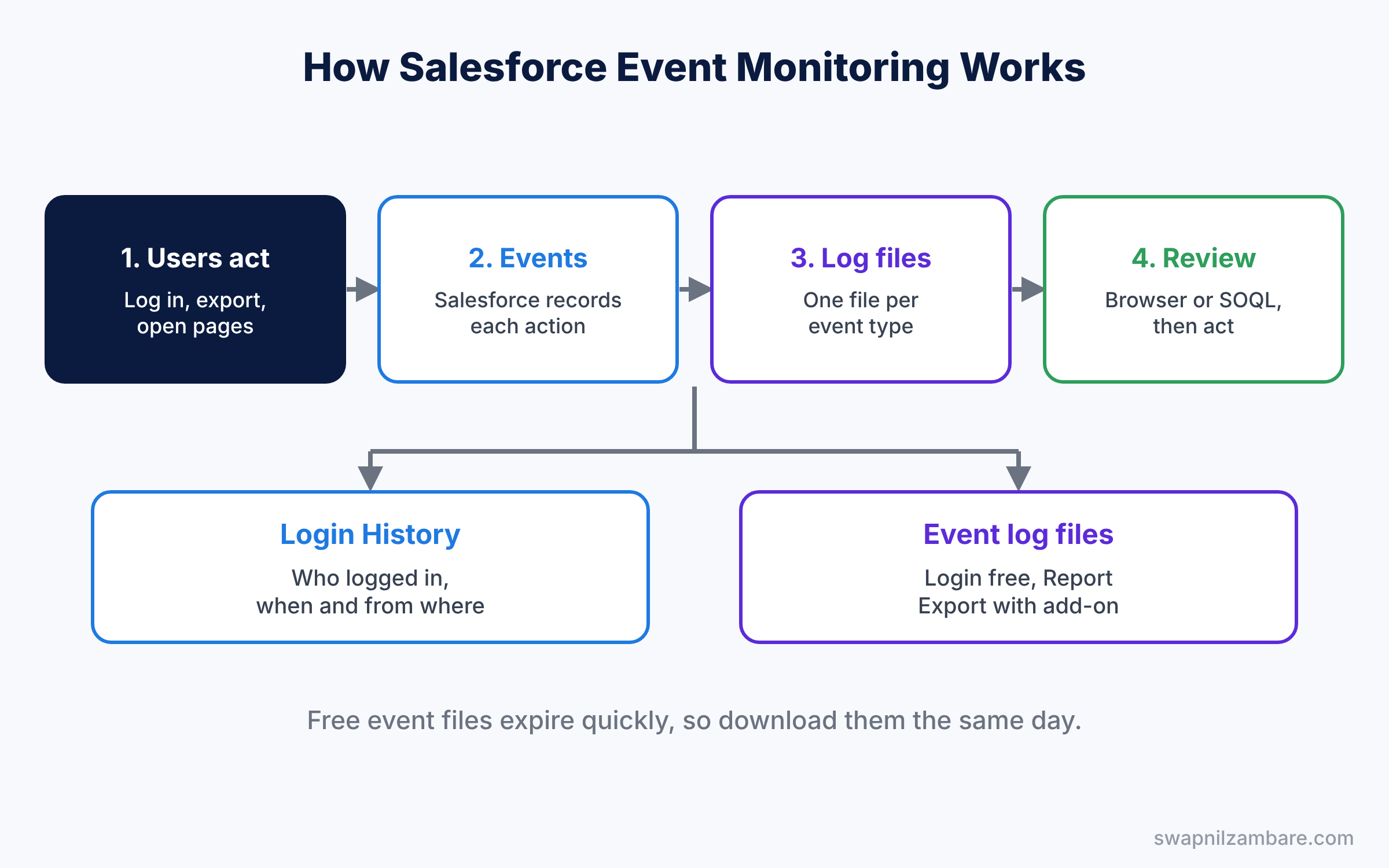
Login History works more simply. You open the page in Setup, filter it, and download the list as a file. So start there for any login question, because it needs no add-on and no query. Then move to event files when you need to know what happened after the login.
Key Parts of Salesforce Event Monitoring
Login History
First, the Login History page shows recent logins for the org. It includes failed attempts, which help you spot password guessing. It also shows the login type, such as browser, mobile app or API, so you can tell people from integrations. You can create list views by user or status, and download the data as a CSV file.
Free event types
Next, every org gets a small set of event types at no extra cost, such as Login and Logout. These files are kept for a short time, so download them if you need them later.
The Event Monitoring add-on
Then the paid add-on, part of Salesforce Shield, adds many more event types. They include Report Export, URI page views, API calls and Lightning page views. It also keeps files longer and adds real-time monitoring options.
The Event Log File Browser
The Event Log File Browser in Setup lists available log files. You filter by event type and date, then download a file. It is the easiest way for admins to start.
Transaction Security policies
Finally, with the add-on, Transaction Security policies can act in real time. For example, a policy can block a report export over 10,000 rows, or ask for MFA again.
The table below shows the events we will use in our investigation.
| Event type | Records | Typical question |
|---|---|---|
| Login | Every login attempt | Who logged in, from where? |
| Logout | Every logout | How long was the session? |
| Report Export | Each exported report | Who exported student data? |
| API Total Usage | API calls by user and client | Which integration is so busy? |
Event Monitoring vs Setup Audit Trail
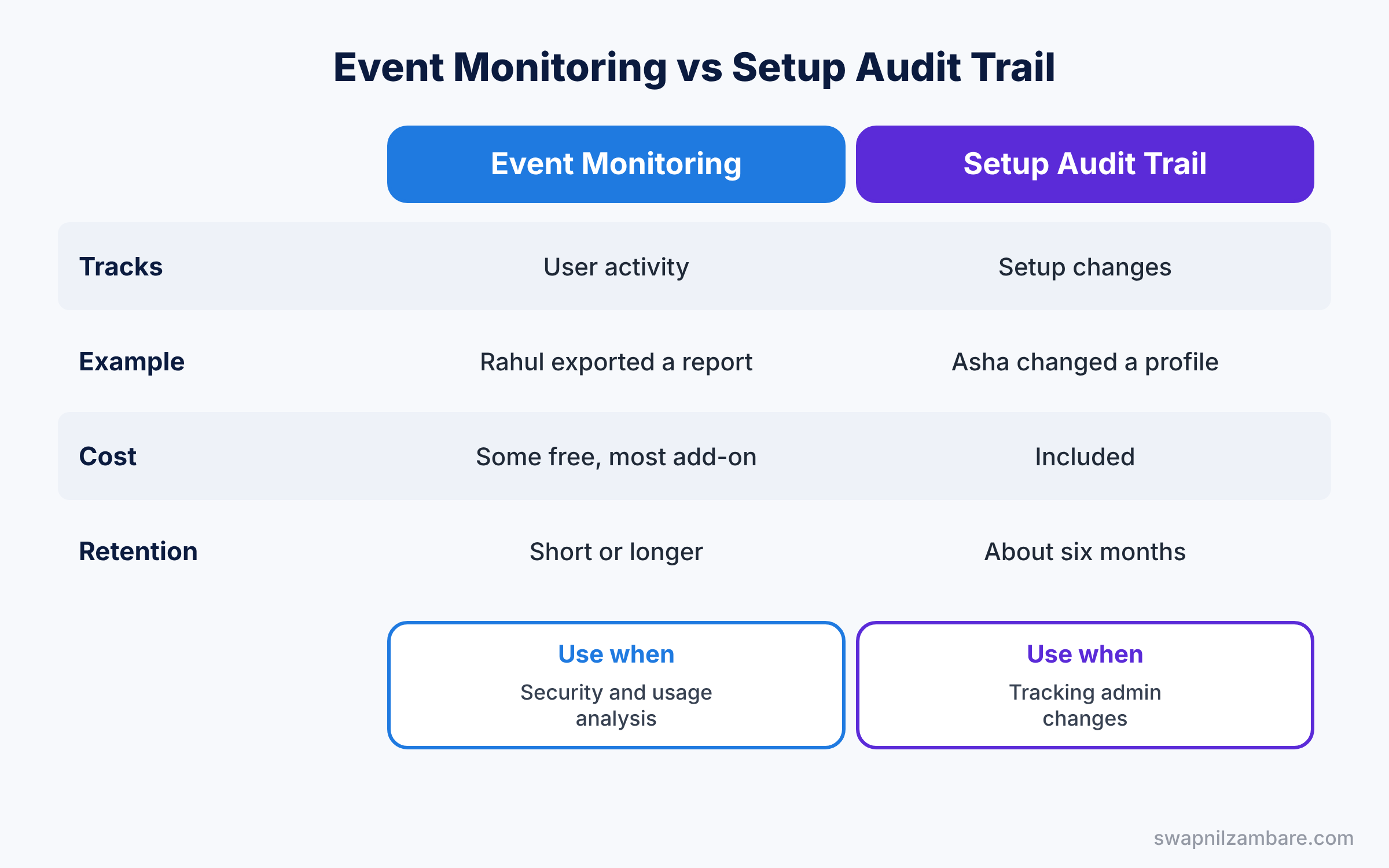
Admins often confuse these two logs. The table below compares them.
| Feature | Event Monitoring | Setup Audit Trail |
|---|---|---|
| Tracks | User activity, like logins and exports | Changes to Setup and configuration |
| Example | Rahul exported a report | Asha changed a profile |
| Cost | Some events free, most need add-on | Included in all orgs |
| Retention | Short for free events, longer with add-on | About six months |
| Best for | Security and usage analysis | Tracking admin changes |
In short, use Setup Audit Trail to see who changed the org. Use Salesforce Event Monitoring to see what users did with data.
Hands-on Example: Salesforce Event Monitoring for a Suspicious Export
Let’s investigate a possible data leak in your Developer Edition org.
Step 1: Check Login History
- Go to Setup, type “Login History” in Quick Find, and open it.
- Find logins by the user, such as Rahul Verma, on the day in question.
- Note the time, IP address and browser for each login.
Step 2: Open the Event Log File Browser
- In Quick Find, type “Event Log File Browser” and open it.
- Filter Event Type to Login and the date to the same day, then download the file.
- If your org has the add-on, also download the Report Export file.
Step 3: Query the log files
Developers can list available log files with this SOQL query.
SELECT Id, EventType, LogDate, LogFileLength
FROM EventLogFile
WHERE EventType IN ('Login', 'ReportExport')
ORDER BY LogDate DESC
The result might look like this.
EventType     LogDate     LogFileLength
Login         2026-07-05  18432
ReportExport  2026-07-05  2210
Each row points to a CSV file stored in the LogFile field. So you download it through the API or the browser page, because the query itself only returns the file details. For example, a security team might run this query every morning and save new files to a secure drive.
Step 4: Read the file
Next, open the CSV in a spreadsheet and filter by user. Columns differ by event type, but the table below shows the ones that matter most.
| Column | Meaning |
|---|---|
| TIMESTAMP_DERIVED | When the action happened |
| USER_ID | Who did it |
| CLIENT_IP | Where it came from |
| URI or REPORT_ID | What was opened or exported |
Step 5: Act and prevent
If the export was not allowed, freeze the user, as shown in our user management guide. Then remove the Export Reports permission from users who do not need it. Also, ask the manager to confirm what the rep exported and why, and record the outcome for the audit.
Common Mistakes with Salesforce Event Monitoring
- Waiting too long. Free event files expire quickly, so download them the same day.
- Expecting every event for free. Most detailed events need the add-on.
- Ignoring failed logins. Many failed attempts often come before a break-in.
- Reading files without filters. Large CSVs are hard to read, so filter by user and time.
- No follow-up. Logs only help if someone acts on what they show.
Best Practices for Salesforce Event Monitoring
- Review Login History weekly. Look for odd times, places and failures.
- Store important logs. Save files to a secure place for audits.
- Limit export permissions. Prevention is better than investigation.
- Combine logs. Login History, event files and Setup Audit Trail together tell the full story.
- Plan with security teams. Agree on what to watch and who responds.
Practice Task
Download the Login event file for yesterday from the Event Log File Browser. Then count the failed logins per user in a spreadsheet.
Hint: filter the LOGIN_STATUS column for values other than success.
Salesforce Event Monitoring FAQ
Is Event Monitoring free?
Some event types are free with short retention. The full set needs the Event Monitoring add-on.
How far back does Login History go?
It shows recent months of login history. Download it regularly if you need older records.
Can I see who viewed a record?
With the add-on, page view events can show which records users opened.
Official Resources
- EventLogFile (Object Reference)
- Query Event Log Files (Trailhead)
- Monitor Setup Changes with Setup Audit Trail (Salesforce Help)
Quick Recap
- Salesforce Event Monitoring writes log files about user activity.
- Login History lists recent login attempts with time and location.
- A few event types are free, and the add-on adds many more.
- Query EventLogFile or use the Event Log File Browser to get the files.
- Setup Audit Trail covers admin changes, not user actions.
What’s Next?
You can now see what users do with your data. Next, learn how to protect the most sensitive data with encryption. Read Salesforce Platform Encryption and Classic Encryption.


