Salesforce Platform Encryption protects sensitive data at rest, which means data is stored in encrypted form in Salesforce’s databases and files. Users with access still see the normal values, so their daily work does not change. Classic encryption is an older, free option that masks a single text field on screen. In our org security guide, you protected logins. In our event monitoring guide, you watched user activity. Now you will protect the data itself.
In this post, you will learn how Shield Platform Encryption works, what keys and tenant secrets are, how deterministic and probabilistic encryption differ, and when classic encrypted fields are enough. Then you will add a masked guardian ID field at Bright Path Tutors and walk through turning on Platform Encryption for a phone field. You should know field-level security from our profiles and permission sets guide, because encryption does not replace it.
What is Salesforce Platform Encryption?
Shield Platform Encryption is a paid Salesforce add-on that encrypts chosen fields, files and other data when it is stored. Salesforce uses keys that your org controls to scramble the stored data. When an authorised user opens a record, Salesforce decrypts the value on the fly.
Classic encryption is different. It is a special custom field type called Text (Encrypted). It stores the value encrypted and shows it masked, like XXXX-1234, to users without the View Encrypted Data permission.
Here is a simple analogy. Think of a bank locker room. The building has guards and doors, which is your normal security. Inside, each locker is also locked with its own key. Even if a thief got into the room, the lockers stay shut. Platform Encryption locks the lockers, while sharing and permissions guard the doors.
Why Salesforce Platform Encryption Matters
Some data carries legal and contract duties, and India’s data protection law also expects personal data to be kept safe. Laws, school rules and customer contracts may require that it is encrypted at rest. Encryption also adds a layer of protection if storage is ever exposed.
Here are some real situations at Bright Path Tutors.
- Parent phone numbers and home addresses must be protected under a school contract.
- Guardian ID numbers should show only the last four digits to most staff.
- An auditor asks whether student data is encrypted at rest.
- The security team wants to control and rotate the keys.
So encryption helps the org meet legal and contract rules, not just good habits.
How Salesforce Platform Encryption Works
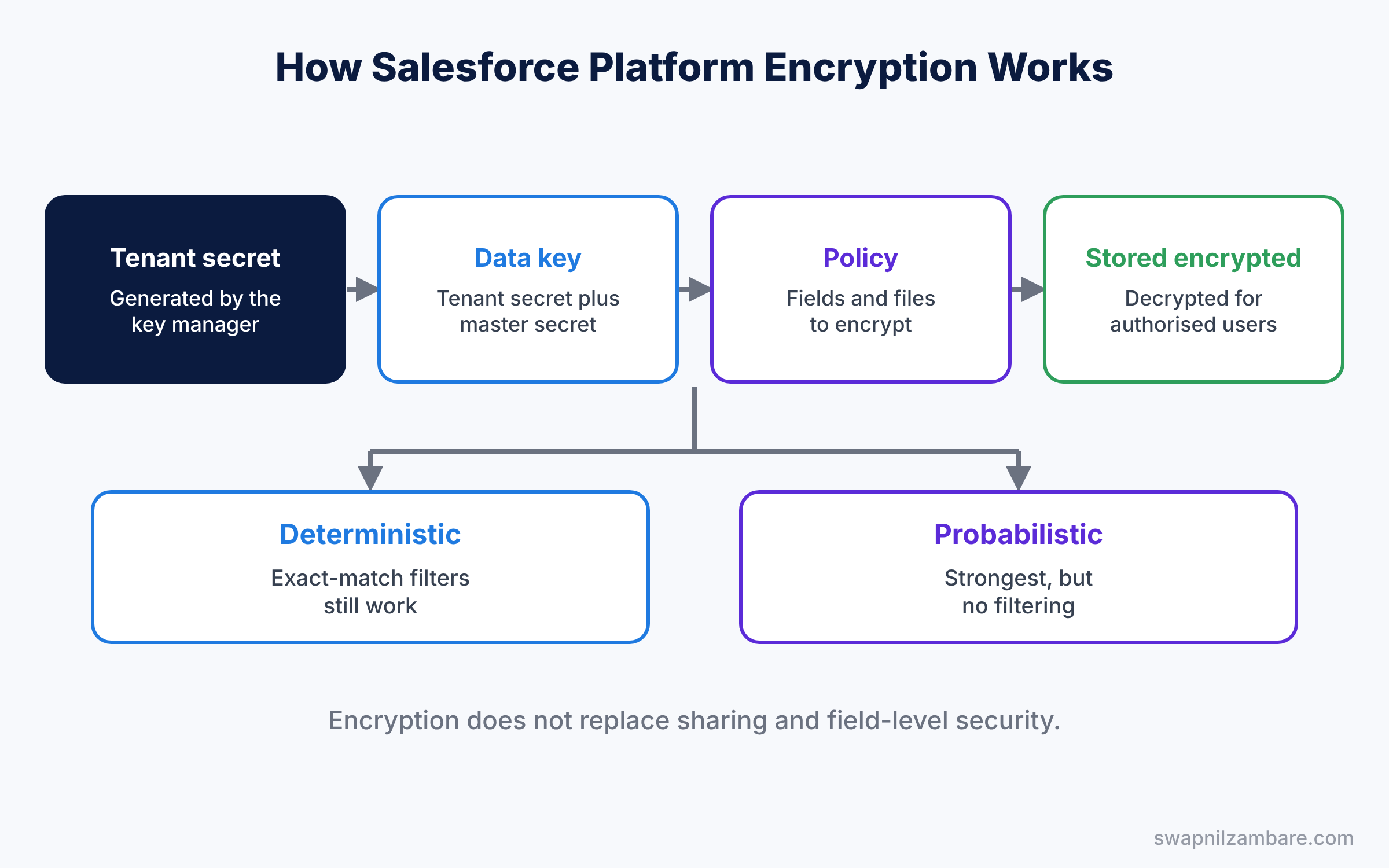
The setup follows a clear path. First, a key manager generates a tenant secret, which is a unique secret for your org. Next, Salesforce combines it with a master secret to create a data encryption key. Then an admin selects which fields and files to encrypt in the encryption policy. After that, new and updated data is stored encrypted. Finally, authorised users see normal values, because Salesforce decrypts them when they read the record.
Existing data is not encrypted at once when you turn a field on. You run a background sync, or ask Salesforce support, to encrypt old records. Also, plan this step for a quiet time, because large objects can take hours to process. Then check the sync status page before you tell the auditor the work is done.
Key Parts of Salesforce Platform Encryption
Tenant secrets and keys
First, the tenant secret is your org’s part of the key. Users with the Manage Encryption Keys permission can generate, rotate and back it up. Some orgs bring their own key material instead.
Encryption policy
Next, the encryption policy lists what to encrypt, such as Contact Phone, Mailing Street or a custom field. You can also encrypt files, attachments and some search index data.
Deterministic vs probabilistic
Then each field uses an encryption scheme. Probabilistic encryption is the strongest, but you cannot filter on the field. Deterministic encryption lets you filter for exact matches, like finding a phone number, with slightly less protection.
Feature limits
Encrypted fields lose some abilities. For example, some formula, sorting and reporting features do not work on them. So check each field’s use before you encrypt it. A simple way is to search the org for the field’s API name in flows, reports and list views, then test each one in a sandbox after encryption.
Classic encrypted fields
Finally, classic Text (Encrypted) fields are free and simple. They hold up to 175 characters, and you choose a mask type and mask character. Users need View Encrypted Data to see the full value.
The table below shows our plan for Bright Path Tutors.
| Data | Option | Reason |
|---|---|---|
| Contact phone | Platform Encryption, deterministic | Support needs to search by phone |
| Mailing street | Platform Encryption, probabilistic | No filtering needed |
| Guardian ID | Classic encrypted field, last four shown | Masking on screen is enough |
| Exam result files | Platform Encryption for files | Contract requires it |
Platform Encryption vs Classic Encryption
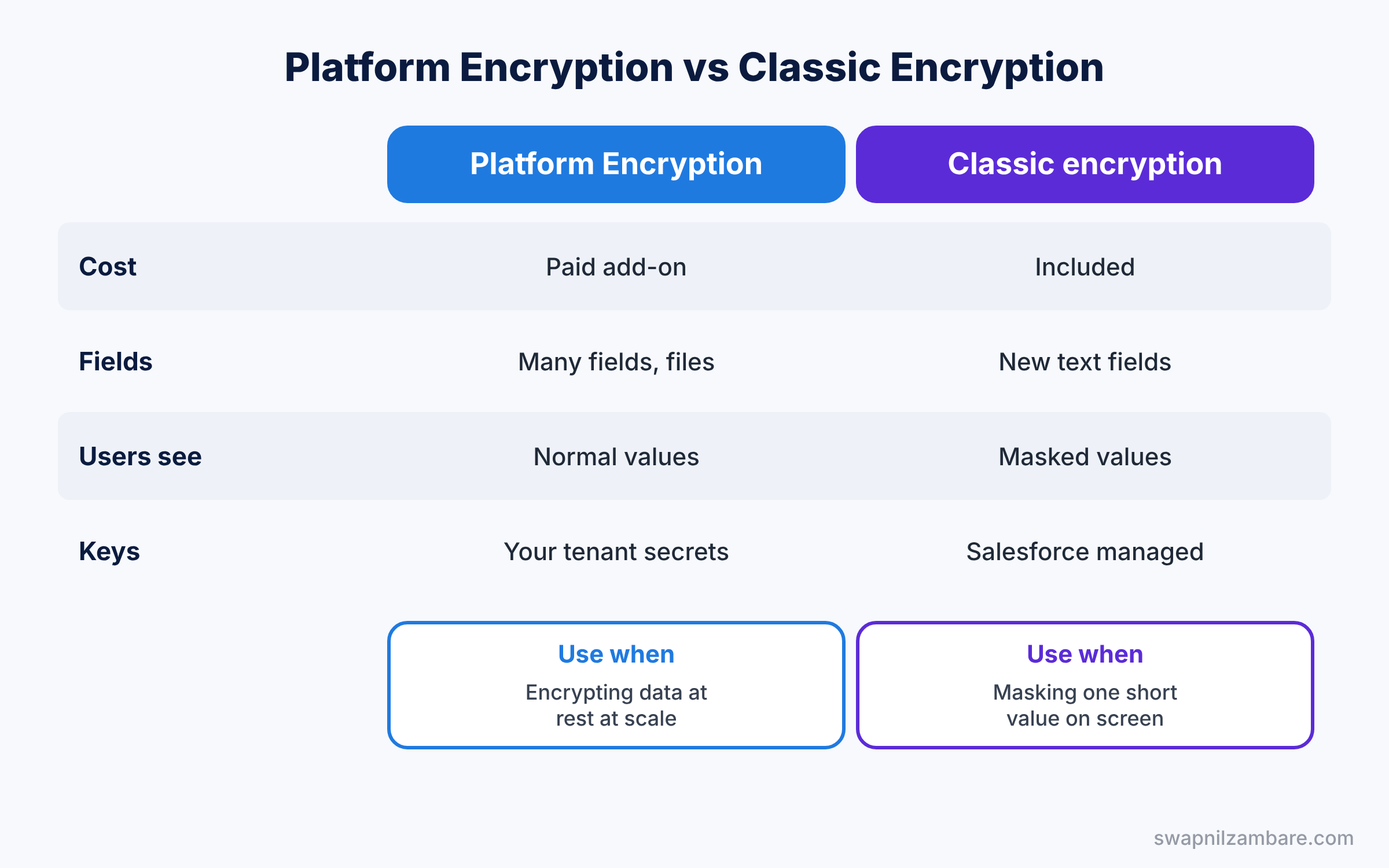
Both options sound alike, but they solve different problems. So compare them before you choose.
| Feature | Shield Platform Encryption | Classic encryption |
|---|---|---|
| Cost | Paid add-on | Included |
| Fields | Many standard and custom fields, files | New Text (Encrypted) fields only |
| What users see | Normal values if they have access | Masked unless they have View Encrypted Data |
| Key control | Your tenant secrets, rotation | Managed by Salesforce |
| Best for | Encrypting data at rest at scale | Masking one small value on screen |
In short, use classic encrypted fields to hide a short value on screen. Use Salesforce Platform Encryption when rules require data to be encrypted at rest across many fields and files.
Hands-on Example: Salesforce Platform Encryption for Parent Data
Let’s start with the free option, then walk through Platform Encryption.
Step 1: Create a classic encrypted field
- Go to Setup, then Object Manager, then Contact, and click New in Fields and Relationships.
- Choose Text (Encrypted) and enter the values from the table below.
| Setting | Value |
|---|---|
| Field Label | Guardian ID |
| Length | 20 |
| Mask Type | Last Four Characters Clear |
| Mask Character | X |
Step 2: Test the mask
- Enter a value like 9876-5432-1098 on a student contact.
- Log in as a user without View Encrypted Data. The field shows XXXXXXXXXX1098.
- Then log in as a finance user who has the permission. The full value appears, so the mask only affects people who should not see it.
Step 3: Generate a tenant secret
If your org has Platform Encryption, give yourself the Manage Encryption Keys permission through a permission set. Then go to Setup, type “Platform Encryption” in Quick Find, open Key Management, and click Generate Tenant Secret.
Step 4: Encrypt a field
- Open Encryption Policy, then Encrypt Fields, and click Edit.
- Tick Contact Phone, choose the deterministic scheme, and save.
- Ask support or run the sync to encrypt existing phone numbers.
Step 5: Check that work still works
Search and filters with exact matches still work on deterministic fields. Developers can confirm with this query.
SELECT Name, Phone
FROM Contact
WHERE Phone = '+91 98200 11223'
With probabilistic encryption, the same WHERE filter would fail. So test reports, list views and integrations in a sandbox before you encrypt in production.
Common Mistakes with Salesforce Platform Encryption
- Thinking encryption hides data from users. Users with access still see values, so keep sharing tight.
- Losing the tenant secret backup. Without it, you may not recover encrypted data.
- Encrypting fields used in filters. Probabilistic fields break filters and some reports.
- Forgetting old records. Turning on a field only encrypts new and updated data.
- Using classic fields for long text. They hold only 175 characters.
Best Practices for Salesforce Platform Encryption
- Encrypt only what rules require. Fewer encrypted fields means fewer broken features.
- Test in a full sandbox. Check reports, flows and integrations first.
- Separate duties. Key managers and admins should be different people where possible.
- Back up and rotate keys. Follow a written schedule.
- Document every encrypted field. Teams need to know why a filter no longer works.
Practice Task
Add a classic encrypted field “Bank Reference” on a custom Fee Payment object with the mask “Mask All Characters”. Then check how it looks to a user without View Encrypted Data.
Hint: create a permission set with View Encrypted Data and assign it only to finance.
Salesforce Platform Encryption FAQ
Is Platform Encryption included with Salesforce?
No. Shield Platform Encryption is a paid add-on. Classic encrypted fields are included.
Does encryption slow Salesforce down?
The effect is usually small, but some features change. Test before rolling out.
Can I turn encryption off later?
Yes, you can remove fields from the policy, then sync to decrypt them.
Official Resources
- How Shield Platform Encryption Works (Salesforce Help)
- Manage Field-Level Encryption from Setup (Salesforce Help)
Quick Recap
- Salesforce Platform Encryption encrypts chosen data at rest with keys you control.
- Authorised users still see normal values, so sharing still matters.
- Deterministic encryption allows exact filters, probabilistic does not.
- Classic Text (Encrypted) fields mask short values on screen for free.
- Back up tenant secrets and test every encrypted field in a sandbox.
What’s Next?
Your production data is now protected. Next, learn how to keep sandbox data safe with masking. Read Salesforce Data Mask and Seed: Protect Sensitive Data in Sandboxes.


