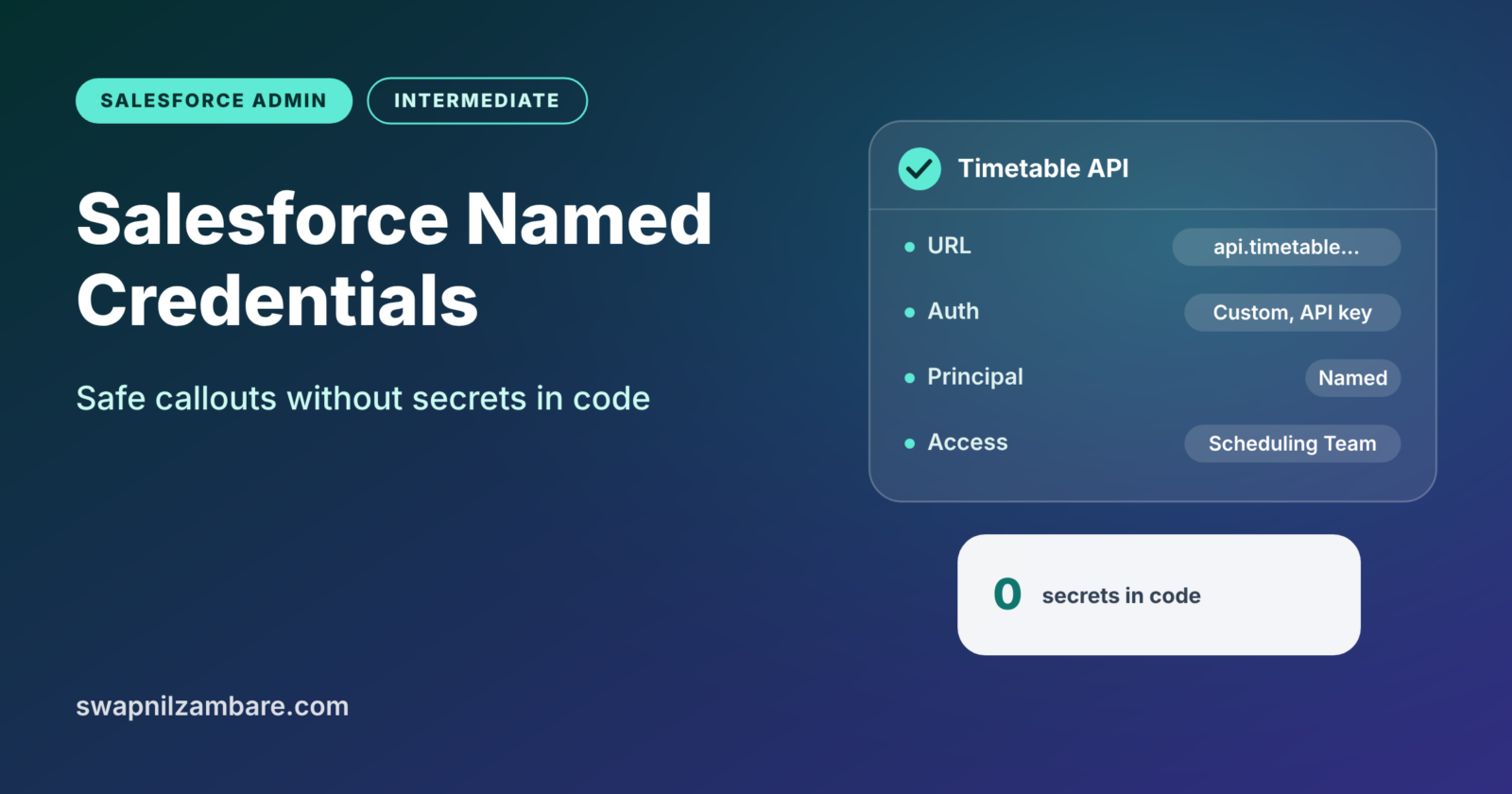
Salesforce Named Credentials store the address and login details of an outside system in one safe place. When Apex, Flow or External Services call that system, they just use the named credential’s name. Nobody has to paste passwords or API keys into code.
In this post, you will learn how Salesforce Named Credentials and external credentials work together. Then you will set them up for a real integration. You will also see how admins control which users can use them. This builds on our guide to external client apps and connected apps. It also connects to advanced flows with fault paths, because Flow can call outside systems too. If you are new to the integration idea, read Salesforce Connect and external objects as well.
What Are Salesforce Named Credentials?
A named credential holds the URL of an outside system and points to how Salesforce should log in to it. The login details themselves live in a separate record called an external credential. Together, they let Salesforce make secure calls, known as callouts, to other systems.
Think of a saved contact on your phone. You do not type the full number each time you call your bank. You just tap “Bank Helpline”. The phone remembers the number and dials it for you. A named credential is that saved contact for Salesforce integrations.
Why Salesforce Named Credentials Matter
Without Salesforce Named Credentials, developers often put URLs and keys right into Apex code or custom settings. As a result, real problems appear.
- Secrets in code can leak through deployments, screenshots or Git history.
- Changing a password means changing and redeploying code.
- Sandboxes and production often need different URLs, which leads to mistakes.
- Also, admins cannot control which users may call the system.
Here is how Bright Path Tutors uses them. For example, the company calls an outside timetable system to fetch trainer schedules. Its URL and API key live in Salesforce Named Credentials, and only the scheduling team’s permission set can use them.
How Salesforce Named Credentials Work
Today, Salesforce Named Credentials use two records and a permission set. First, the external credential defines how to log in, such as OAuth 2.0 or an API key. Next, the named credential holds the URL and links to the external credential. Then a permission set gives users access to the external credential’s principal.
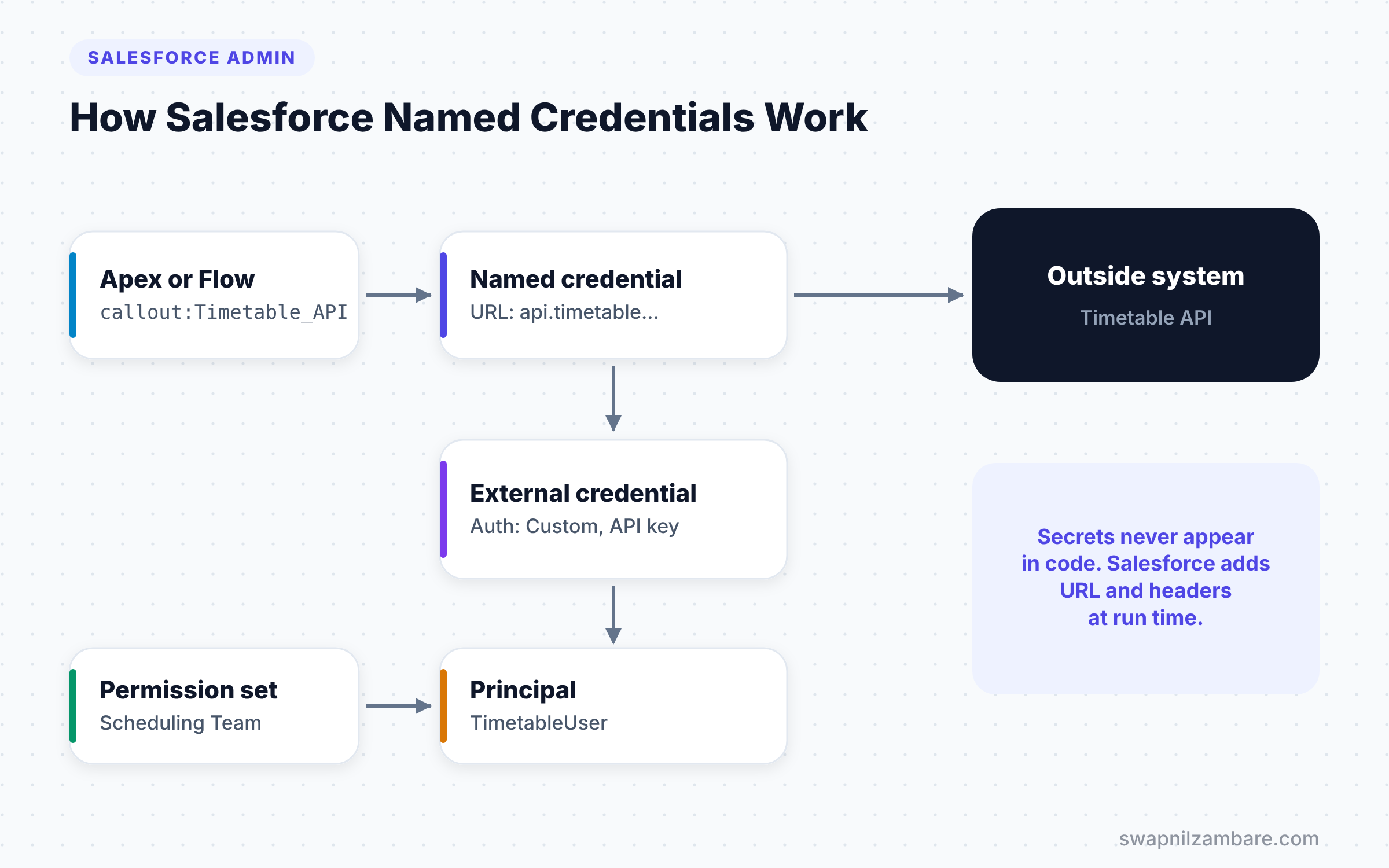
When code or a flow makes a callout, it uses a special endpoint like callout:Timetable_API/courses. Salesforce looks up the named credential, adds the URL and the login details, and sends the request. The code never sees the secret.
External Credentials
An external credential describes the authentication method. Common choices are OAuth 2.0 and Custom, which suits API keys sent in a header. It also holds one or more principals.
Principals
A principal is the identity Salesforce uses when it calls the outside system. For example, a named principal uses one shared login for everyone. In contrast, a per-user principal lets each user log in with their own account.
Permission Set Access
Users only get to use a principal if a permission set grants it. This is a big security improvement over older setups. Admins decide exactly who can trigger each integration.
Named Credentials vs External Credentials
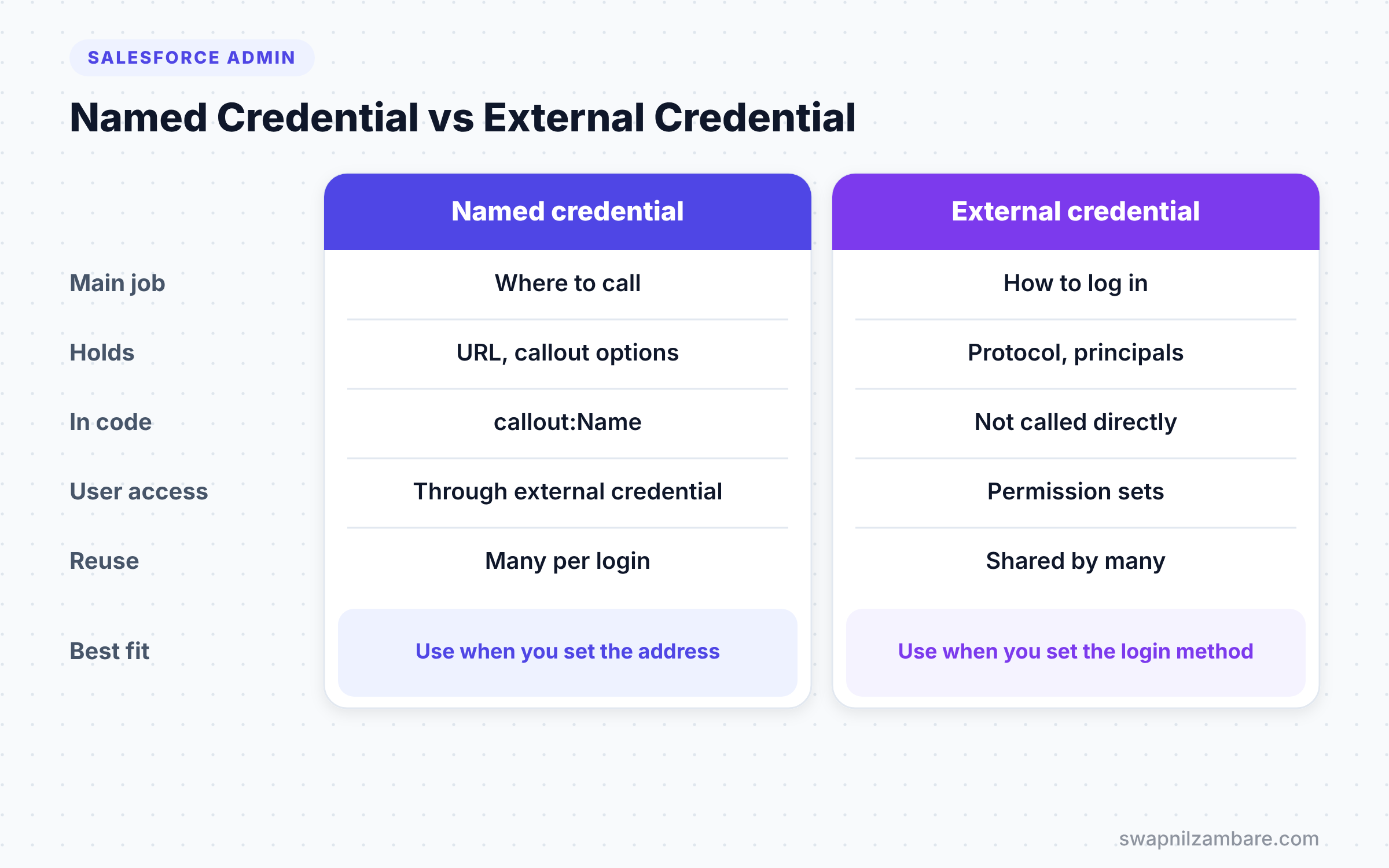
The table below shows what each record holds.
| Feature | Named credential | External credential |
|---|---|---|
| Main job | Where to call | How to log in |
| Holds | URL and callout options | Auth protocol, principals, parameters |
| Used in code as | callout:Name | Not called directly |
| Linked to users through | The external credential | Permission sets on principals |
| Can be shared | One external credential, many named credentials | Yes |
When to use which is not a choice, because you need both. The external credential handles login, and the named credential handles the address.
How to Set Up Salesforce Named Credentials Step by Step
Let’s use Salesforce Named Credentials to connect Bright Path Tutors to the timetable system. It uses an API key sent in a header called X-Api-Key.
Step 1: Create the External Credential
- Go to Setup and type “Named Credentials” in Quick Find.
- Open the External Credentials tab and click New.
- Enter Label “Timetable Auth”, Name “Timetable_Auth” and choose the Custom protocol.
- Then click Save.
Step 2: Add a Principal
- On the external credential, find Principals and click New.
- Enter Parameter Name “TimetableUser” and choose Named Principal.
- Next, add an authentication parameter called ApiKey with the key from the vendor.
- Then click Save.
Step 3: Add the Custom Header
- On the external credential, find Custom Headers and click New.
- Enter Name
X-Api-Key. - Set the value with this formula, so Salesforce inserts the key at run time.
{!$Credential.Timetable_Auth.ApiKey}Step 4: Create the Named Credential
- Open the Named Credentials tab and click New.
- Enter the values from the table below.
- Then click Save.
The table below shows the named credential settings.
| Setting | Value |
|---|---|
| Label | Timetable API |
| Name | Timetable_API |
| URL | https://api.timetable-example.com |
| External Credential | Timetable Auth |
| Enabled for Callouts | Checked |
Step 5: Give Users Access
- Open the “Scheduling Team” permission set.
- Go to External Credential Principal Access and click Edit.
- Next, add “Timetable_Auth – TimetableUser” and click Save.
- Finally, make sure the right users have this permission set.
Using Salesforce Named Credentials in Apex
Now a developer can call the system with a short, clean piece of code. Look closely, and you will see no URL or key in it.
HttpRequest req = new HttpRequest();
req.setEndpoint('callout:Timetable_API/trainers/T-104/schedule');
req.setMethod('GET');

HttpResponse res = new Http().send(req);
System.debug(res.getStatusCode() + ' ' + res.getBody());
The callout:Timetable_API part tells Salesforce to use the named credential. Salesforce adds the base URL and the X-Api-Key header. If the user running the code lacks the permission set, the callout fails, which keeps the integration secure.
Flow can use the same named credential through the HTTP Callout action. External Services can use it too, so admins can call APIs without code.
Legacy vs Modern Salesforce Named Credentials
Older orgs may still have legacy named credentials. In the legacy model, one record held the URL and the login details together. There was no separate external credential and no permission set control.
Salesforce now recommends the modern model with external credentials. It separates “where” from “how”, so one login method can serve several URLs. It also lets admins control access with permission sets. So when you touch an old integration, plan to move it to the new model.
Common Mistakes with Salesforce Named Credentials
- Forgetting the permission set access, so callouts fail with an authentication error.
- Putting the API key in the URL instead of a header or parameter.
- Using the same credential values in sandbox and production by accident.
- Creating a Remote Site Setting as well, which named credentials do not need.
- Sharing one powerful named principal with every user when only a few need it.
Best Practices for Salesforce Named Credentials
- Use one named credential per outside system and environment.
- Grant principal access only through clearly named permission sets.
- Use per-user principals when each user must act as themselves.
- Rotate API keys on a schedule and update only the external credential.
- Document each integration’s owner and purpose in the description field.
Practice Task
Create a named credential for a free public test API, such as one that returns sample JSON. Then call it from anonymous Apex and print the status code. Hint: a public API may need no login. So a simple external credential with a named principal and no parameters is enough.
Most Asked Interview Questions on Salesforce Named Credentials
Questions on Salesforce Named Credentials are common in admin and developer interviews. These answers cover what interviewers most often look for.
Basic Questions on Salesforce Named Credentials
Q1. What is a named credential?
It stores the URL of an outside system and links to how Salesforce should log in. Code and flows use its name instead of hard-coding the URL and secrets.
Q2. What is an external credential?
It defines the authentication method, such as OAuth 2.0 or a custom API key. It also holds principals, which are the identities used for callouts.
Q3. What is the difference between a named principal and a per-user principal?
A named principal uses one shared login for all users. A per-user principal lets each user log in with their own account on the outside system.
Q4. How does Apex use a named credential?
It sets the endpoint to callout:Name followed by the path. Salesforce then adds the URL and authentication automatically.
Practical Questions on Salesforce Named Credentials
Q5. A callout fails with an authentication error. What would you check first?
Check that the running user has a permission set with access to the external credential principal. Then check the authentication parameters, such as an expired API key.
Q6. Do you need a Remote Site Setting with a named credential?
No. Named credentials handle the endpoint, so a Remote Site Setting is not needed for those callouts.
Q7. Why are Salesforce Named Credentials safer than keys in custom settings?
Secrets stay encrypted inside Salesforce and never appear in code or deployments. Admins also control access through permission sets.
Q8. Can Flow use named credentials?
Yes. The HTTP Callout action in Flow and External Services both use named credentials, so admins can call APIs without Apex.
Official Resources
- Named Credentials (Salesforce Help)
- Named Credentials in the Apex Developer Guide
- Trailhead: Apex Integration Services
Quick Recap
- Salesforce Named Credentials store the URL of an outside system.
- External credentials store how to log in, including principals.
- Permission sets decide which users can use each principal.
- Apex and Flow use
callout:Nameinstead of hard-coded URLs and keys. - Keep secrets out of code, and rotate keys in one place.
What’s Next?
Integrations also bring in emails and meetings. Next, read our guide to Einstein Activity Capture to sync emails and events automatically.


