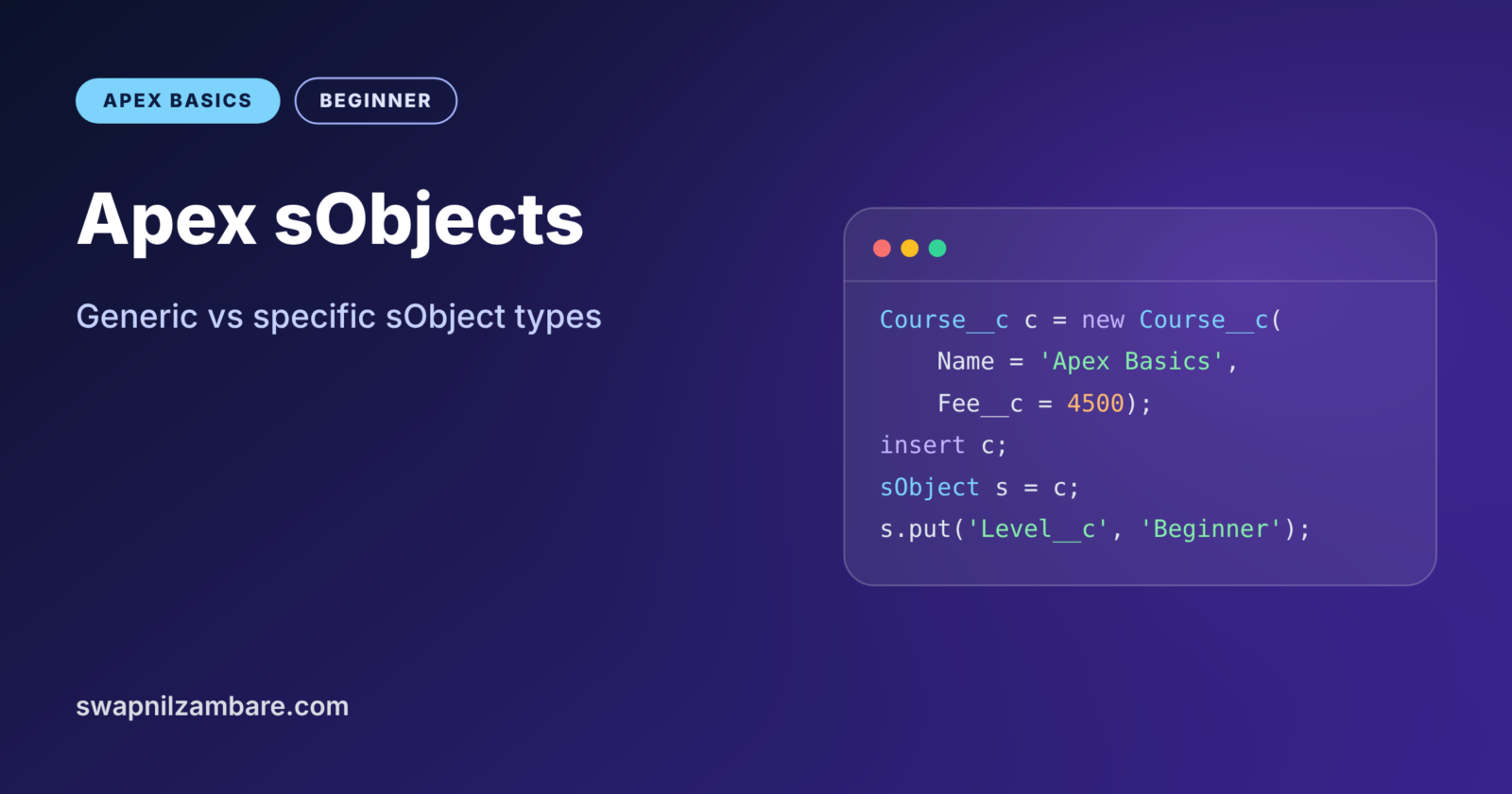
Apex sObjects are how Salesforce records live inside your code. Every Account, Contact or Course__c record you query, create or update in Apex is an sObject. Learning them is the last step of Level 2. It also connects everything you have learned so far to real data.
You already know the Salesforce data model and the difference between standard and custom objects. In the post on Apex classes and objects, you also saw that sObjects are a special kind of object. Now we will look at them closely. We will compare the specific types, like Course__c, with the generic sObject type.
What Are Apex sObjects?
An sObject is any object that the Salesforce database can store. In Apex, each record becomes an instance of an sObject type. The type name matches the object’s API name, such as Account, Contact or Course__c.
Apex gives you two ways to work with them. A specific sObject type, like Course__c, knows its exact fields. In contrast, a generic sObject variable can hold a record of any type. However, it does not know which fields exist until run time.
Here is a simple picture. A specific type is like a labelled folder for “Course forms” only, with the fields printed on the front. A generic sObject is like a plain folder that can hold any kind of form. It is more flexible, but you must check what is inside before you use it.
Why Apex sObjects Matter
Almost all real Apex code reads or writes records. So you will use Apex sObjects in nearly every class and trigger.
- Triggers hand you records in
Trigger.newas a list of sObjects. - SOQL queries return lists of sObjects.
- DML statements like
insertandupdatetake sObjects. - Lightning Web Components often receive sObjects from Apex methods.
- Reusable tools, such as a generic audit helper, use the generic
sObjecttype.
How Apex sObjects Work
When you write new Course__c(), Apex creates an in-memory record with empty fields. You set field values with dot notation, such as c.Fee__c = 4500;. Nothing reaches the database until you run a DML statement like insert c;.
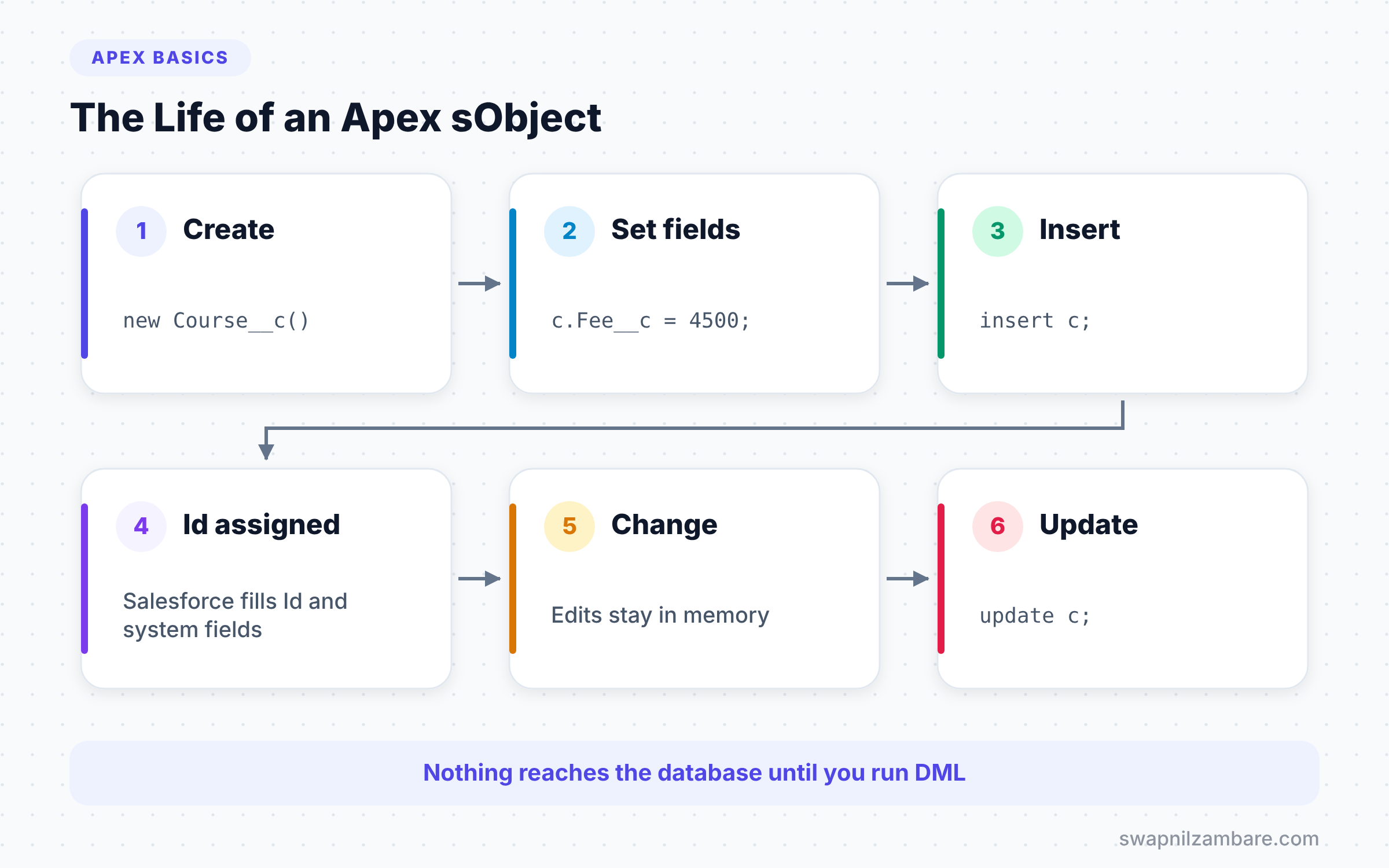
After an insert, Salesforce fills in system fields such as Id and CreatedDate. Your variable now points to a saved record. Later changes to the variable stay in memory until you run update.
Specific sObject Types
A specific type matches one object exactly. The compiler checks every field you use. So if you mistype Fee__c as Fees__c, the code will not save, and you find the mistake at once.
Course__c course = new Course__c(
    Name = 'Apex Basics',
    Fee__c = 4500,
    Level__c = 'Beginner',
    Is_Online__c = true,
    Start_Date__c = Date.today().addDays(14)
);
insert course;

System.debug('New course Id: ' + course.Id);
System.debug('Fee with tax: ' + course.Fee__c * 1.18);
The constructor accepts field name and value pairs, which keeps record creation short. Next, insert saves the record, and Salesforce sets its Id. Then dot notation reads fields directly, with full type checking. The log shows the new Id and a calculated fee.
USER_DEBUG [9]|DEBUG|New course Id: a015g00000XyZ12AAB
USER_DEBUG [10]|DEBUG|Fee with tax: 5310.00
Relationship Fields
Specific types also let you follow relationships with dots. For a lookup to a user, you can read course.Owner.Name after querying it. For custom lookups, the relationship name ends in __r, such as course.Trainer__r.Name. We will use these a lot in the SOQL level.
The Generic sObject Type
The generic sObject type can hold any record. You cannot use dot notation for custom fields on it. Instead, you use get to read a field and put to write one, passing the field name as text.
sObject record = new Course__c(Name = 'LWC Basics');

record.put('Fee__c', 6000);
record.put('Level__c', 'Intermediate');

Decimal fee = (Decimal) record.get('Fee__c');
System.debug(record.getSObjectType() + ' costs ' + fee);
The variable has the generic type, but the record inside is a Course__c. The put calls set fields by name, and get reads one back. Because get returns a generic Object, we cast it to Decimal with (Decimal). Finally, getSObjectType() tells us the real type, so the log prints Course__c costs 6000.
Casting Between Types
You can turn a generic sObject into a specific type with a cast. First, check the type with instanceof to avoid errors.
if (record instanceof Course__c) {
    Course__c c = (Course__c) record;
    System.debug('Online course? ' + c.Is_Online__c);
}
After the cast, you get dot notation and compile-time checks again. If you cast to the wrong type, Apex throws a TypeException, which is why the instanceof check comes first.
Useful sObject Methods
Every sObject, generic or specific, supports a set of handy methods. The table below lists the ones you will use most.
| Method | What it does | Example |
|---|---|---|
| get(fieldName) | Reads a field by name | record.get(‘Fee__c’) |
| put(fieldName, value) | Sets a field by name | record.put(‘Fee__c’, 500) |
| getSObjectType() | Returns the object type | Course__c |
| clone() | Makes a copy of the record | c.clone(false, true) |
| getPopulatedFieldsAsMap() | Returns fields that hold values | Map of name to value |
| addError(message) | Blocks the save with an error | c.addError(‘Too low’) |
Generic vs Specific Apex sObjects
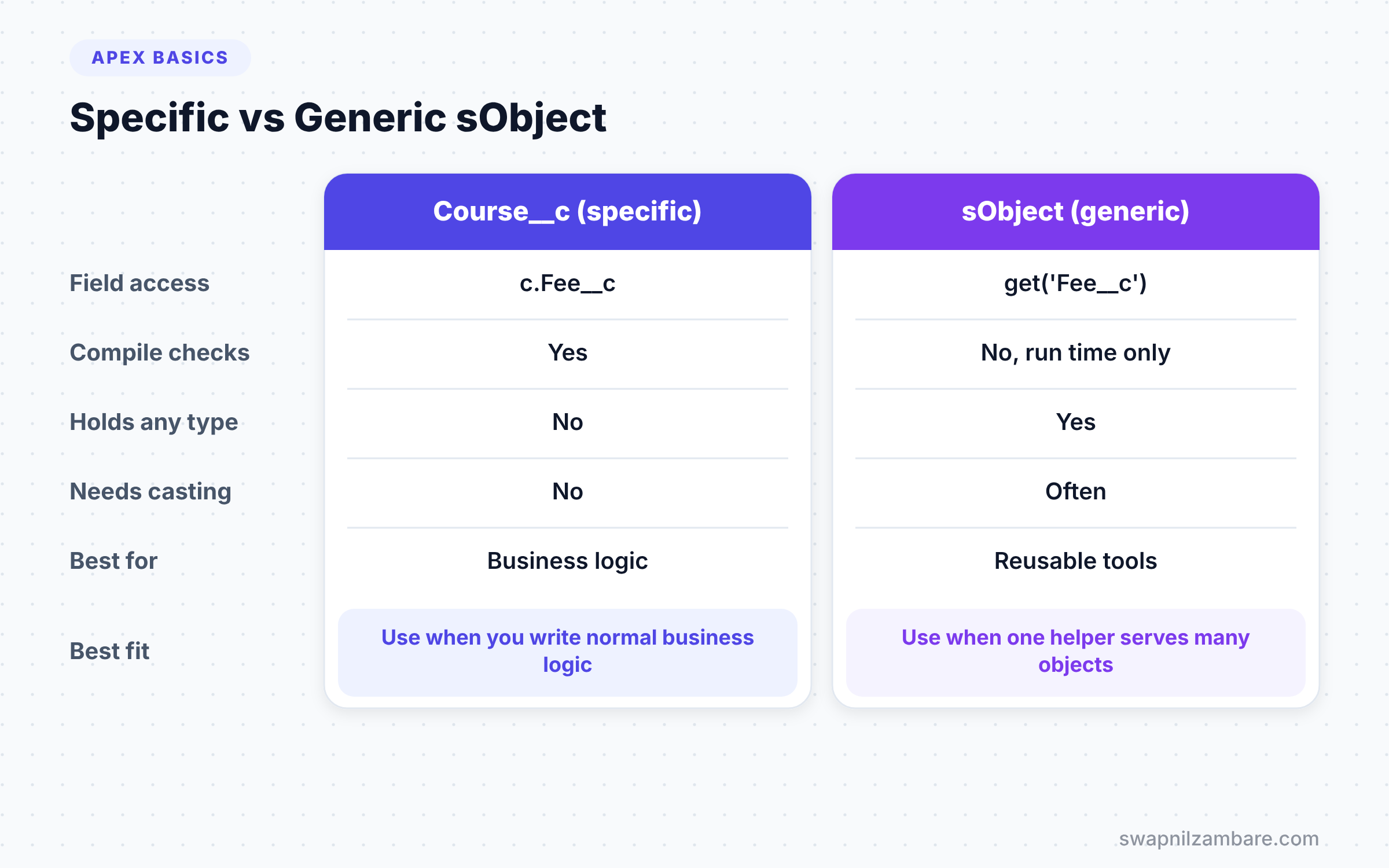
The table below compares the two styles on the points that matter most in day-to-day code.
| Feature | Specific type (Course__c) | Generic sObject |
|---|---|---|
| Field access | Dot notation, c.Fee__c | get and put with text names |
| Compile-time checks | Yes | No, errors appear at run time |
| Holds any object type | No | Yes |
| Readability | High | Lower |
| Needs casting | No | Often, to read typed values |
| Best for | Normal business logic | Reusable tools across objects |
When to use which is simple. Use specific types for almost all business logic. Then use the generic type only when one piece of code must work with many objects.
A Real Apex sObjects Example: A Reusable Helper
Let’s see where the generic type really helps. Bright Path Tutors wants one helper that fills a default value in any empty field, on any object. It should work for courses today and for other objects later.
public with sharing class DefaultValueHelper {

    public static Integer fillBlank(List<sObject> records, String fieldName, Object defaultValue) {
        Integer changed = 0;
        for (sObject rec : records) {
            if (rec.get(fieldName) == null) {
                rec.put(fieldName, defaultValue);
                changed++;
            }
        }
        return changed;
    }
}
The method accepts a list of any sObject type, plus a field name and a value. For each record, it checks the field with get and fills it with put when it is empty. It returns how many records it changed. Because it uses the generic type, it works for Course__c, Account or any other object.
Here is a call for courses with no level.
List<Course__c> courses = new List<Course__c>{
    new Course__c(Name = 'Git Basics'),
    new Course__c(Name = 'SOQL Basics', Level__c = 'Intermediate')
};
Integer filled = DefaultValueHelper.fillBlank(courses, 'Level__c', 'Beginner');
System.debug(filled + ' course updated, first level: ' + courses[0].Level__c);
Only the first course had no level, so the helper fills one field. The log shows 1 course updated, first level: Beginner. Notice that you can pass a List<Course__c> where the method expects a List<sObject>.
Creating Apex sObjects Dynamically
Sometimes you only know the object name at run time, for example from custom metadata. In that case, use the Schema class to build a record from its name.
String objectName = 'Course__c';
sObject newRecord = Schema.getGlobalDescribe().get(objectName).newSObject();
newRecord.put('Name', 'Dynamic Course');
System.debug(newRecord);
The first line holds the API name as text. Then getGlobalDescribe() finds the object type, and newSObject() creates an empty record of that type. This is an advanced trick, but it shows how far Apex sObjects can go.
Apex sObjects in Triggers
Triggers are where you meet Apex sObjects first in real projects. Inside a trigger, Trigger.new is a list of the records being saved. In a trigger on Course__c, each item is a Course__c, so you can use dot notation straight away.
For update triggers, Trigger.oldMap holds the old version of each record, keyed by Id. So you can compare old and new values, such as checking whether the fee changed. Because these are normal Apex sObjects, all the methods in this post work on them, including addError to block a save.
One rule matters a lot here. In a before trigger, you change fields directly on the records in Trigger.new, and Salesforce saves them for you. You do not run update on them. In an after trigger, the records are read-only, so you must query and update them in a separate list. We will cover this fully in the triggers level.
Apex sObjects and Field Access
Apex runs in system mode by default, so your code can read fields the user cannot see. That is powerful but risky. When you send Apex sObjects to a component or an outside system, make sure you only include fields the user may view.
The simplest way is to add WITH USER_MODE to your SOQL queries. Then Salesforce applies the user’s field and object permissions automatically. We will explore this in the security level.
Common Mistakes with Apex sObjects
- Expecting a new record to save on its own. Nothing reaches the database until you run DML.
- Using a field you did not query. Apex throws an error that the field was not queried, so add it to the SELECT list.
- Casting without checking. Use
instanceofbefore you cast a generic sObject. - Mistyping field names in
getandput. The compiler cannot check text, so errors appear only at run time. - Using the generic type everywhere. It hides mistakes that the compiler would catch with specific types.
Best Practices for Apex sObjects
- Use specific types by default for clear, checked code.
- Create records with the name and value constructor to keep code short.
- Save records in lists with one DML statement, never one by one in a loop.
- Use the generic type only for helpers that truly need to work across objects.
- Keep field names for
getandputin constants, so typos are easier to spot.
Practice Task
Create three Course__c records in a list with different fees, and leave the duration empty on two of them. Then use DefaultValueHelper.fillBlank to set Duration_in_Weeks__c to 6 where it is empty. Finally, insert the list with one DML statement. Hint: the helper should return 2.
Official Resources
- Apex Developer Guide: Working with sObjects
- SObject Class in the Apex Reference Guide
- Trailhead: Apex Basics and Database
Quick Recap
- Apex sObjects are Salesforce records inside your code.
- Specific types like
Course__cgive dot notation and compile-time checks. - The generic
sObjecttype holds any record and usesgetandput. - Check with
instanceofbefore you cast a generic sObject. - Nothing saves to the database until you run a DML statement.
What’s Next?
You have finished Level 2, Apex Basics. Coming soon: SOQL Basics: Query Records in Apex. That post starts Level 3, where you learn to read data from the database the right way.