Advanced Salesforce Flows use three skills that separate a beginner flow from a production-ready one: subflows to reuse logic, fault paths to handle errors, and scheduled paths to act later in time. In our Flow Builder guide, you built your first flow. In our flow types guide, you met screen, record-triggered and scheduled flows. Now you will make those flows reusable, safe and time-aware.
In this post, you will learn how to call one flow from another, how to catch errors before users see a scary message, and how to run steps days after a record changes. Then you will build a course reminder at Bright Path Tutors that uses all three. You should know the save order from our order of execution guide, because scheduled paths run outside the original save.
What are Advanced Salesforce Flows?
Advanced flows are normal flows built with patterns that real orgs need. A subflow is a flow that another flow calls, like a function in code. Next, a fault path is a second exit from an element that runs only when that element fails. A scheduled path is a branch of a record-triggered flow that waits until a time you choose, such as three days before a course starts.
Here is a simple analogy. Think of a school office. A standard form for leave requests is reused by every class, which is the subflow. If the printer jams, a helper fixes it and tells the teacher, which is the fault path. Reminders for parent meetings go out a week before the date, which is the scheduled path.
Why Advanced Salesforce Flows Matter
Simple flows break in real life. A Create Records element fails because a required field is missing, and the user sees “An unhandled fault has occurred”. Or the same “send welcome email” logic is copied into five flows, and only four get updated.
Here are some real situations at Bright Path Tutors.
- Three flows send the same welcome email and create the same follow-up task.
- A flow fails at night, and nobody knows until a parent complains.
- Students should get a reminder two days before their course starts.
- The finance team wants a follow-up task 30 days after an unpaid enrollment.
So these patterns make flows easier to maintain and safer to run.
How Advanced Salesforce Flows Work
The three patterns fit together in one design. First, you build small autolaunched flows for shared jobs, such as “Send Welcome Package”. Next, your main record-triggered flow calls them with a Subflow element and passes values in. Then you add fault paths to every element that touches data, so failures go to a clean error step. Finally, you add a scheduled path that runs later, based on a date field on the record.
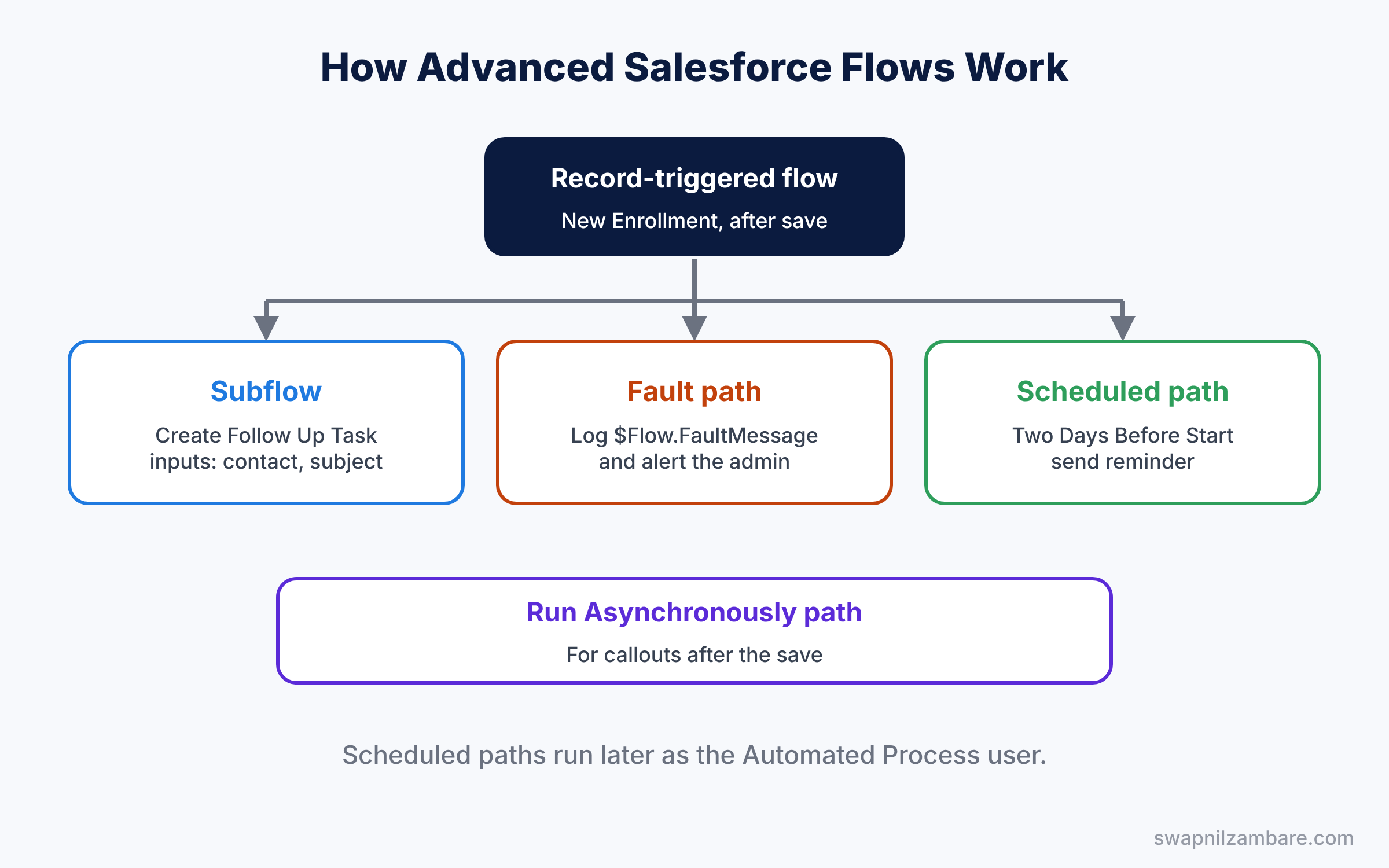
Each part is optional, but together they cover most real business needs.
Key Parts of Advanced Salesforce Flows
Subflows and variables
First, a subflow is an autolaunched flow with variables marked “Available for input” or “Available for output”. The parent flow uses a Subflow element to call it and map values. For example, the parent passes the Contact ID, and the subflow returns the new Task ID.
Fault paths in advanced flows
Next, any element that touches data or calls an action can have a fault path. Click the element’s menu and choose Add Fault Path. On that path, use the $Flow.FaultMessage variable to see the error text, then log it or email the admin.
Scheduled paths
Then scheduled paths live in record-triggered flows that run after the save. You choose a time source, such as Start Date, and an offset, like 2 days before. Salesforce queues the path and runs it later as an automated process.
Run asynchronously
A record-triggered flow can also have a “Run Asynchronously” path. It runs right after the save, but in a separate transaction. This is useful for callouts to other systems, which cannot run inside the save.
Error emails and debugging
Finally, set who gets flow error emails in Process Automation Settings. Use the Debug button in Flow Builder to test each path before you activate it.
The table below sums up the three main patterns.
| Pattern | Where you add it | Bright Path Tutors example |
|---|---|---|
| Subflow | Subflow element in any flow | Send Welcome Package |
| Fault path | Menu on a data or action element | Log failed task creation |
| Scheduled path | Start element of a record-triggered flow | Reminder 2 days before Start Date |
Advanced Flows: Fault Path vs No Fault Path
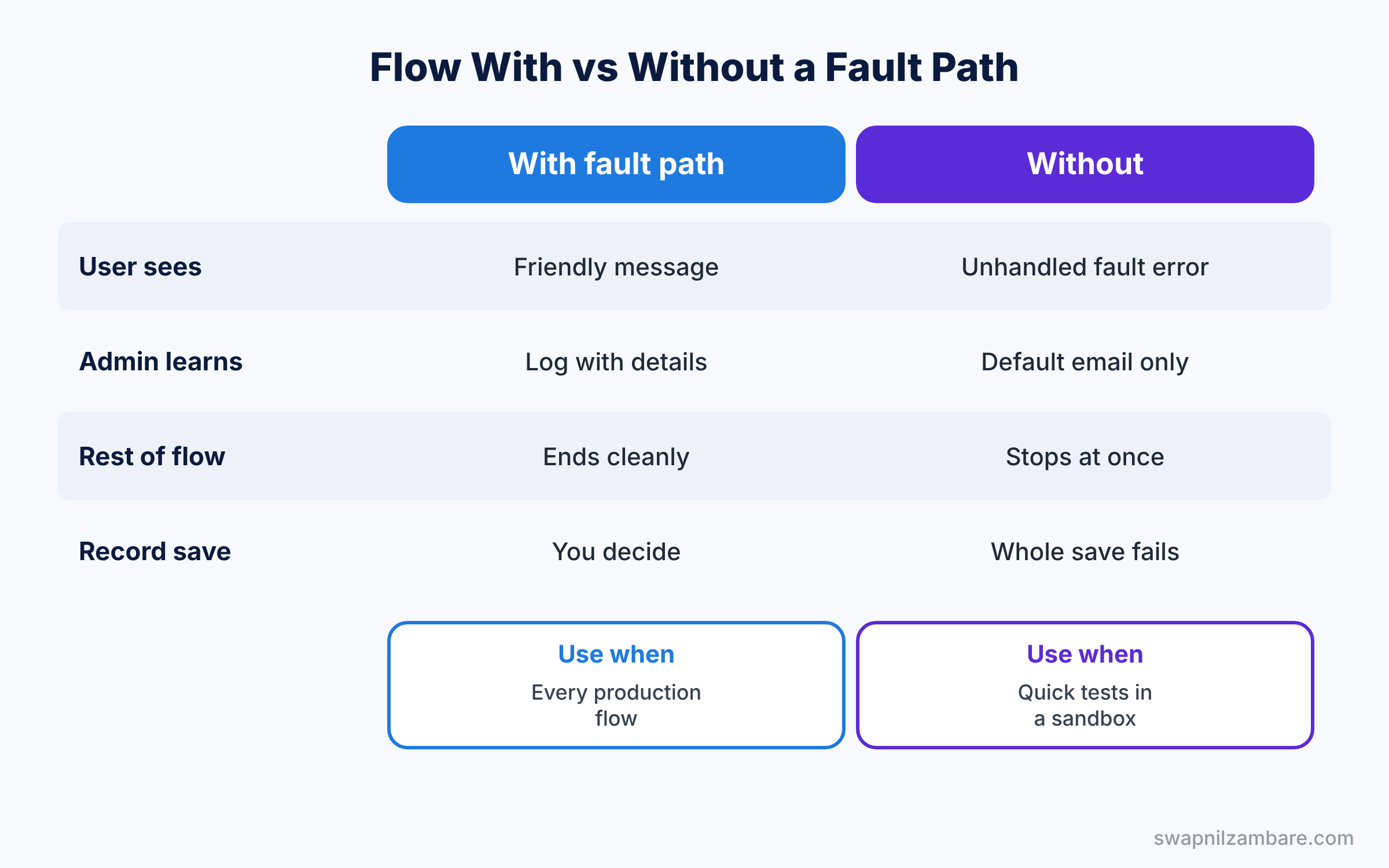
Every beginner asks whether fault paths are worth the extra work. The table below compares a flow with and without them.
| Feature | With fault path | Without fault path |
|---|---|---|
| User sees | Your friendly message | “An unhandled fault has occurred” |
| Admin learns about it | Email or log record with details | Only the default error email |
| Rest of the flow | Can continue or end cleanly | Stops at once |
| Save of the record | You decide, using Roll Back Records | Whole save fails |
| Best for | Every production flow | Quick tests in a sandbox |
In short, add fault paths to every Create, Update, Delete and Action element in production. Skip them only in throwaway test flows.
Hands-on Example: Advanced Salesforce Flows for Course Reminders
Let’s build all three patterns in your Developer Edition org.
Step 1: Build the subflow
- Create a new Autolaunched Flow (No Trigger) called “Create Follow Up Task”.
- Add text variables “varContactId” and “varSubject”, both Available for input.
- Add a Create Records element for a Task with WhoId = varContactId, Subject = varSubject and ActivityDate = TODAY() + 1. Save and activate.
Step 2: Build the main flow
- Create a Record-Triggered Flow on Enrollment, run when a record is created, optimized for Actions and Related Records.
- Add a Subflow element, choose Create Follow Up Task, and map the values from the table below.
| Subflow variable | Value from the main flow |
|---|---|
| varContactId | {!$Record.Student__c} |
| varSubject | Welcome call for new enrollment |
Step 3: Add a fault path
- Click the Subflow element’s menu and choose Add Fault Path.
- On the fault path, add a Create Records element for a custom “Flow Error Log” object, with Message = {!$Flow.FaultMessage}.
Step 4: Add a scheduled path
- Click the Start element and add a Scheduled Path called “Two Days Before Start”.
- Set Time Source to Course Start Date through a formula field on Enrollment, Offset 2, Days Before.
- On that path, add an Action to send the “Course Reminder” email alert. Save and activate.
The time source must be a date field on the triggering record. So create a formula field on Enrollment that copies the course start date.
Course__r.Start_Date__cStep 5: Check the queue
Scheduled paths wait until their time as paused flow interviews. Admins can see them in Setup under Paused and Failed Flow Interviews, or with this query.
SELECT Id, InterviewLabel, InterviewStatus, CreatedDate
FROM FlowInterview
WHERE InterviewStatus = 'Paused'
ORDER BY CreatedDate DESC
If the list is empty, check that the flow is active and that the course has a start date. Without a date, the path has nothing to count from.
Common Mistakes with Advanced Salesforce Flows
- No fault paths in production. Users see a generic error and admins get no clear details.
- Copying logic instead of using subflows. One fix then needs five edits.
- Wrong optimization. Scheduled paths need a flow that runs after the save.
- Using a parent field as the time source. Scheduled paths need a date field on the triggering record.
- Forgetting the running user. Scheduled paths run as the Automated Process user, so check its access.
Best Practices for Advanced Salesforce Flows
- Keep subflows small. One job per subflow makes reuse easy.
- Log every fault. A simple log object helps you find patterns in errors.
- Name paths clearly. “Two Days Before Start” says exactly when it runs.
- Test with Debug first. Debug each path, including the fault path, before you activate.
- Review queued paths after changes. Old interviews may still wait in the queue.
Practice Task
Add a second scheduled path, “30 Days After Unpaid”, that creates a finance task when Fee Paid is still 0. Use a condition on the path so it only runs for unpaid enrollments.
Hint: add entry conditions in the Start element, then check Fee Paid again on the path with a Decision element.
Advanced Salesforce Flows FAQ
Can a screen flow call a subflow?
Yes. Any flow type can call an autolaunched flow as a subflow.
What happens to a scheduled path if the record changes?
It depends on your entry conditions. If the record no longer meets them, Salesforce removes the scheduled path.
Can I retry a failed scheduled path?
You can see failed interviews under Paused and Failed Flow Interviews in Setup.
Official Resources
Quick Recap
- Advanced Salesforce Flows use subflows, fault paths and scheduled paths.
- Subflows let many flows share one piece of logic.
- Fault paths catch errors and show friendly messages.
- Scheduled paths run later, based on a date on the record.
- Run Asynchronously paths handle callouts after the save.
What’s Next?
Your flows are now ready for real work. Next, learn how to move old Workflow Rules and Process Builder automation into Flow. Read Migrate to Flow: Move Workflow Rules and Process Builder.


