Migrate to Flow is the Salesforce tool and process for moving old Workflow Rules and Process Builder processes into modern record-triggered flows. Salesforce ended support for Workflow Rules and Process Builder on 31 December 2025. They may still run in older orgs, but they get no bug fixes and no help from support. In our flow types guide, you saw a short note about this change. Now you will learn how to do the move properly.
In this post, you will learn what the migration tool does, what it can and cannot convert, and how to test and switch over safely. Then you will migrate an old “New Enrollment” workflow rule at Bright Path Tutors into a flow. You should know before-save and after-save flows from our order of execution guide, because the tool chooses between them for you.
What is Migrate to Flow?
The tool is a page in Setup that reads an existing workflow rule or process and builds a new flow from it. The new flow is saved as inactive, so nothing changes until you test and activate it. You then turn off the old automation.
The tool handles the common parts, like field updates, email alerts and time-based actions. For anything it cannot convert, you rebuild that part by hand in Flow Builder.
Here is a simple analogy. Think of moving from a paper diary to a phone calendar. A helper copies your appointments across for you. You still check each entry, then you stop using the paper diary. The migration tool is that helper.
Why Migrate to Flow Matters
Old automation becomes risky over time. A workflow rule written in 2016 may still change fields today, and nobody remembers why. Without support, a bug in these tools will not get fixed.
Here are some real situations at Bright Path Tutors.
- Twelve workflow rules and four processes still run on Course, Enrollment and Case.
- One process and one flow both update Enrollment Status, and they fight each other.
- A new admin cannot find where a field update comes from.
- The company wants all automation in one tool before the next audit.
So migrating now keeps your automation supported, visible and easier to fix.
How Migrate to Flow Works
The move follows five steps. First, you list all workflow rules and processes in the org and note what each one does. Next, you open Migrate to Flow in Setup and select one rule or process. Then the tool creates a new, inactive flow with the same criteria and actions. After that, you test the flow in a sandbox with the Debug button and real records. Finally, you activate the new flow and deactivate the old rule in the same change.
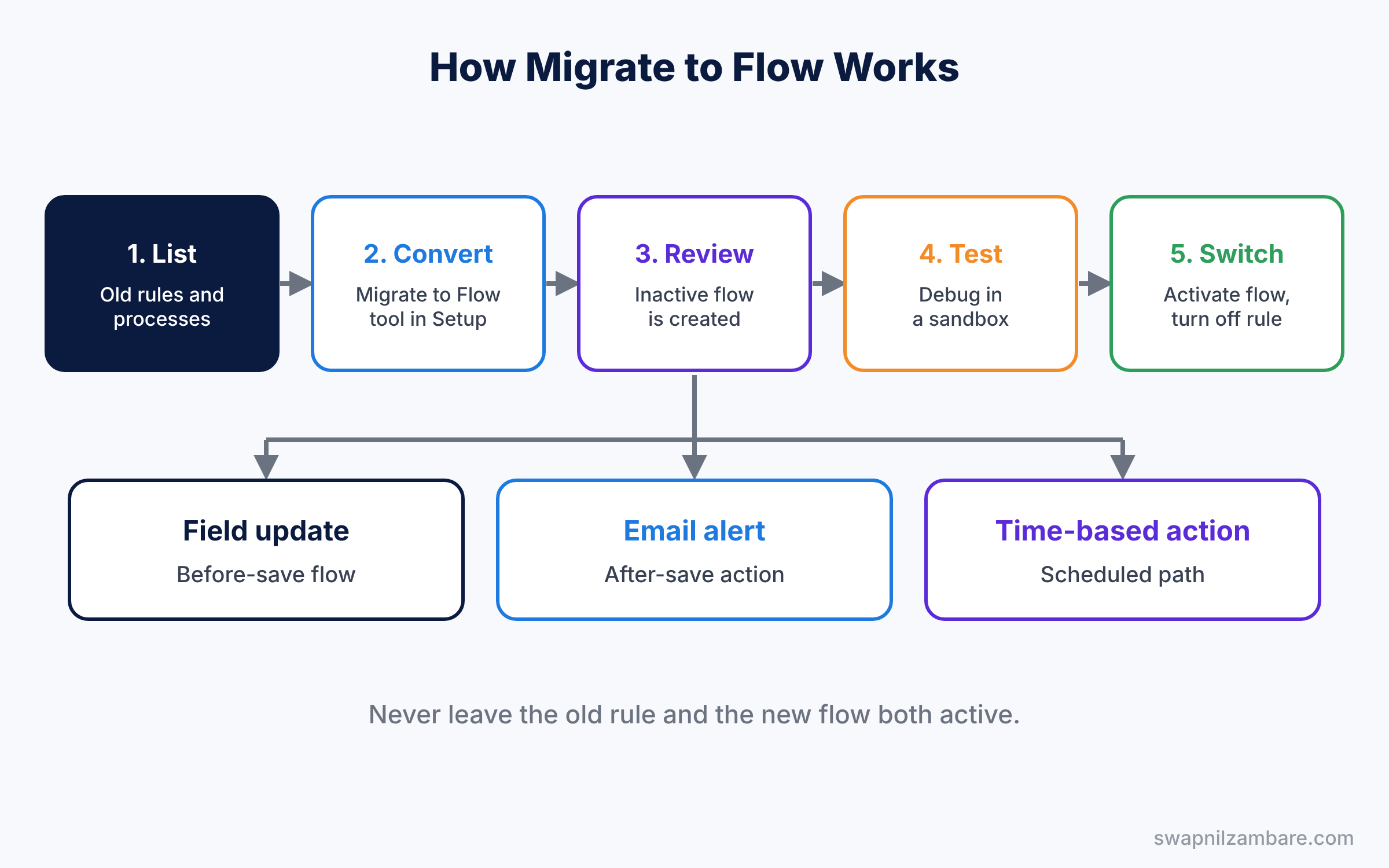
The last step is the most important one. If both the old rule and the new flow run together, actions happen twice, like duplicate emails.
Key Parts of Migrate to Flow
The Migrate to Flow page
First, in Setup, type “Migrate to Flow” in Quick Find. The page has tabs for Workflow Rules and Processes. It shows each item with its object and whether the tool can convert it.
How actions map to flow parts
Next, each old action becomes a flow element. Same-record field updates usually become a fast before-save flow. Email alerts become actions in an after-save flow. Time-based actions become scheduled paths.
What the tool cannot convert
Then some features need manual work. For example, some formula criteria, cross-object field updates and actions like outbound messages may need extra steps. The tool tells you which parts it skipped, so read its notes.
Combining automation
Salesforce suggests a small number of flows per object, not one flow per old rule. So after the tool creates several flows, you may merge them into one before-save and one after-save flow.
Testing tools
Finally, use the Debug button, Flow Trigger Explorer and debug logs to test. Our debug logs post later in this series shows how to read the log.
The table below shows how old actions map to new flow parts.
| Old action | New flow part | Runs |
|---|---|---|
| Field update on the same record | Assignment in a fast field update flow | Before save |
| Email alert | Send Email Alert action | After save |
| Time-based action | Scheduled path | Later, at the set time |
| Create a task | Create Records element | After save |
| Field update on a parent | Update Records element | After save |
Why Migrate to Flow: Workflow Rules vs Flows
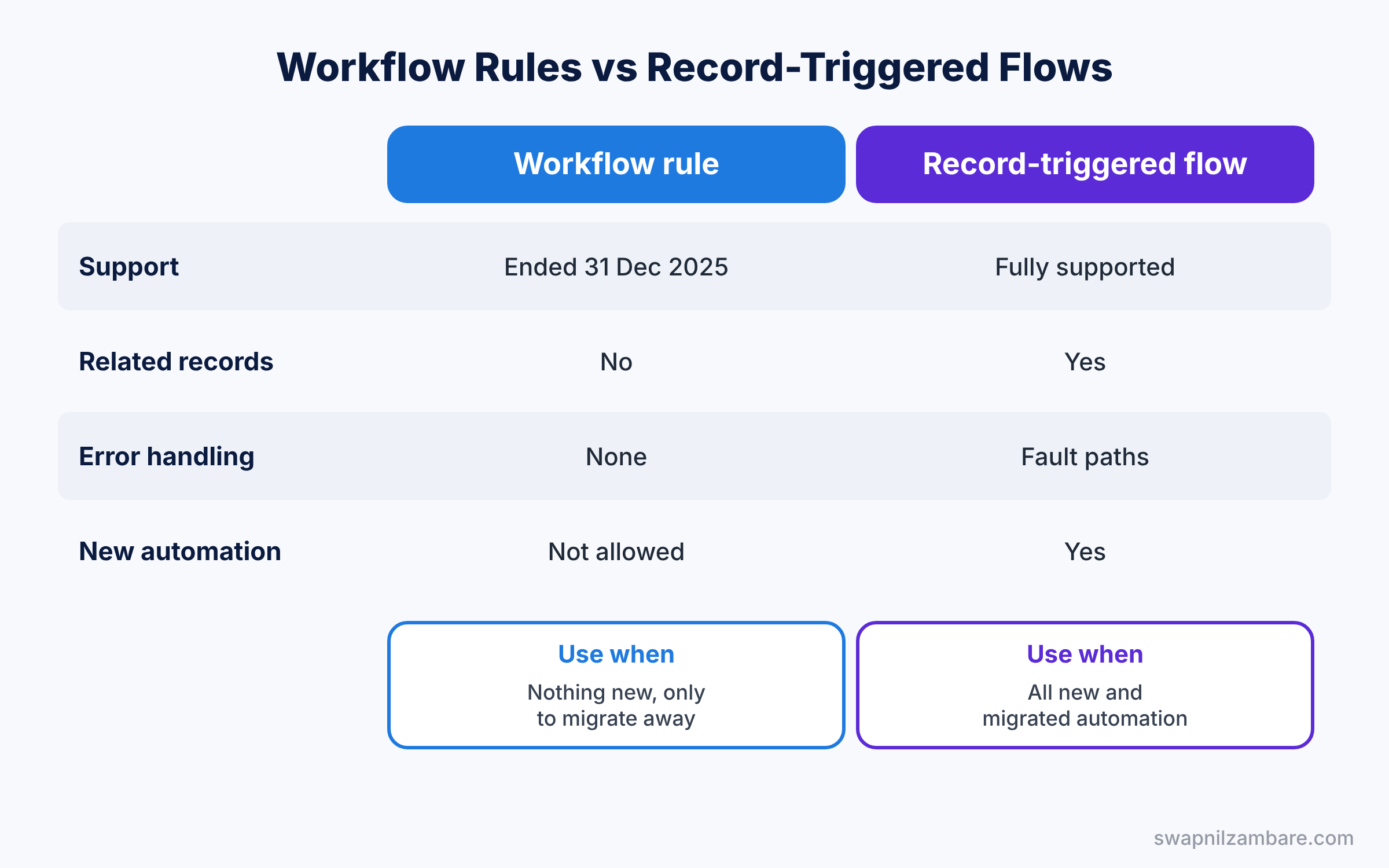
Before you migrate, it helps to see what you gain. The table below compares the old and new tools.
| Feature | Workflow Rule | Record-triggered flow |
|---|---|---|
| Support status | Ended 31 December 2025 | Fully supported |
| Create related records | No | Yes |
| Update related records | Parent only, limited | Any related record |
| Error handling | None | Fault paths |
| Best for | Nothing new | All new and migrated automation |
In short, use the migration tool for every workflow rule and process still active in your org. Build all new automation in Flow.
Hands-on Example: Migrate to Flow for a New Enrollment Rule
Many new orgs cannot create workflow rules anymore. So first check what your org already has, then practise with any old rule you find, or follow these steps in a sandbox of an older org.
Step 1: List old automation
Developers can list active workflow rules with the Tooling API query below, from the Developer Console Query Editor with Use Tooling API ticked.
SELECT Id, Name, TableEnumOrId
FROM WorkflowRule
ORDER BY TableEnumOrId
The Process Builder page in Setup lists processes with their status. Write both lists in a sheet with the object and actions.
Step 2: Run the tool
- In Setup, open the migration page and select the Workflow Rules tab.
- Choose “New Enrollment Welcome”, which sets Status to Active and sends a welcome email alert.
- Click Migrate to Flow. The tool creates an inactive flow and shows a link to it.
Step 3: Review the new flow
- Open the flow in Flow Builder. Check the entry criteria in the Start element.
- Compare each action with your sheet, using the values in the table below.
| Old rule part | Value | Found in the new flow |
|---|---|---|
| Criteria | Fee Paid greater than 0 | Start element condition |
| Field update | Status = Active | Update or assignment step |
| Email alert | Welcome Email | Send Email Alert action |
Step 4: Test and switch over
- Click Debug, pick a test enrollment, and run it. Check that Status changes and the email is queued.
- Then activate the flow and deactivate the workflow rule at the same time.
- Create a real test enrollment and confirm only one welcome email arrives.
Step 5: Confirm nothing is left
After all migrations, open the Workflow Rules page in Setup and check that every rule shows as inactive. Then check your active flows with this query.
SELECT ApiName, ProcessType, TriggerType, IsActive
FROM FlowDefinitionView
WHERE IsActive = true
ORDER BY ApiName
Each migrated rule should now appear as an active flow, with a matching old rule turned off.
Common Mistakes with Migrate to Flow
- Leaving both versions active. Customers get two emails and fields update twice.
- Migrating without a list. You lose track of which rules are done.
- Skipping tests. The tool is a helper, not a promise that the logic is identical.
- One flow per old rule. Dozens of small flows make the order hard to control.
- Forgetting time-based actions. Pending actions from the old rule may still fire, so check the queue.
Best Practices for Migrate to Flow
- Start with simple rules. Field updates and email alerts give quick wins.
- Migrate one object at a time. Then you can merge flows for that object cleanly.
- Use a sandbox first. Our sandboxes and change sets guide shows how to deploy the result.
- Add fault paths. Old rules had no error handling, so add it now.
- Document every change. Note the old rule name in the flow description.
Practice Task
Pick one active process in your org, migrate it with the tool, and merge its actions into an existing after-save flow on the same object. Then deactivate the process.
Hint: copy the new elements into the existing flow, then delete the extra flow the tool created.
Migrate to Flow FAQ
Will old workflow rules stop running?
They may keep running, but Salesforce no longer supports them or fixes their bugs. So migrate them as soon as you can.
Can I still create new workflow rules?
New orgs and most existing orgs can no longer create them. Build all new automation in Flow.
Does the tool migrate Apex triggers?
No. It only converts workflow rules and processes. Apex triggers stay as they are.
Official Resources
Quick Recap
- Migrate to Flow converts old workflow rules and processes into flows.
- Support for Workflow Rules and Process Builder ended on 31 December 2025.
- The tool creates inactive flows that you test before activating.
- Turn off the old rule when you turn on the new flow.
- Merge small flows so each object has a clear automation design.
What’s Next?
Your automation now lives in one tool. Next, learn how to read debug logs to see exactly what your flows and rules do. Read Salesforce Debug Logs for Admins: Find and Fix Automation Errors. Also revisit advanced flows to add fault paths.


