Salesforce Debug Logs record what happens inside a transaction, such as which validation rules ran, which flows started, and which records were saved. When a user says “the record will not save” or “the field changed by itself”, the debug log tells you why. In our order of execution guide, you saw a few log lines. Now you will learn to set up logs and read them like a detective.
In this post, you will learn what trace flags and debug levels are, where logs live, and which log lines matter most for admins. Then you will trace a failing enrollment save at Bright Path Tutors and find the rule that blocks it. You will also use the flow tools from our advanced flows guide, because flows and logs work well together.
What are Salesforce Debug Logs?
A debug log is a text file that Salesforce writes while it processes a request for a user. It lists events in time order, such as database changes, validation rules, flow elements, Apex code and errors. Each log covers one transaction, like one record save.
Salesforce only writes logs when a trace flag is active. A trace flag says whose actions to log, for how long, and in how much detail.
Here is a simple analogy. Think of a CCTV camera in a shop. It only records when switched on, and you choose how sharp the picture is. Later, you rewind the tape to see exactly who did what. A trace flag switches the camera on, the debug level sets the sharpness, and the log is the tape.
Why Salesforce Debug Logs Matter
Without logs, admins guess. They switch off rules one by one and hope the problem goes away. That wastes time and can break other things.
Here are some real situations at Bright Path Tutors.
- A support agent cannot save an enrollment and sees a vague error.
- Course fees change to 5,000 overnight, and nobody knows which automation did it.
- A flow sends two emails instead of one after a new rule went live.
- An integration user’s nightly load fails on some records only.
So debug logs turn guessing into facts, which makes fixes fast and safe.
How Salesforce Debug Logs Work
The process has four steps. First, you create a trace flag for a user, an Apex class or the Automated Process user. Next, you pick a debug level, which sets how much detail each category records. Then the user repeats the action that fails, while the trace flag is active. Finally, you open the new log from the Debug Logs page or the Developer Console and search for the important lines.
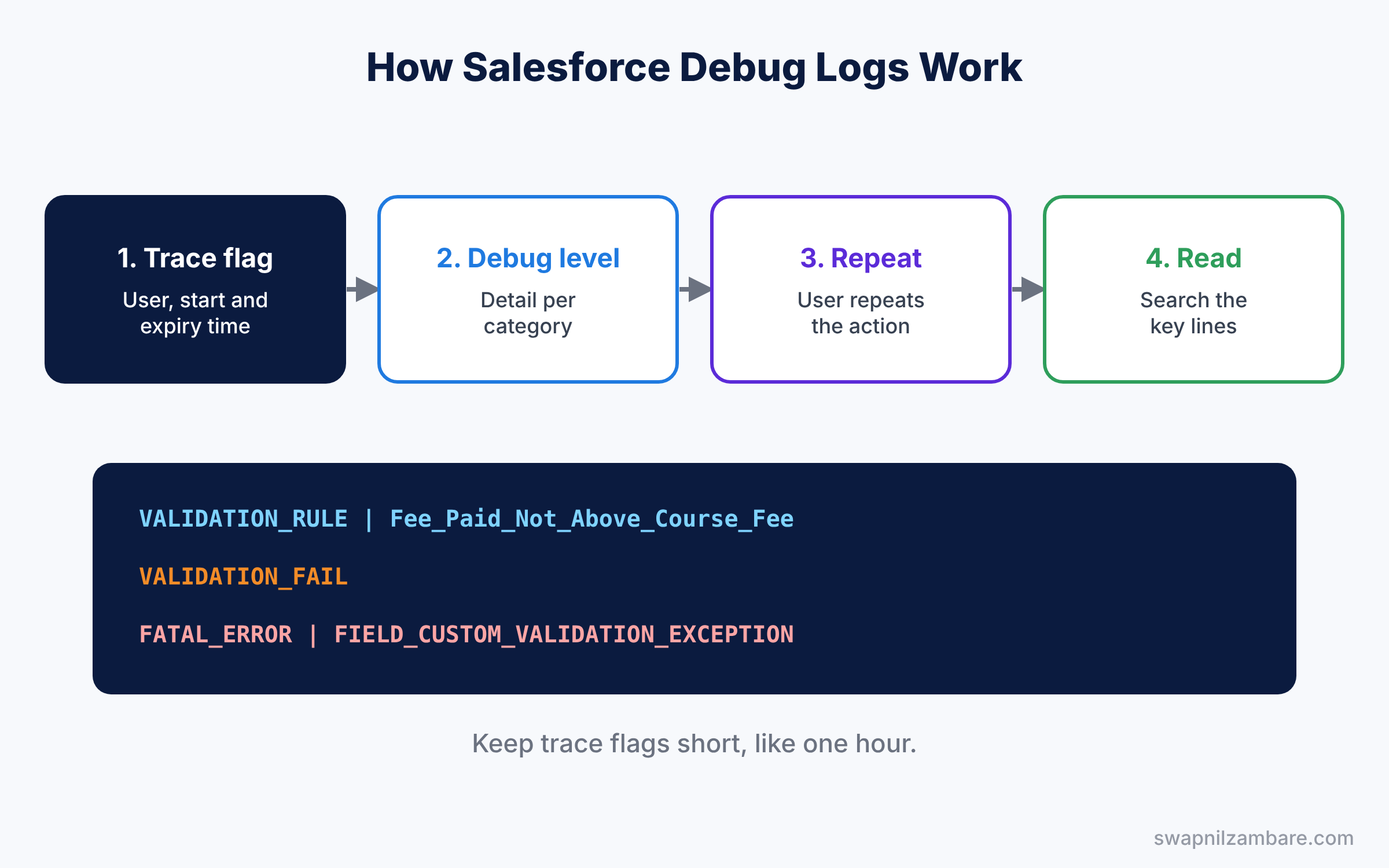
Trace flags expire, so they do not run forever. Set them for a short window, like one hour, while you test. Also, ask the user for the exact time of the error and the record name. With those two facts, you can pick the right log from a long list in seconds, instead of opening every file.
Key Parts of Salesforce Debug Logs
Trace flags
First, a trace flag links a traced entity to a debug level for a time window. The entity is usually a user, such as the support agent who sees the error. Scheduled paths and some background jobs run as the Automated Process user, so trace that user for them.
Debug levels and categories
Next, a debug level sets detail for each category. Categories include Database, Workflow, Validation, Apex Code and System. Levels go from NONE and ERROR up to FINE and FINEST, which record the most.
The Debug Logs page
Then, in Setup, the Debug Logs page lists new logs with the user, time, operation and size. Click View to read a log in the browser, or Download to save it.
The Developer Console
The Developer Console opens logs in a viewer with filters. You can tick “Debug Only” or search for words like VALIDATION_FAIL. It is the easiest place to read long logs.
Size limits
Finally, each log has a size limit, and very detailed levels fill it fast. When a log is too big, Salesforce cuts it short. So use FINEST only for the categories you need.
The table below lists the log lines admins search for most.
| Log line | What it means | Category |
|---|---|---|
| VALIDATION_RULE | A validation rule was checked | Validation |
| VALIDATION_FAIL | A rule blocked the save | Validation |
| FLOW_START_INTERVIEW_BEGIN | A flow started | Workflow |
| DML_BEGIN | Records are about to be saved | Database |
| FATAL_ERROR | The transaction failed | System |
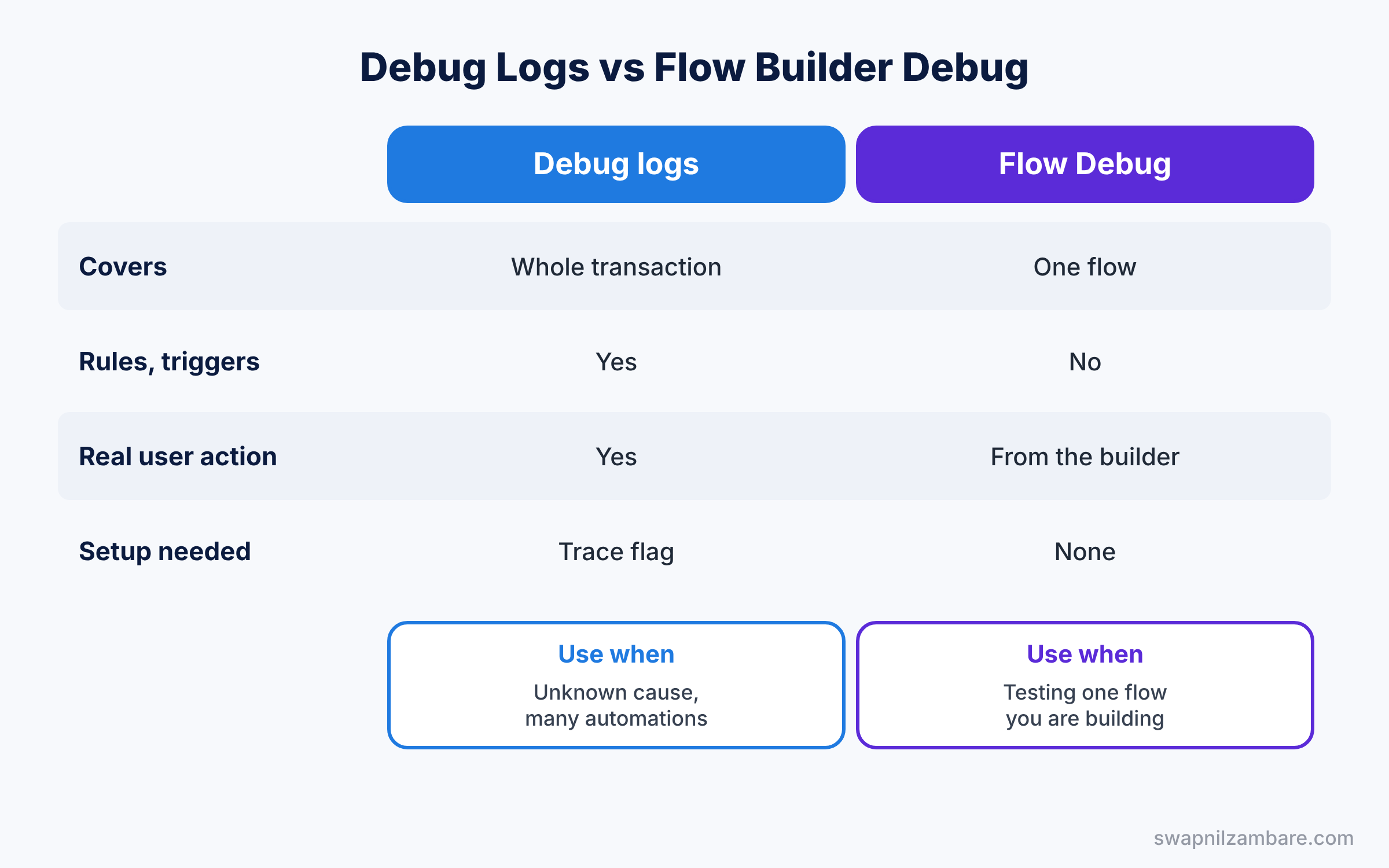
Debug Logs vs Flow Debug
Flow Builder also has a Debug button, so beginners ask which tool to use. The table below compares them.
| Feature | Debug logs | Flow Builder Debug |
|---|---|---|
| Covers | Everything in the transaction | One flow |
| Shows rules and triggers | Yes | No |
| Uses real user actions | Yes, as the traced user | Runs from the builder |
| Setup needed | Trace flag first | None |
| Best for | Unknown cause, many automations | Testing one flow you are building |
In short, use Flow Debug while you build a flow. Use Salesforce Debug Logs when you do not know which automation causes the problem.
Hands-on Example: Salesforce Debug Logs for a Failing Enrollment
Let’s trace a save that fails in your Developer Edition org.
Step 1: Create a debug level
- Go to Setup, type “Debug Logs” in Quick Find, and open Debug Logs.
- Click New under User Trace Flags, then click New Debug Level.
- Create “Admin Troubleshooting” with the levels from the table below.
| Category | Level |
|---|---|
| Database | INFO |
| Workflow | FINE |
| Validation | INFO |
| Apex Code | DEBUG |
| System | DEBUG |
Step 2: Create a trace flag
- Set Traced Entity Type to User and pick the support agent, such as Sana Khan.
- Set the start date to now and the expiration to one hour later.
- Choose the Admin Troubleshooting level and save.
Step 3: Repeat the failing action
Ask Sana to save the enrollment again, or log in as her and try it. A new log appears on the Debug Logs page within seconds. If several logs appear, pick the one whose Operation mentions the record save and whose time matches her click. Logs with a Status other than Success are often the ones you want.
Step 4: Read the log
Open the log and search for VALIDATION_FAIL. Here are the key lines, shortened.
VALIDATION_RULE|03dXX000000AbCd|Fee_Paid_Not_Above_Course_Fee
VALIDATION_FORMULA|Fee_Paid__c > Course__r.Fee__c|Fee_Paid__c=9500, Course__r.Fee__c=9000
VALIDATION_FAIL
FATAL_ERROR|FIELD_CUSTOM_VALIDATION_EXCEPTION
The log shows the rule name, the formula, the real field values and the result. So the problem is clear: the fee paid of 9,500 is higher than the course fee of 9,000. Fix the data, and the save works.
Step 5: Clean up
Delete old logs from the Debug Logs page when you finish. Then remove the trace flag, or let it expire. Finally, write a short note in your team’s tracker with the cause and the fix, so the next admin can solve the same error faster.
Common Mistakes with Salesforce Debug Logs
- Tracing the wrong user. Logs only cover the traced entity, so trace the person who sees the error.
- Forgetting the Automated Process user. Scheduled paths will not appear in your own logs.
- Using FINEST everywhere. Logs fill up and get cut short before the important part.
- Long-running trace flags. They slow down busy users and fill log storage.
- Reading top to bottom. Search for key words first, then read around them.
Best Practices for Salesforce Debug Logs
- Keep a saved debug level for admins. It saves setup time on every issue.
- Trace for one hour. Short windows keep logs small and focused.
- Write down the steps to repeat. A clean test gives a clean log.
- Use the Developer Console filters. They hide noise and show the lines you need.
- Share logs with developers. The same log helps them fix Apex issues fast.
Practice Task
Create a before-save flow that changes a course’s fee, then trace your own user and save a course. Find the flow start line and the field change in the log.
Hint: search for FLOW_START_INTERVIEW_BEGIN, then look for the flow element name below it.
Salesforce Debug Logs FAQ
Can I see logs for a guest user on a site?
Yes. You can trace the site’s guest user like any other user.
How long do debug logs stay?
Logs are kept for a short time and there is an org-wide storage limit. So download any log you want to keep.
Do debug logs slow down the org?
Detailed logging adds some time to the traced user’s actions. That is why short trace flags are best.
Official Resources
Quick Recap
- Salesforce Debug Logs record what happens inside one transaction.
- Trace flags choose whose actions to log and for how long.
- Debug levels set the detail for each category.
- Search for VALIDATION_FAIL, FLOW_START and FATAL_ERROR first.
- Keep trace flags short and clean up old logs.
What’s Next?
You can now find the cause of any automation error. Next, we return to page design and learn how to show the right fields and buttons at the right time. Read Salesforce Dynamic Forms and Dynamic Actions. You can also revisit our Migrate to Flow guide.


